
pcActivity User Guide
Step-by-step help for every feature. Use the arrows, or click the right or left side of a picture, to move between steps.
Start Your Free Trial
Try every Business feature free for 14 days on up to 10 PCs. You don't need a card.
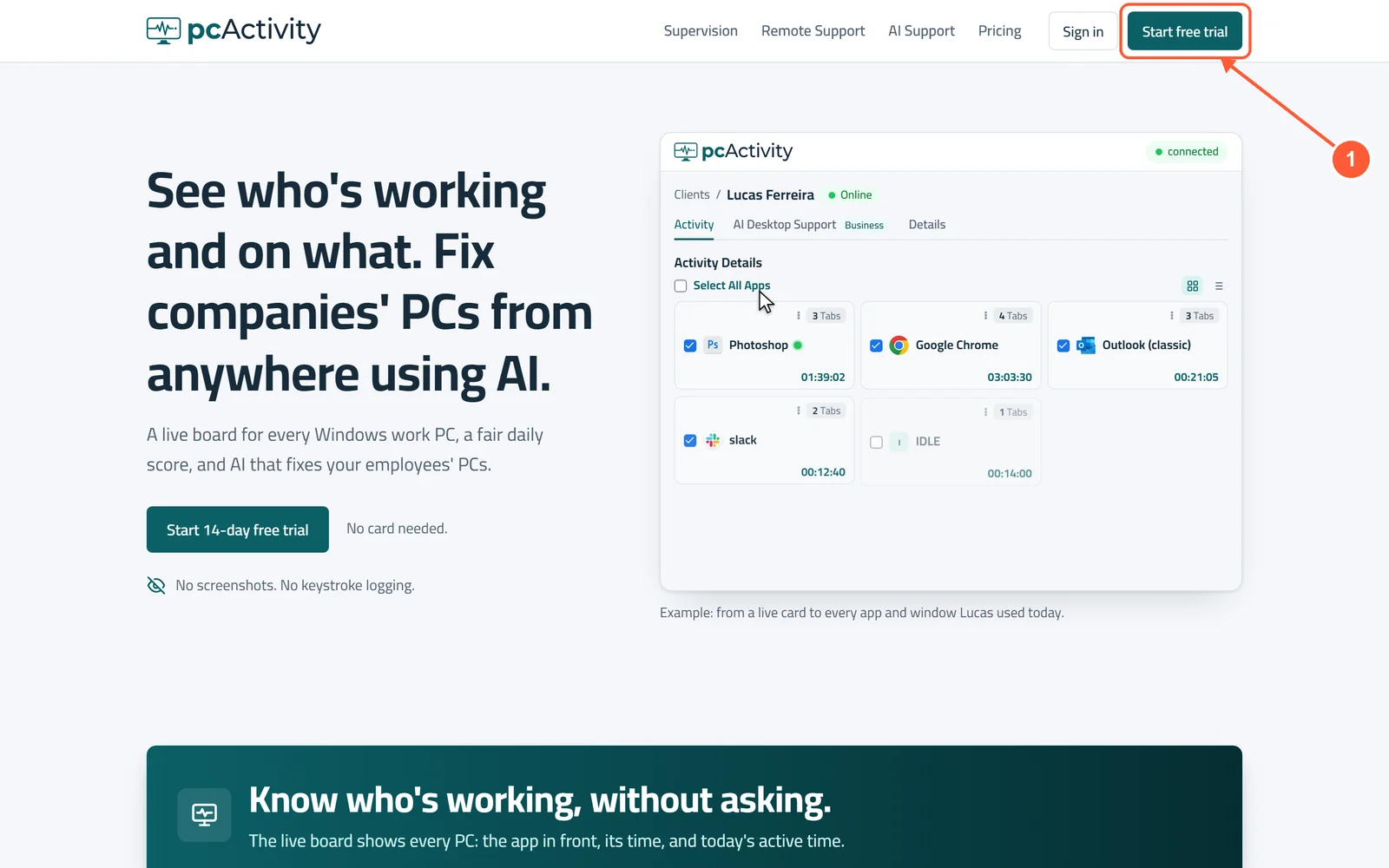
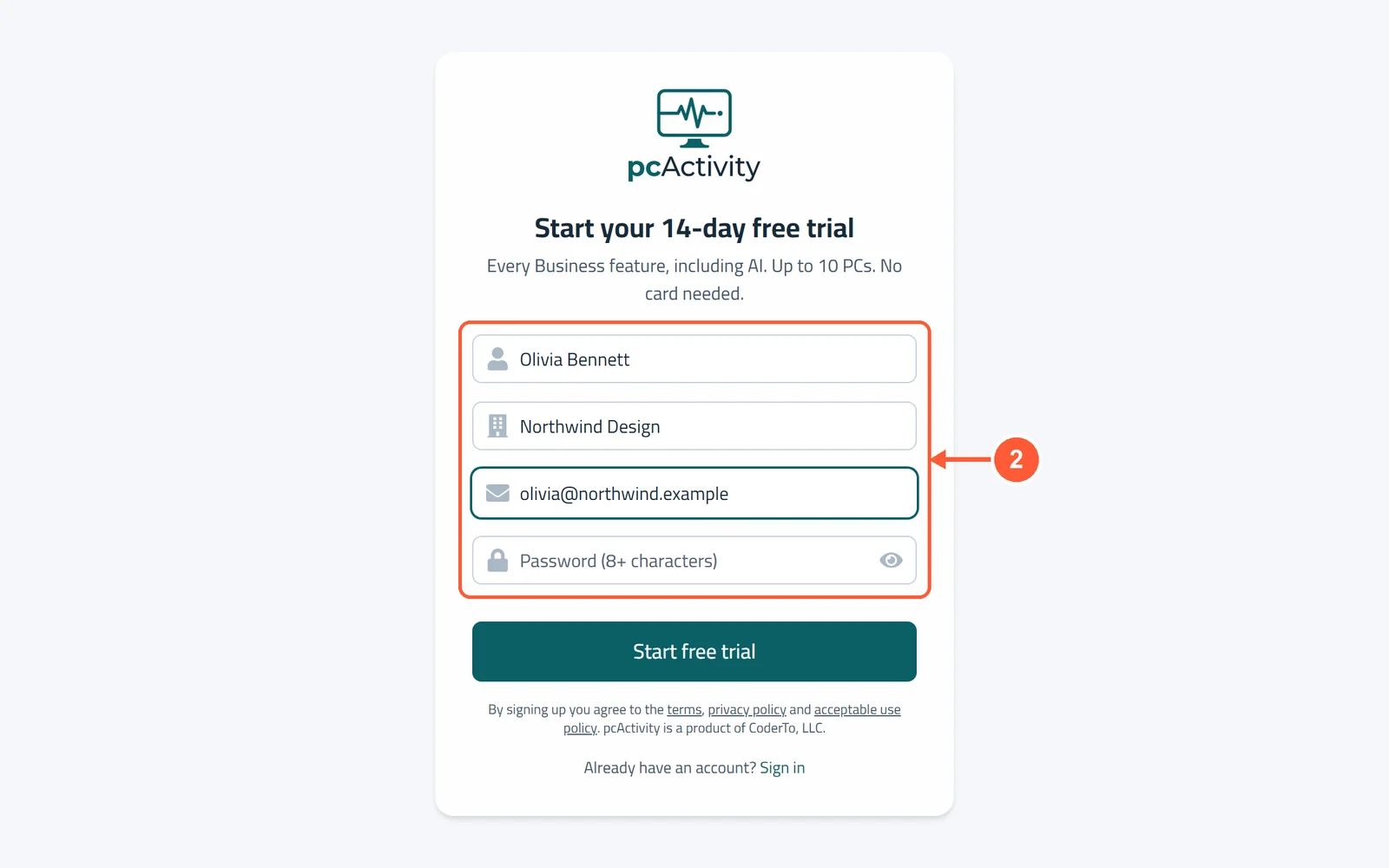
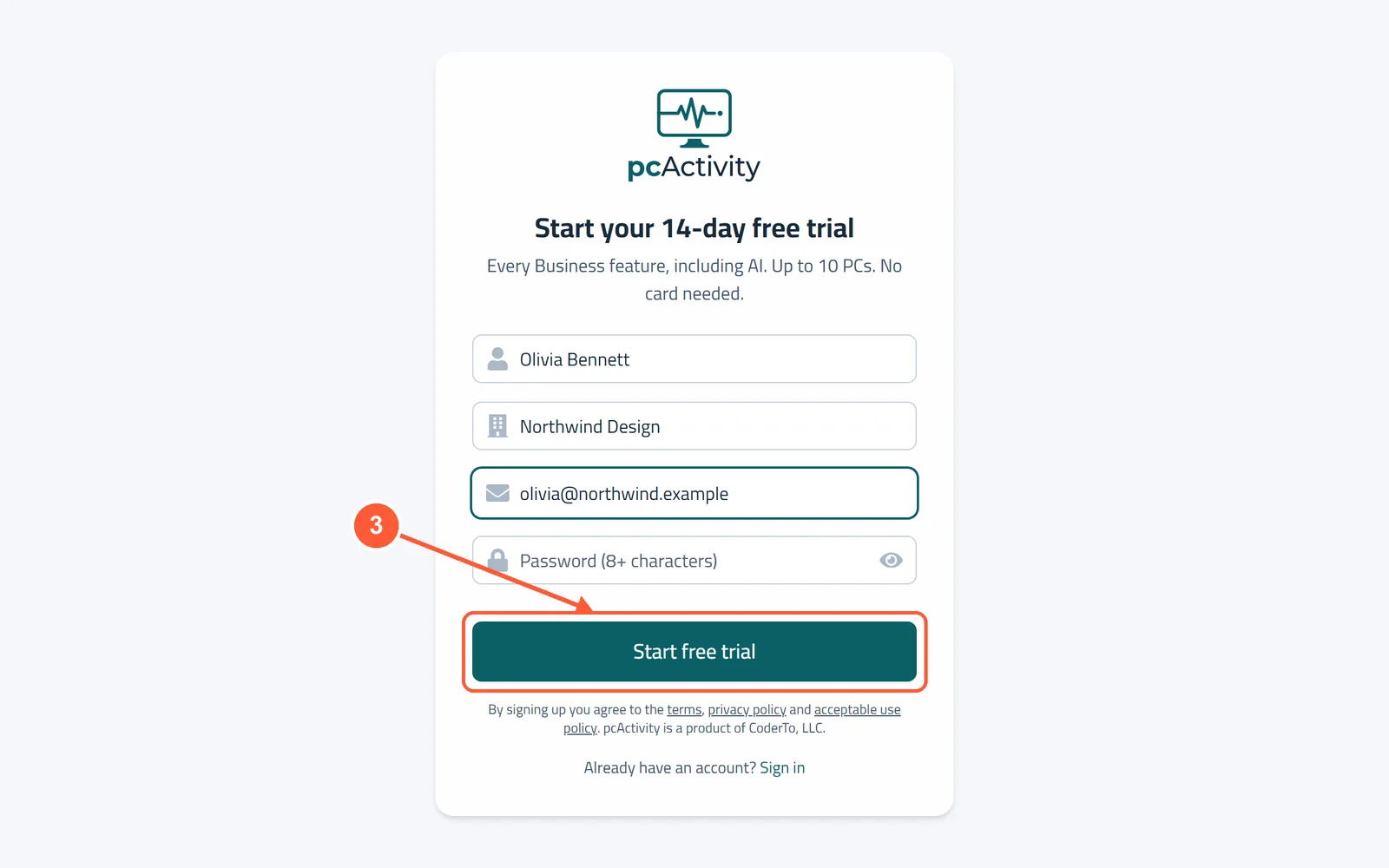
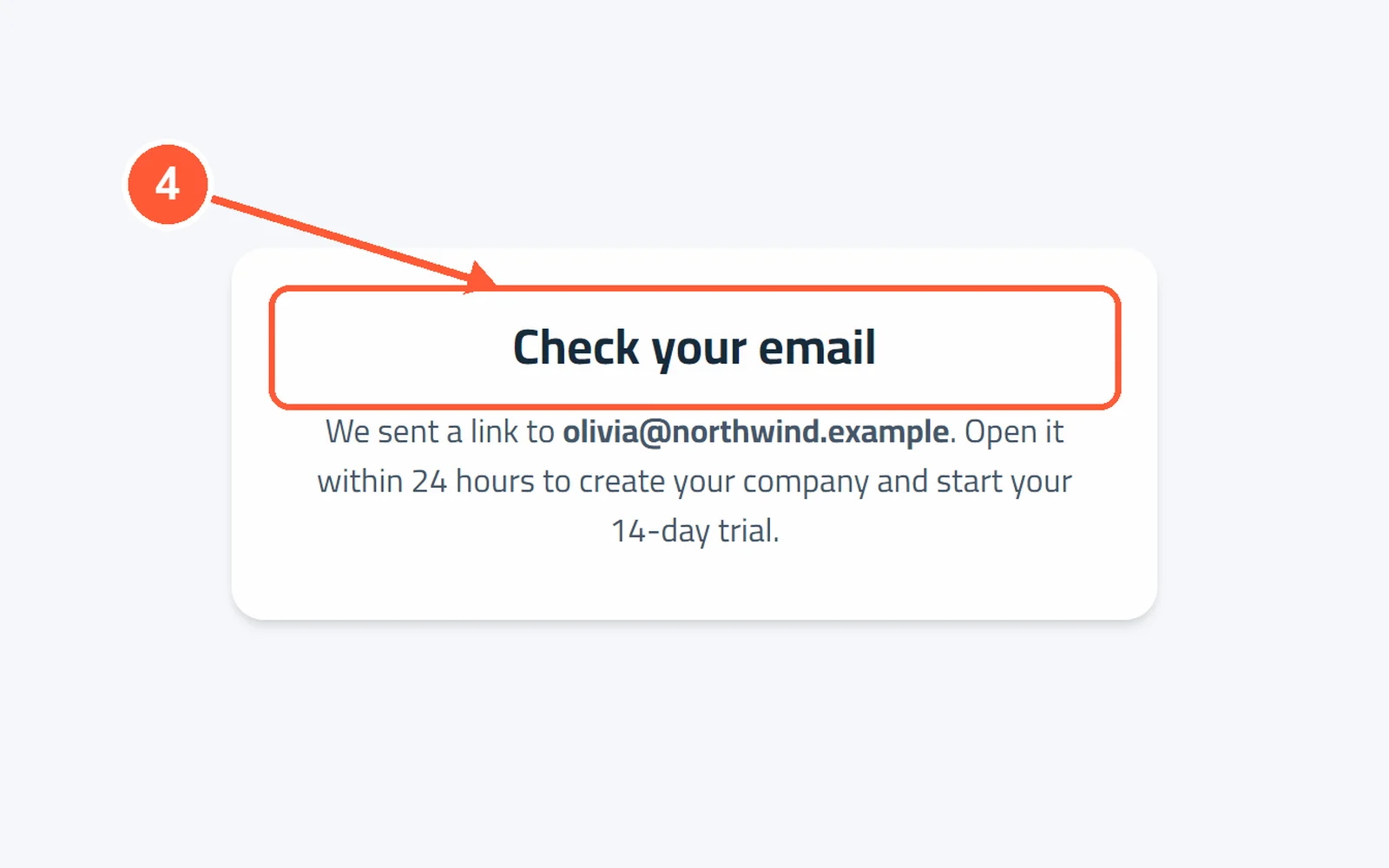
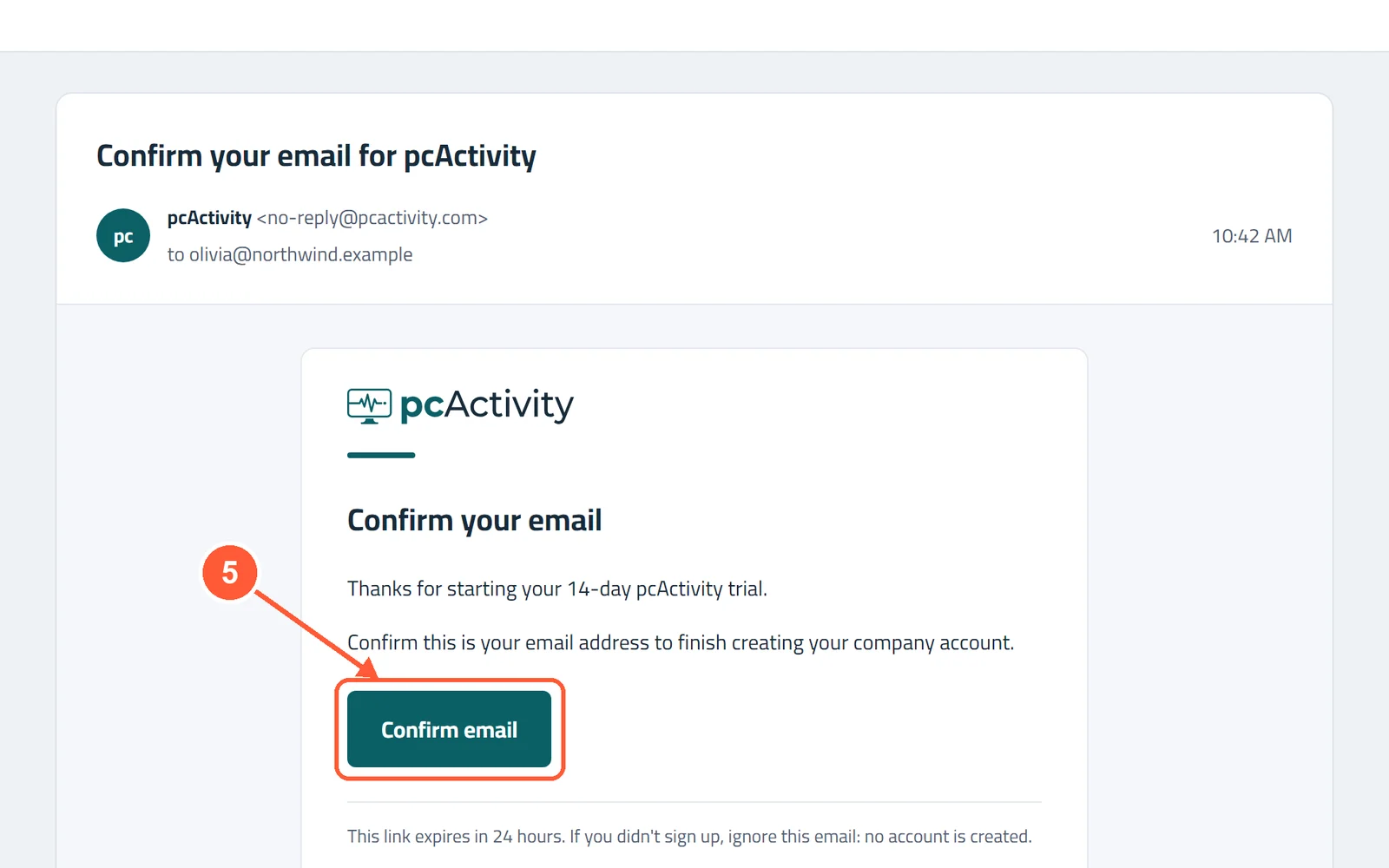
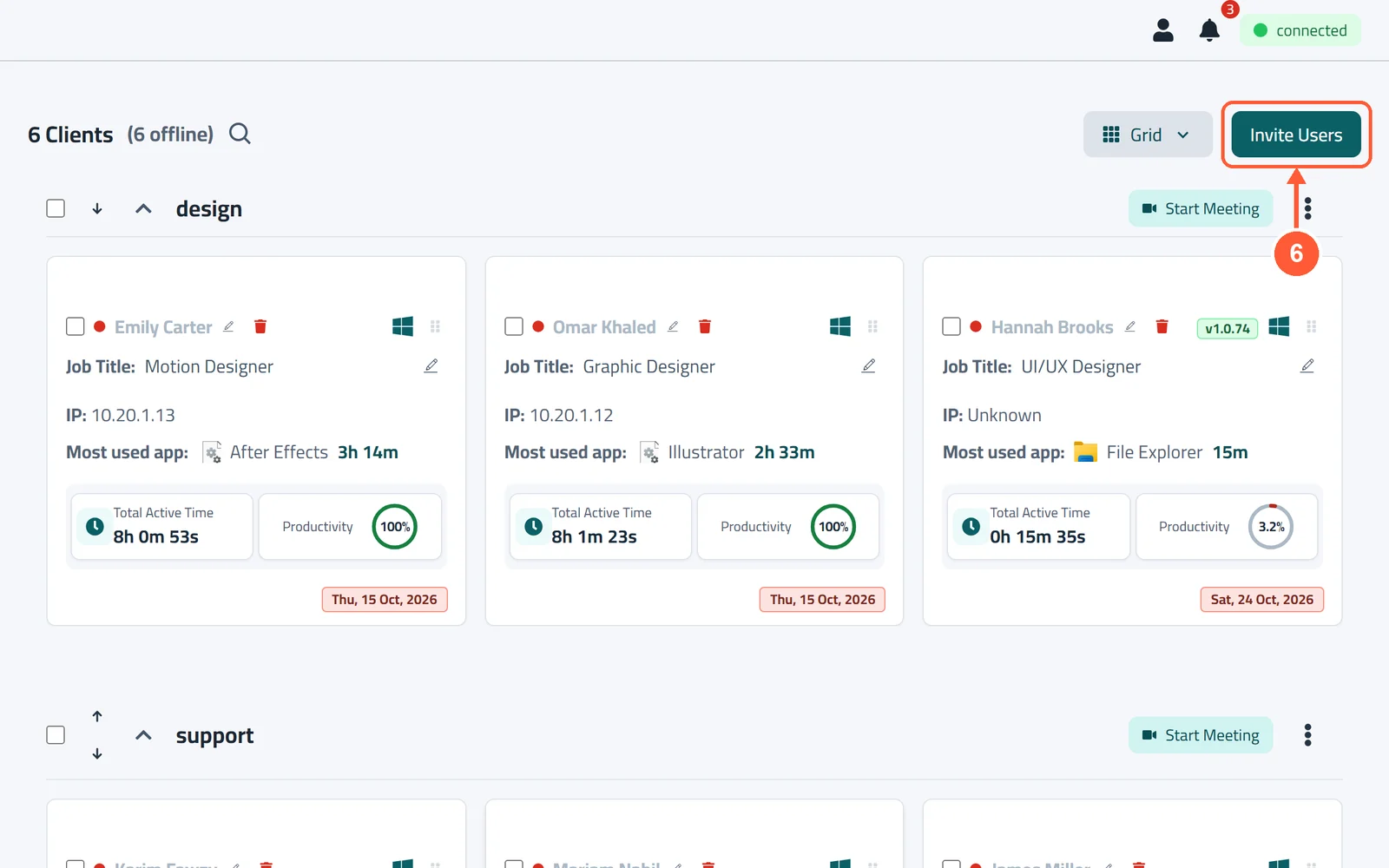
1Go to pcactivity.com and click Start free trial.1 / 6
💡 Good to Know
- No email? Check your spam folder, or sign up again: a new link replaces the old one.
- When the 14 days end without a card, the agents simply stop recording. Nothing is charged.
- Add a card any time under Settings → Billing to keep going after the trial (see Plans & Billing).
Install pcActivity on Employee PCs
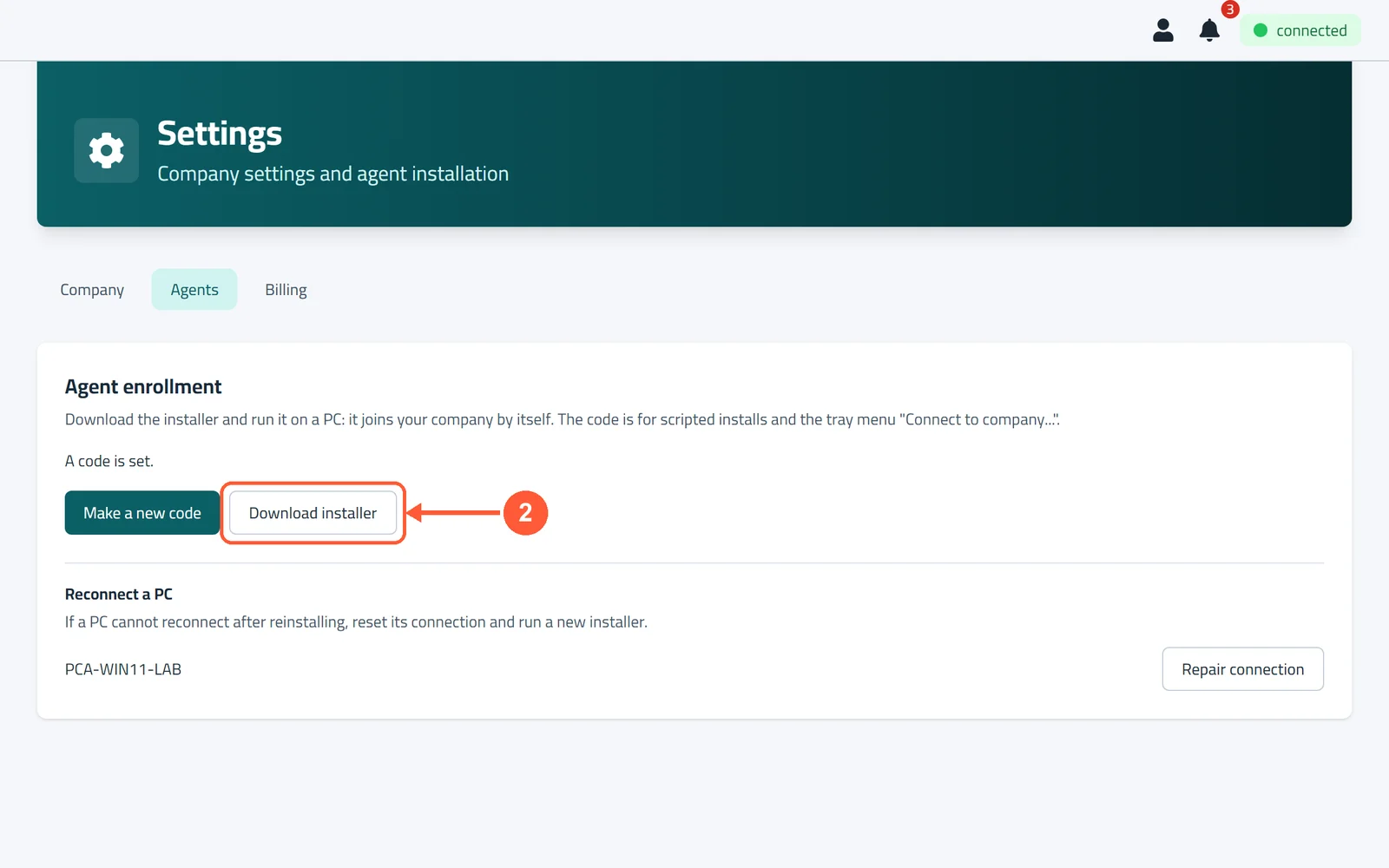
Put pcActivity on each employee's computer once. It joins your company by itself and starts every time the PC turns on. The employee never has to sign in to it.
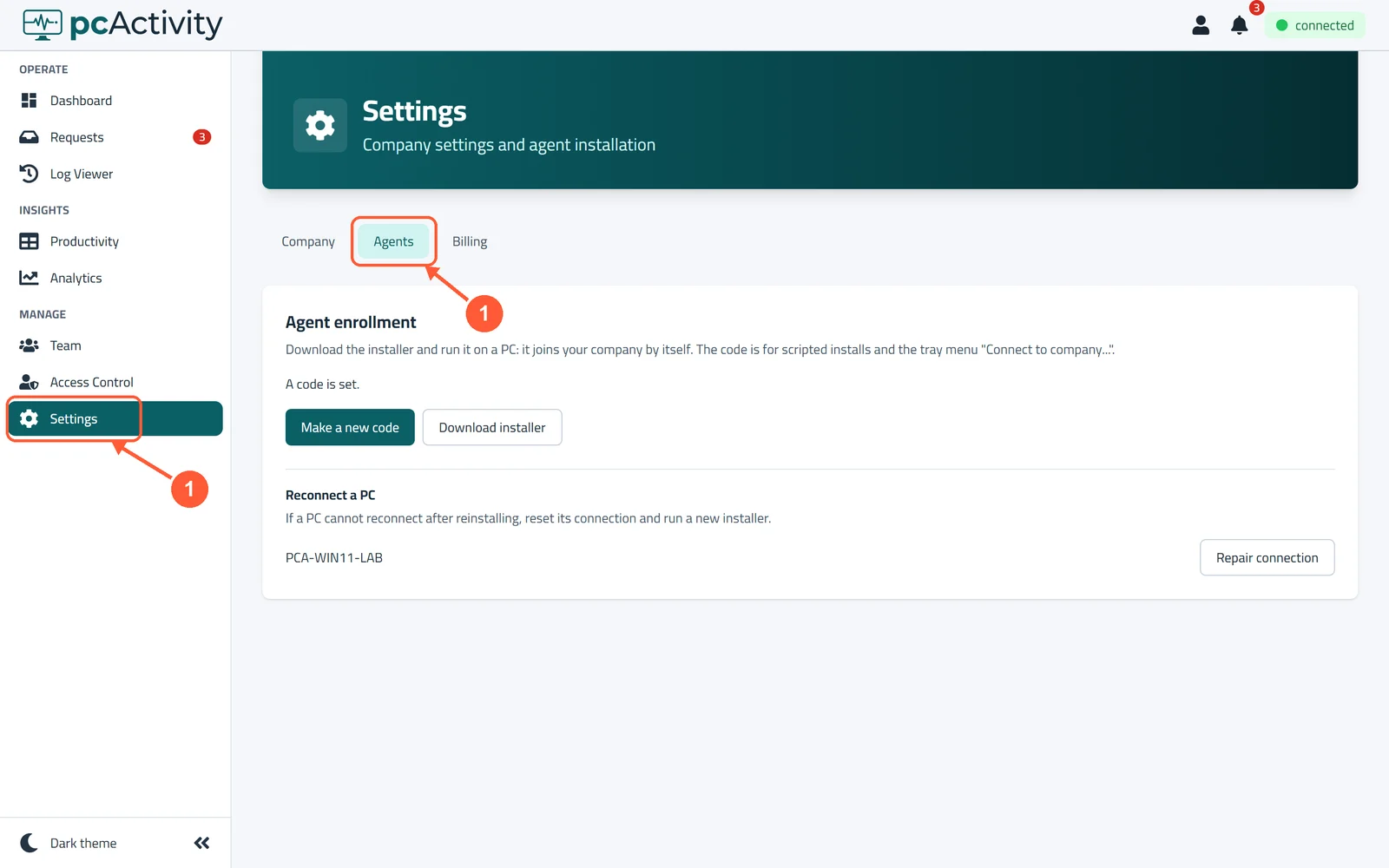
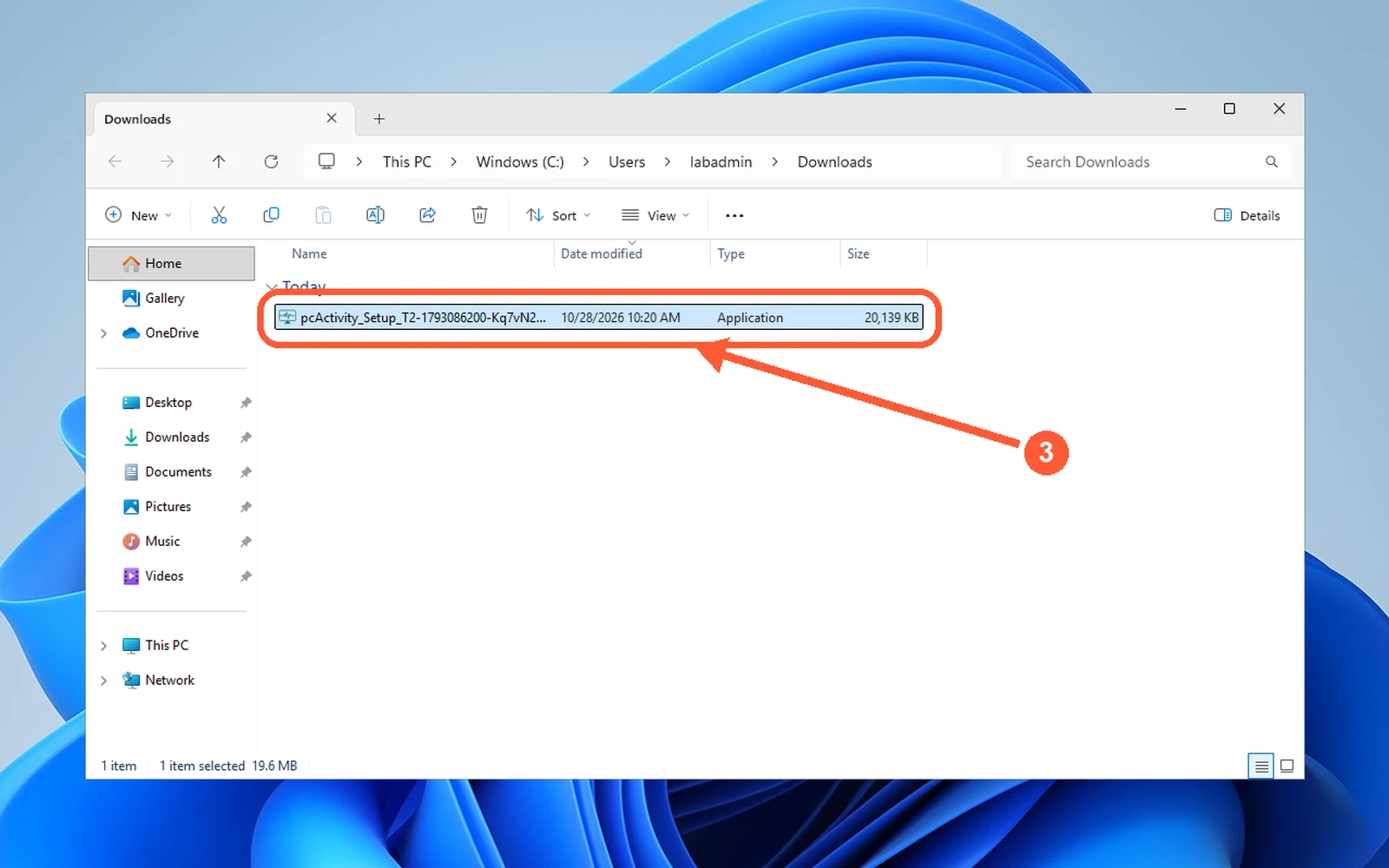
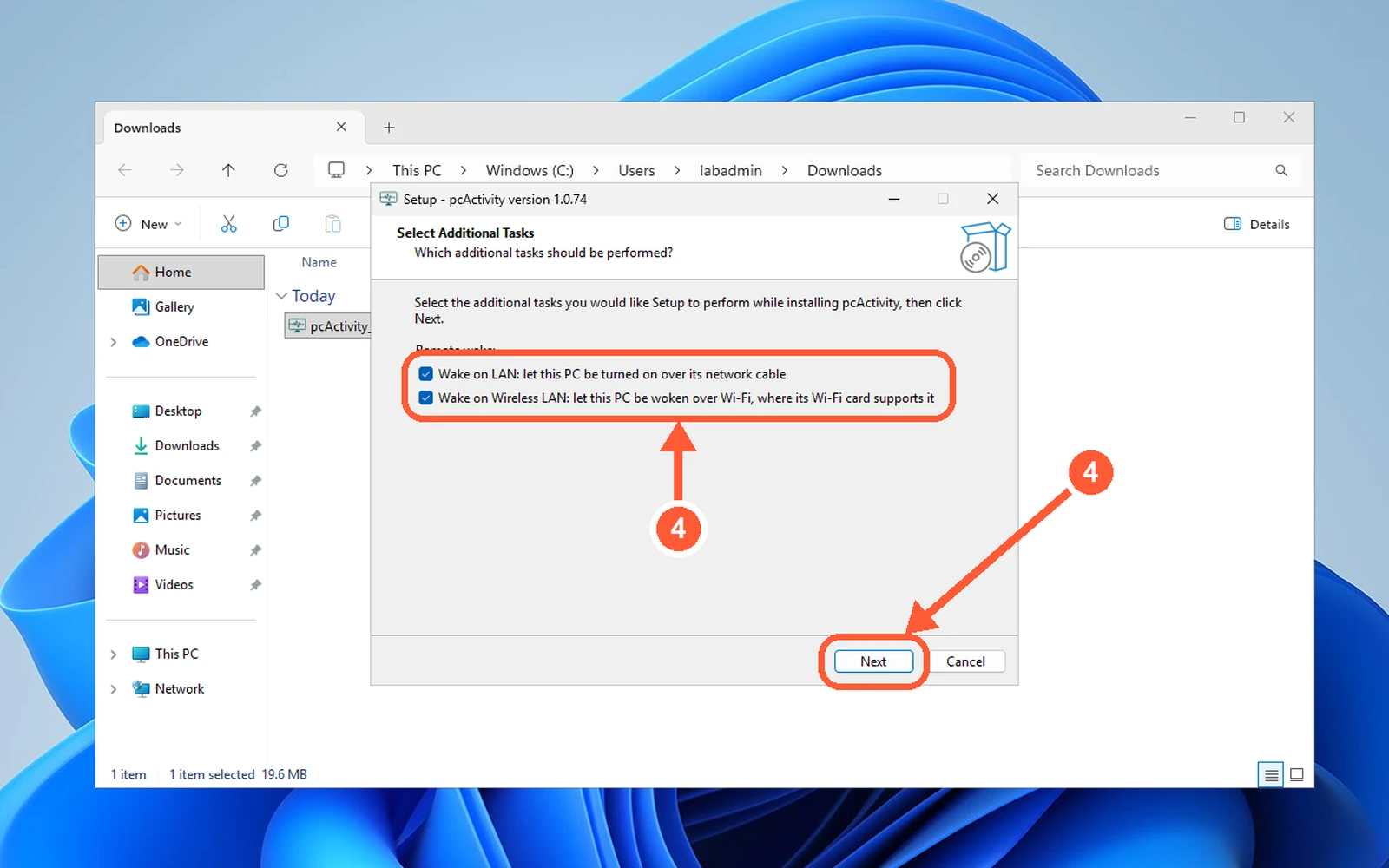
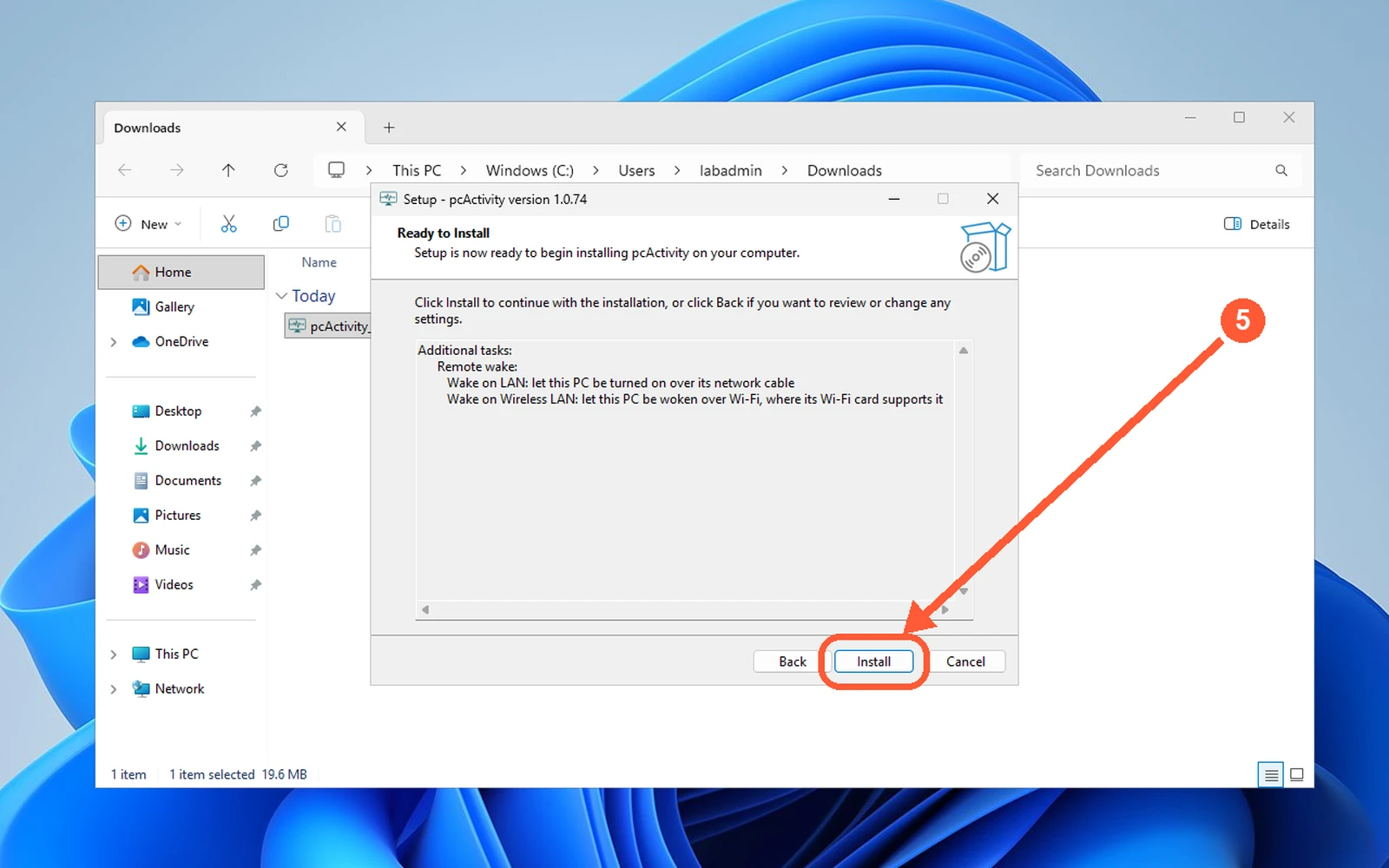
1Click Settings in the menu on the left, then open the Agents tab.1 / 7
💡 Good to Know
- You need to be an administrator on the employee's PC. A downloaded installer works for 30 days, so download a fresh one after that.
- Setting up many PCs with a script, or reconnecting a PC? Use a company code instead: click Make a new code, then on the PC right-click the pcActivity icon and choose Connect to company....
- If a reinstalled PC won't reconnect, click Repair connection next to it under Reconnect a PC, then run a new installer.
Set Your Company Timezone & Currency
Tell pcActivity where your company works, so work hours, daily scores and every time on the dashboard match your office clock.
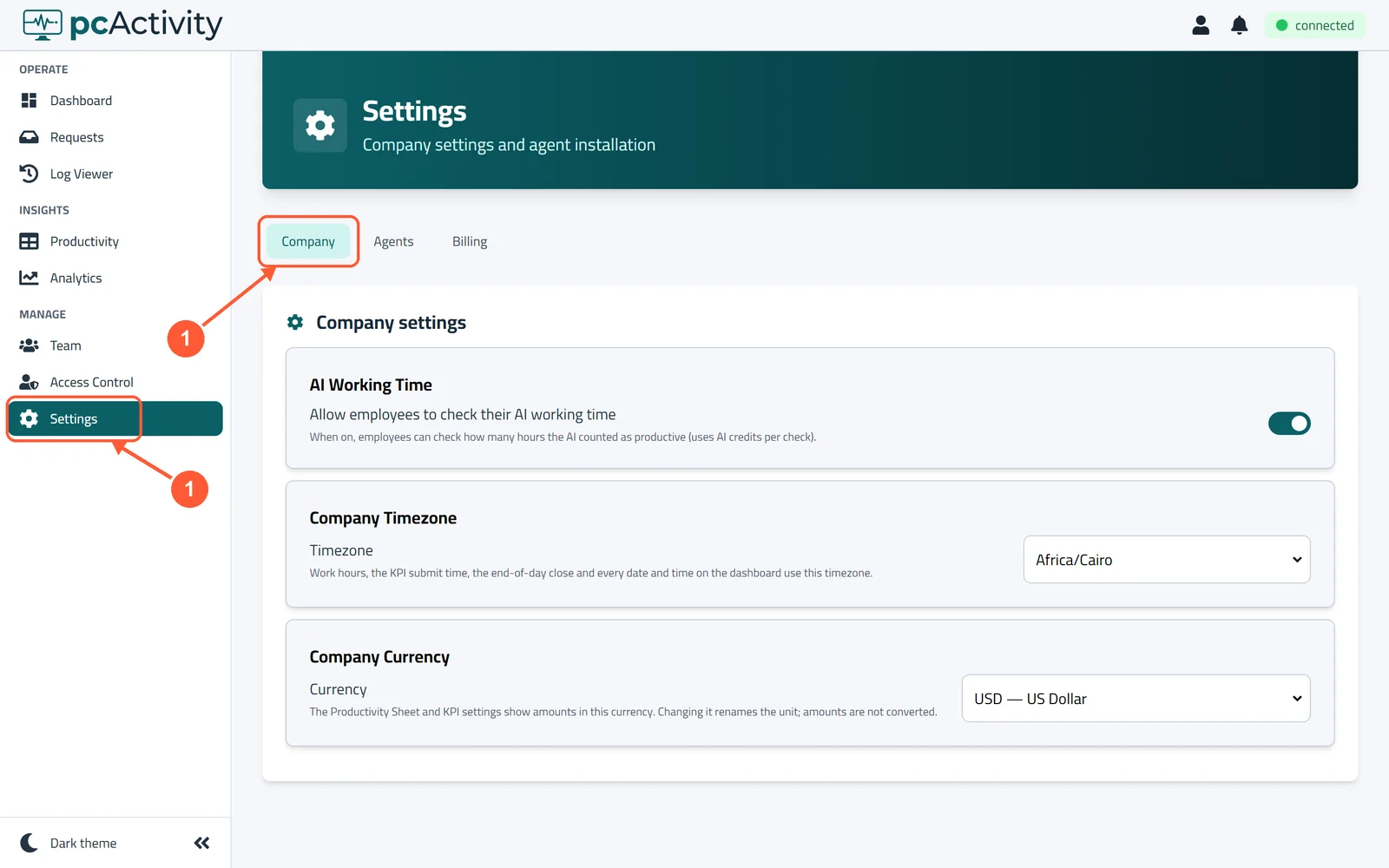
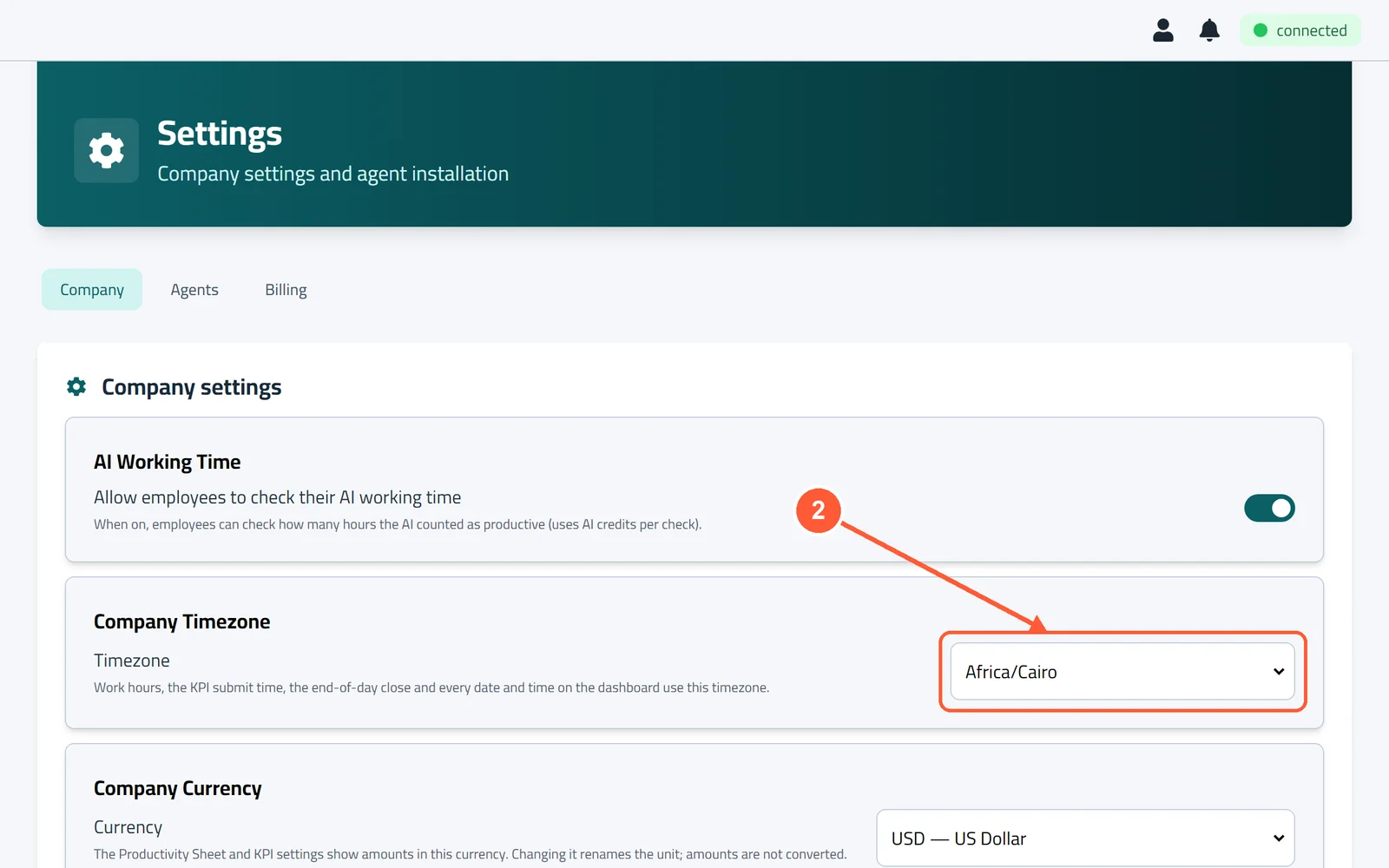
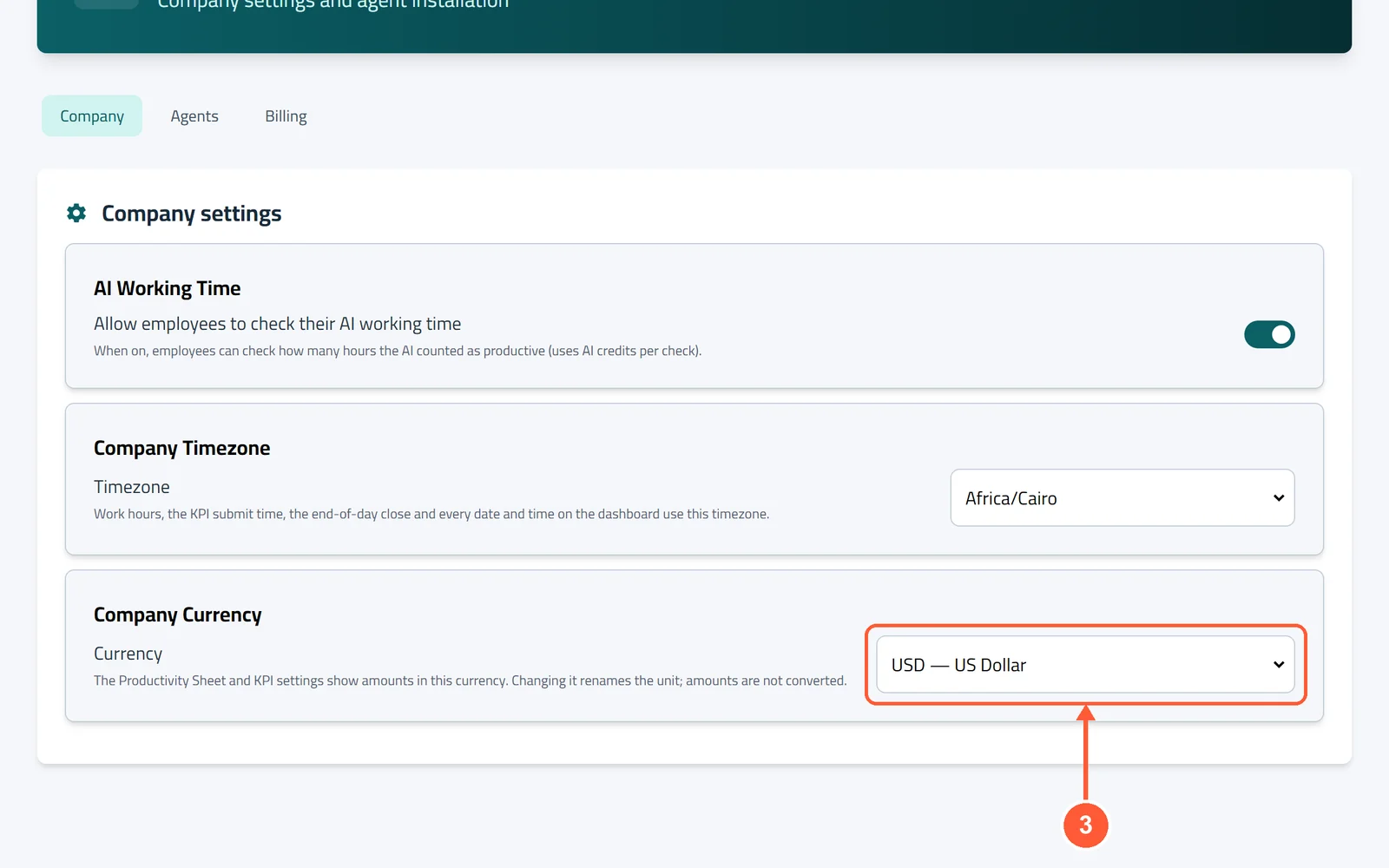
1Click Settings in the menu on the left. The Company tab opens.1 / 3
💡 Good to Know
- Set the timezone first, before PCs start reporting. To change it for a company that's already running, contact pcActivity support.
- Changing the currency only renames the unit. Amounts aren't converted.
- AI Working Time (Business plan) lets employees check how many of their hours the AI counted as work.
Organize Employees into Groups
Groups keep teams apart: each group has its own work hours, app rules and productivity sheet, and managers only see their own groups.
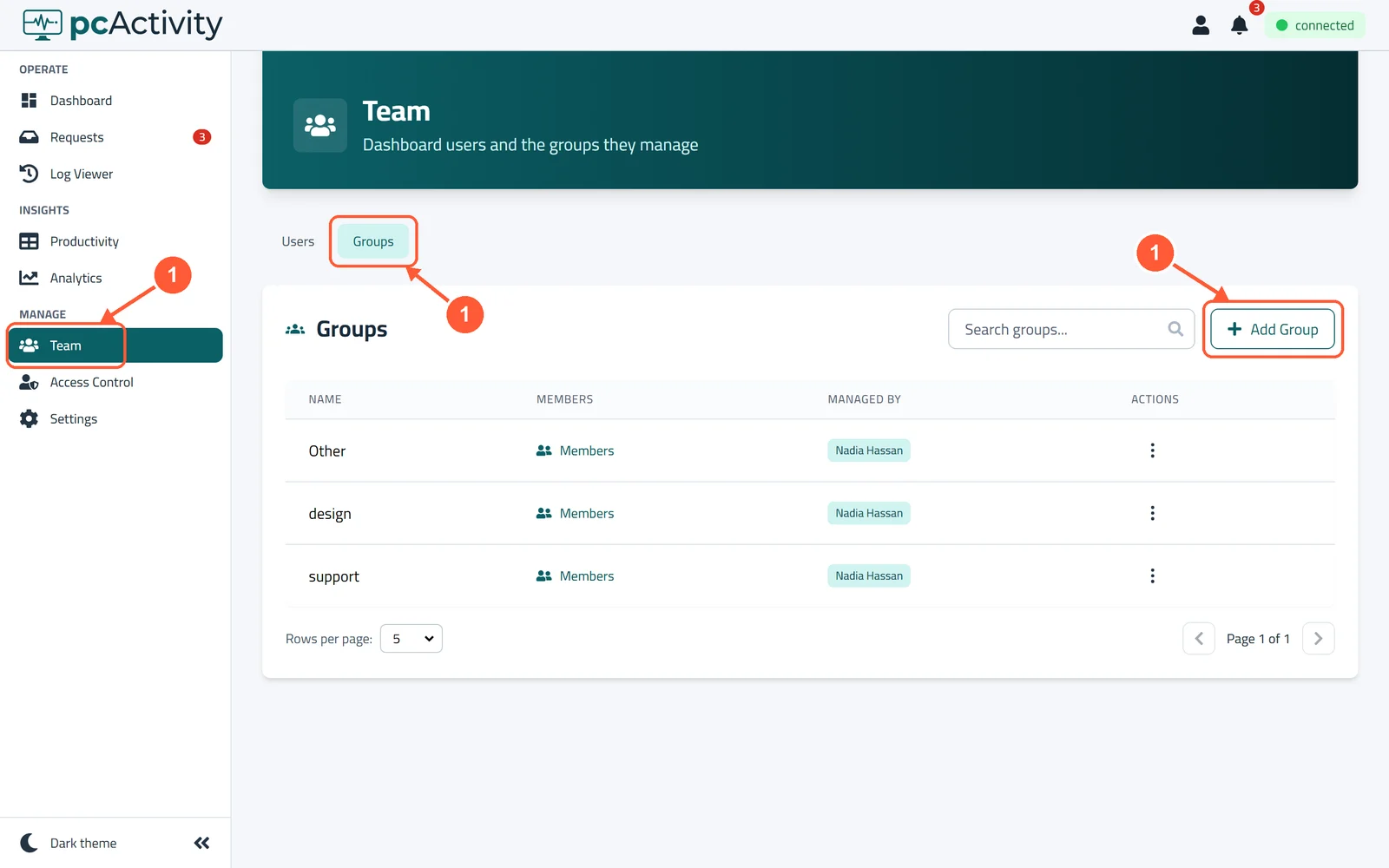
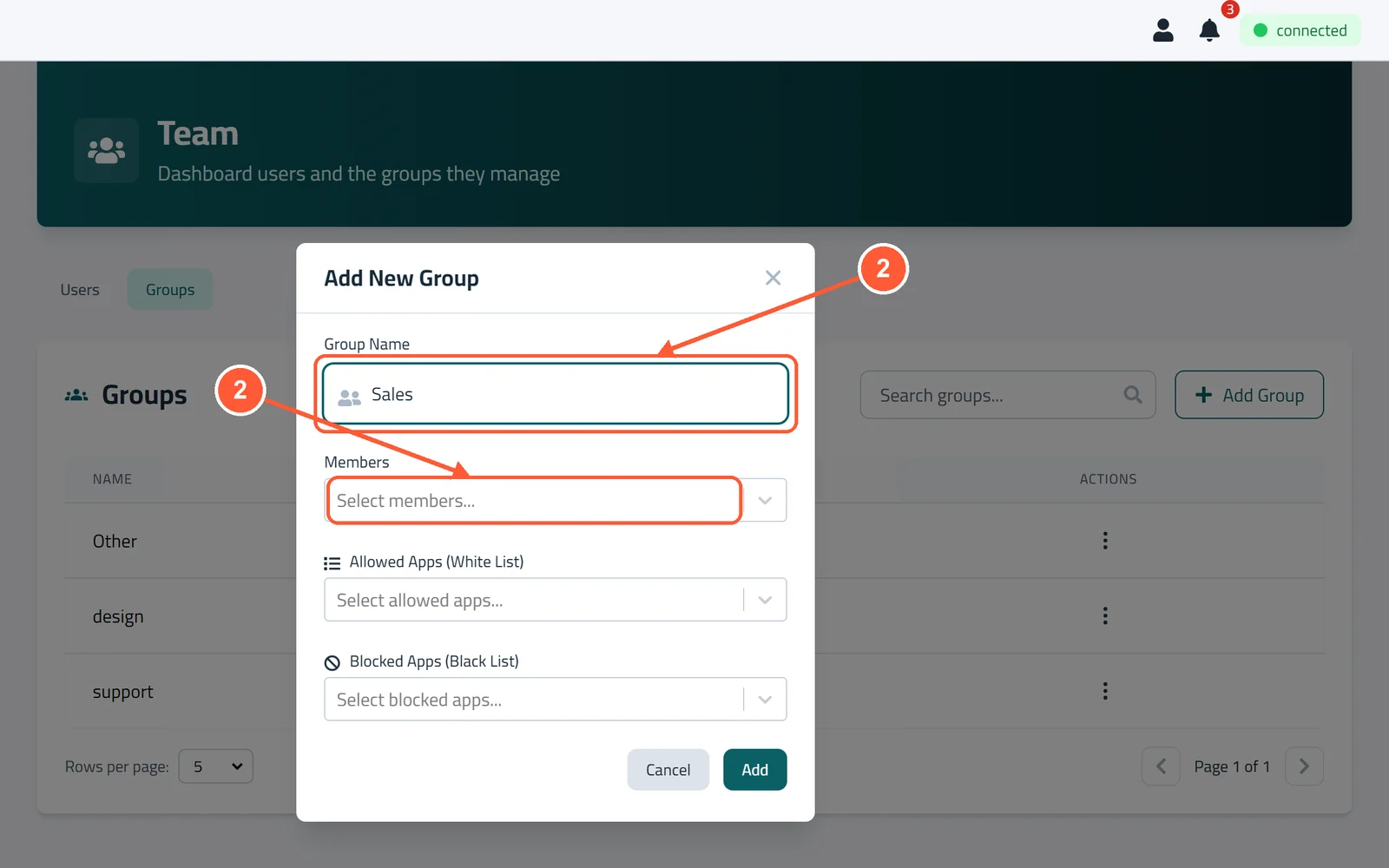
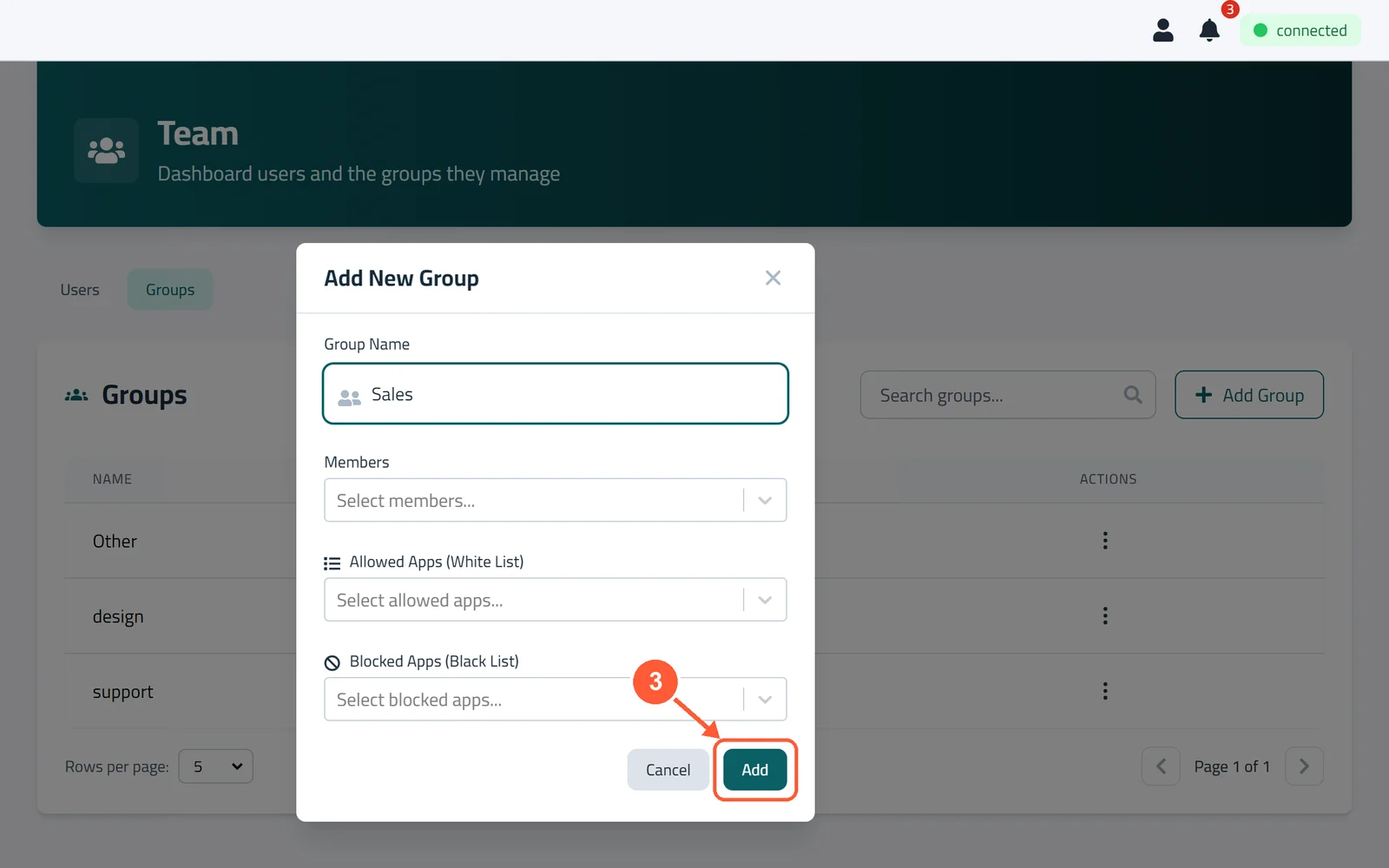
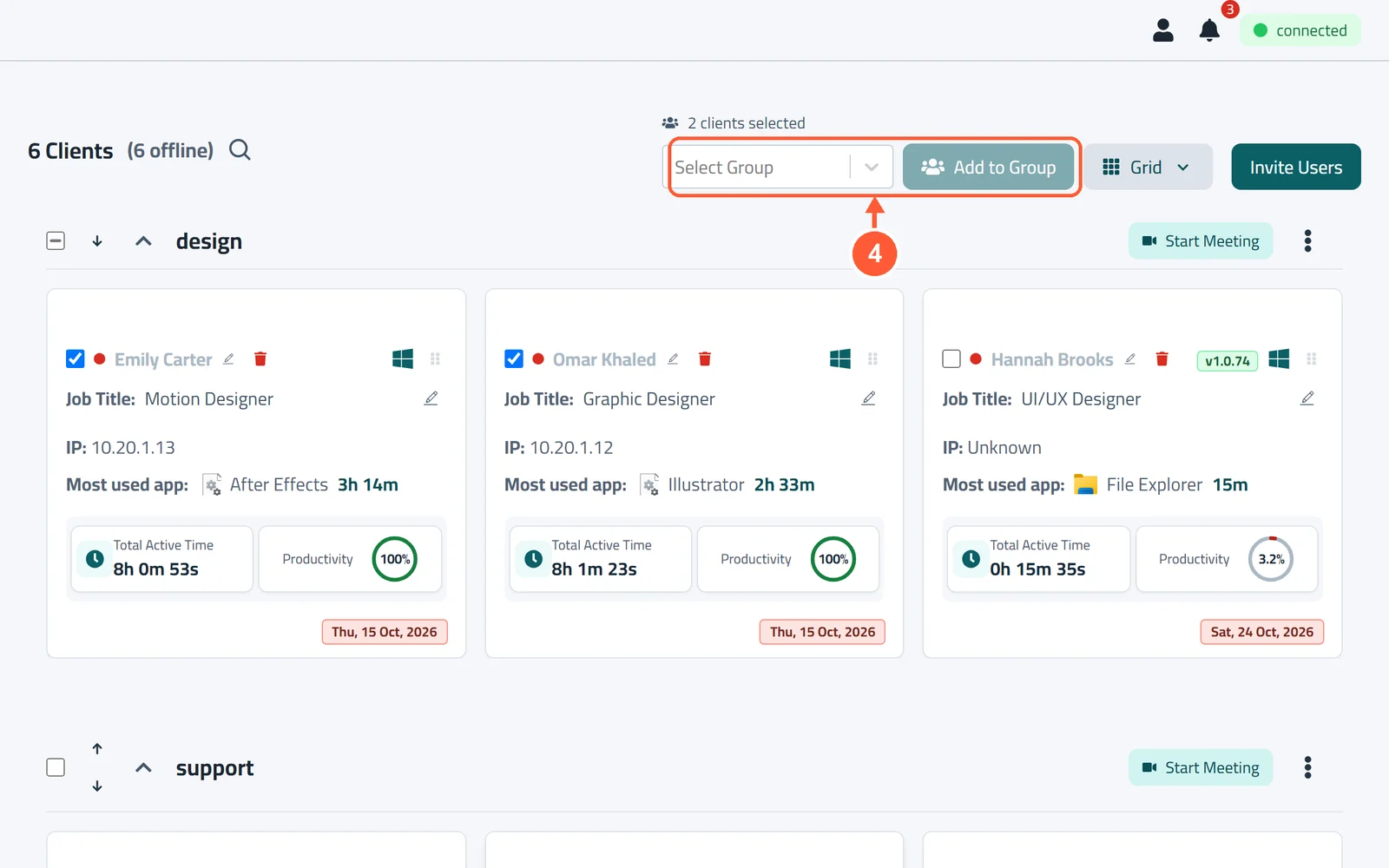
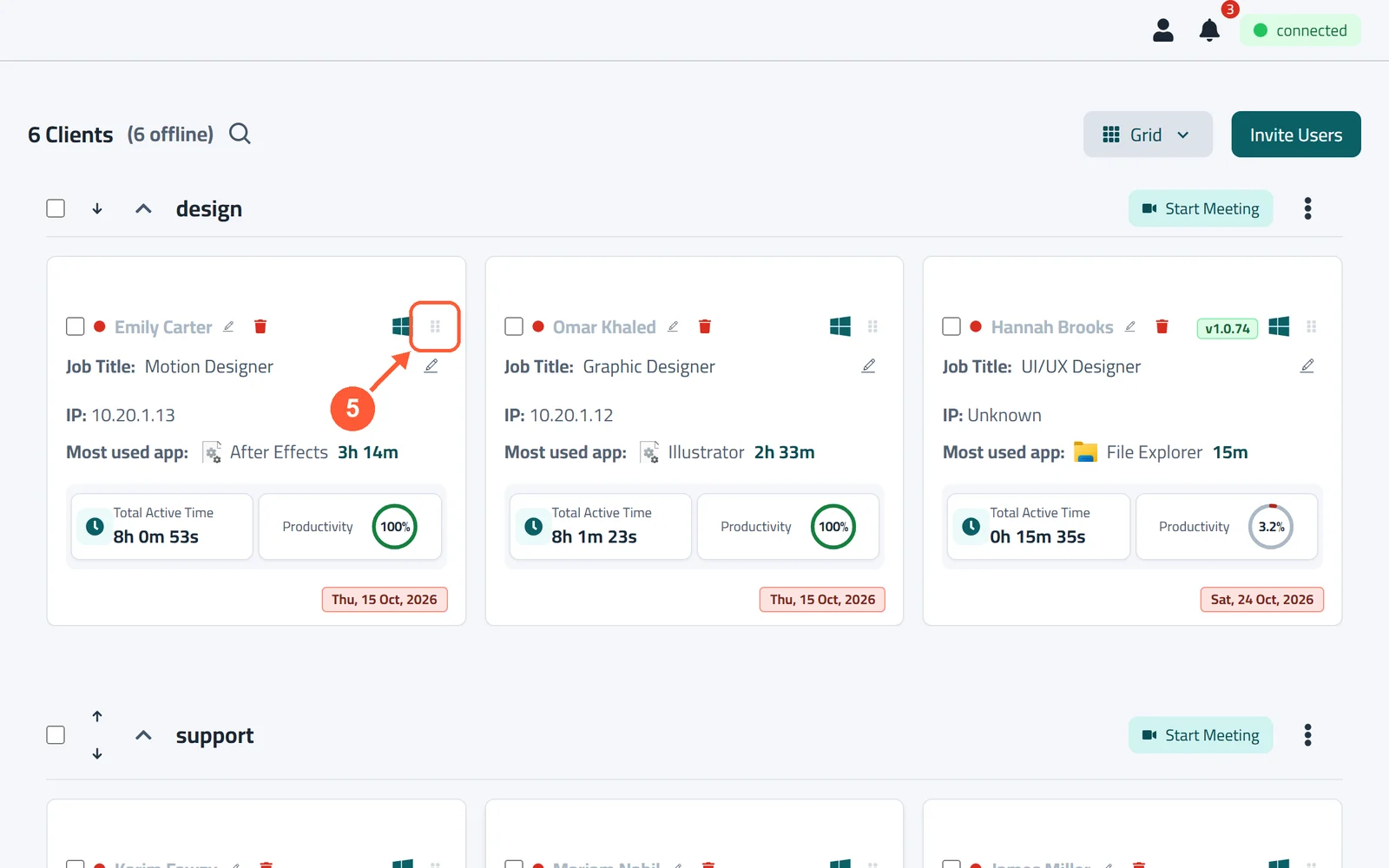
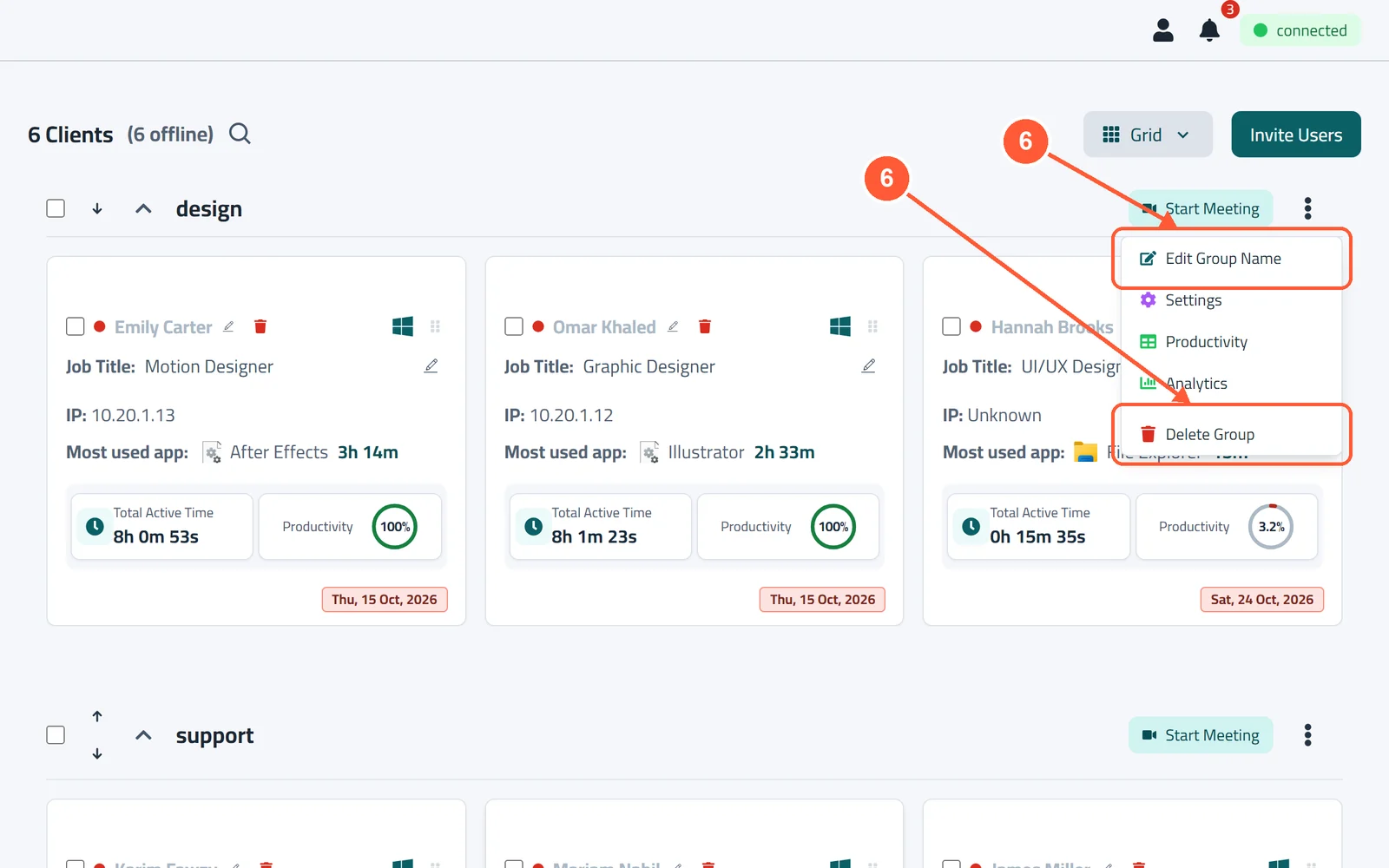
1Click Team in the menu on the left, open the Groups tab and click Add Group.1 / 6
💡 Good to Know
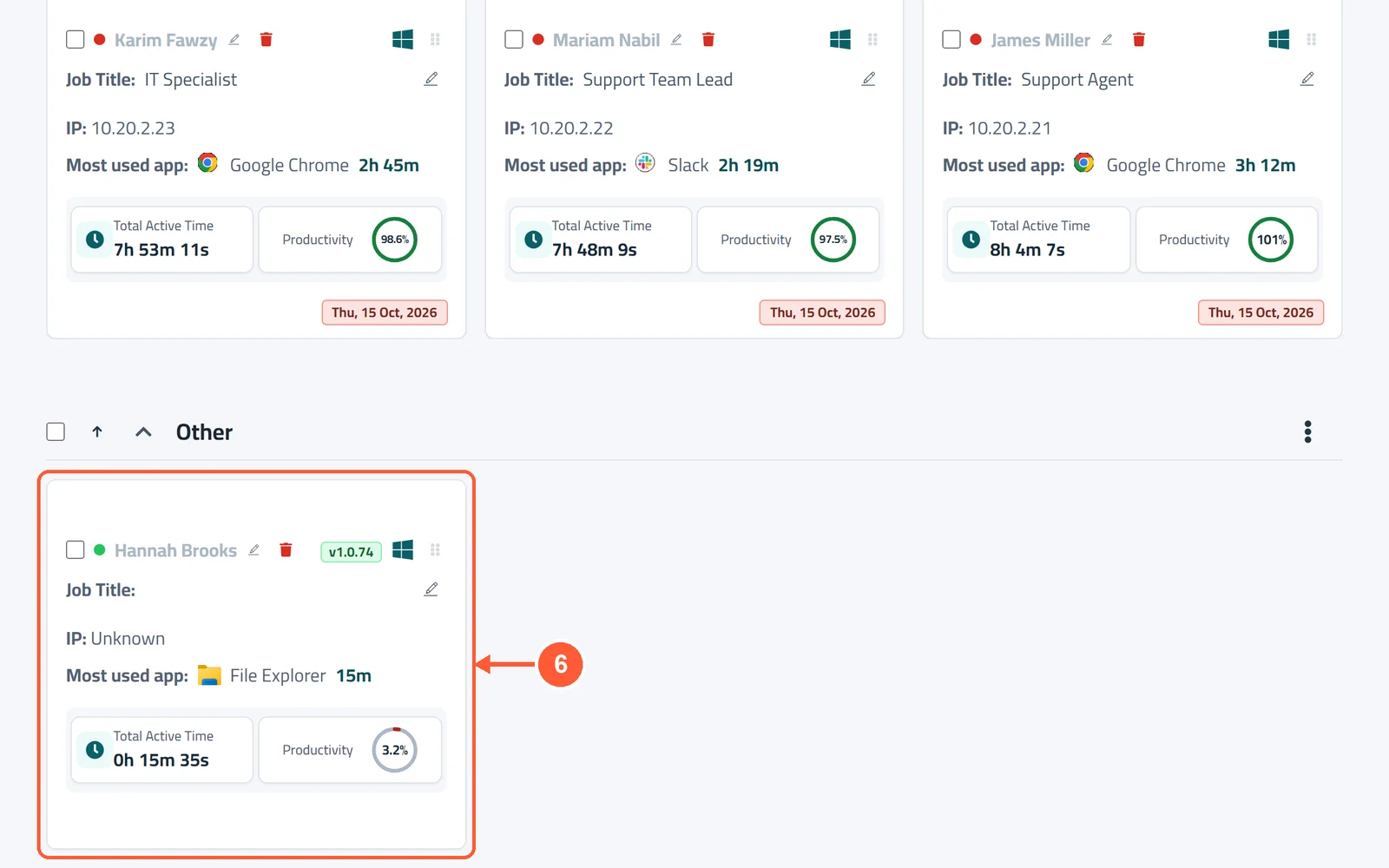
- New PCs land in the built-in Other group. It can't be renamed or deleted.
- Use the small arrows next to a group's name to move it up or down, and the ^ arrow to fold it away.
Set Work Hours, Breaks & Idle Rules
Each group has its own working day. pcActivity uses it to score the day and to decide when someone is idle.
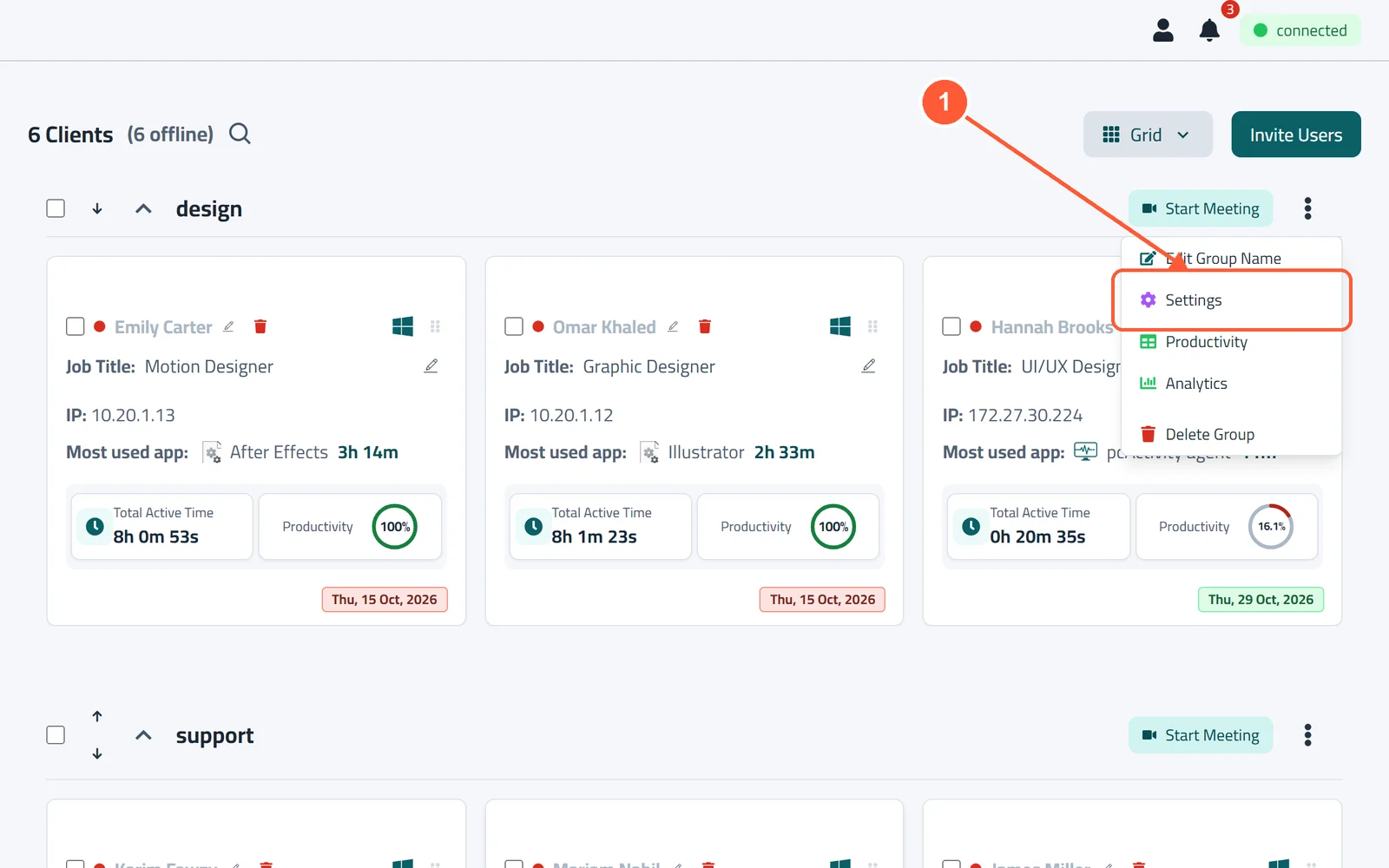
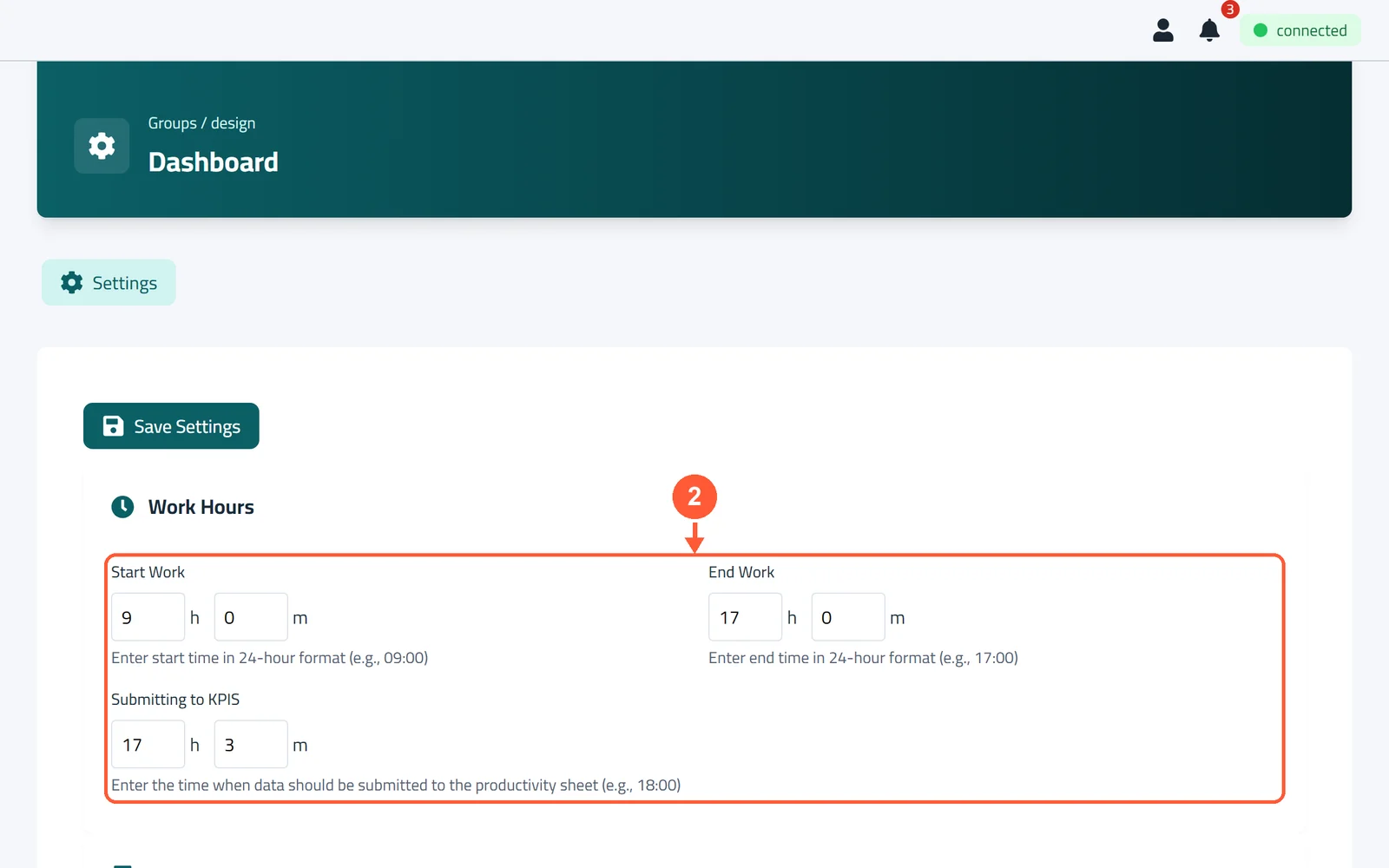
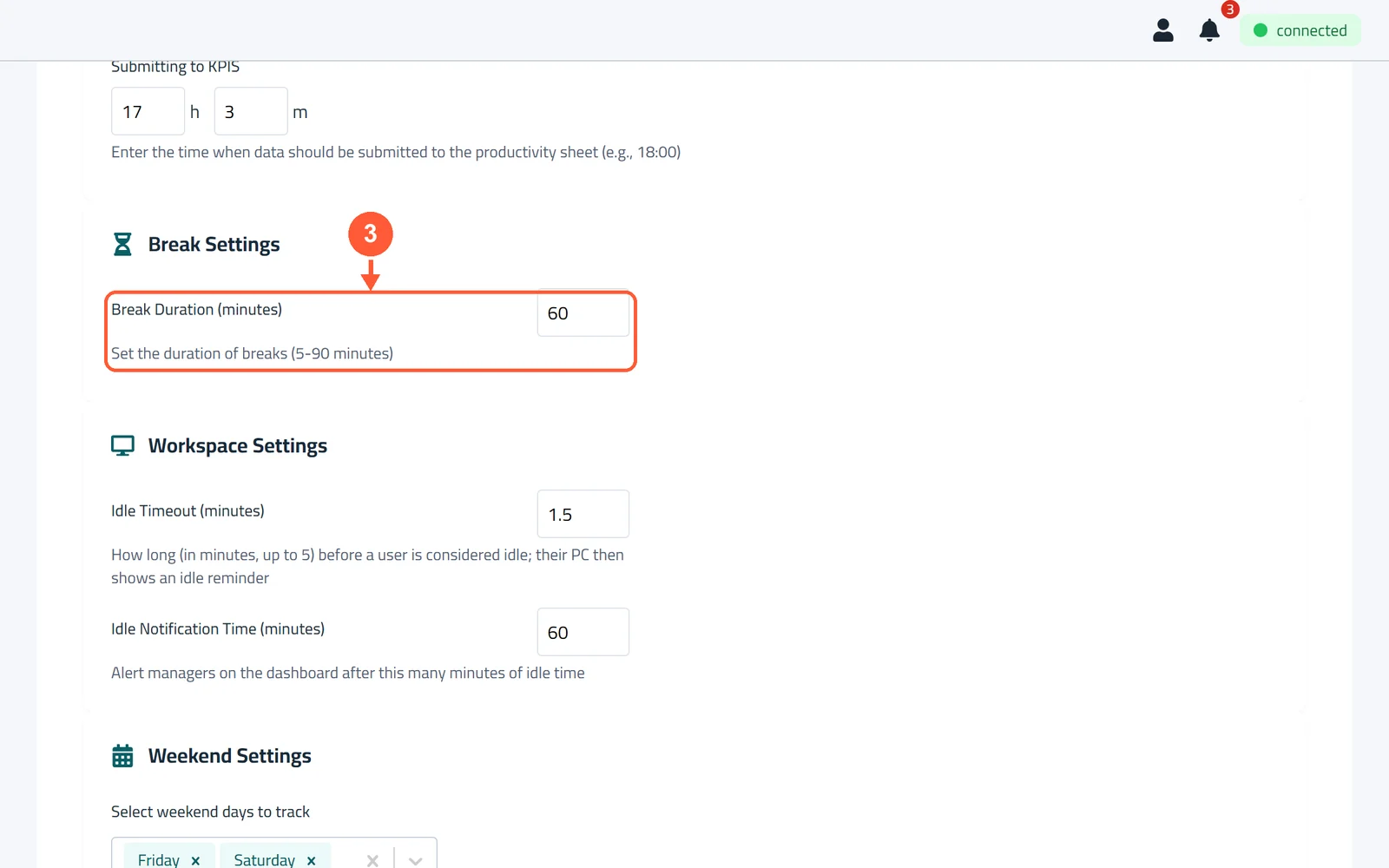
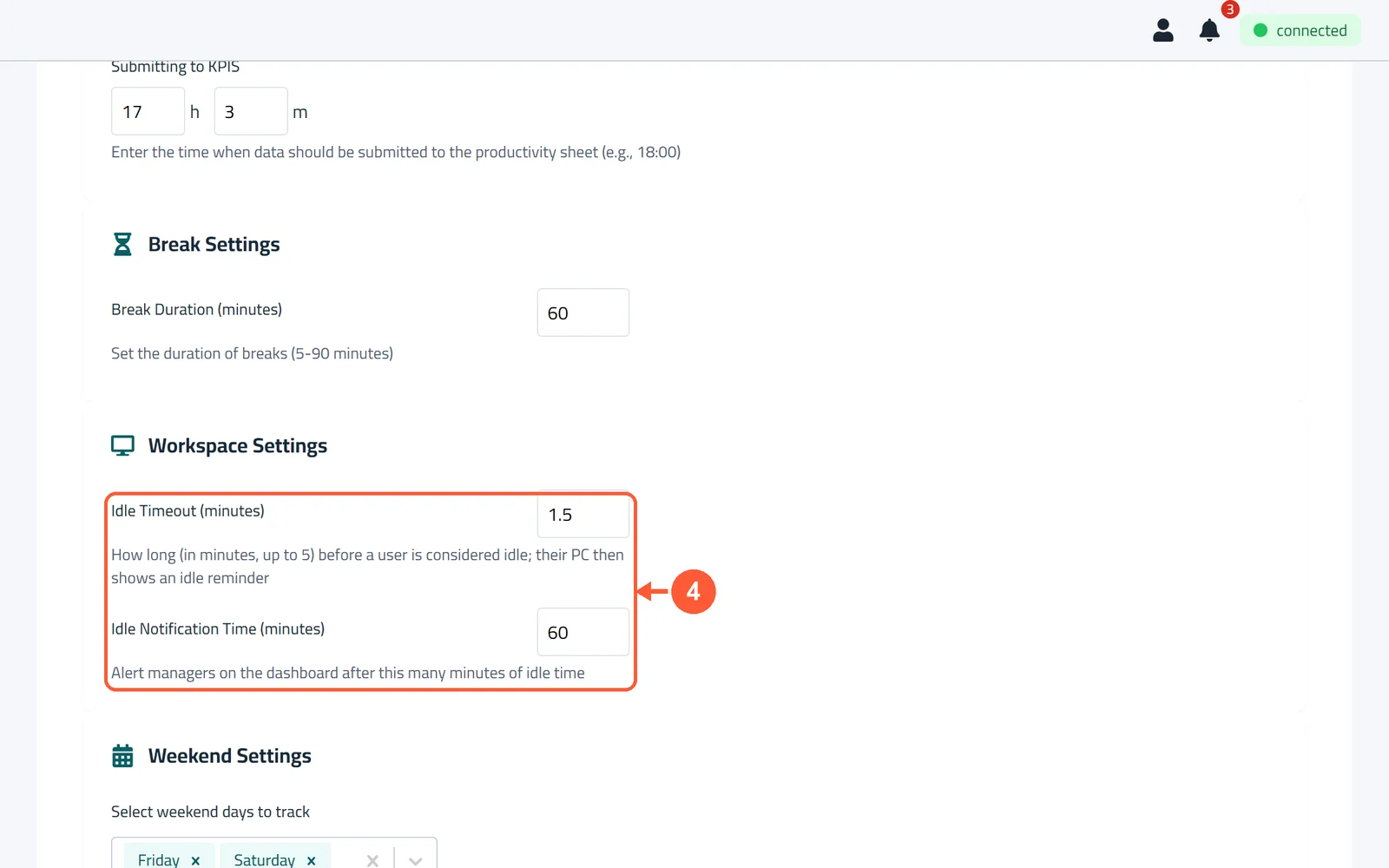
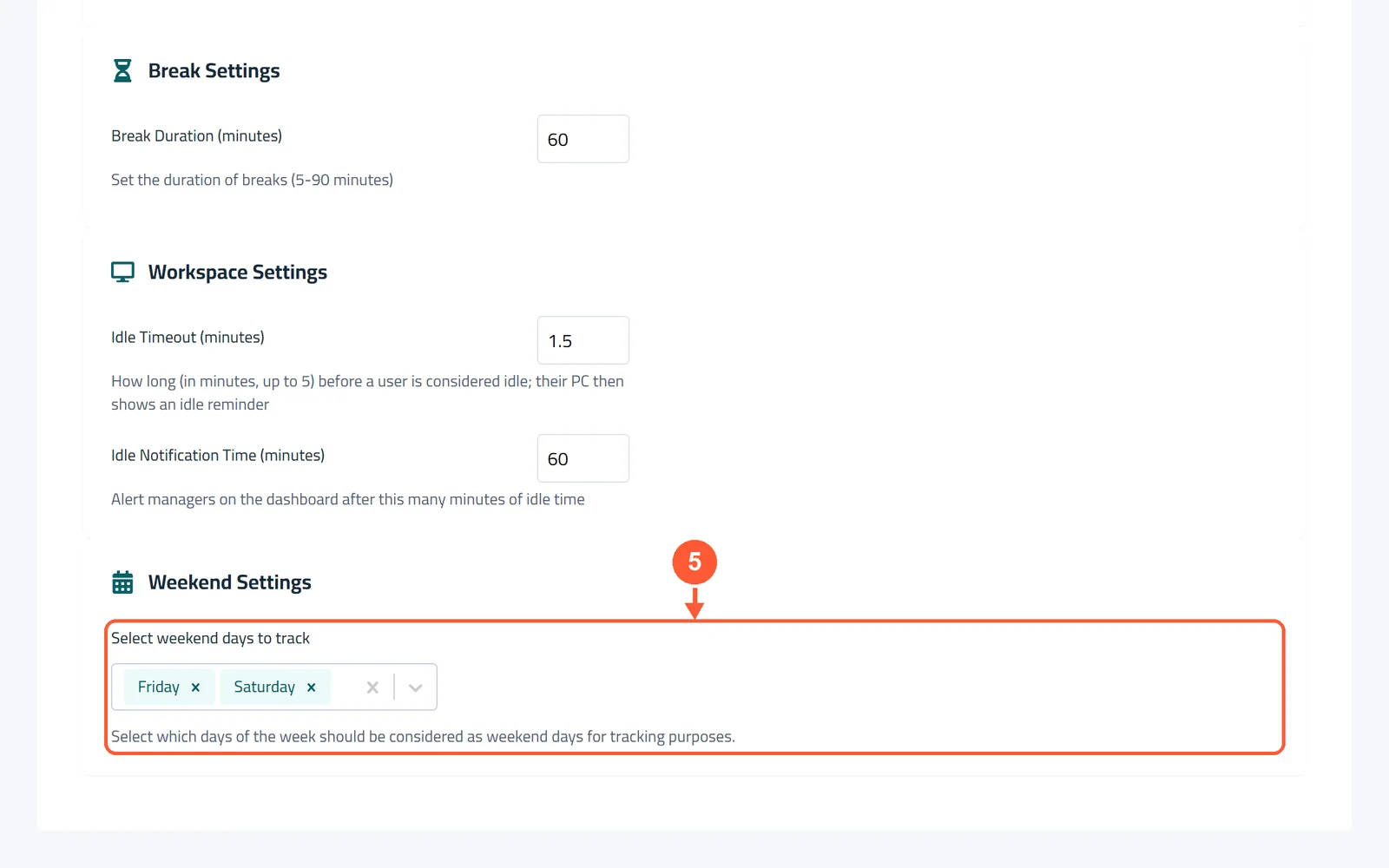
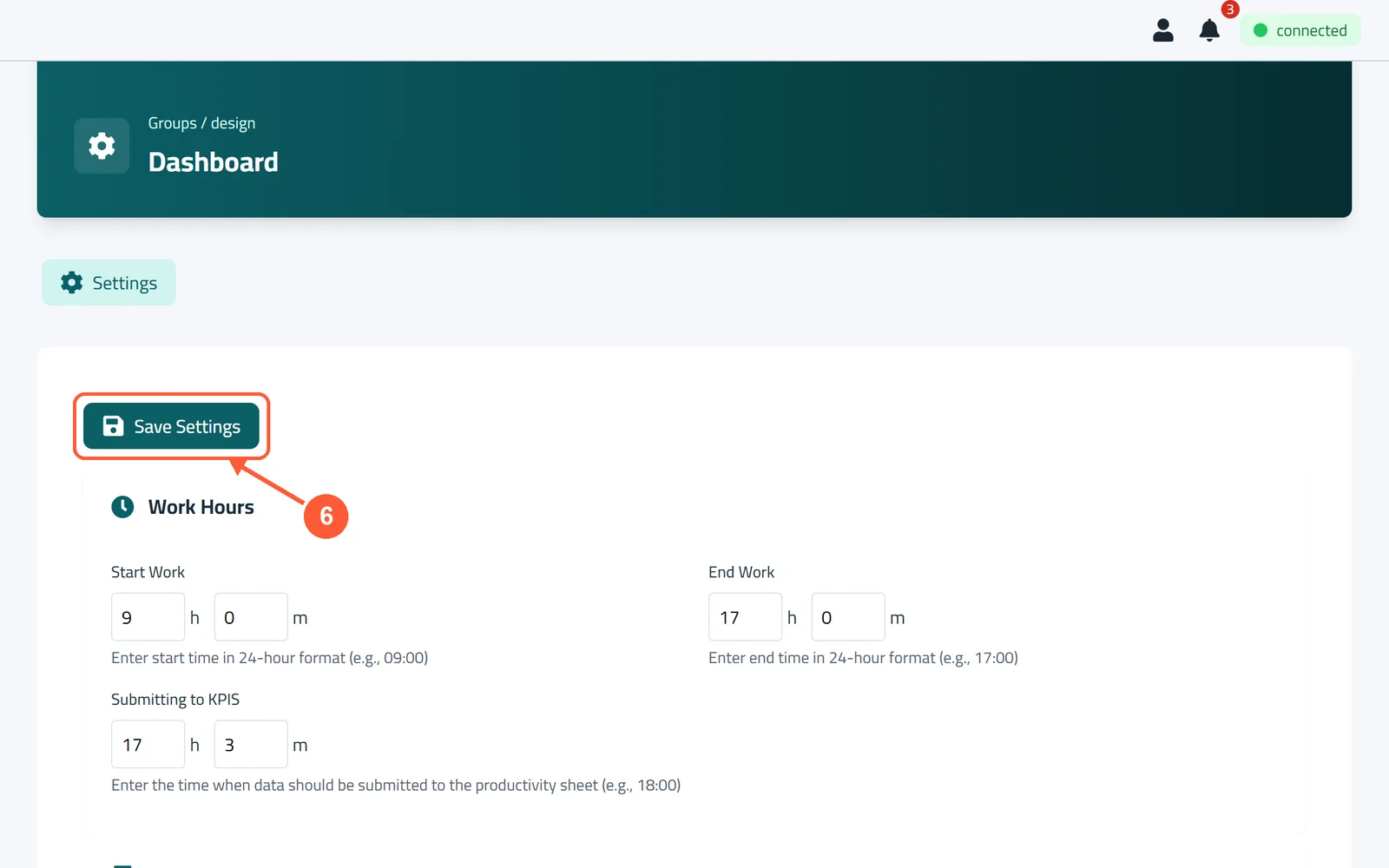
1On the Dashboard, click the group's ⋮ menu and choose Settings.1 / 6
💡 Good to Know
- Idle time doesn't count as working time.
- Pick the score time a little after End Work, so late work still counts.
Choose Work and Blocked Apps
Tell pcActivity which apps always count as work and which never do, for a whole group or one app at a time.
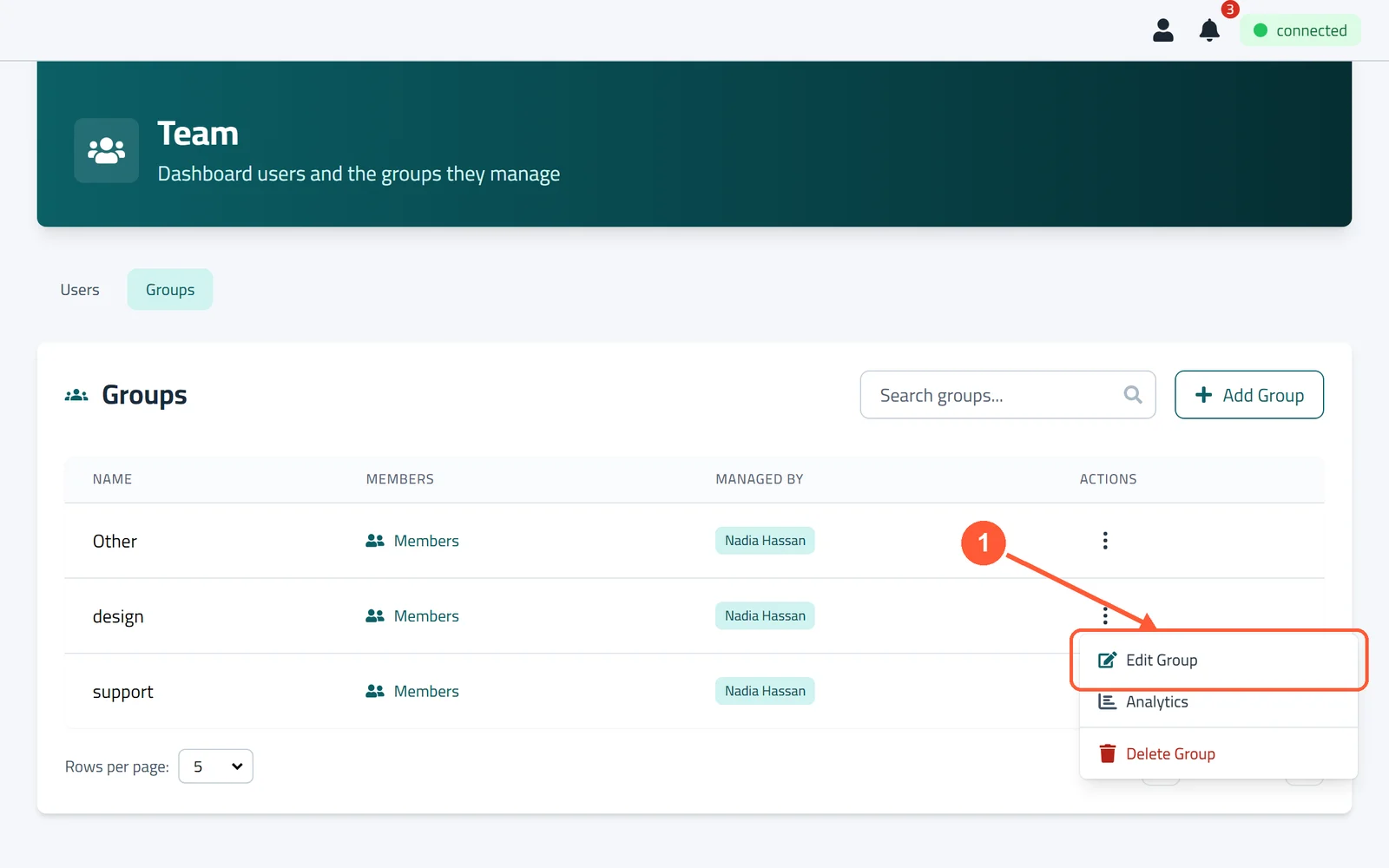
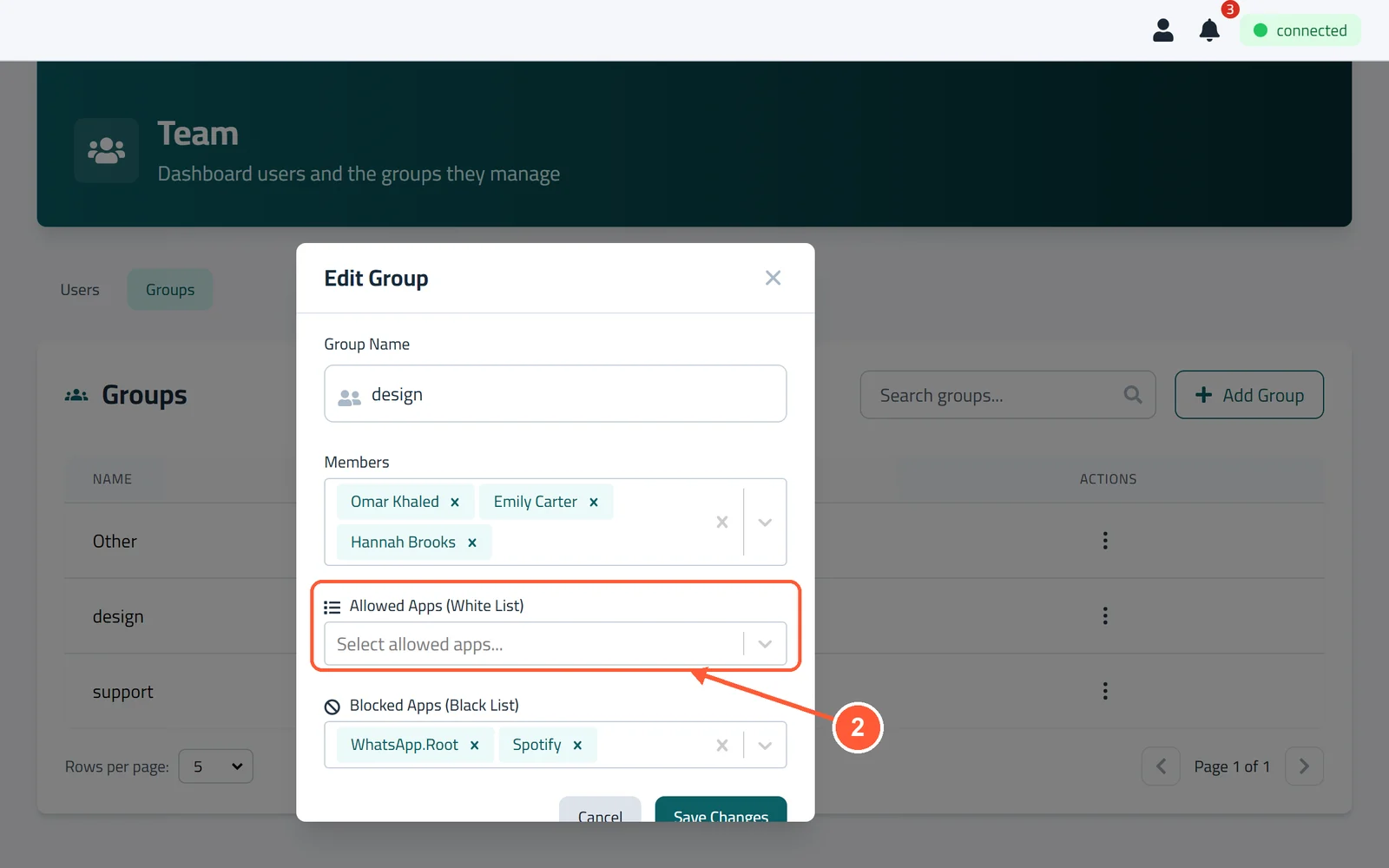
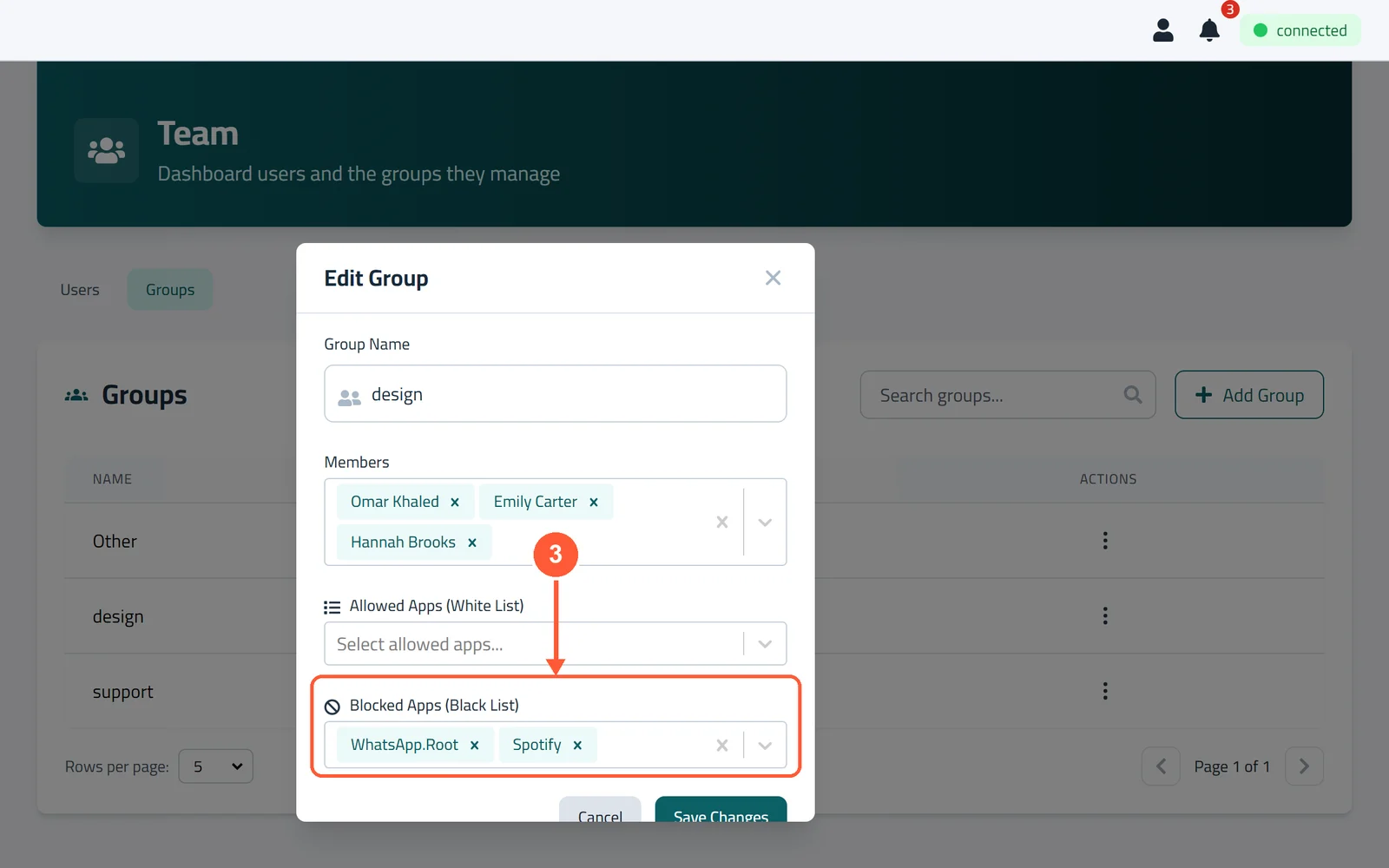
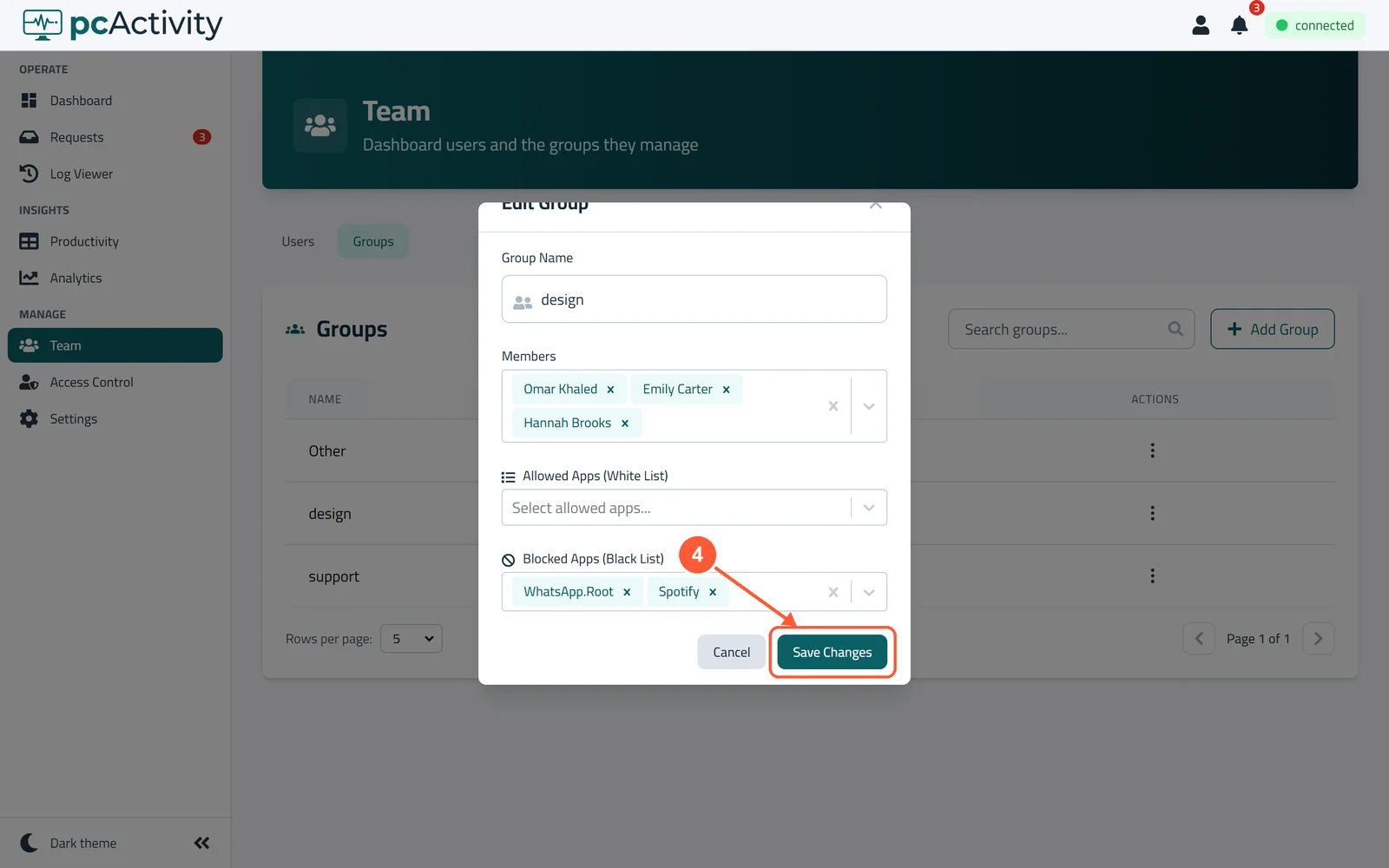
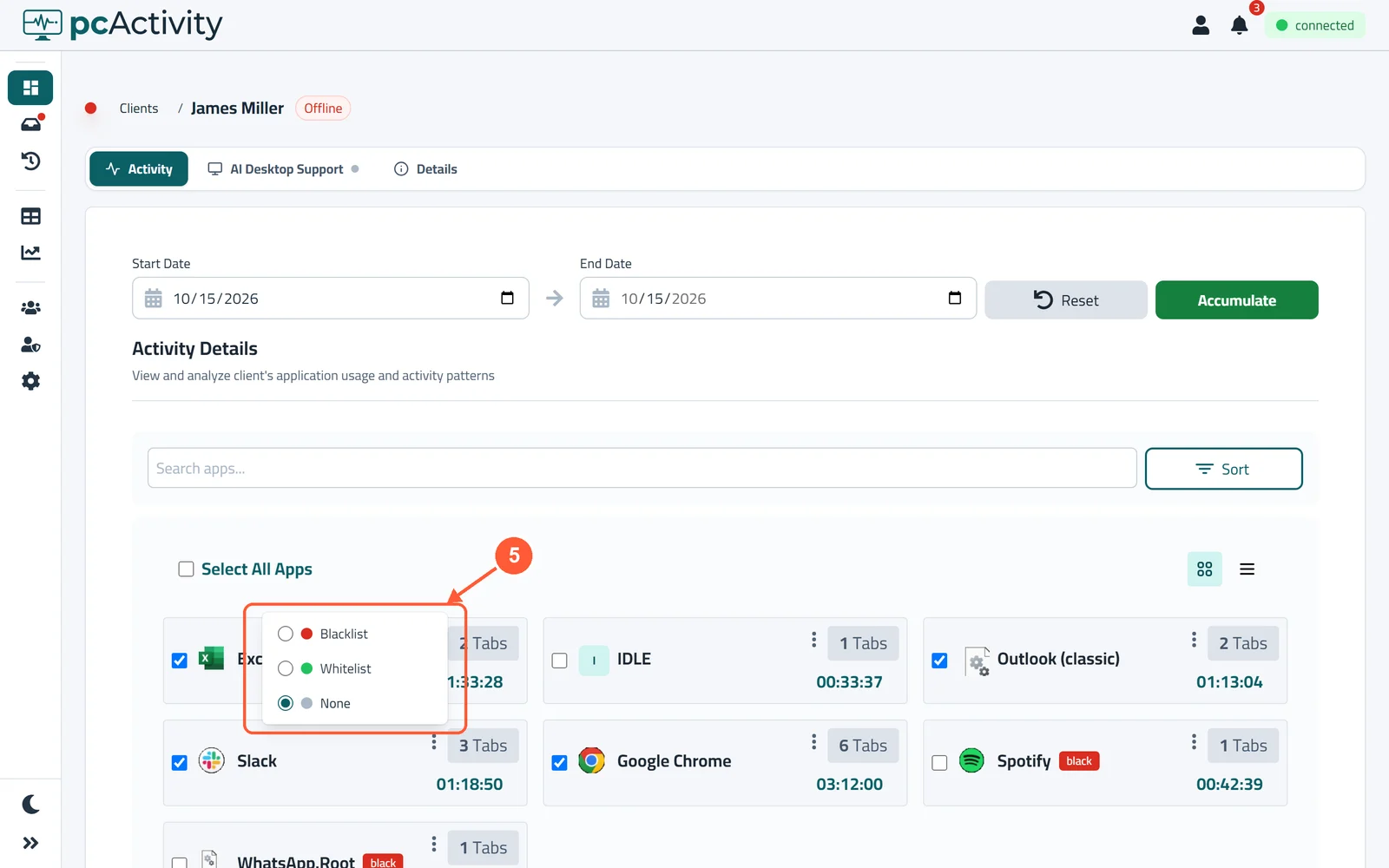
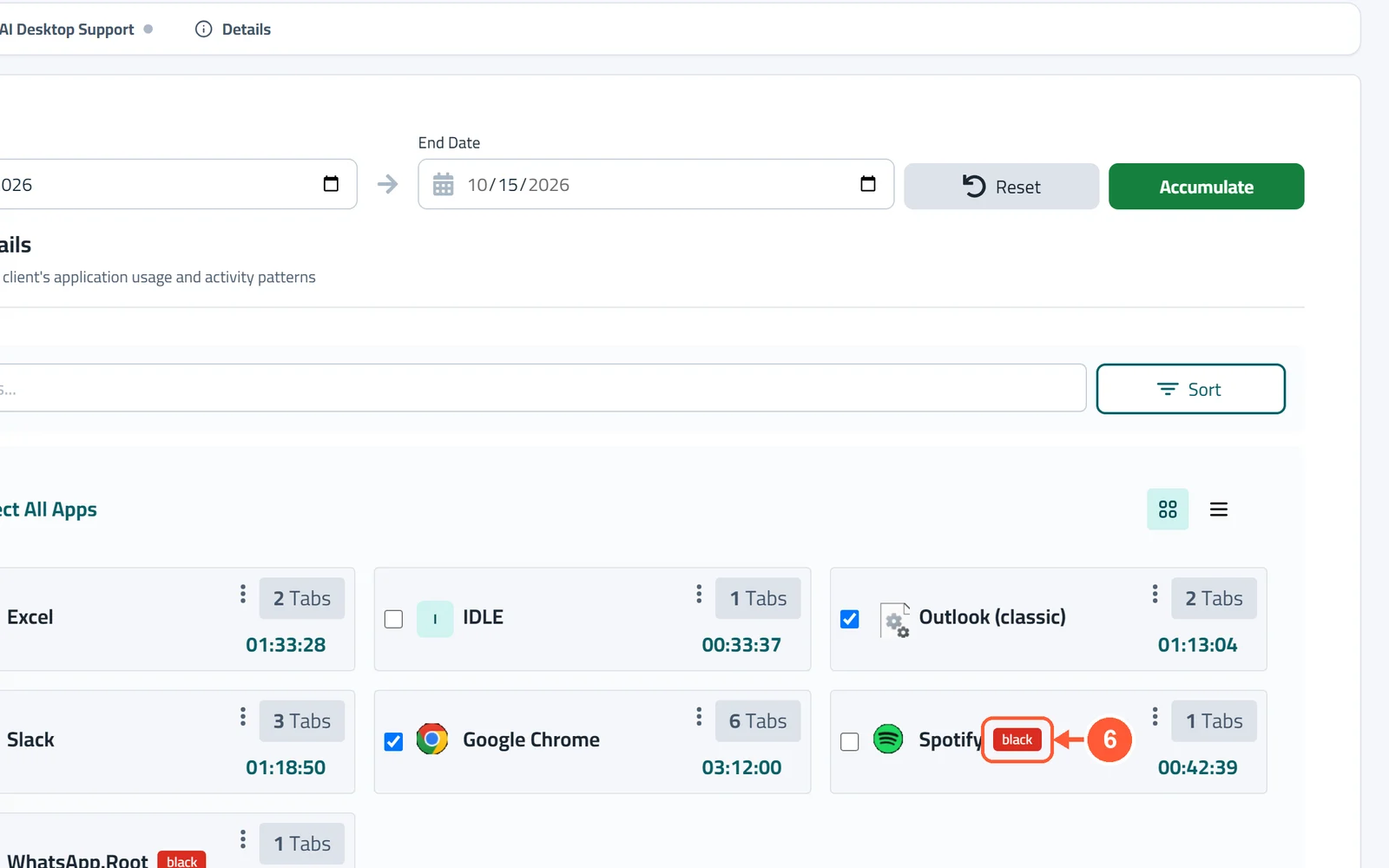
1Click Team, open Groups, click the group's ⋮ menu and choose Edit Group.1 / 6
💡 Good to Know
- Apps on neither list are judged by the AI from the window title: work or not.
- None puts an app back to normal.
Set Up KPIs
KPIs (key performance indicators) are the targets behind each day's score. Set one value for the whole group, change it for single people, and add your own columns.
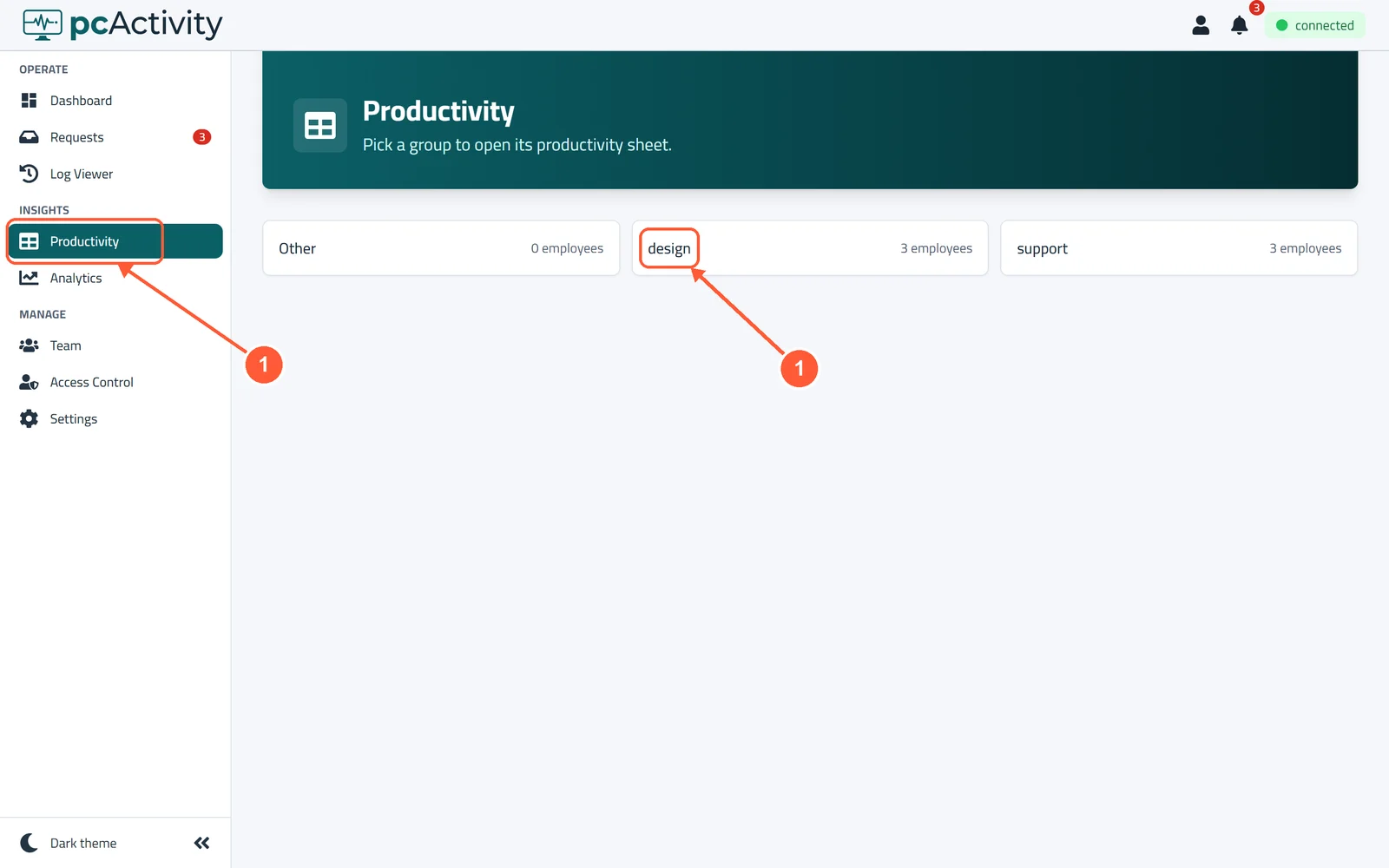
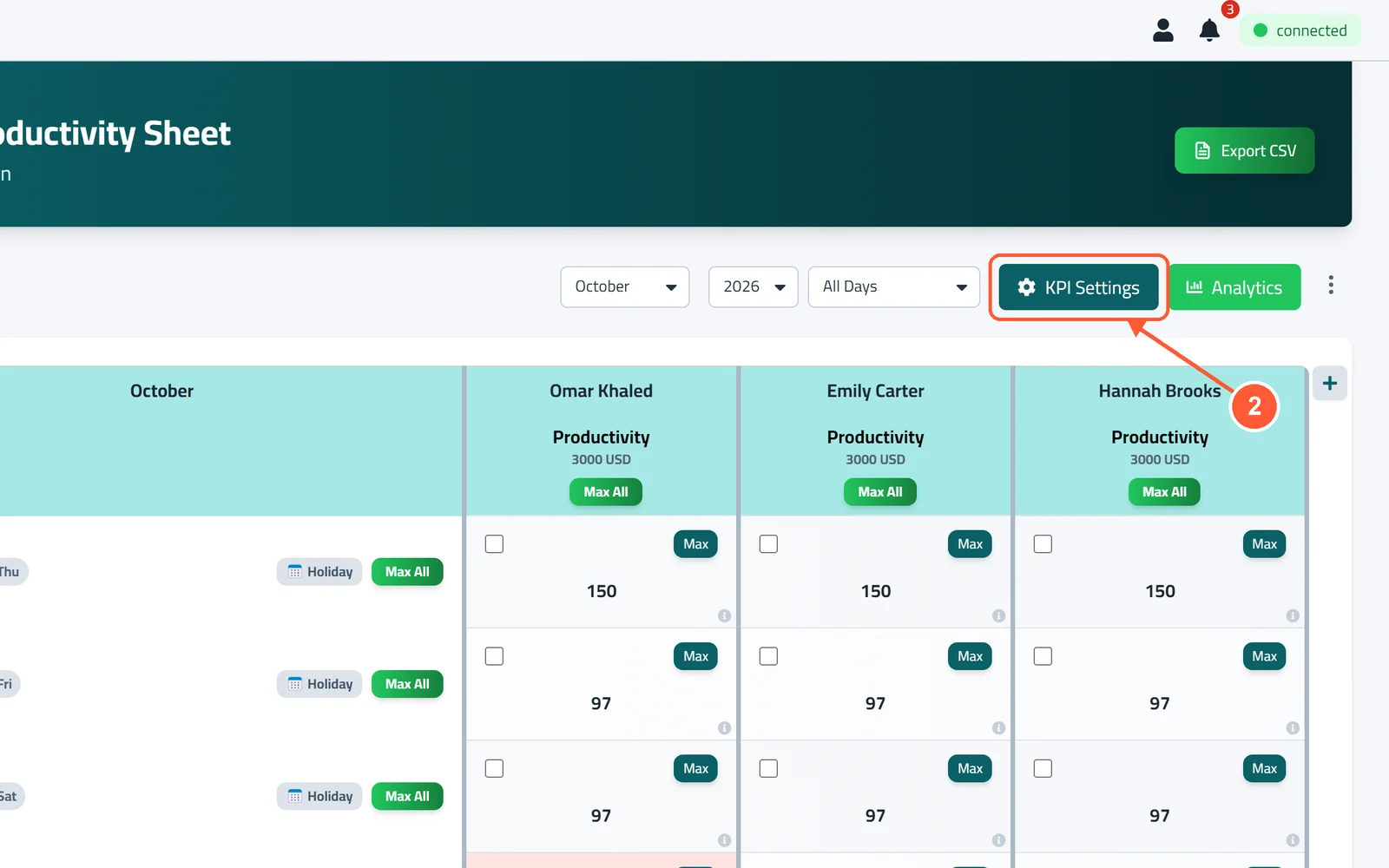
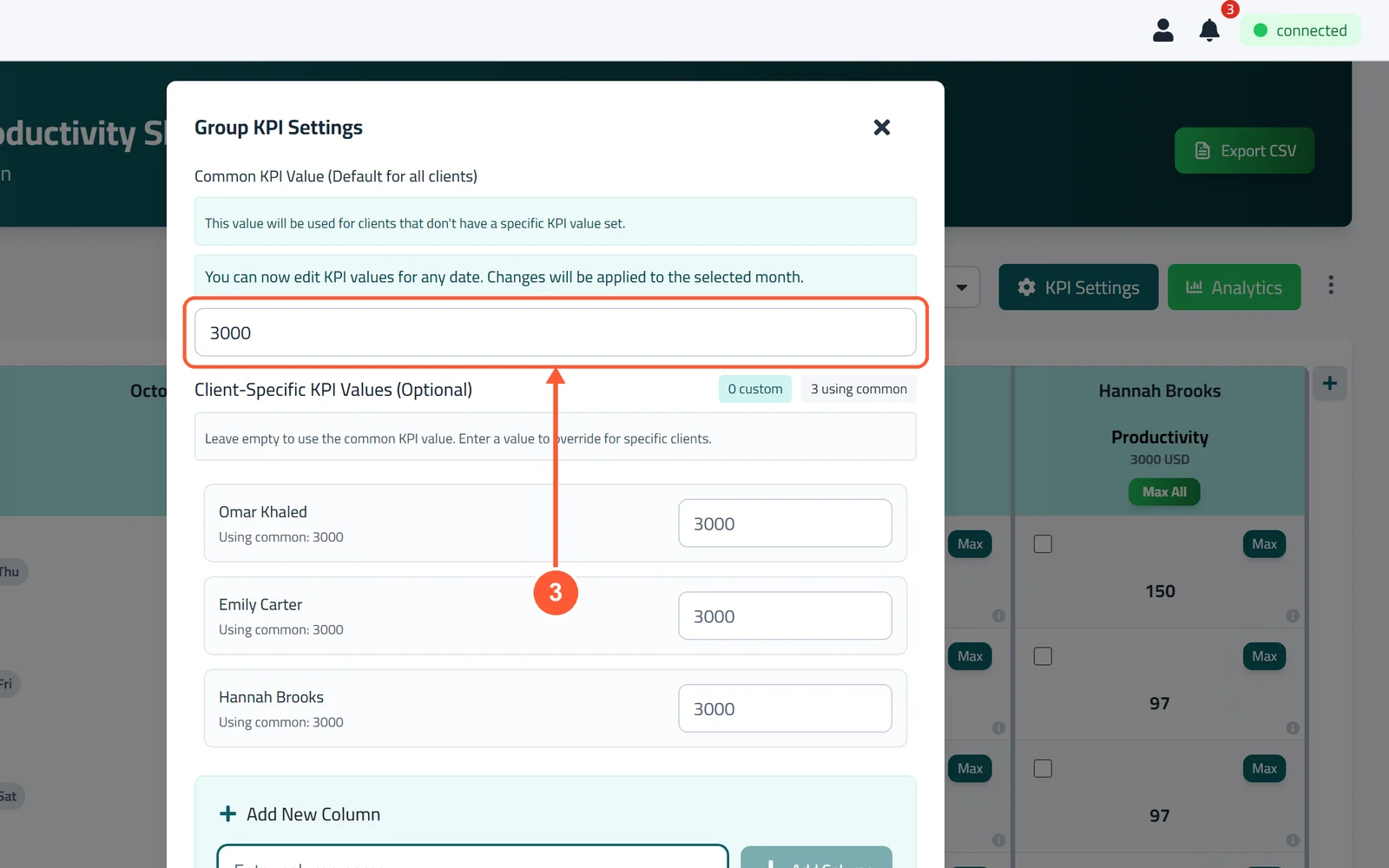
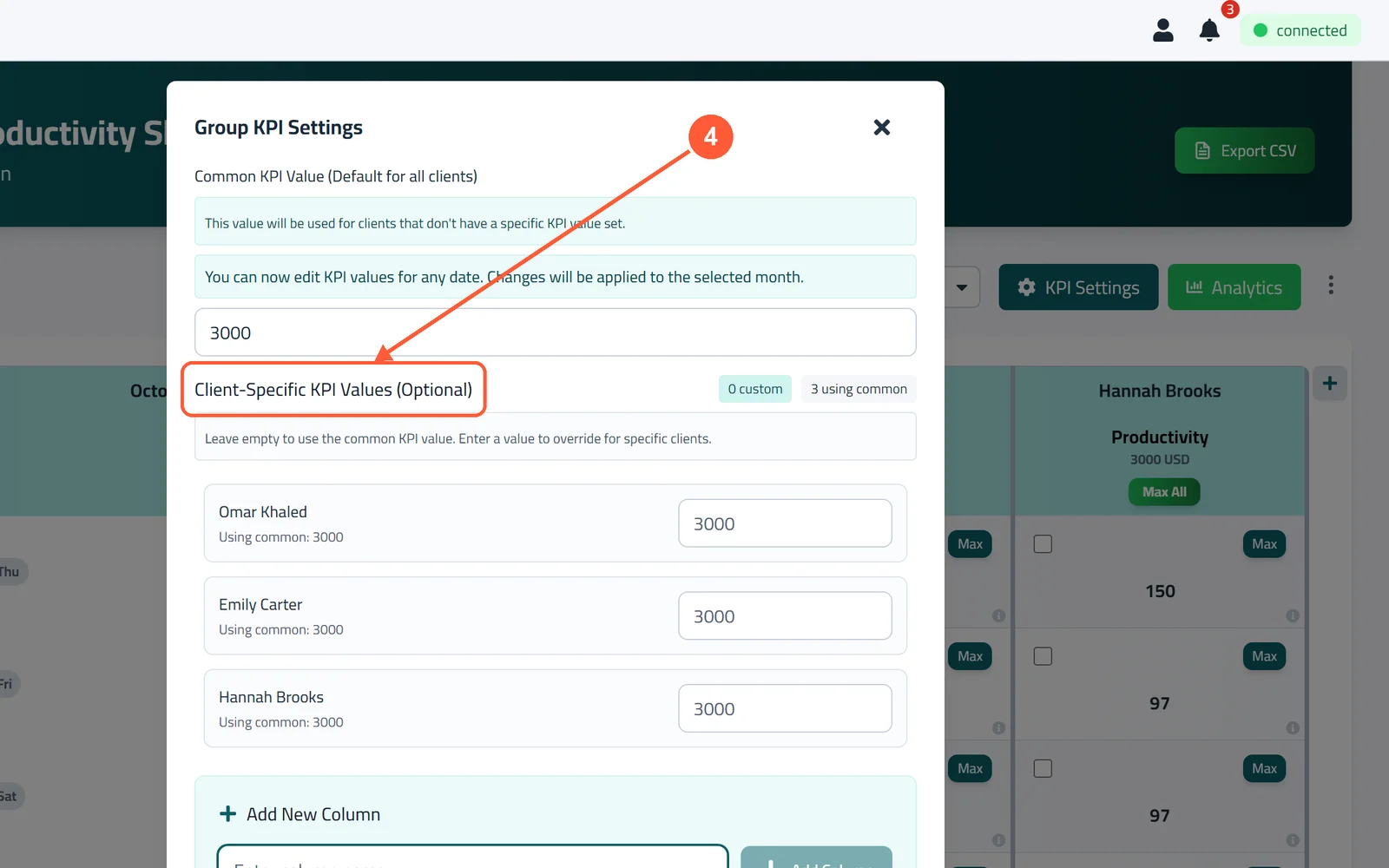
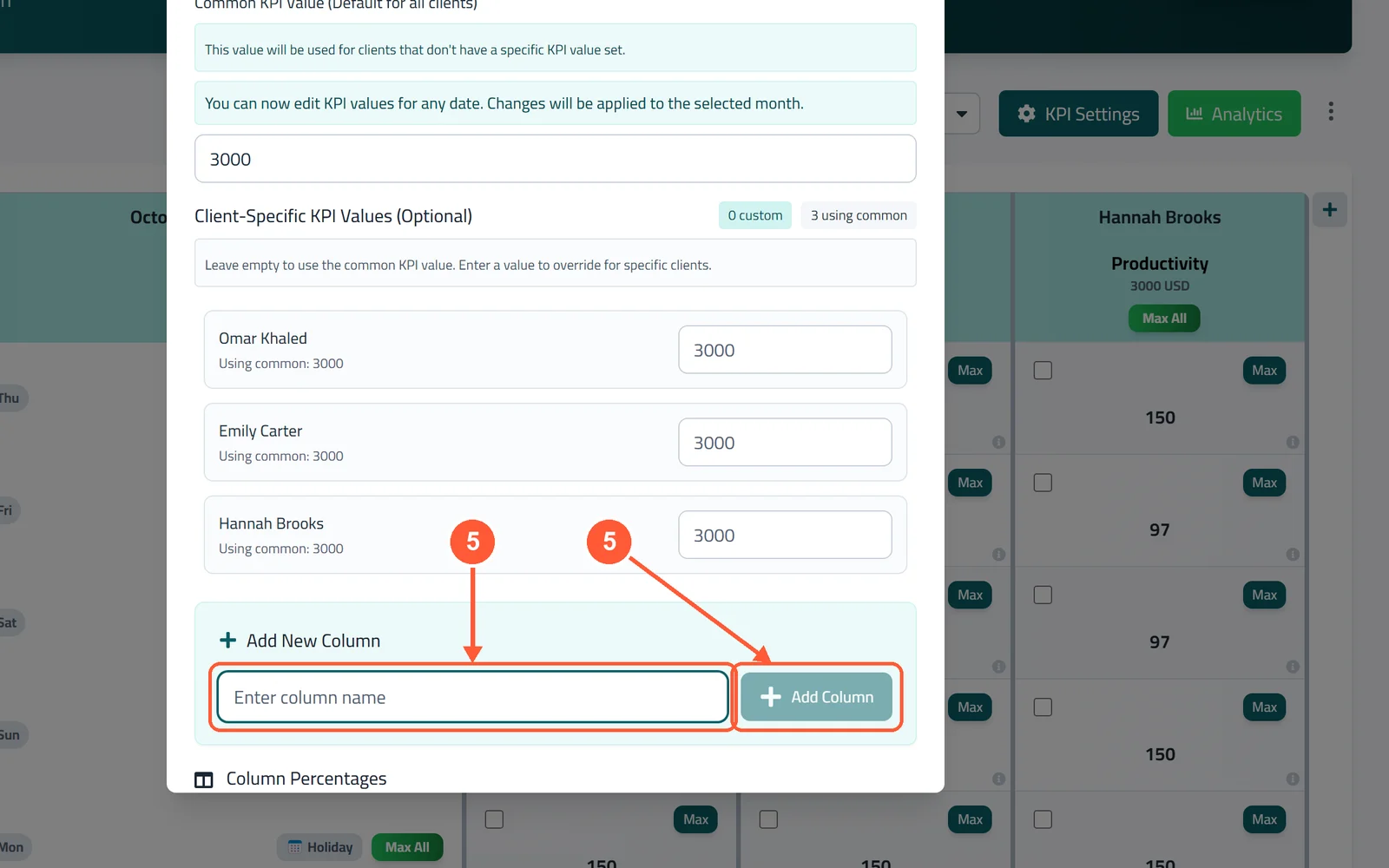
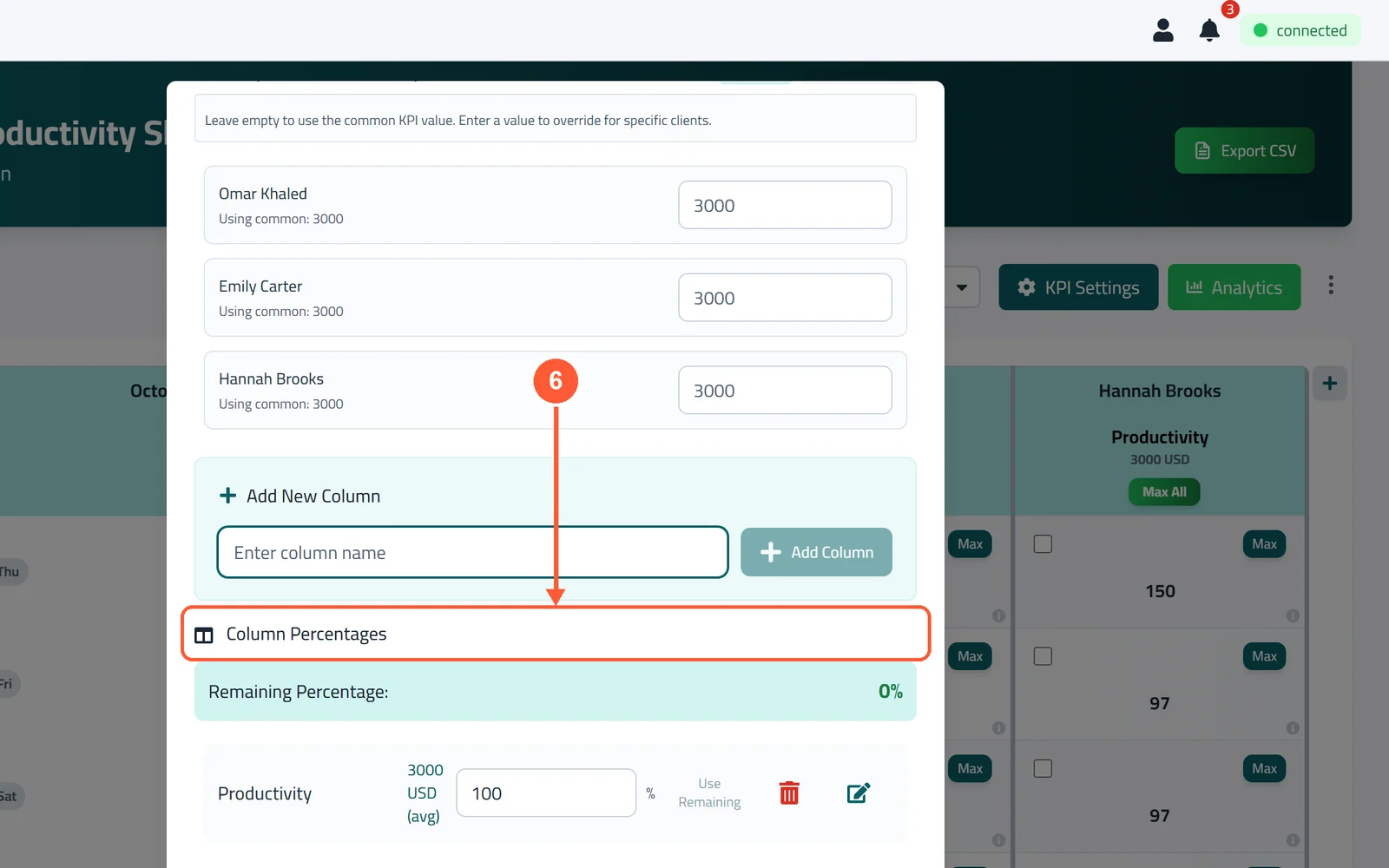
1Click Productivity in the menu on the left, then pick a group.1 / 6
💡 Good to Know
- Changes apply to the month you're looking at.
- The amounts use your company currency (see Set Your Company Timezone & Currency).
- Column names must be different within a group, and the Productivity column can't be deleted.
Add Team Members
Give managers and HR their own sign-in to the dashboard. Their role decides what they can do, and their groups decide whose PCs they see.
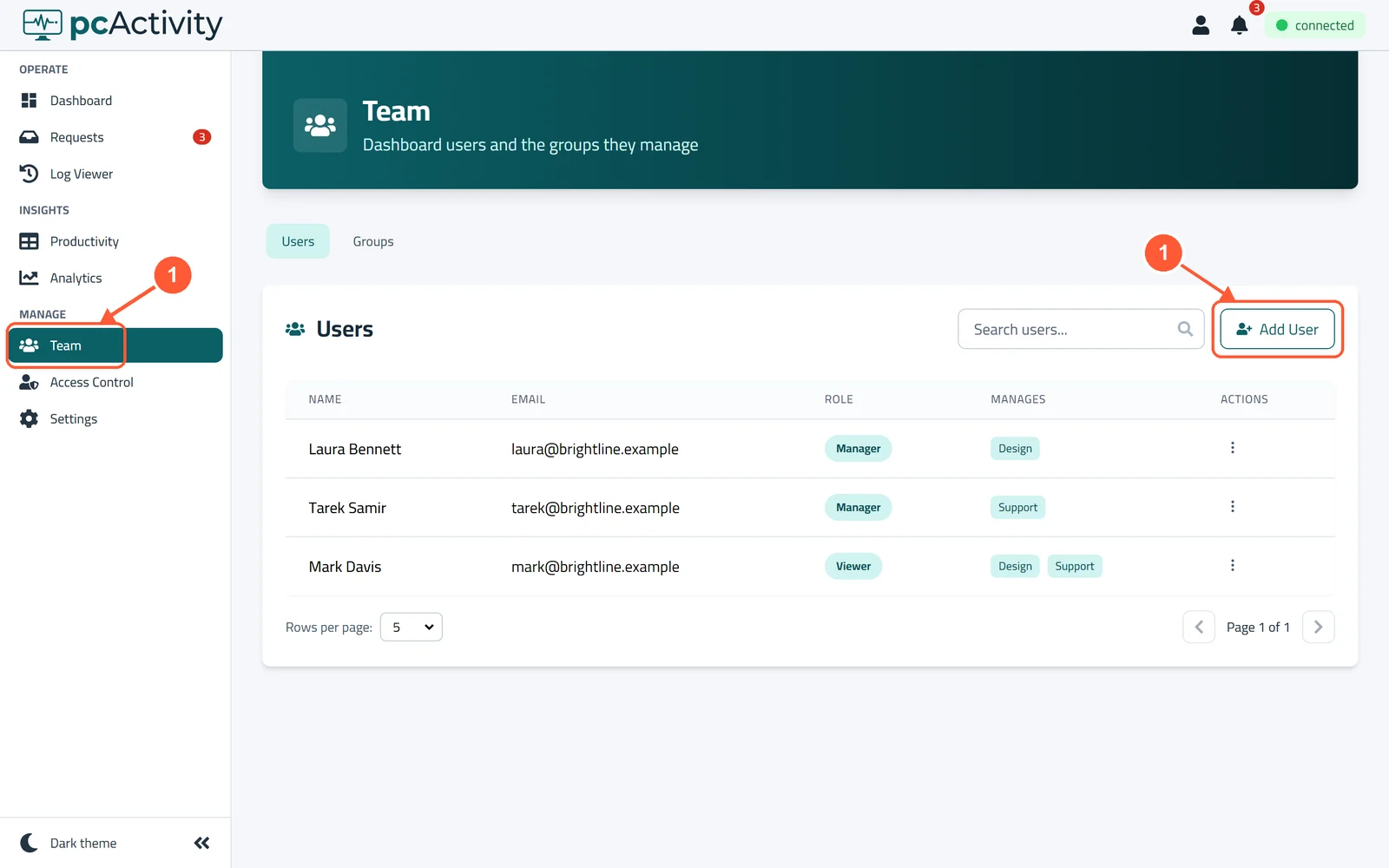
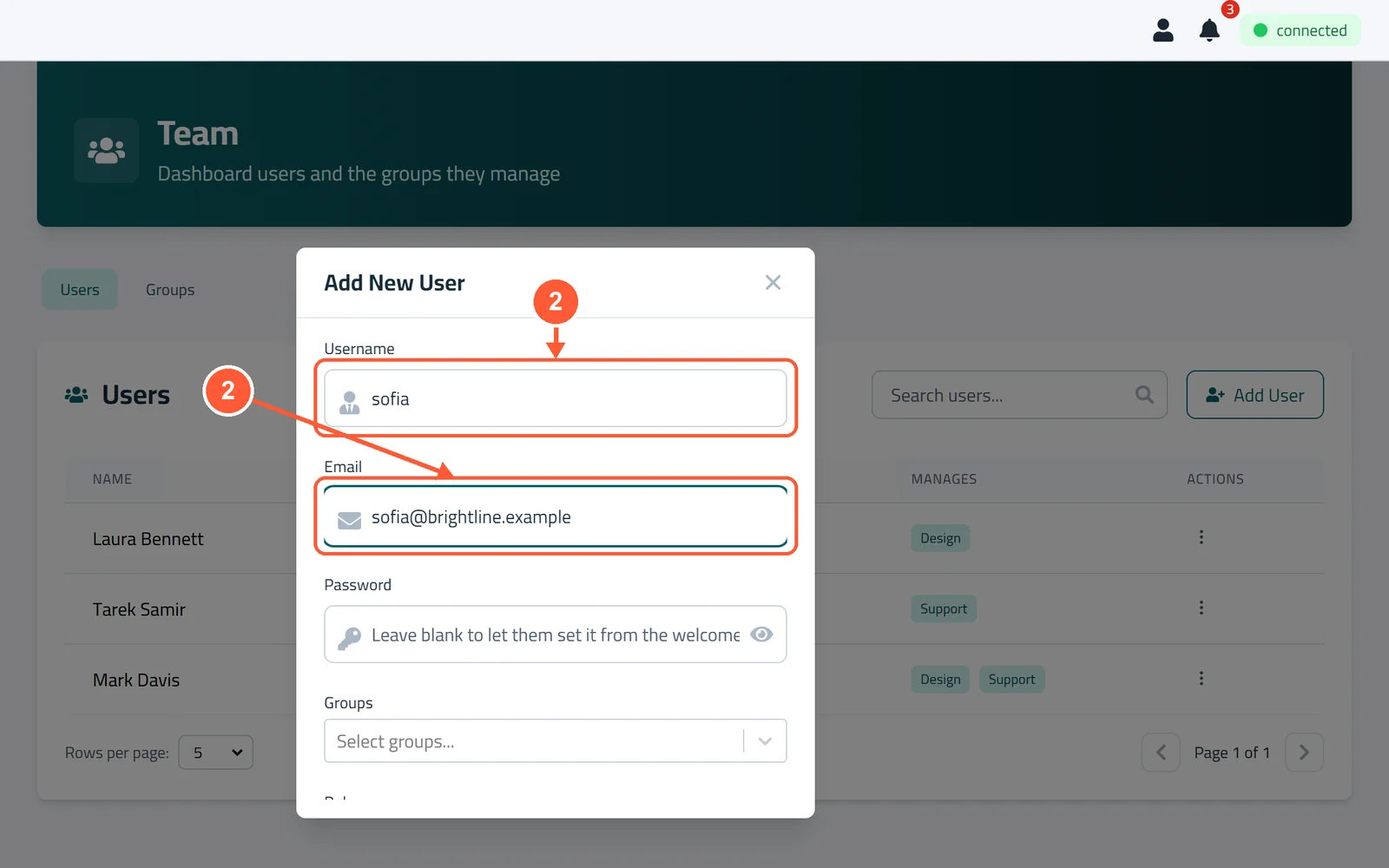
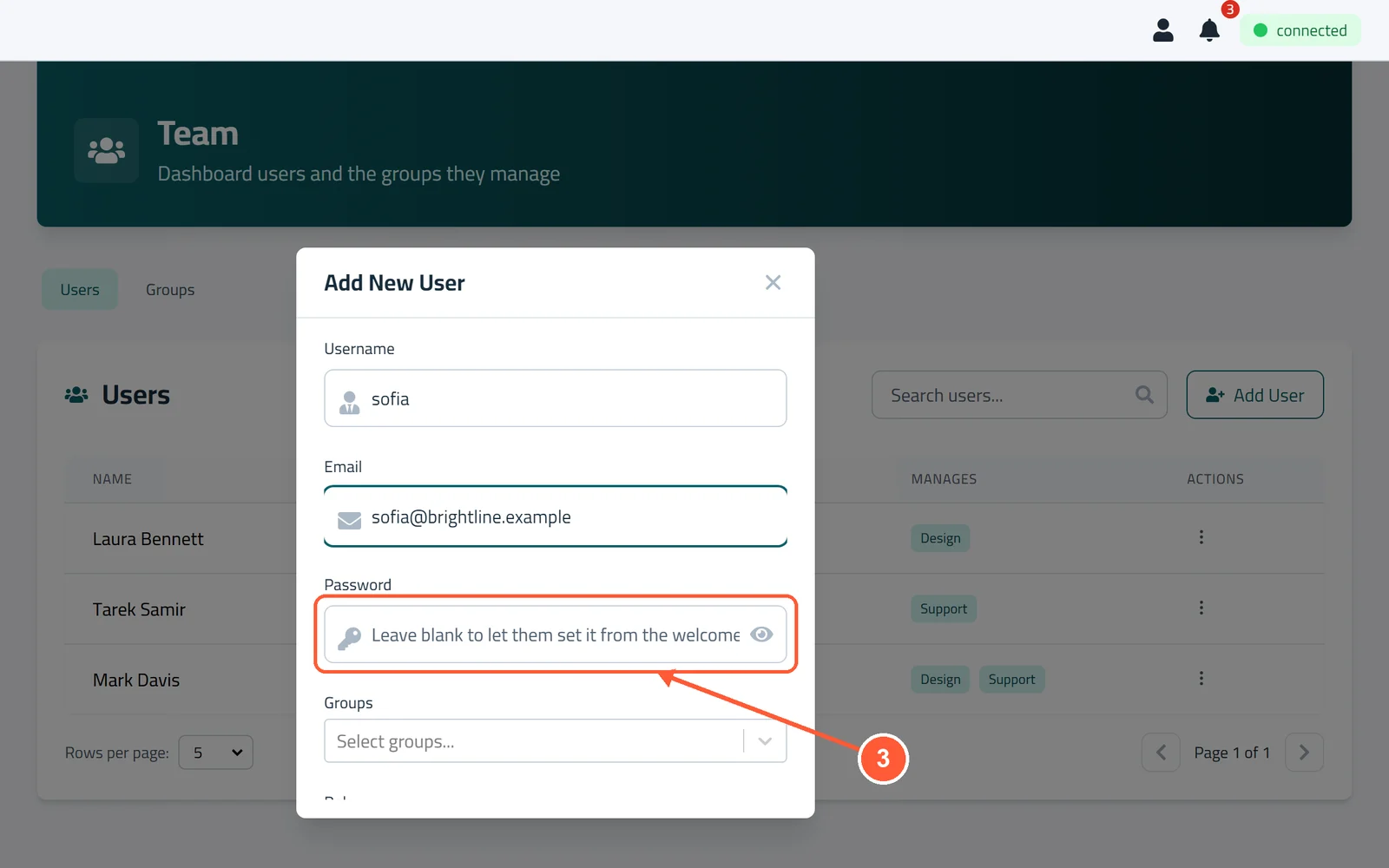
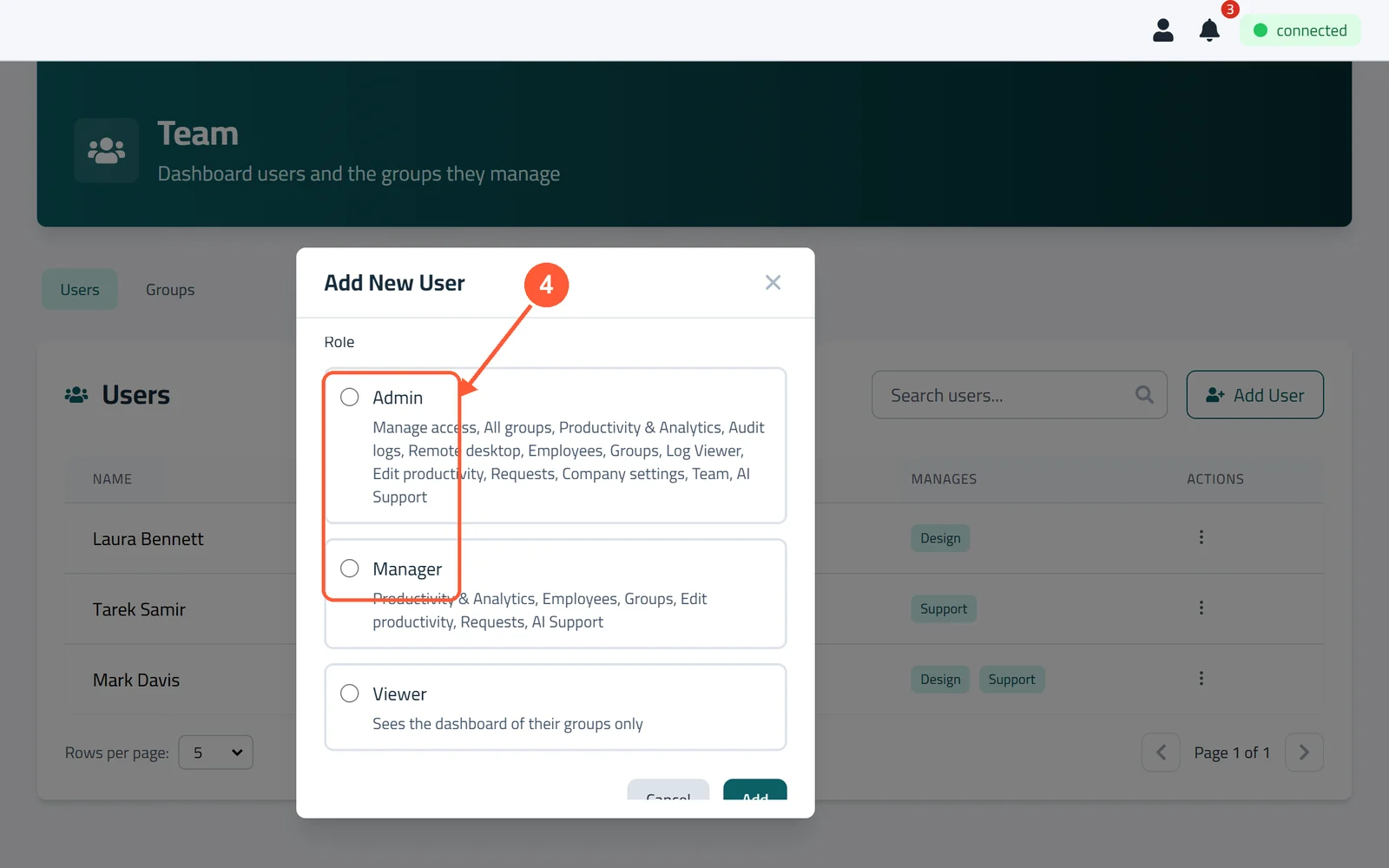
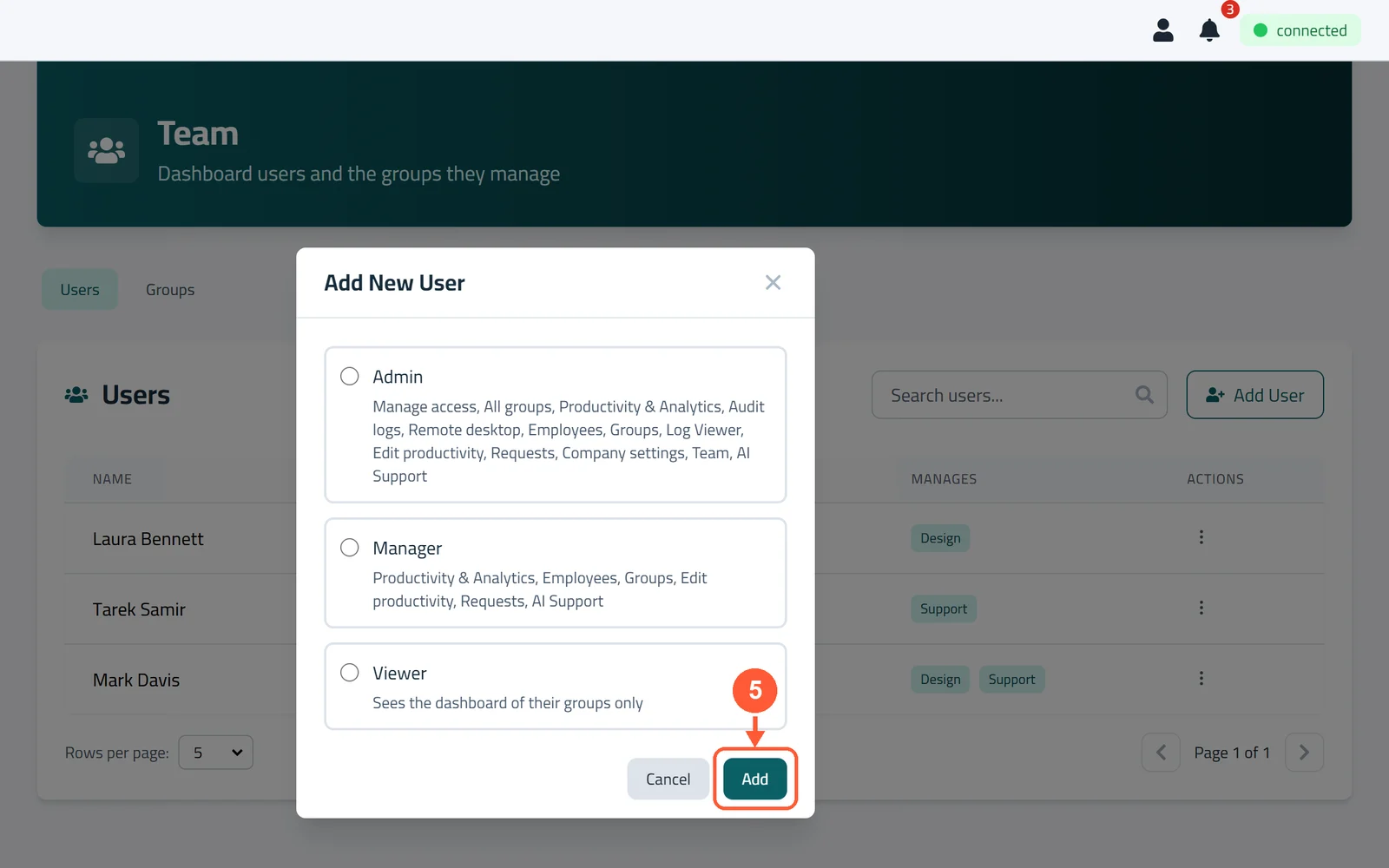
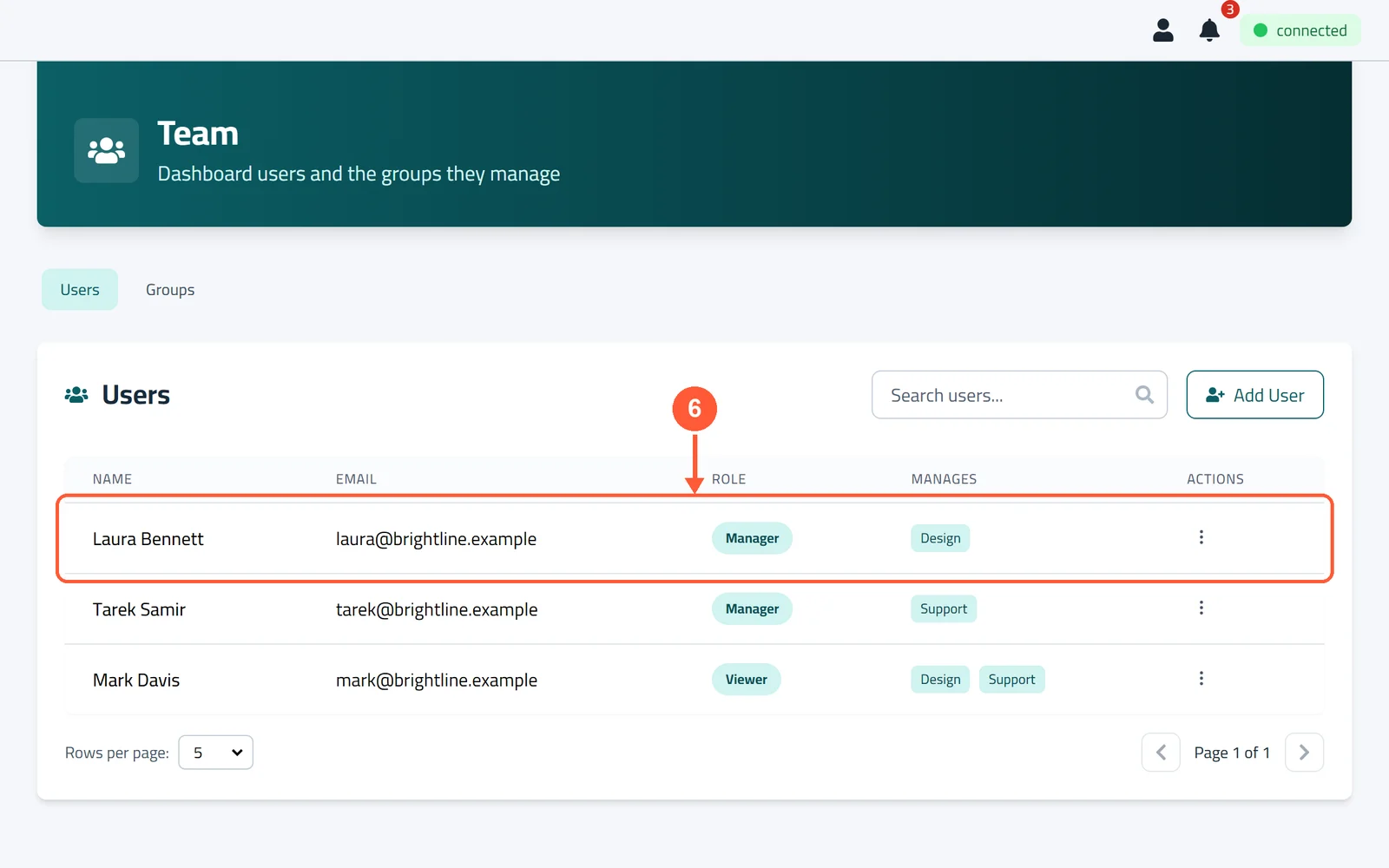
1Click Team in the menu on the left, then click Add User.1 / 6
💡 Good to Know
- Make your own roles with exactly the rights you want (see Roles & Permissions).
- Employees whose PCs you monitor don't need a dashboard user.
Roles & Permissions
A role is a set of permissions. Change what Managers and Viewers may do, or make new roles of your own.
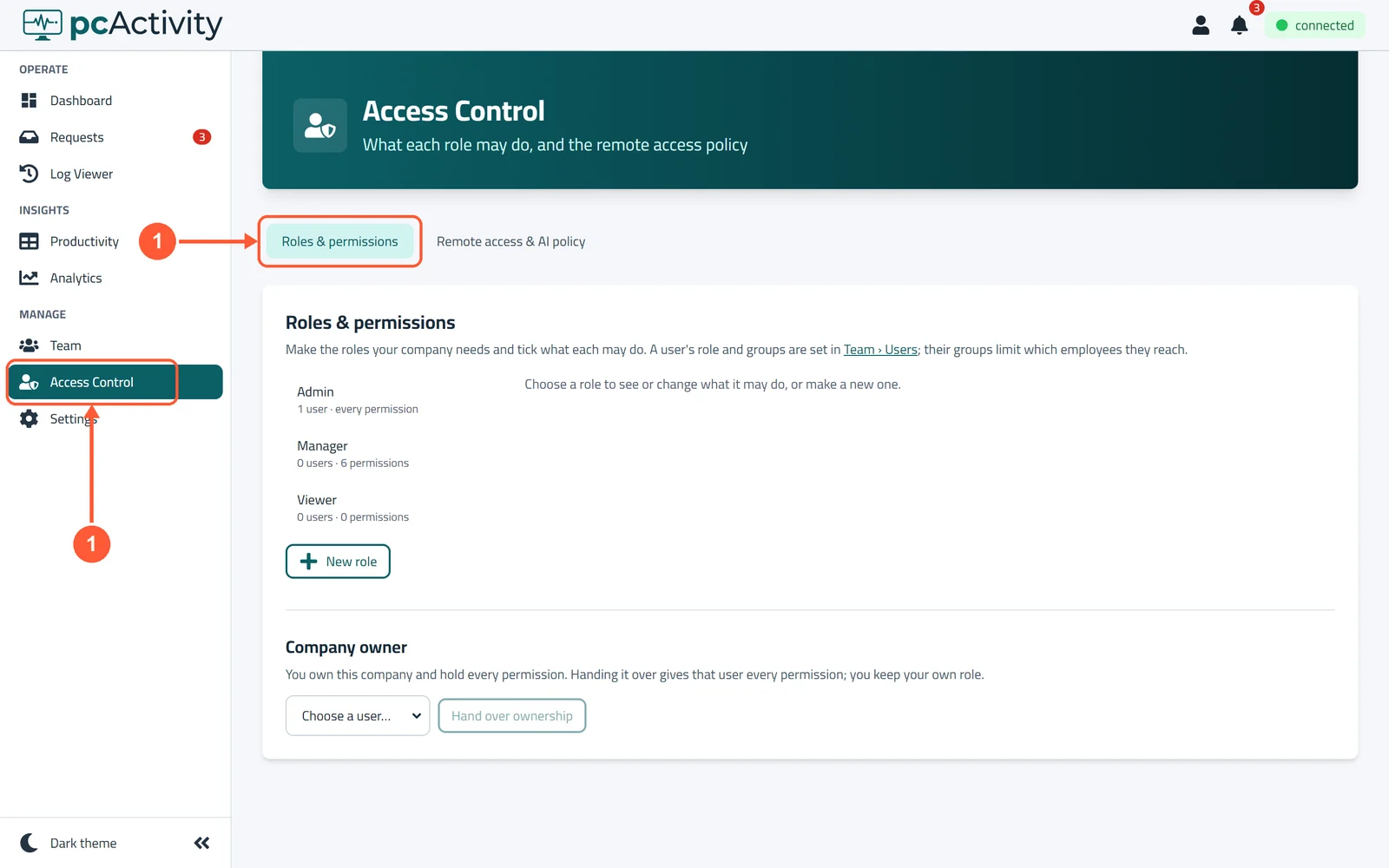
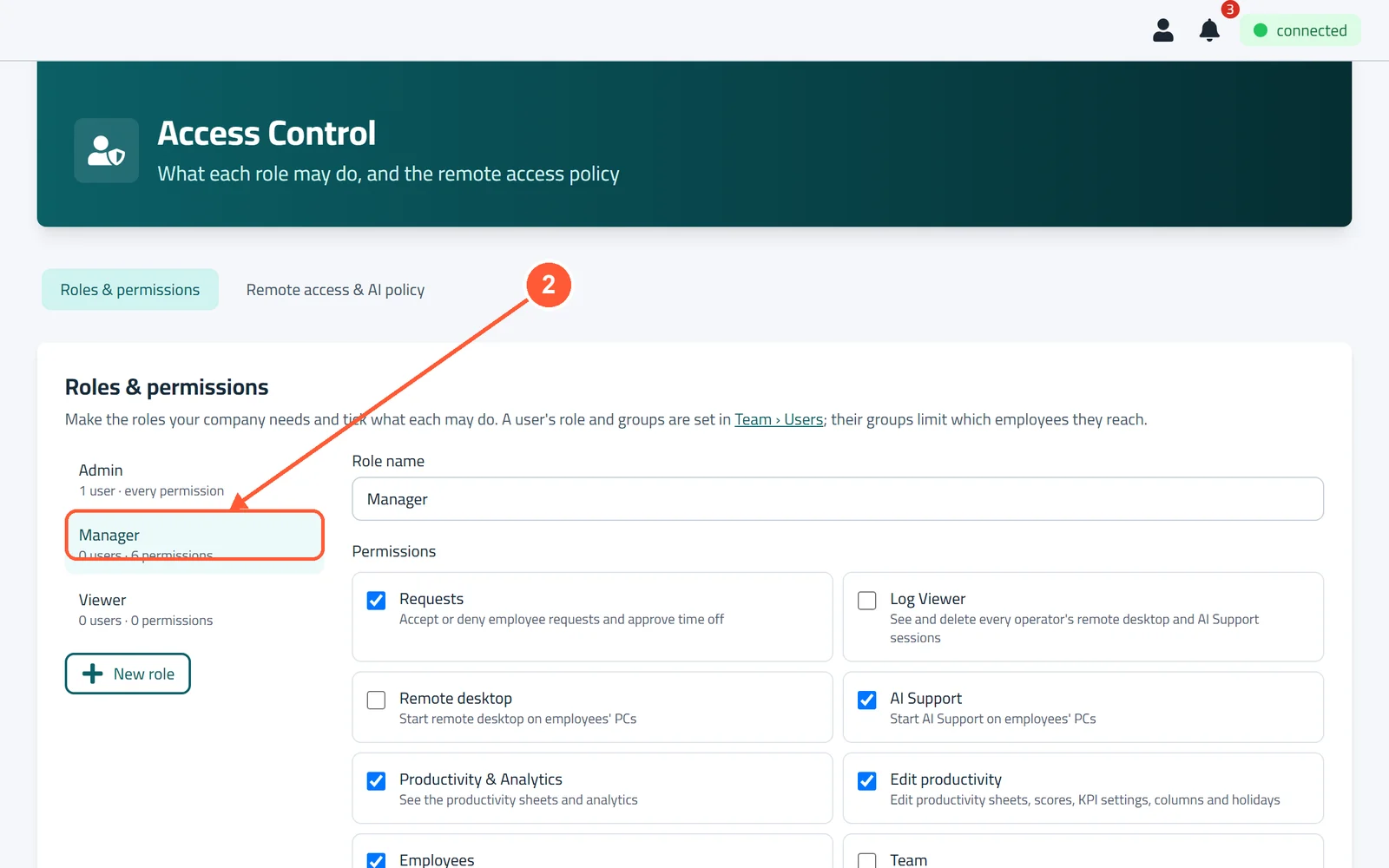
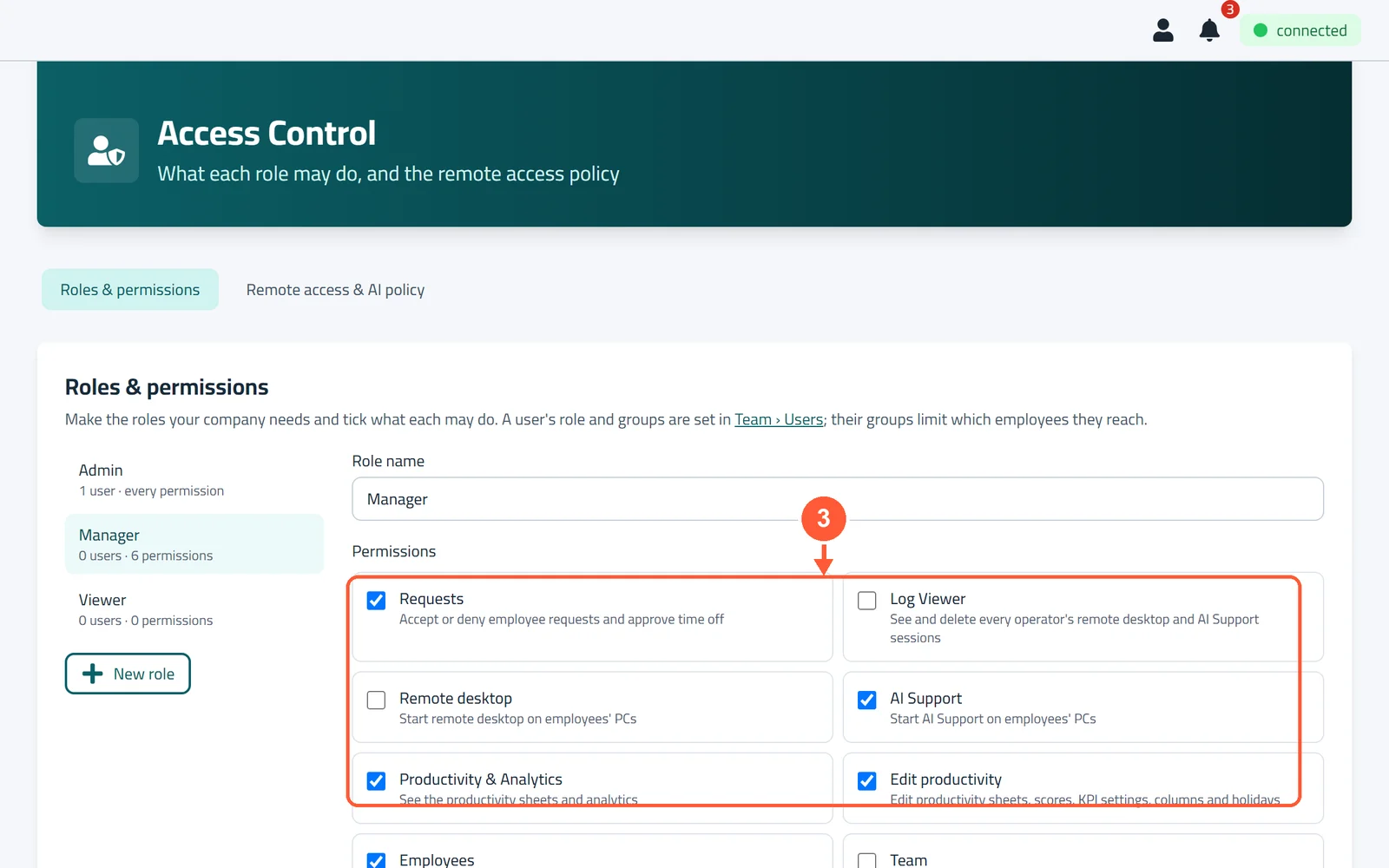
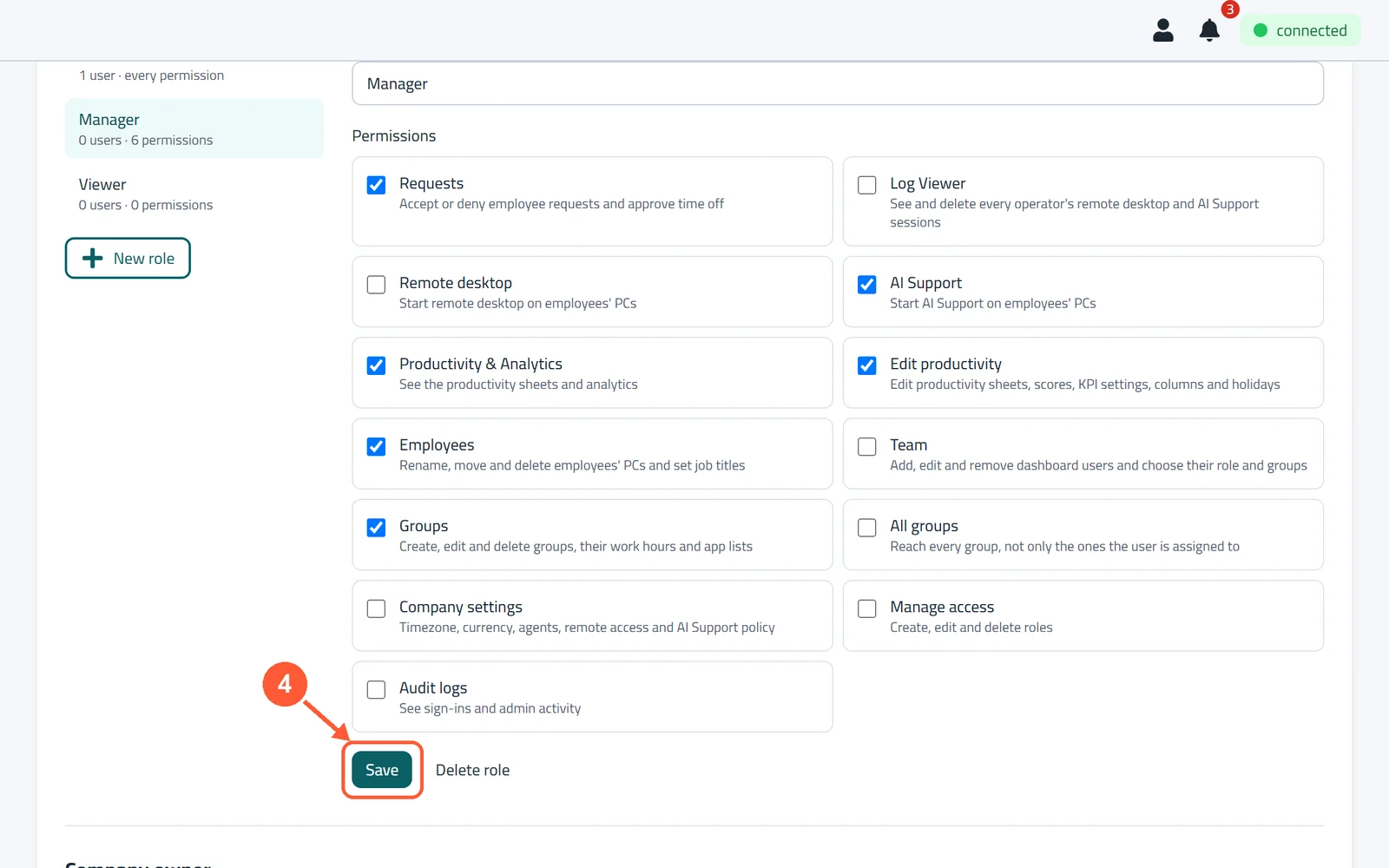
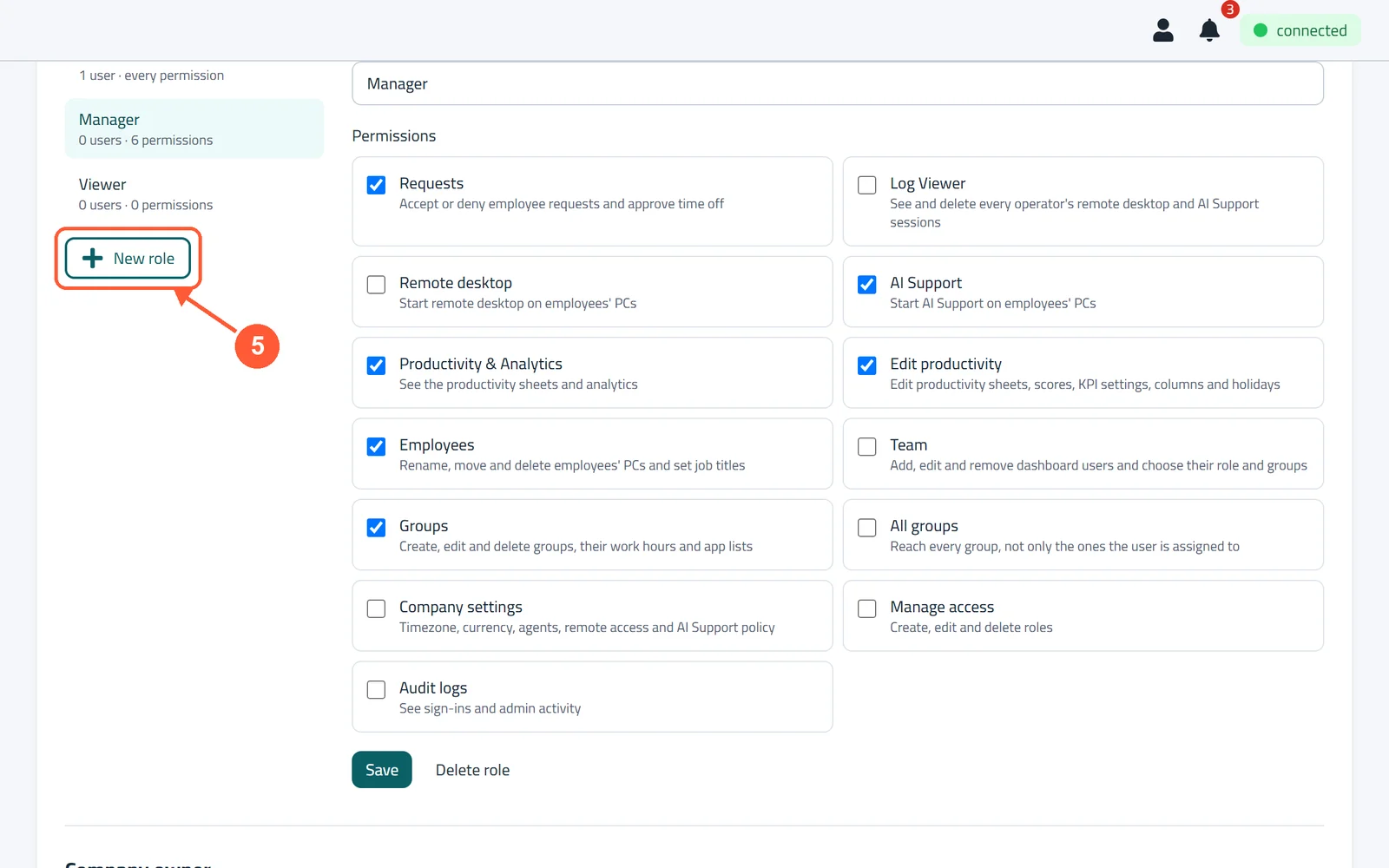
1Click Access Control in the menu on the left. Roles & permissions opens.1 / 5
💡 Good to Know
- Admin always has every permission and can't be changed.
- All groups lets a role see every group, not only the ones the user is assigned to.
- The company owner can hand the company over under Company owner → Hand over ownership.
Your Dashboard at a Glance
The Dashboard shows every PC live, grouped by team: who's working, on what, and for how long today.
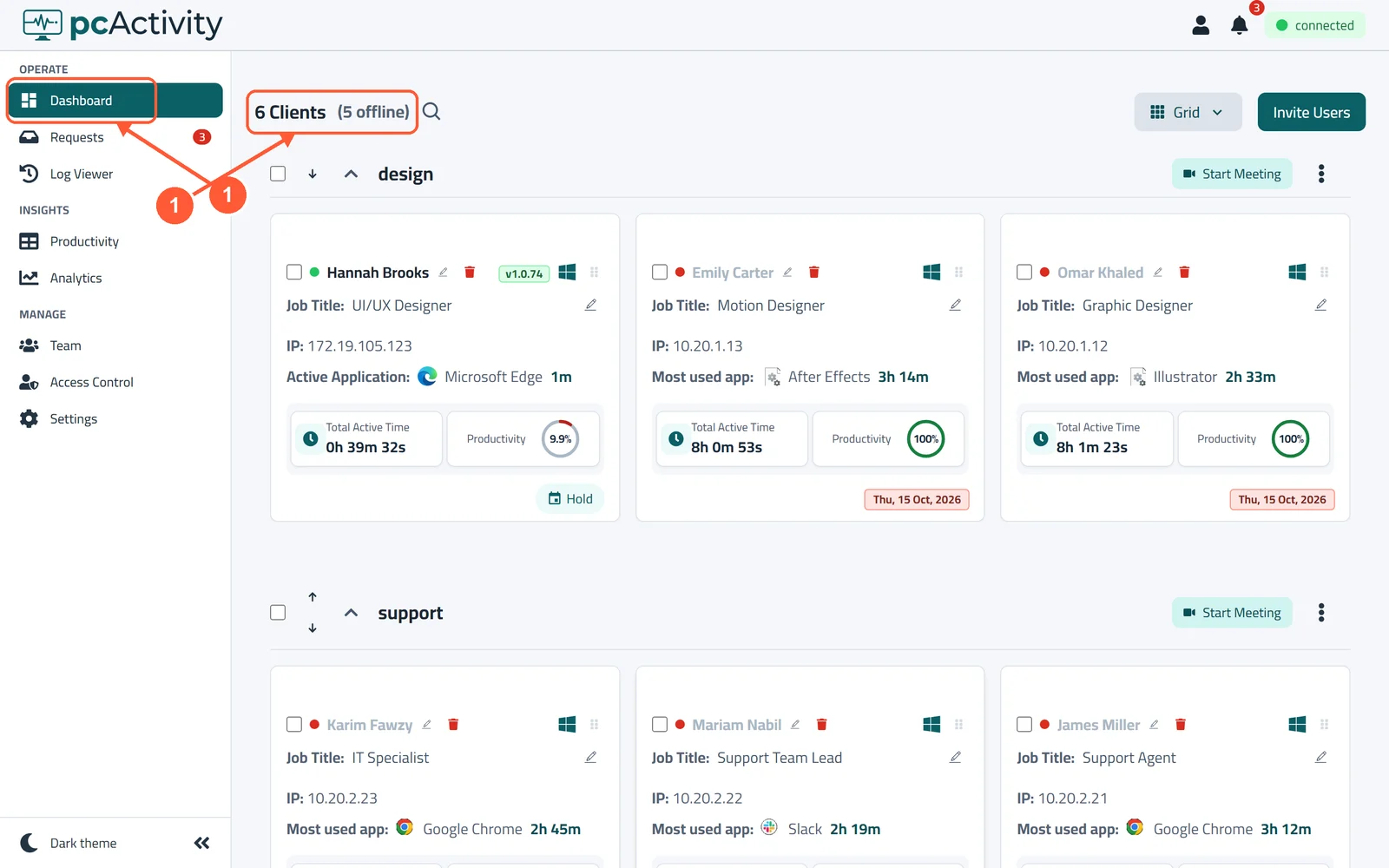
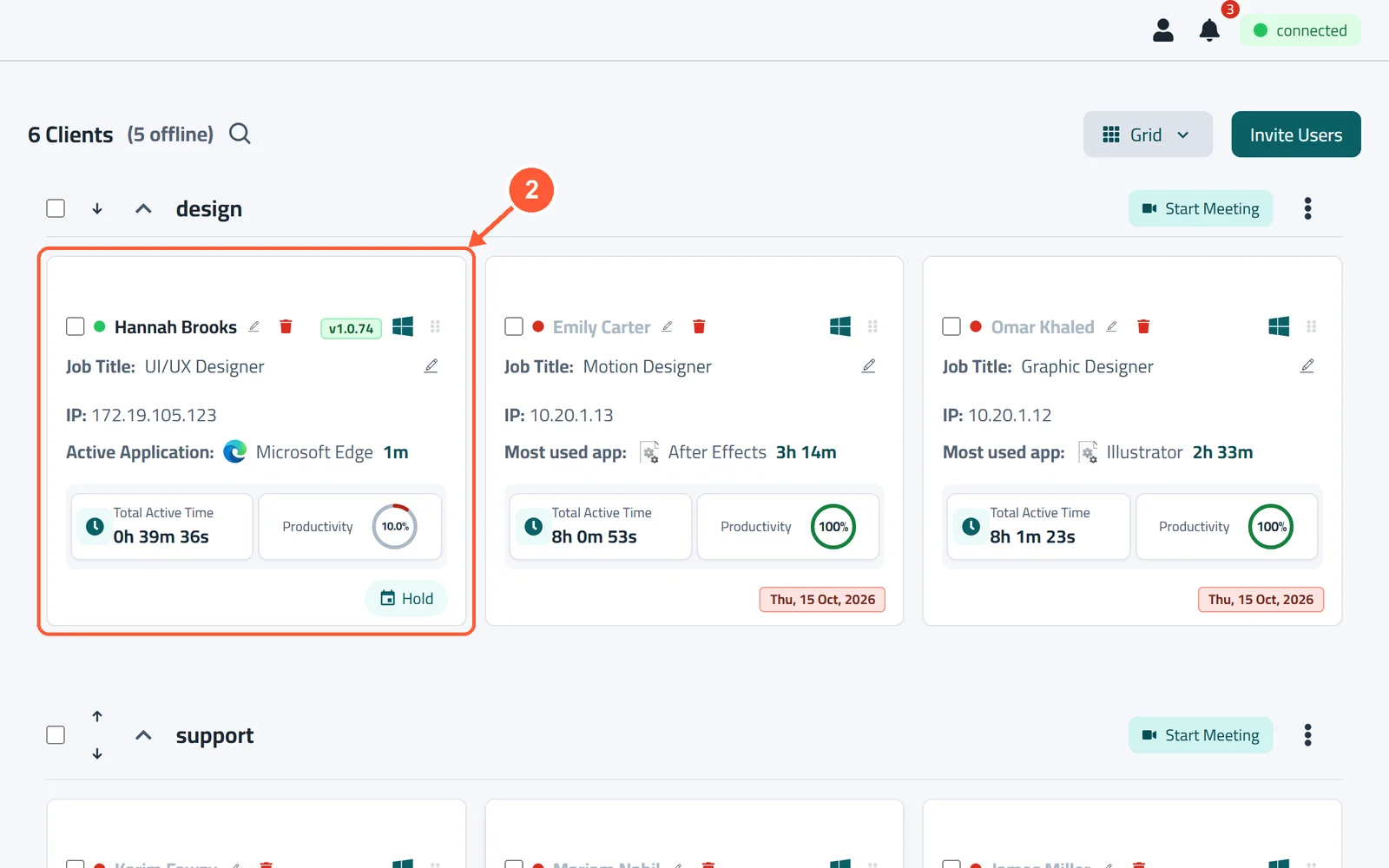
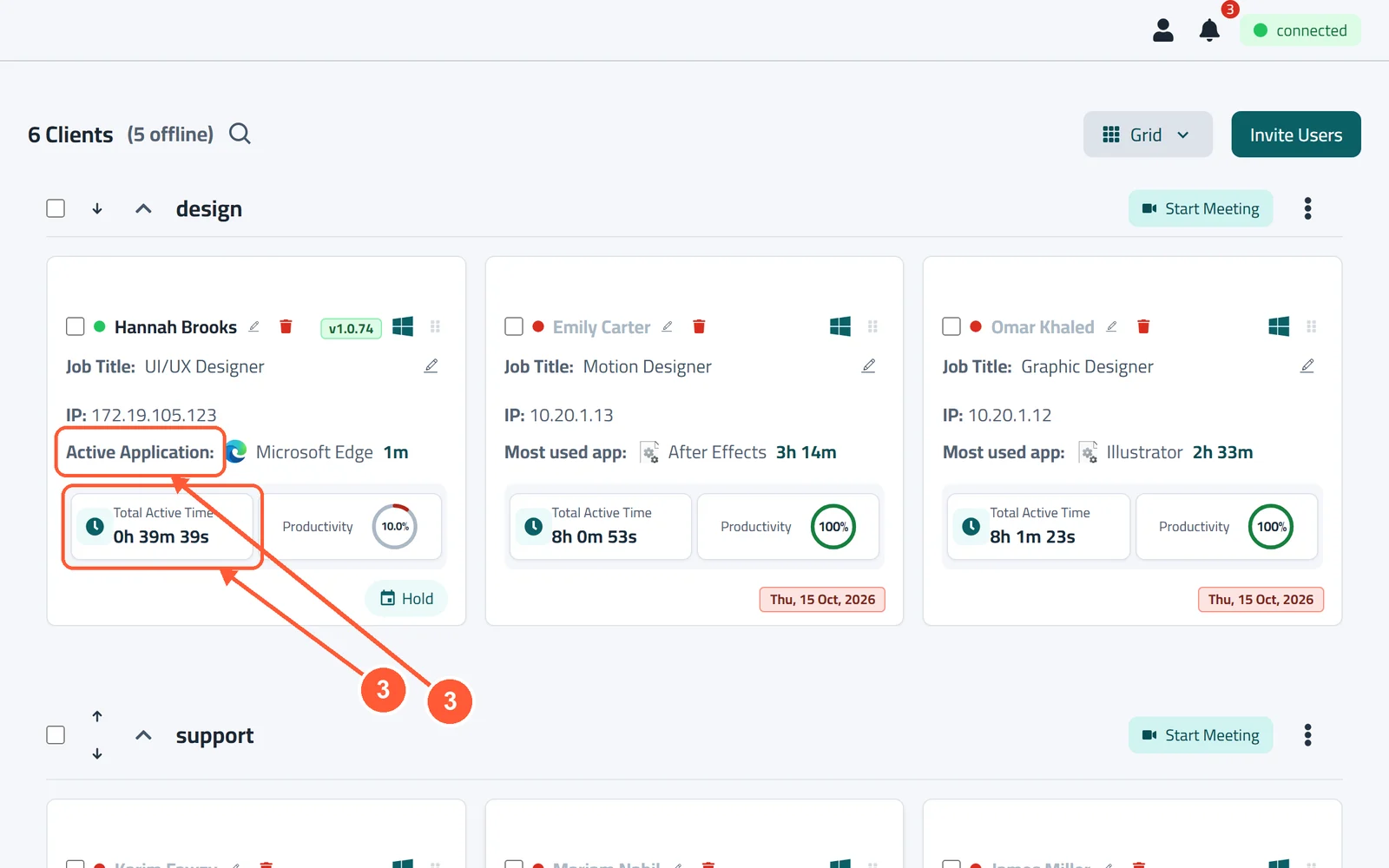
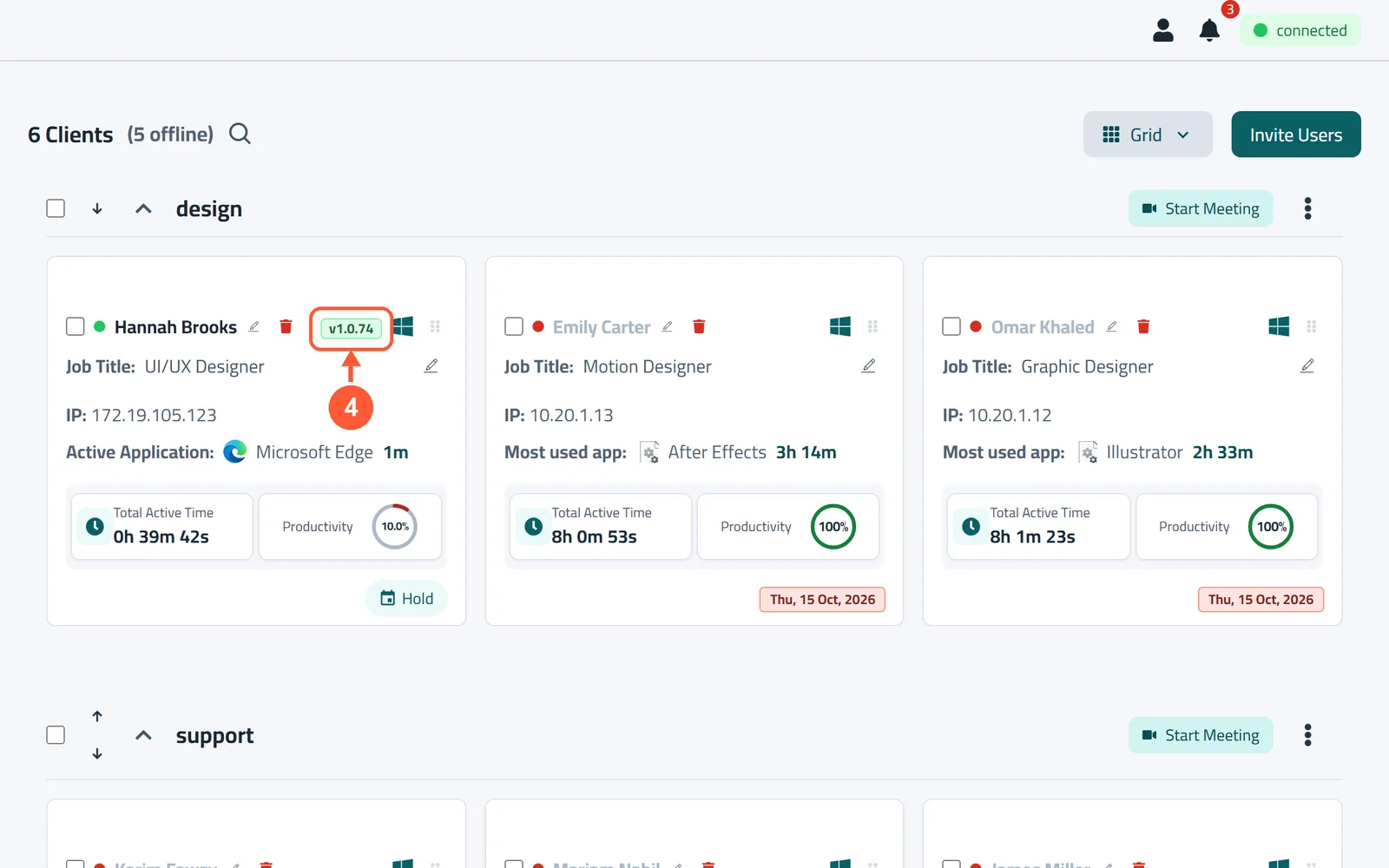
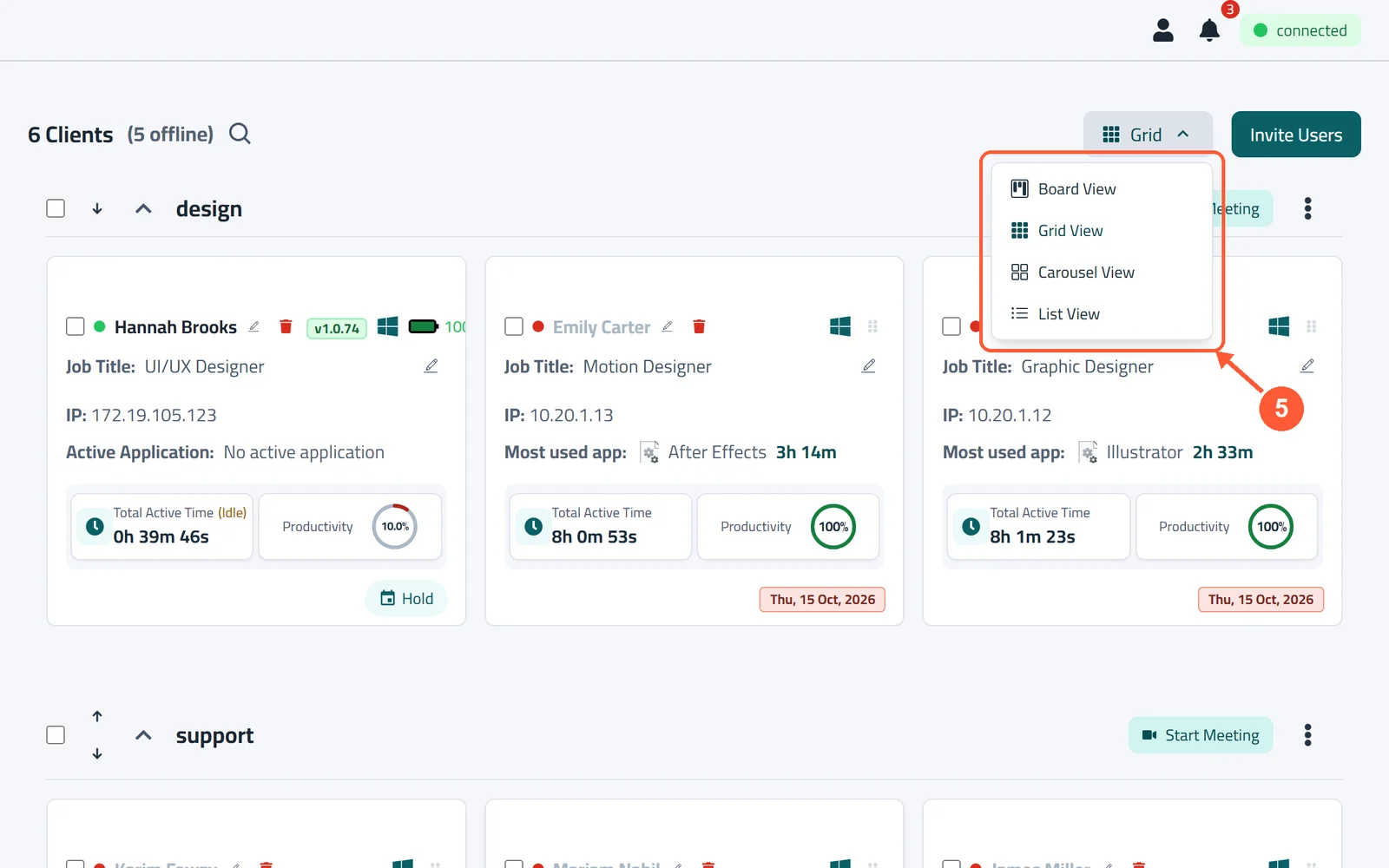
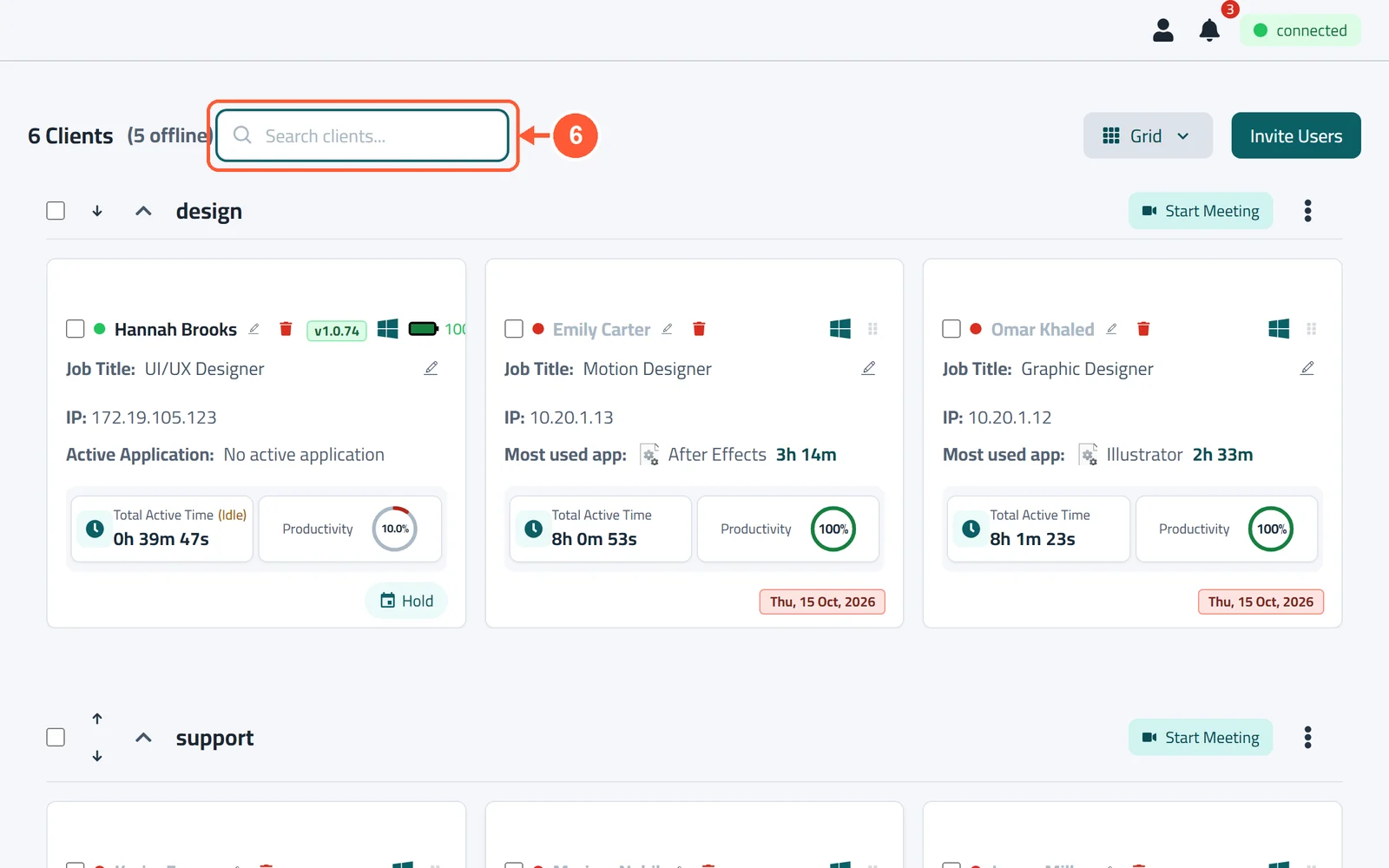
1Click Dashboard in the menu on the left. The top line shows how many PCs you have and how many are offline.1 / 6
💡 Good to Know
- Offline cards show the date the PC was last active.
- Click an employee's name to see their whole day (see Review an Employee's Day).
Review an Employee's Day
See which apps and websites someone used, for how long, and when they worked.
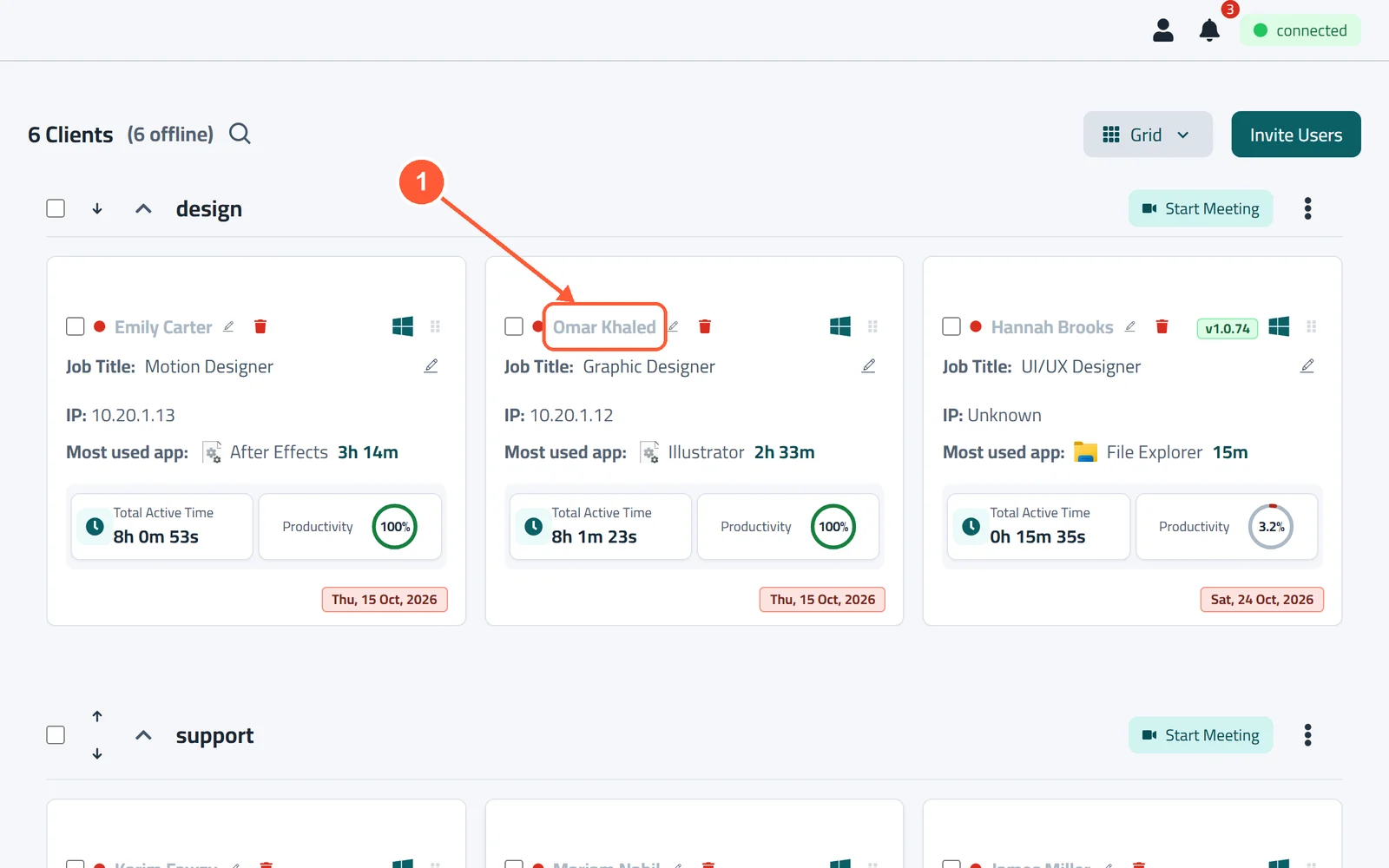
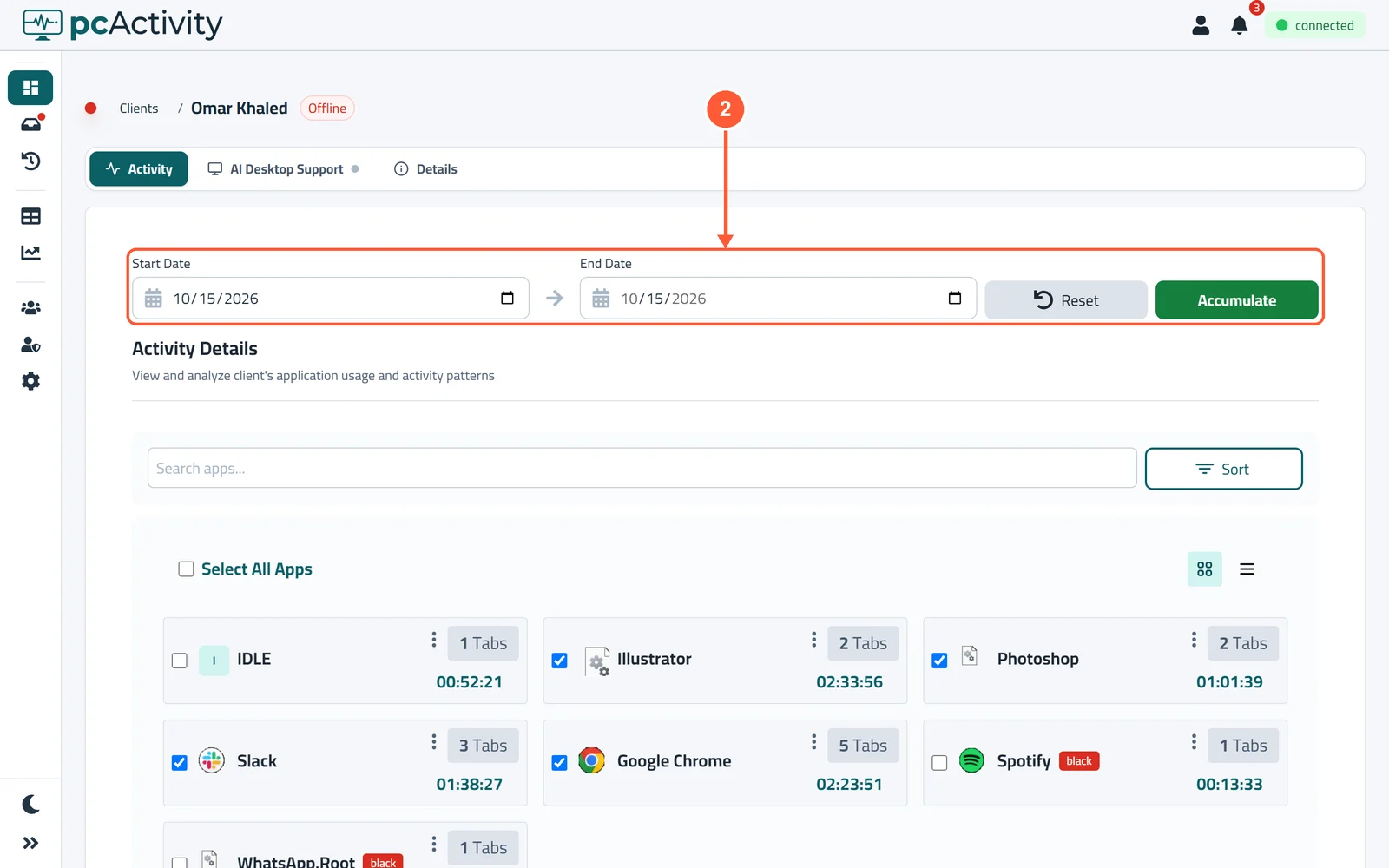
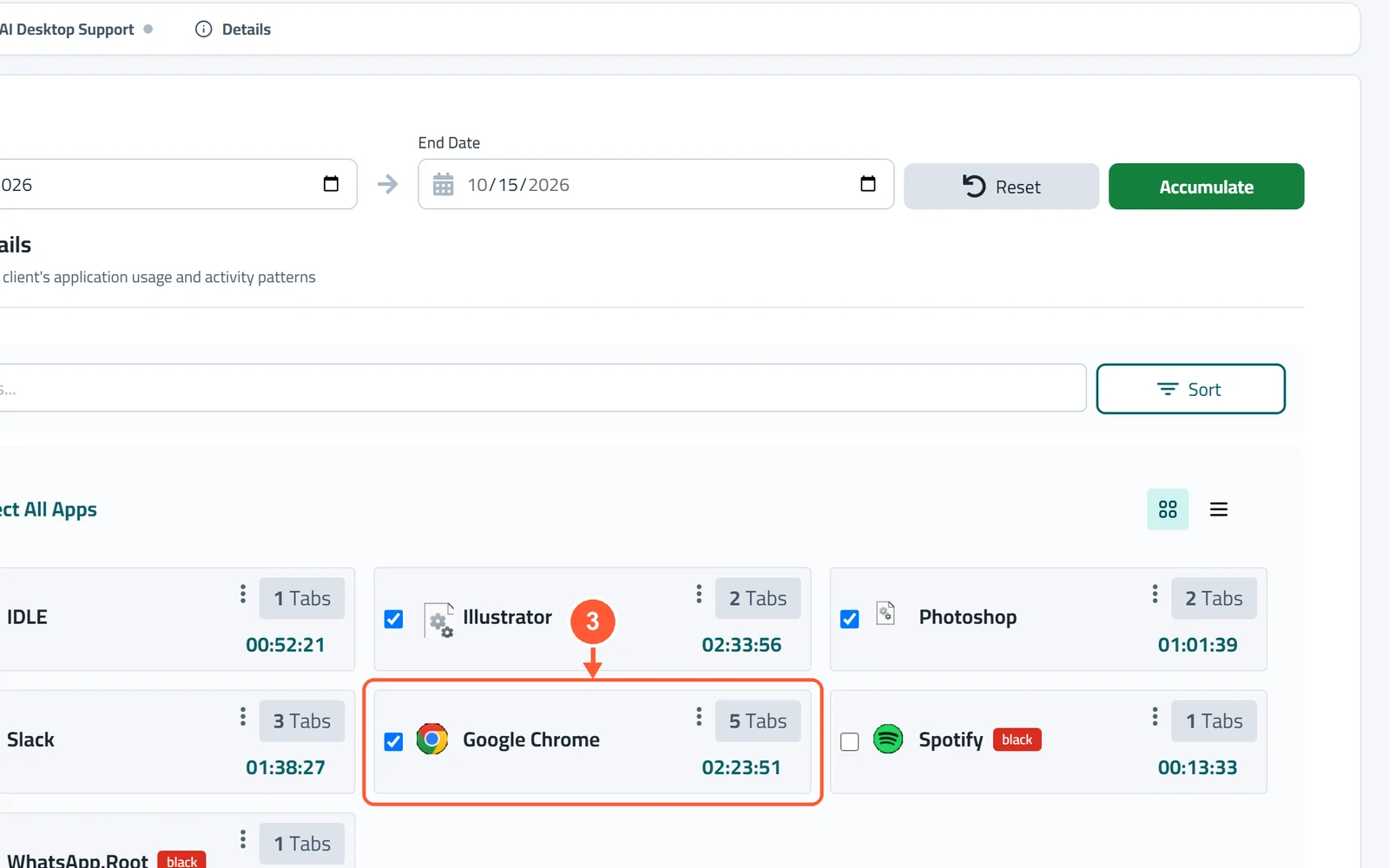
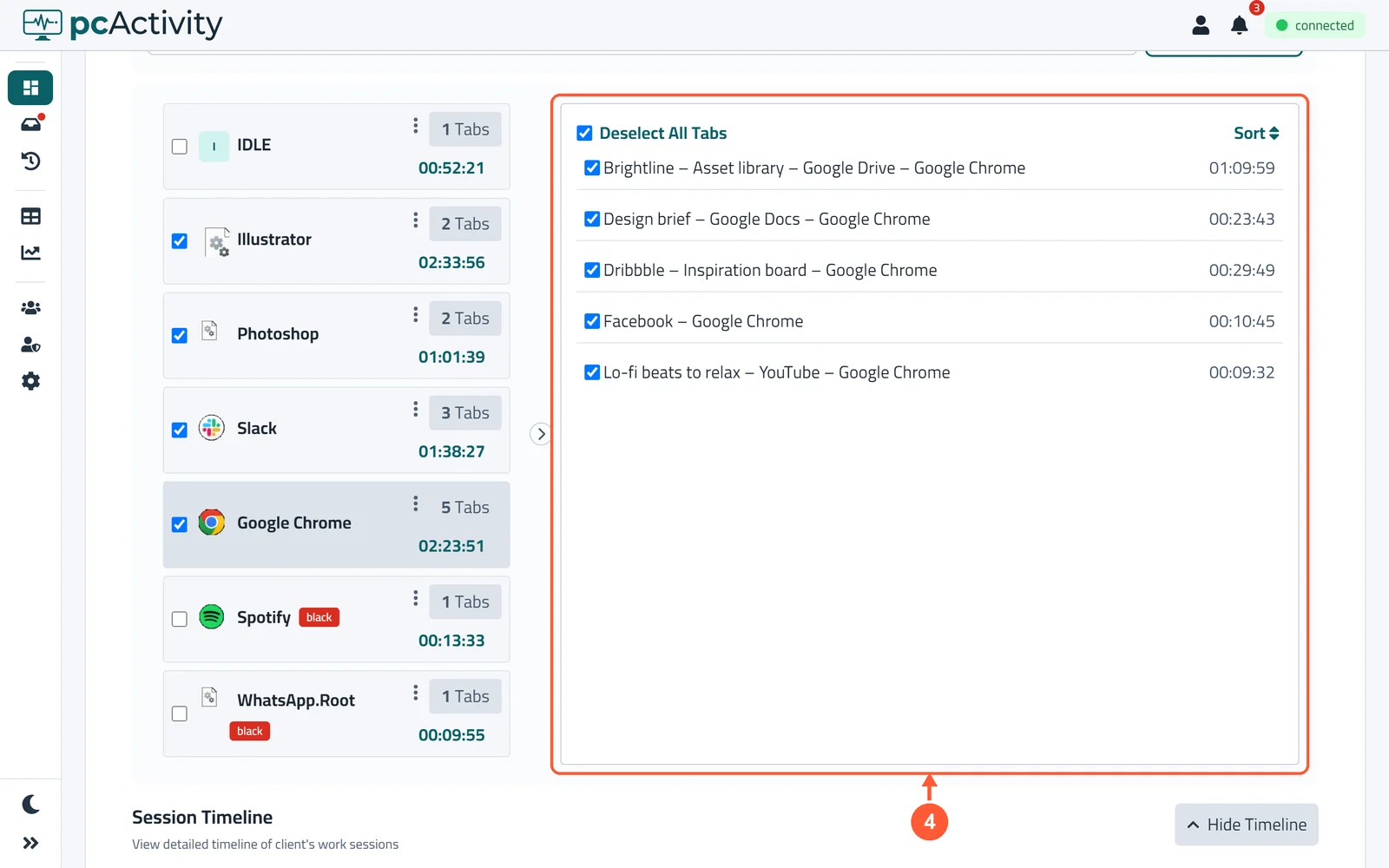
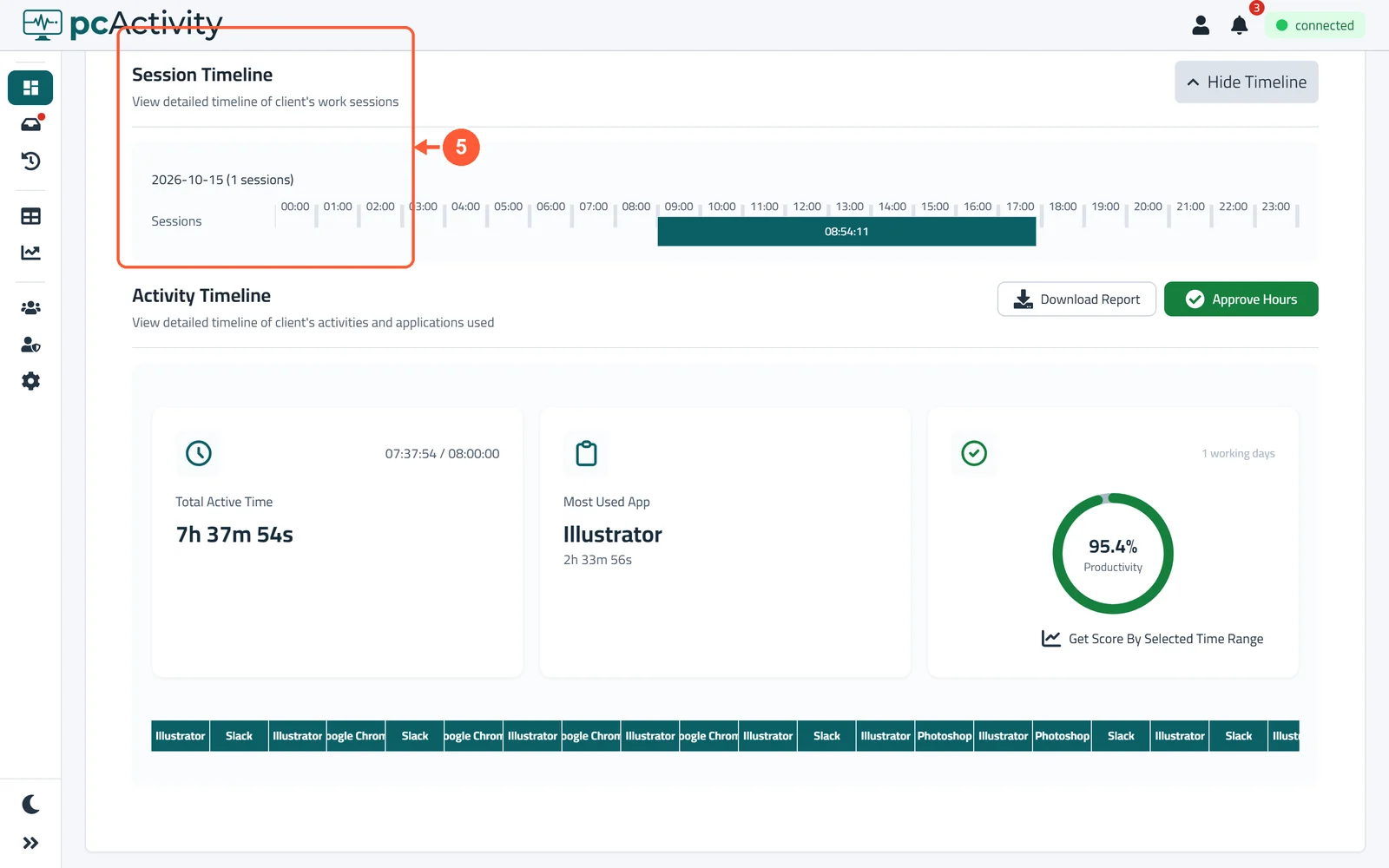
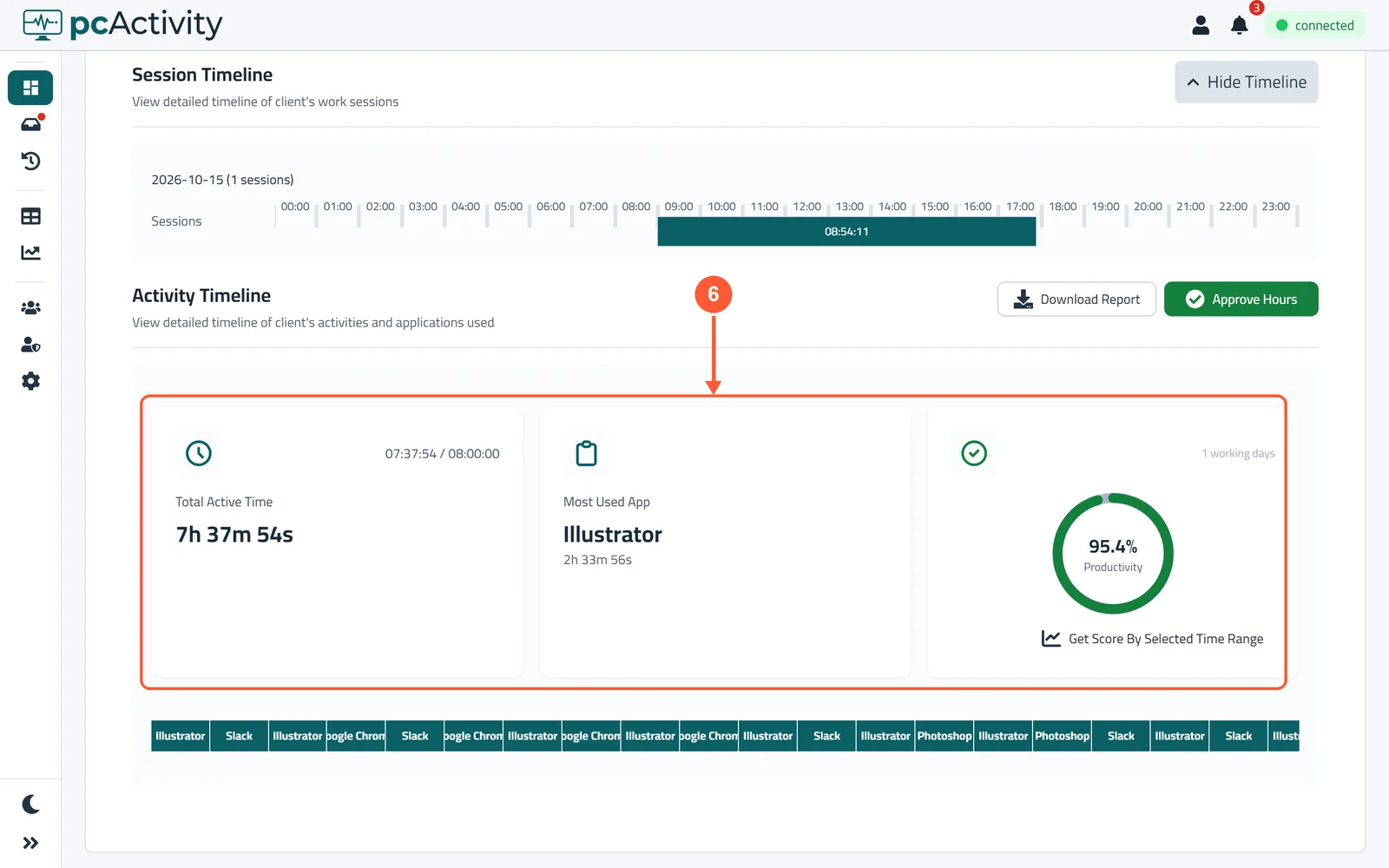
1On the Dashboard, click the employee's name.1 / 6
💡 Good to Know
- IDLE is time with no mouse or keyboard.
- A red black tag marks a blocked app (see Choose Work and Blocked Apps).
- Picked more than 7 days? The Activity Timeline opens on the latest day: use Older day and Newer day to move between days. The totals above still cover the whole range.
Handle Time Requests
Employees can ask you to count time they spent in a meeting or on a task away from their PC. You decide whether to give it.
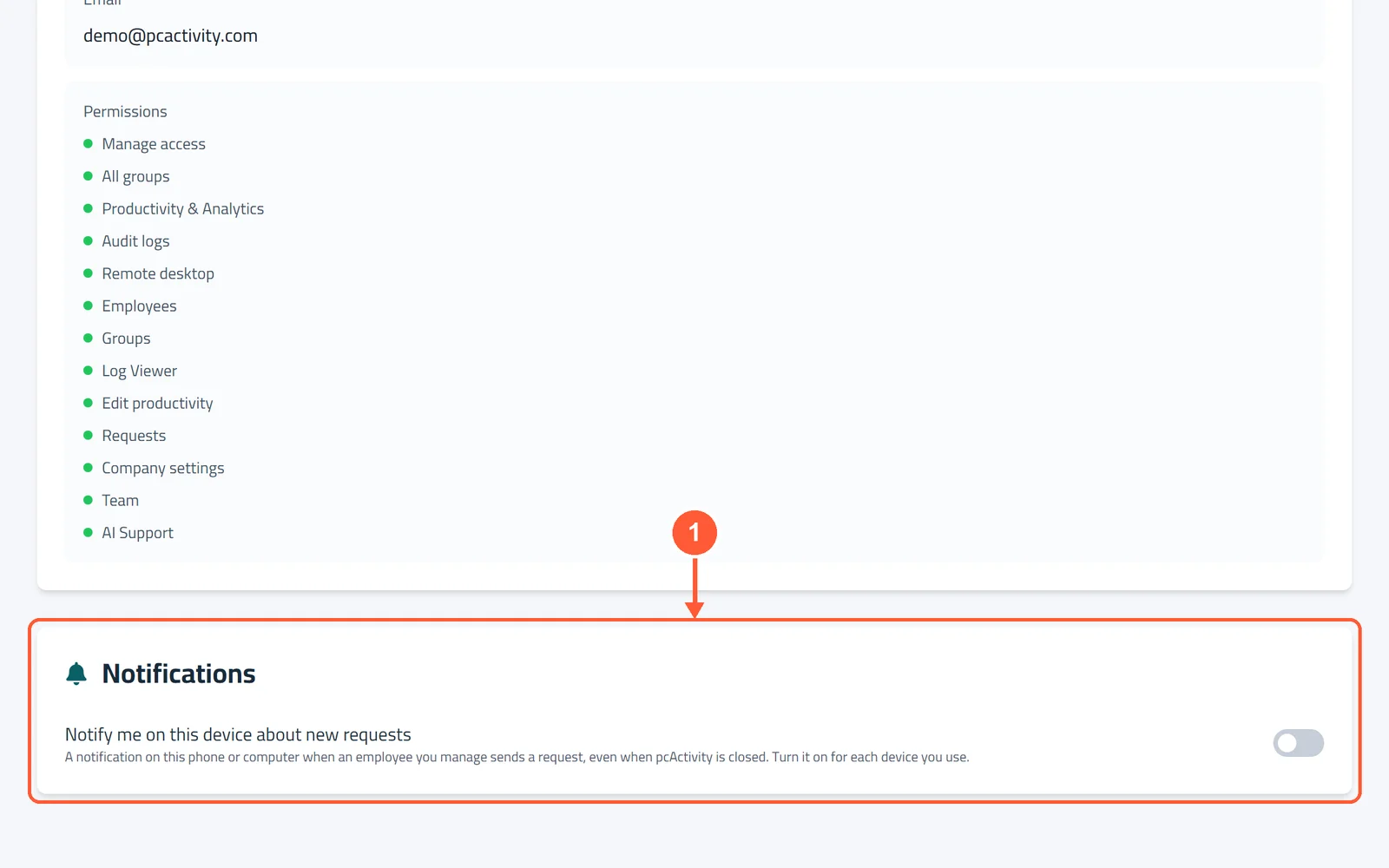
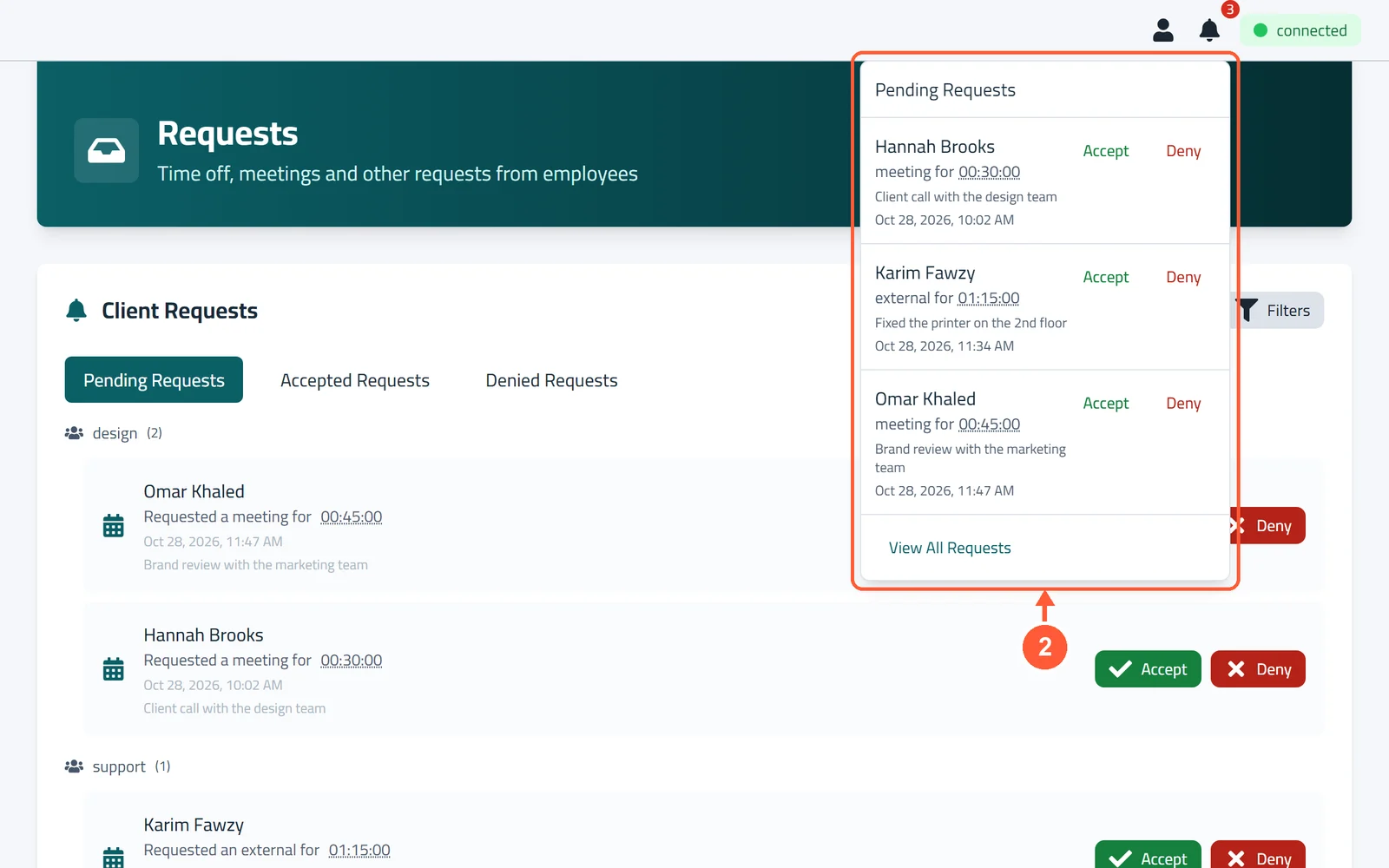
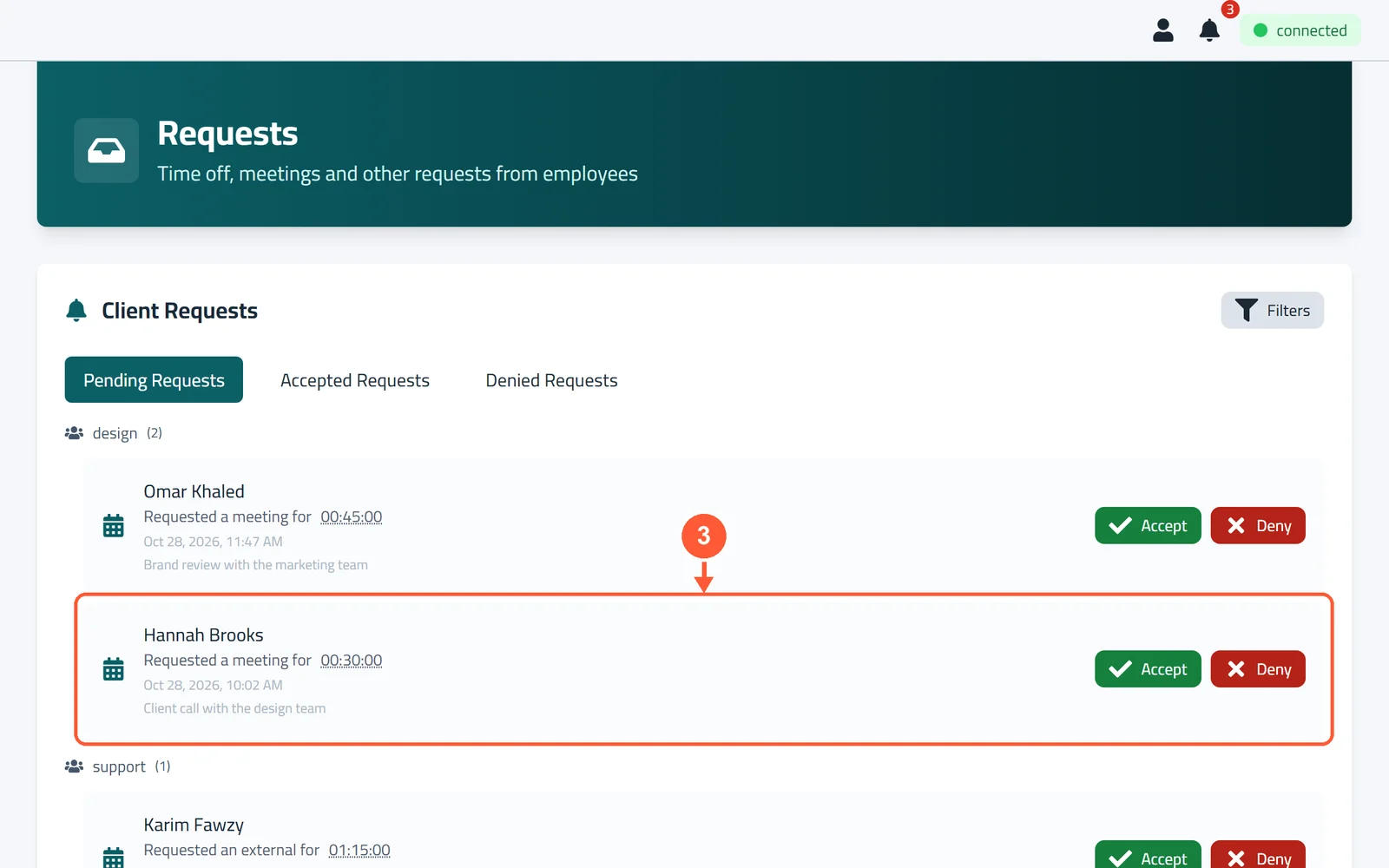
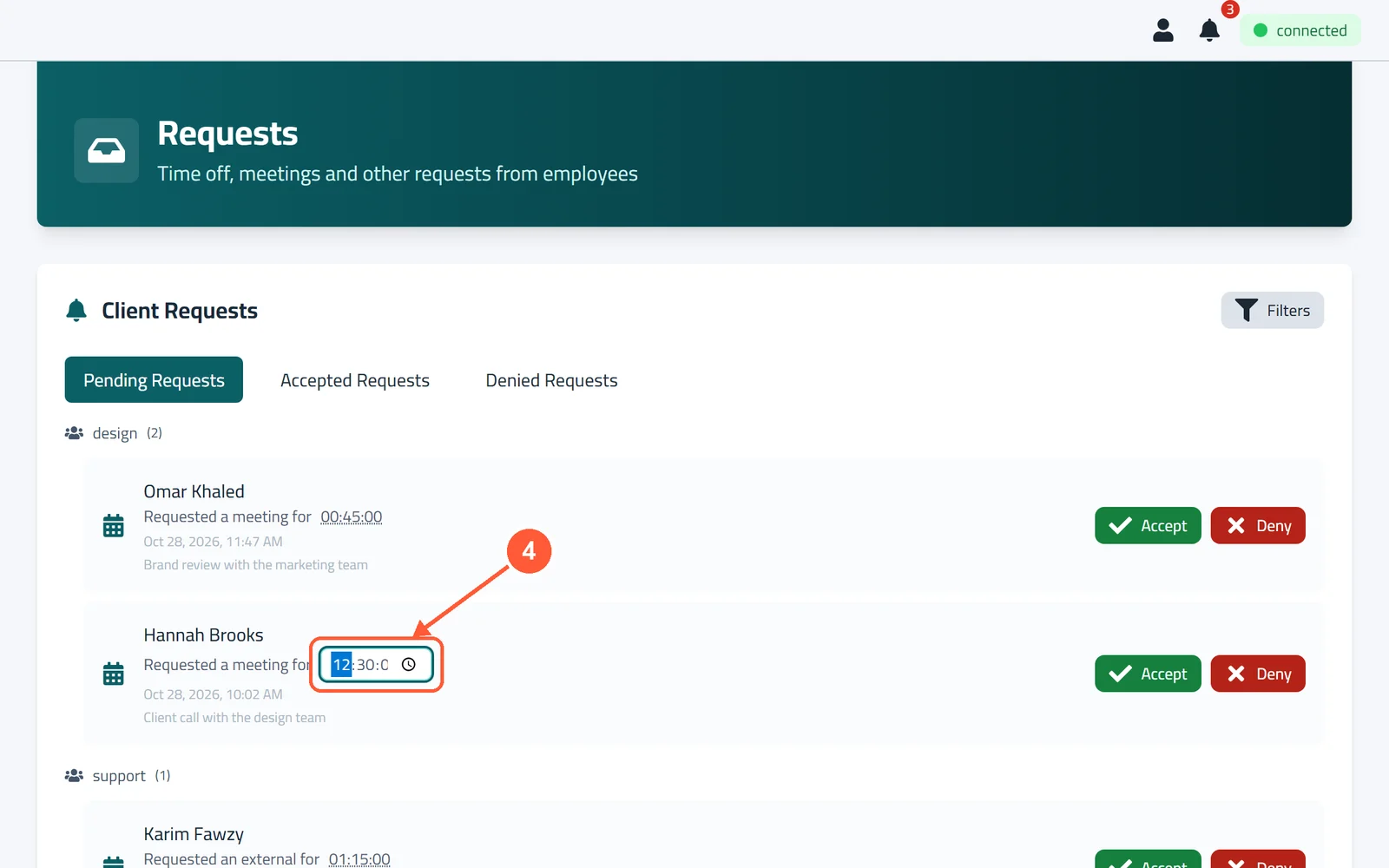
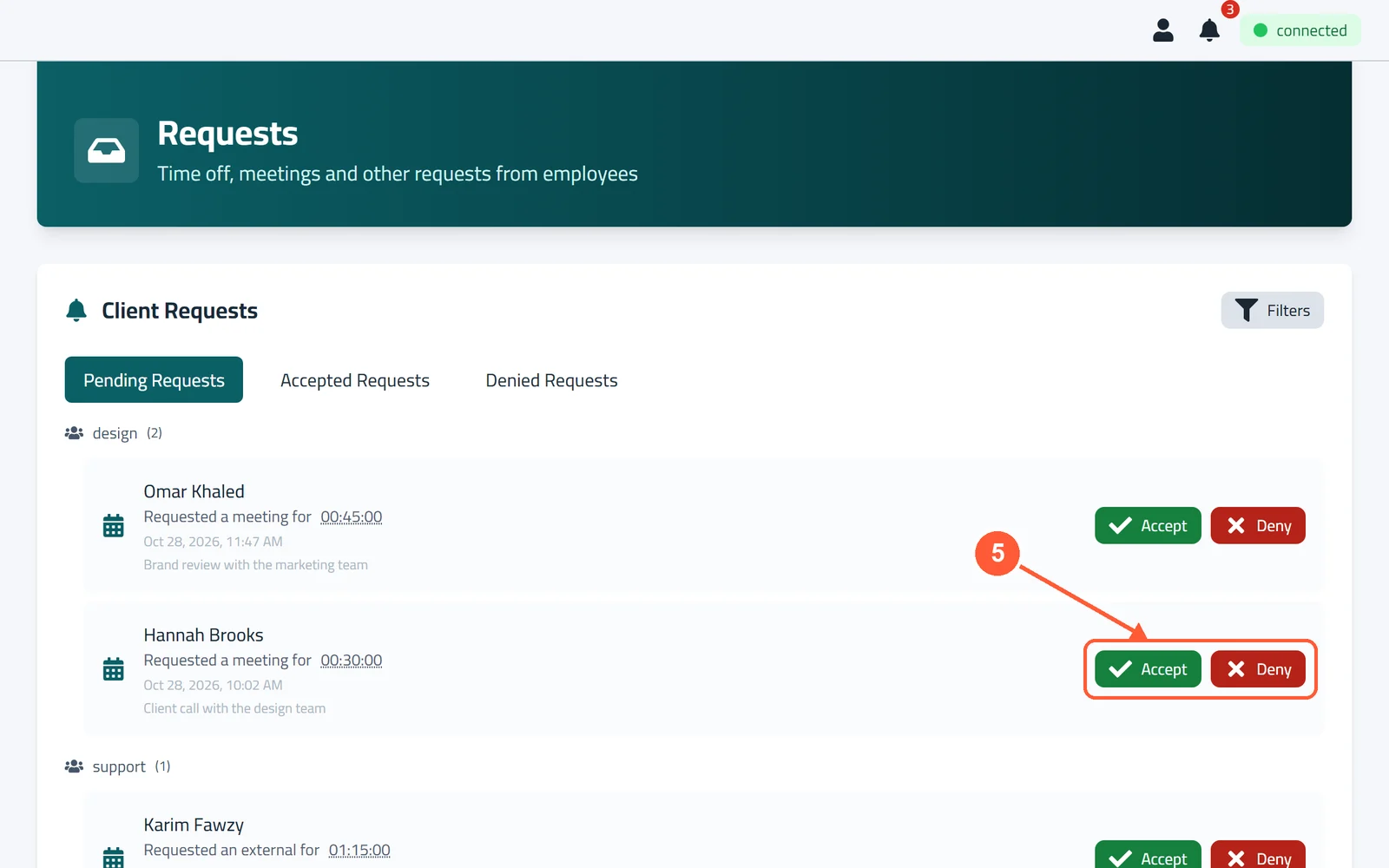
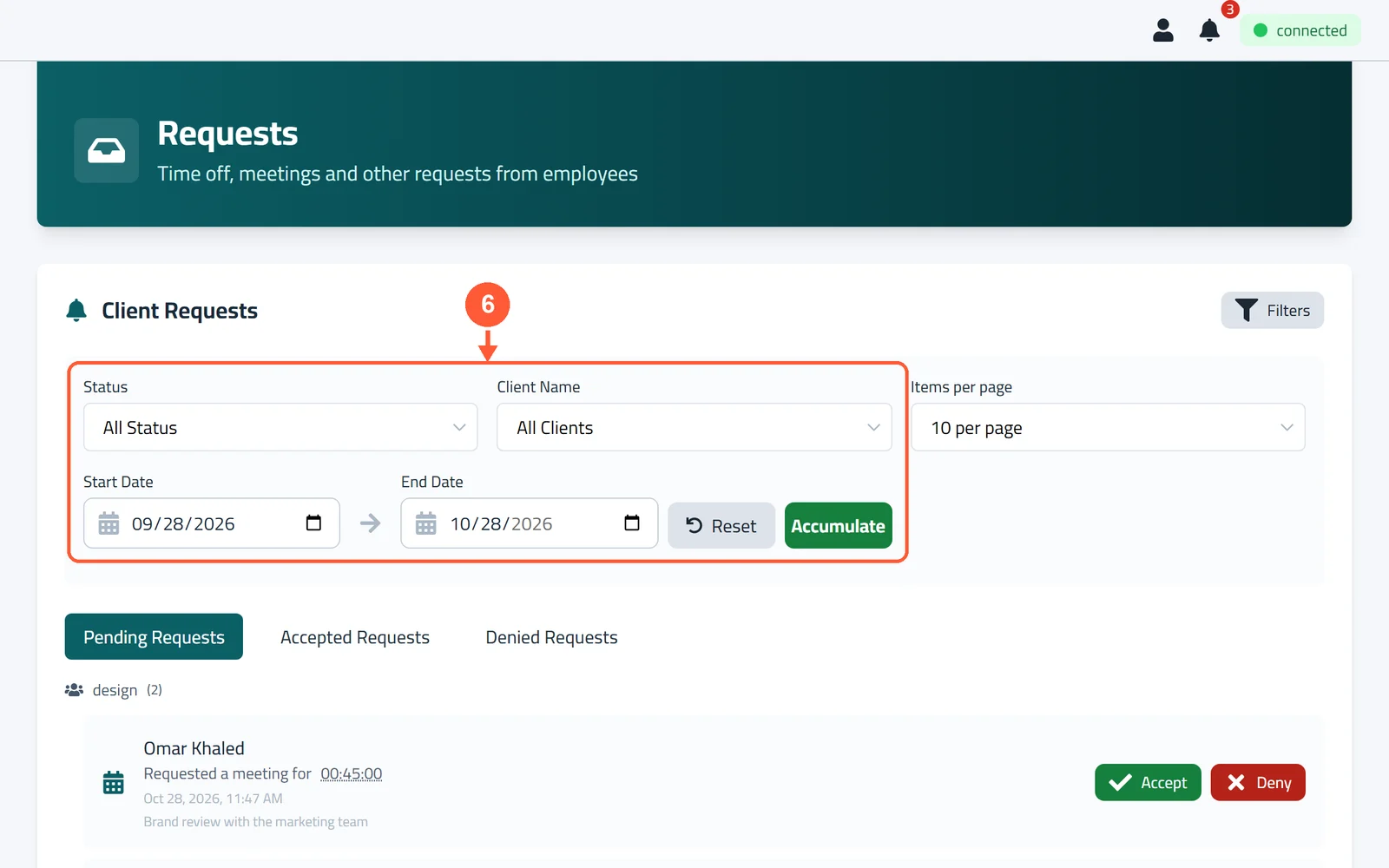
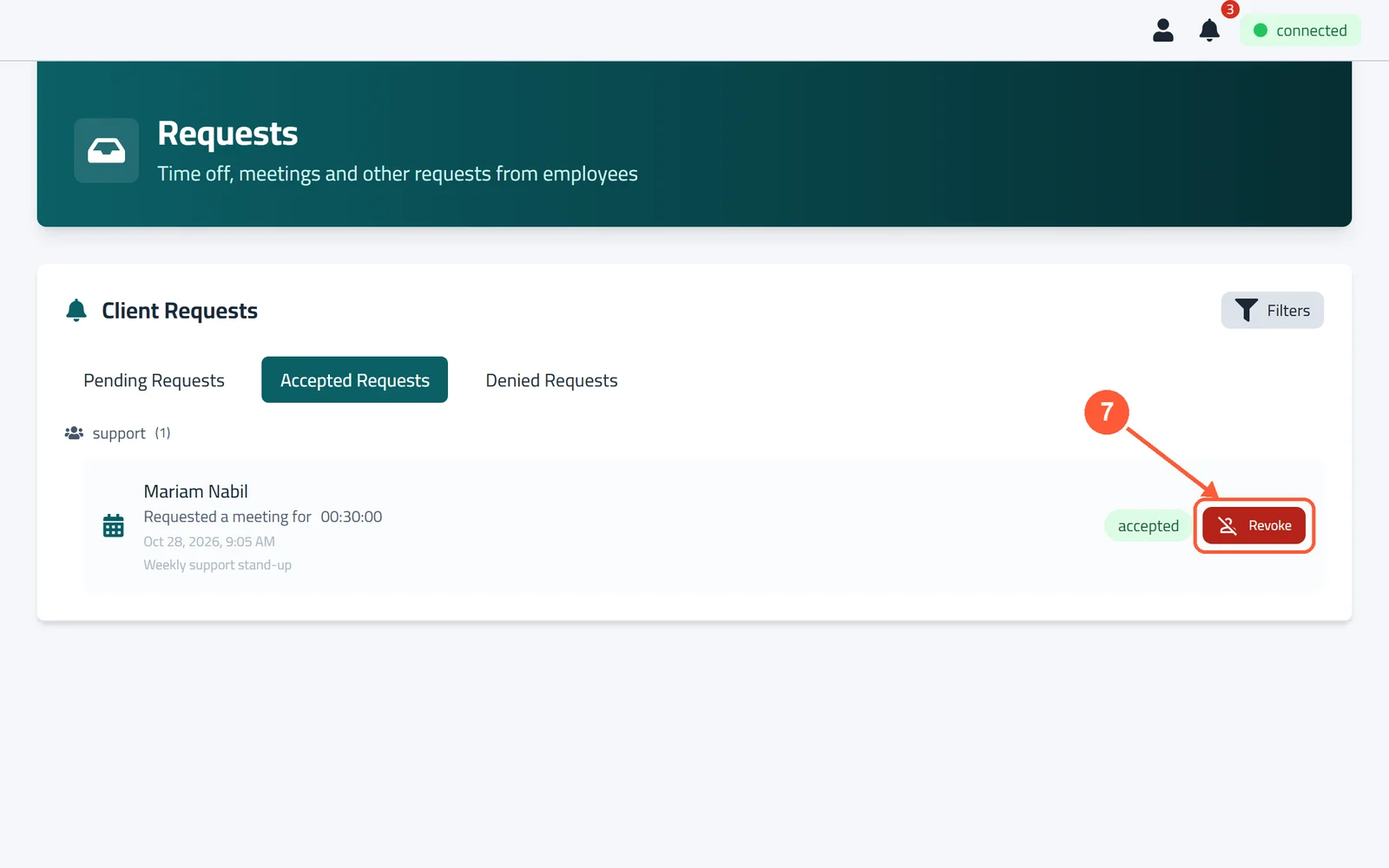
1Want a ping for each new request? Click the person icon at the top right, choose Account, and turn on Notify me on this device about new requests. Do this on each phone or computer you use.1 / 7
💡 Good to Know
- You only see requests from the groups you manage, unless your role covers all groups.
- On an iPhone, first add pcActivity to your Home Screen (Share → Add to Home Screen), open it from there, then turn on notifications.
- Employees send requests from the pcActivity icon on their PC: right-click it and choose Request Time..
Log Meetings & Breaks
When people step away from their PCs for a meeting or a break, put them on hold so that time is counted the right way.
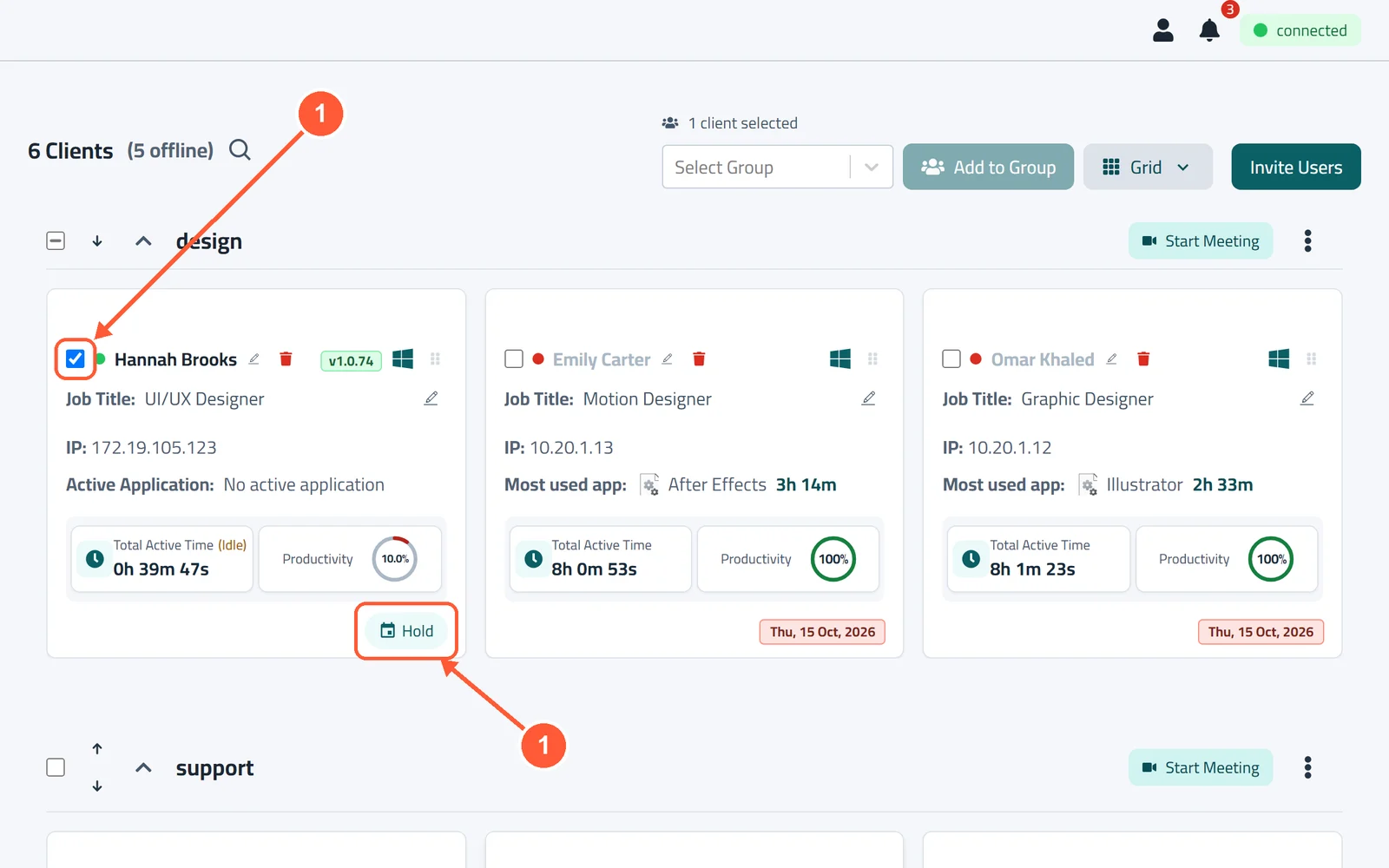
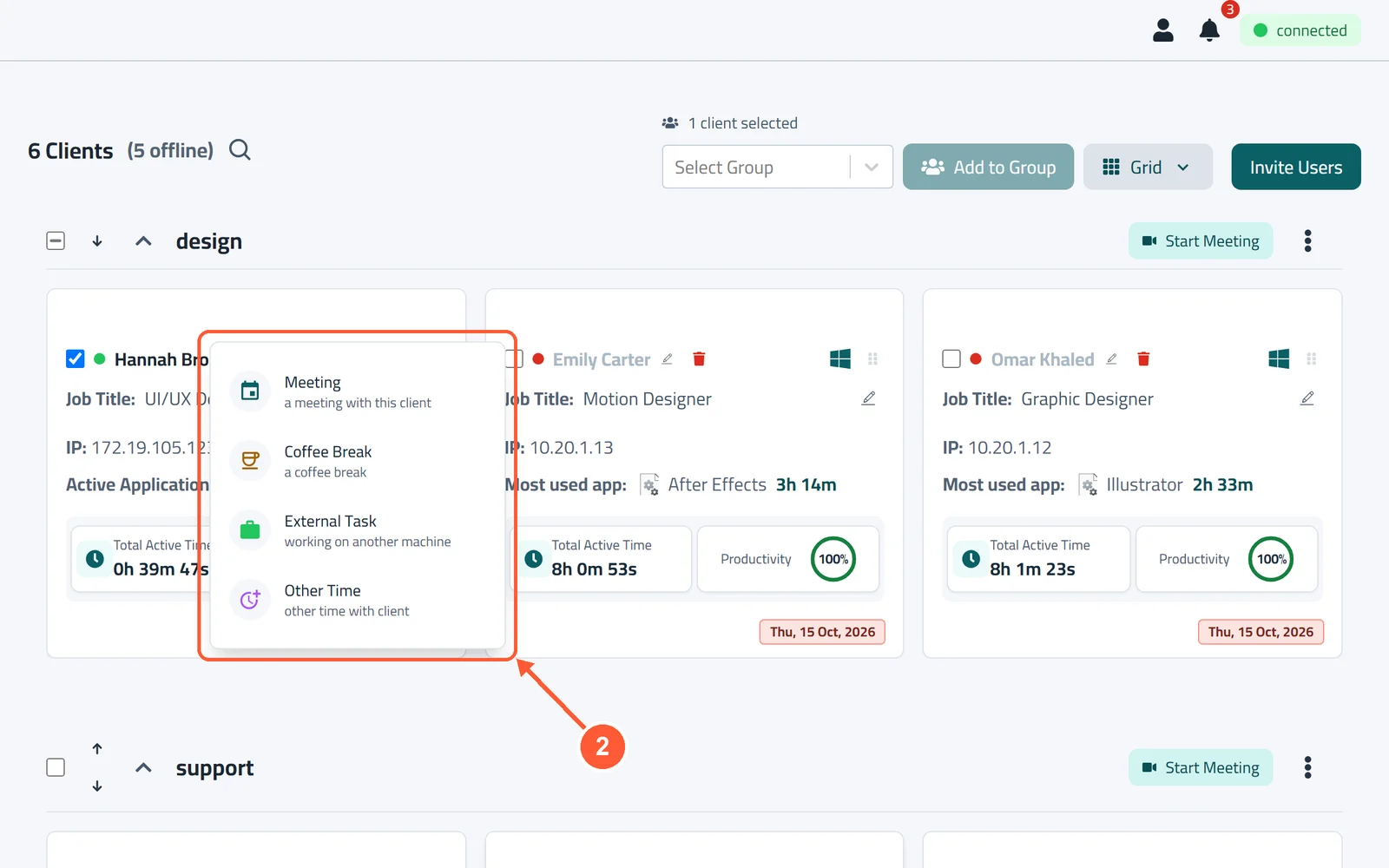
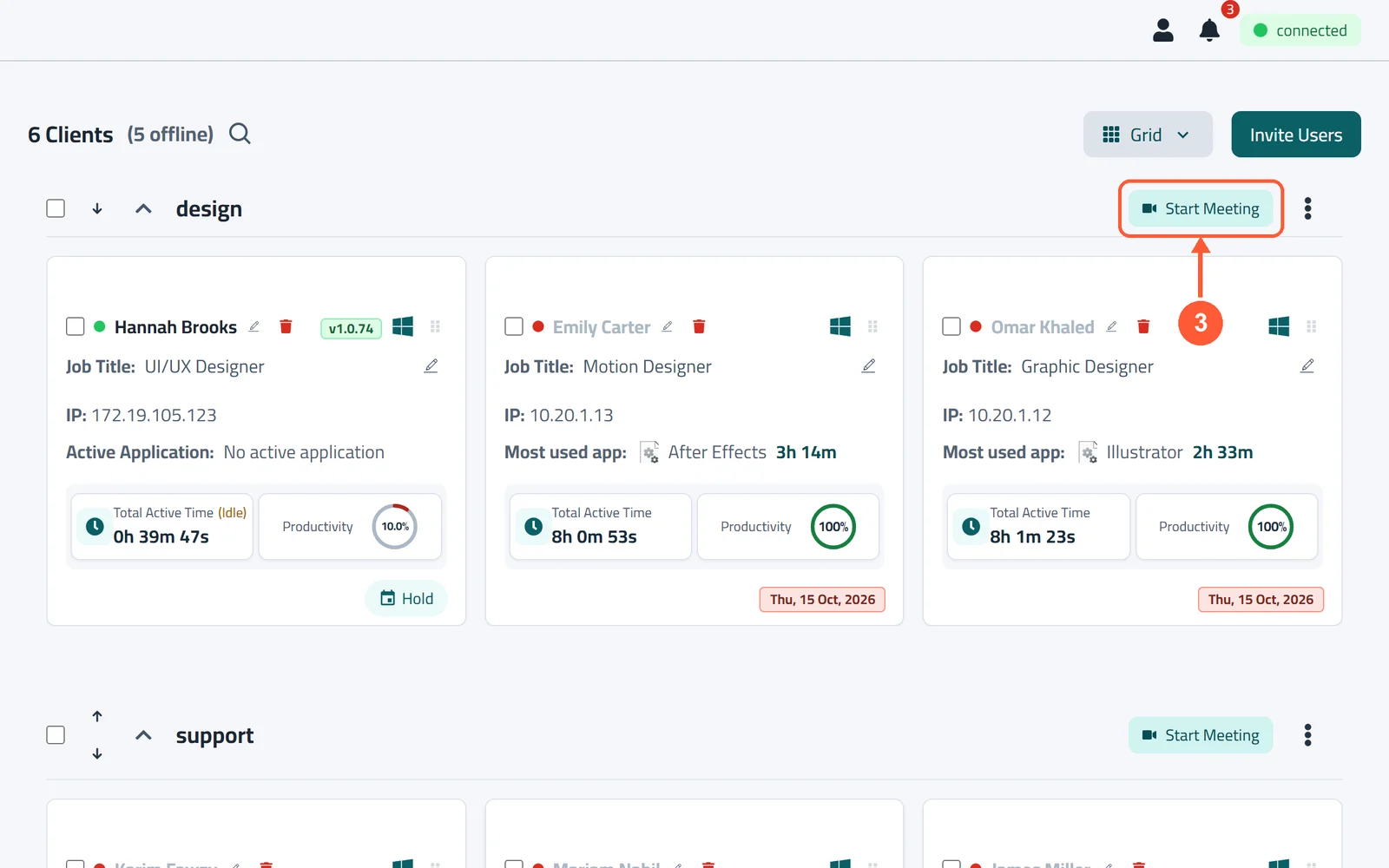
1Tick the box on an employee's card, then click Hold. Tick several cards to hold them together.1 / 3
💡 Good to Know
- Only online PCs can be put on hold.
- Employees can also ask for meeting time themselves (see Request Meeting or External Time).
Approve Hours
Add working time pcActivity couldn't see, like a late start for a doctor's visit, so the day's score is fair.
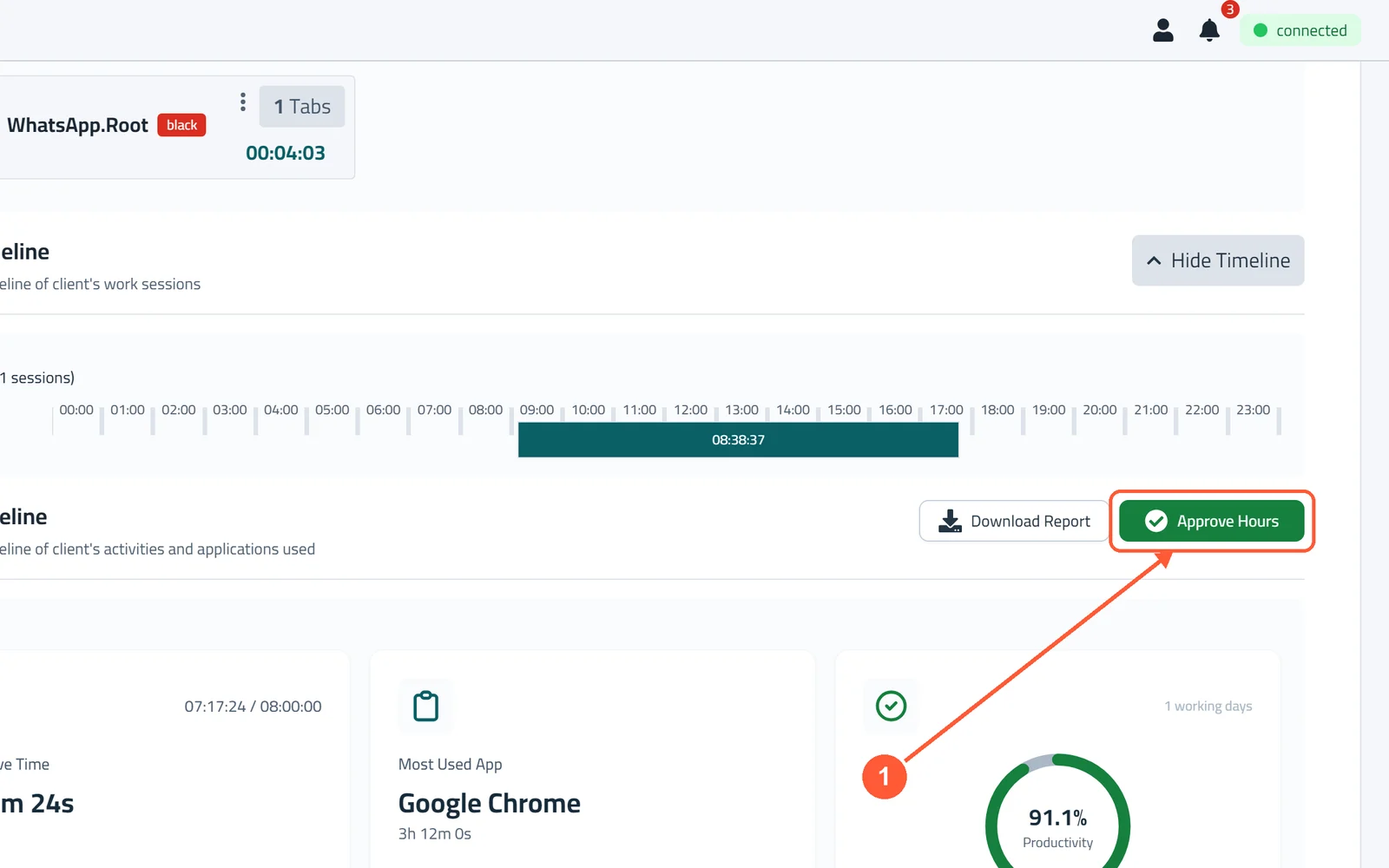
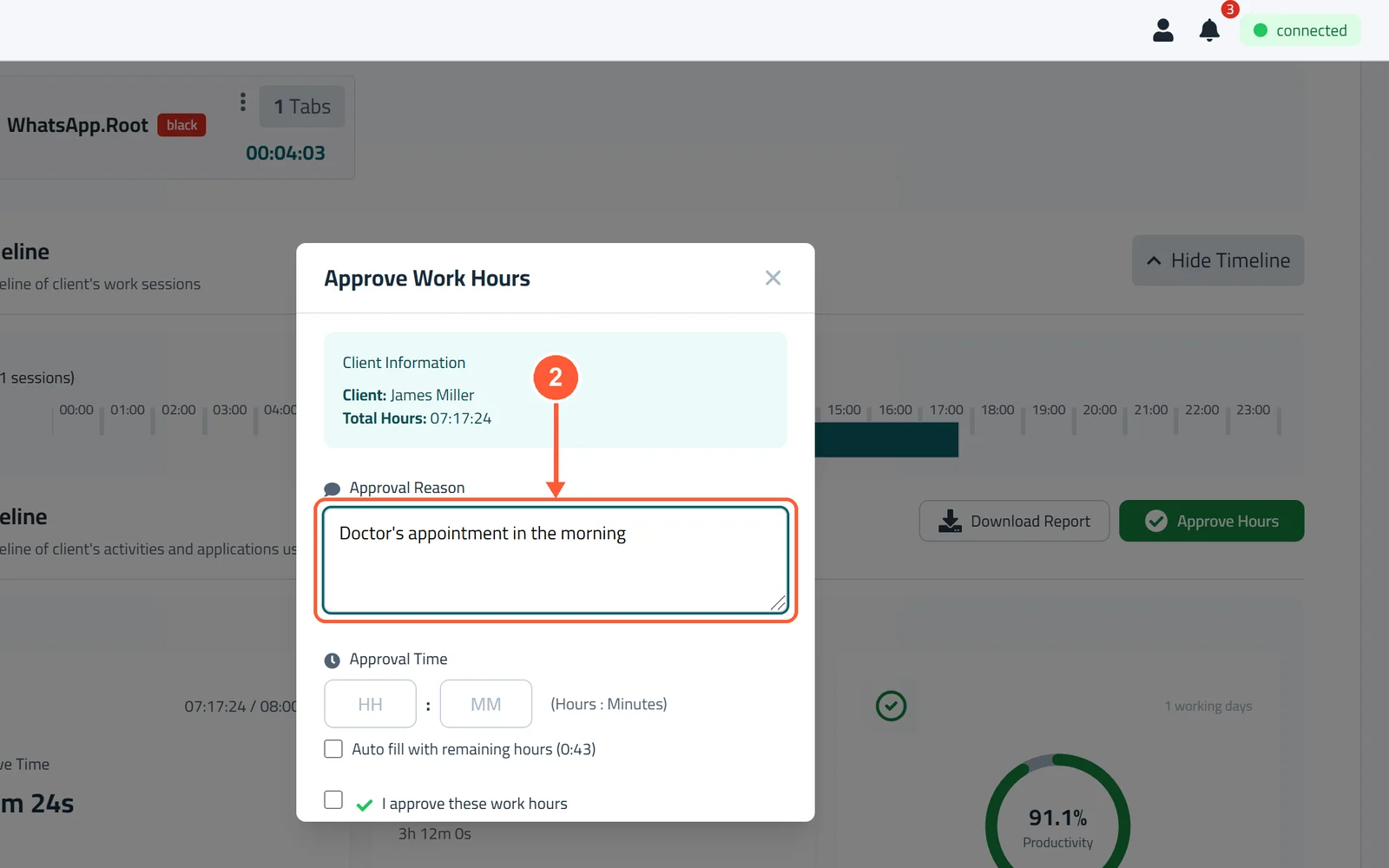
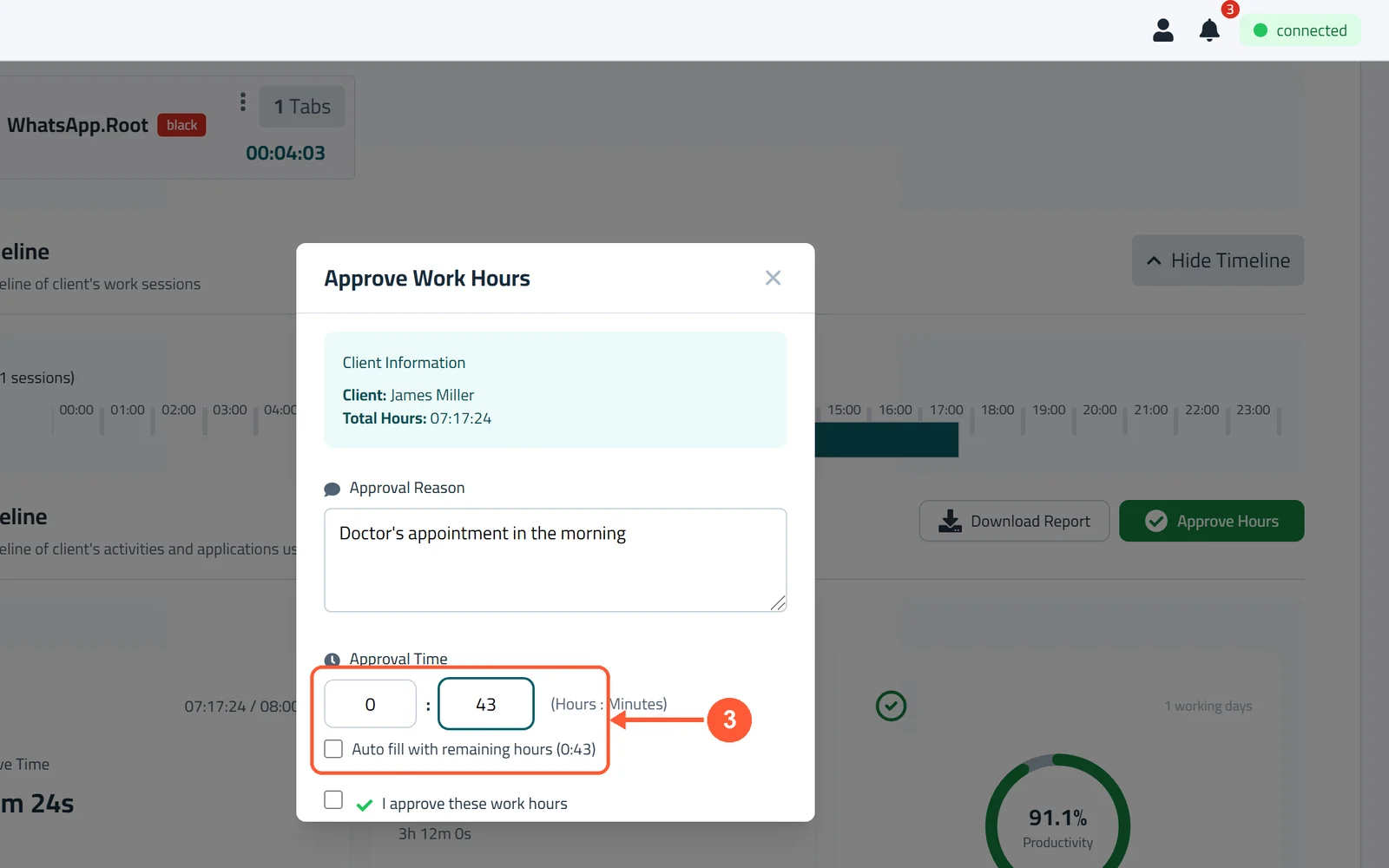
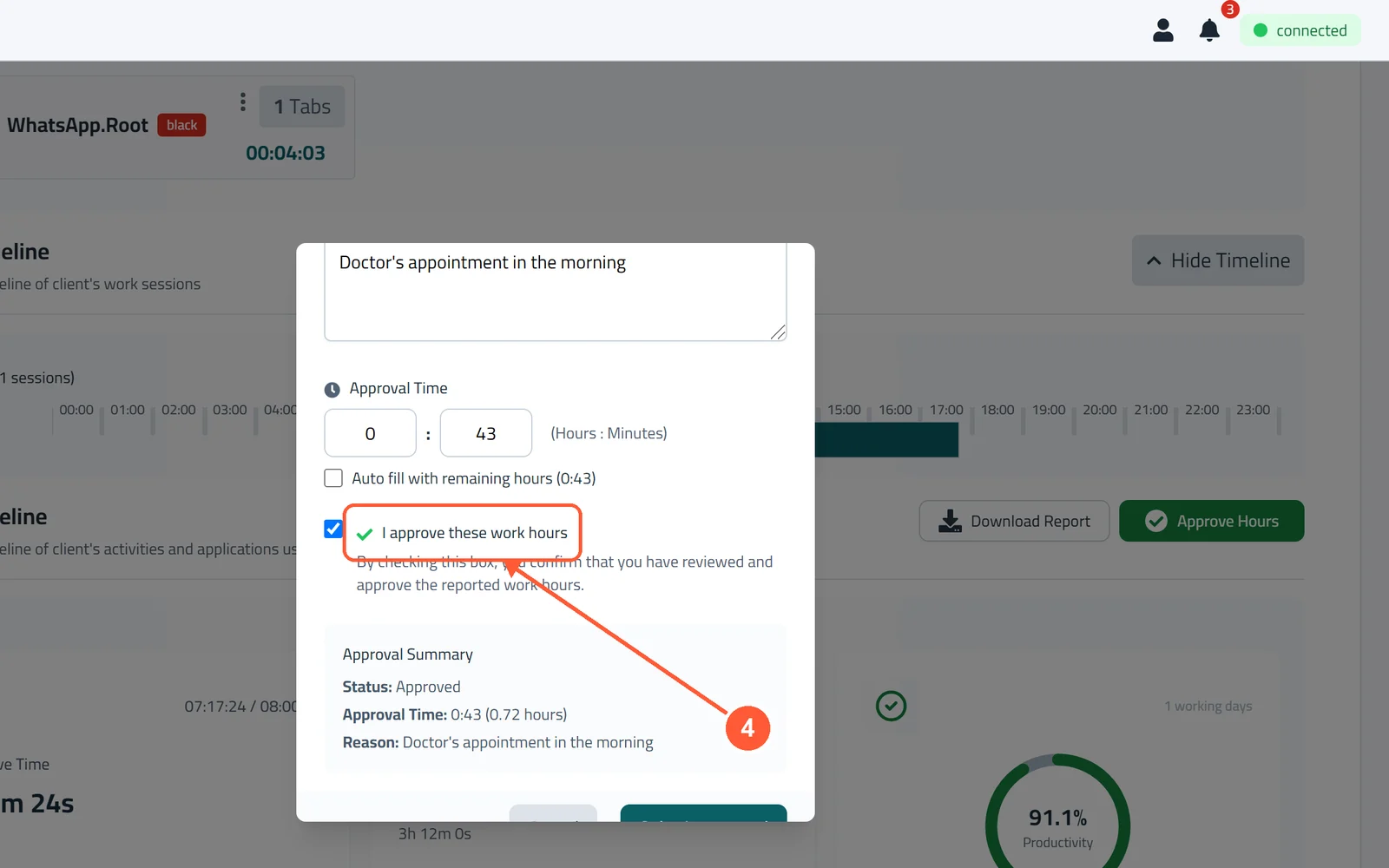
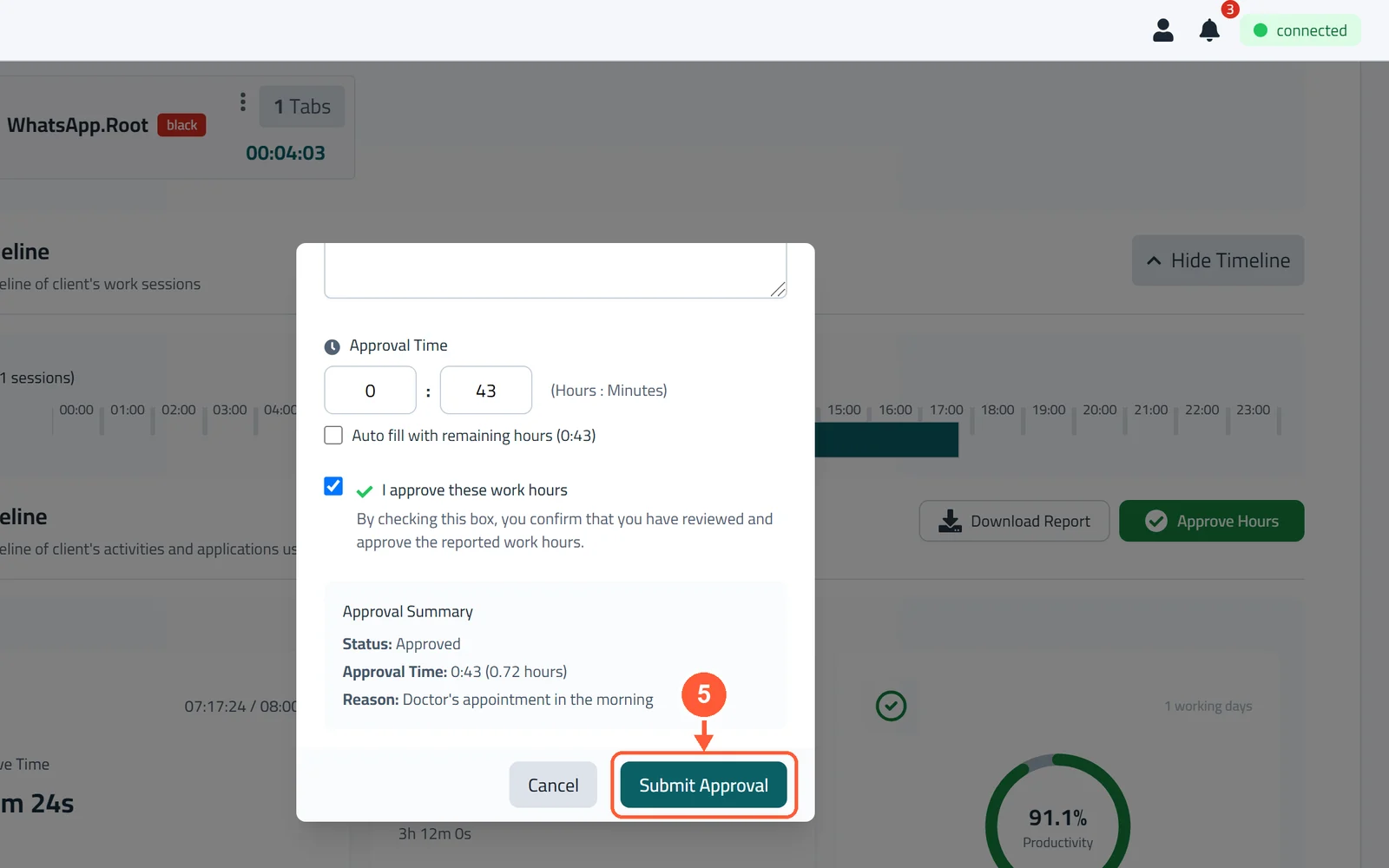
1Open the employee's page, pick the day, and click Approve Hours.1 / 5
💡 Good to Know
- Approve one day at a time: pick the same start and end date.
- Approved time shows on the employee's page, where you can edit or delete it.
Download an Employee Report
Save a document of someone's activity to share or keep.
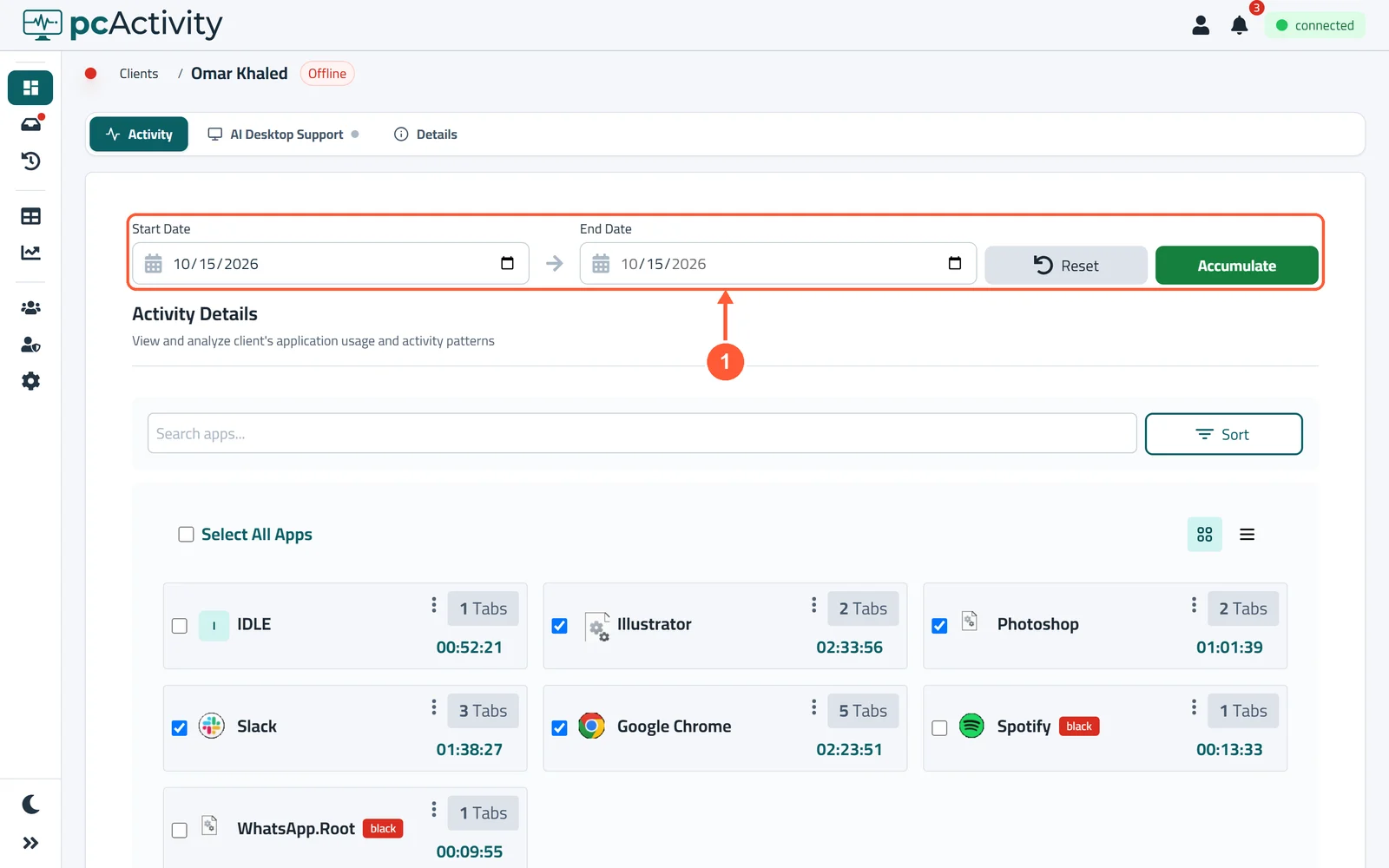
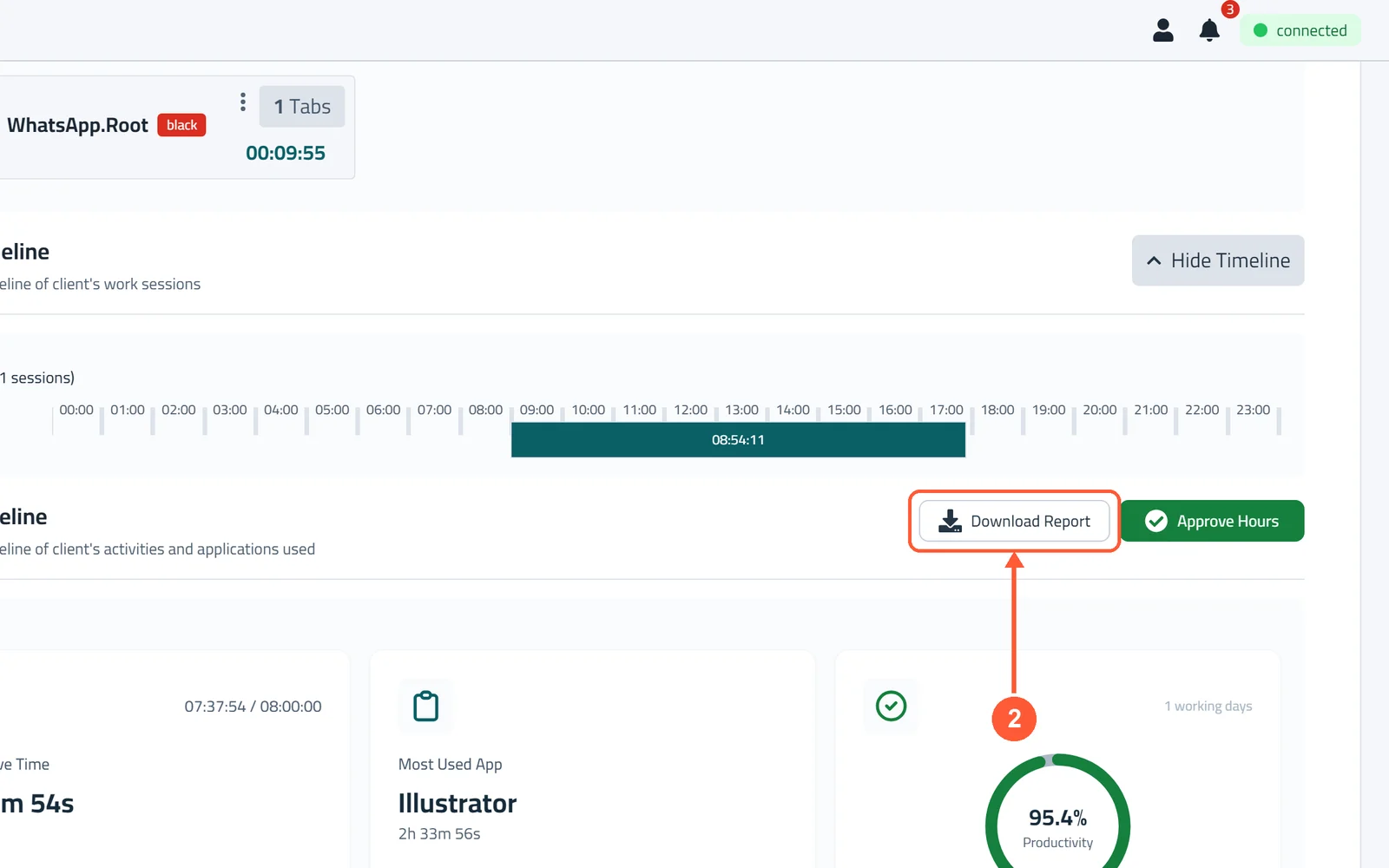
1Open the employee's page, pick the Start Date and End Date, and click Accumulate.1 / 2
Rename, Retitle or Remove an Employee
Give each PC a clear name and job title, or remove a PC that's gone.
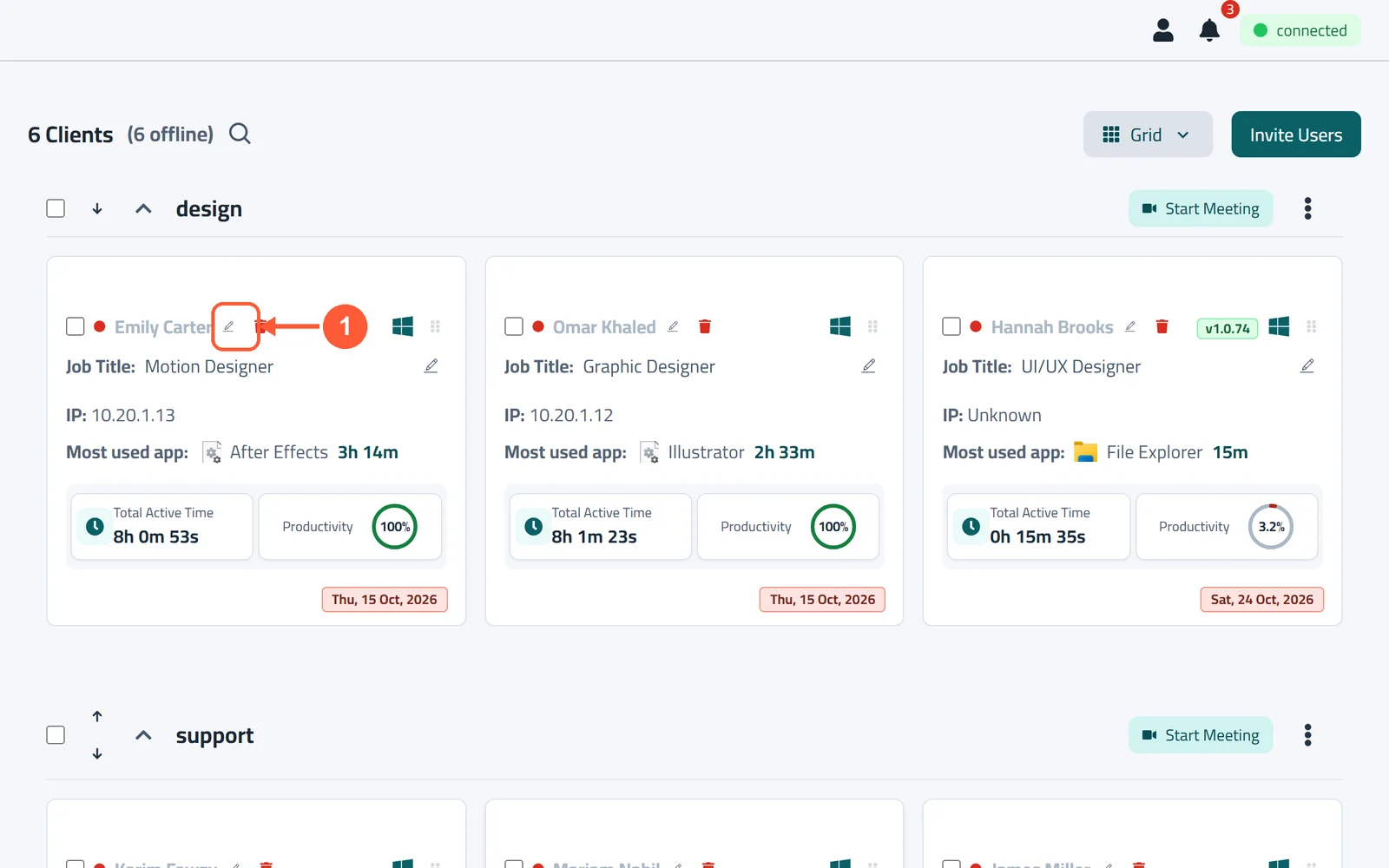
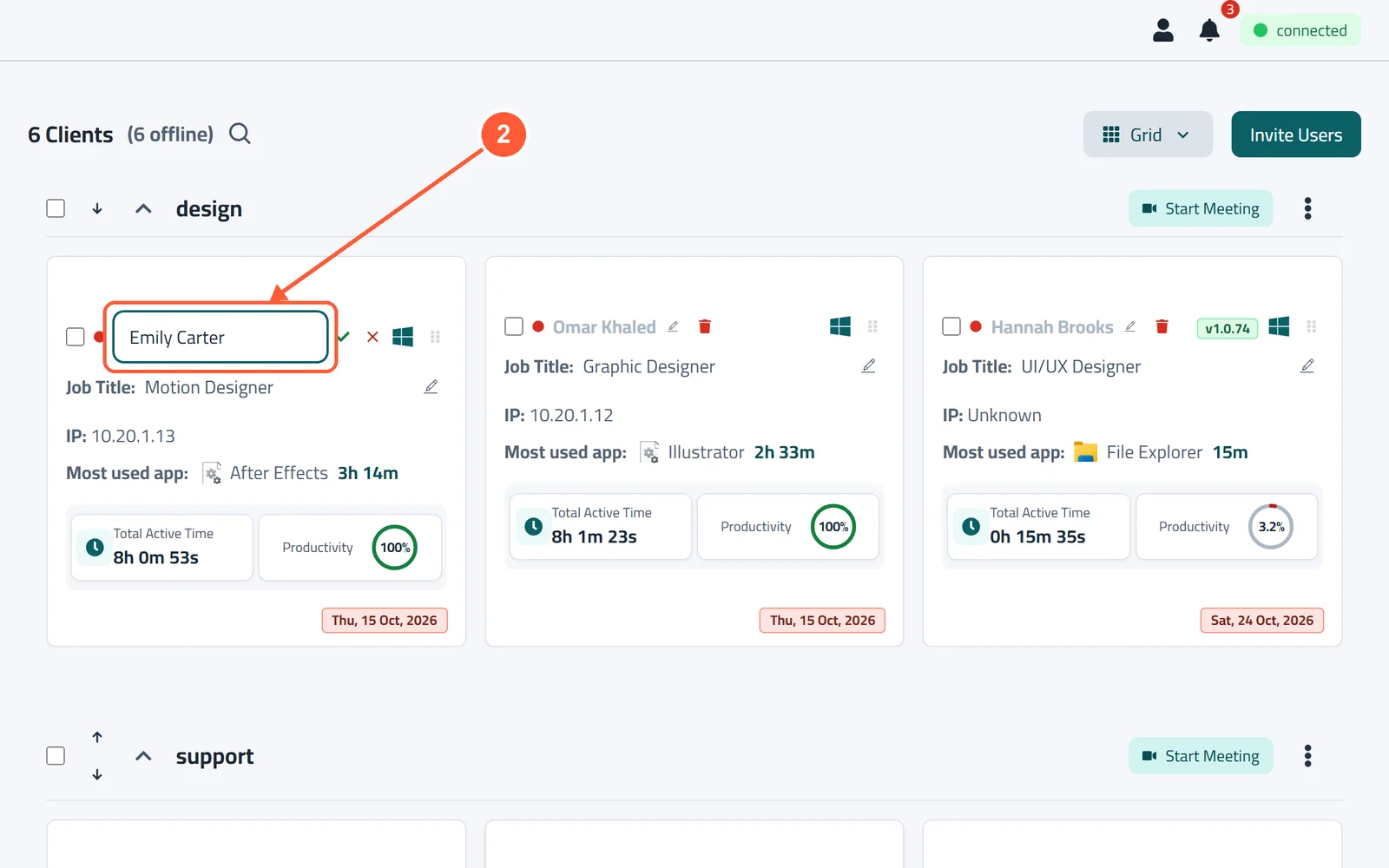
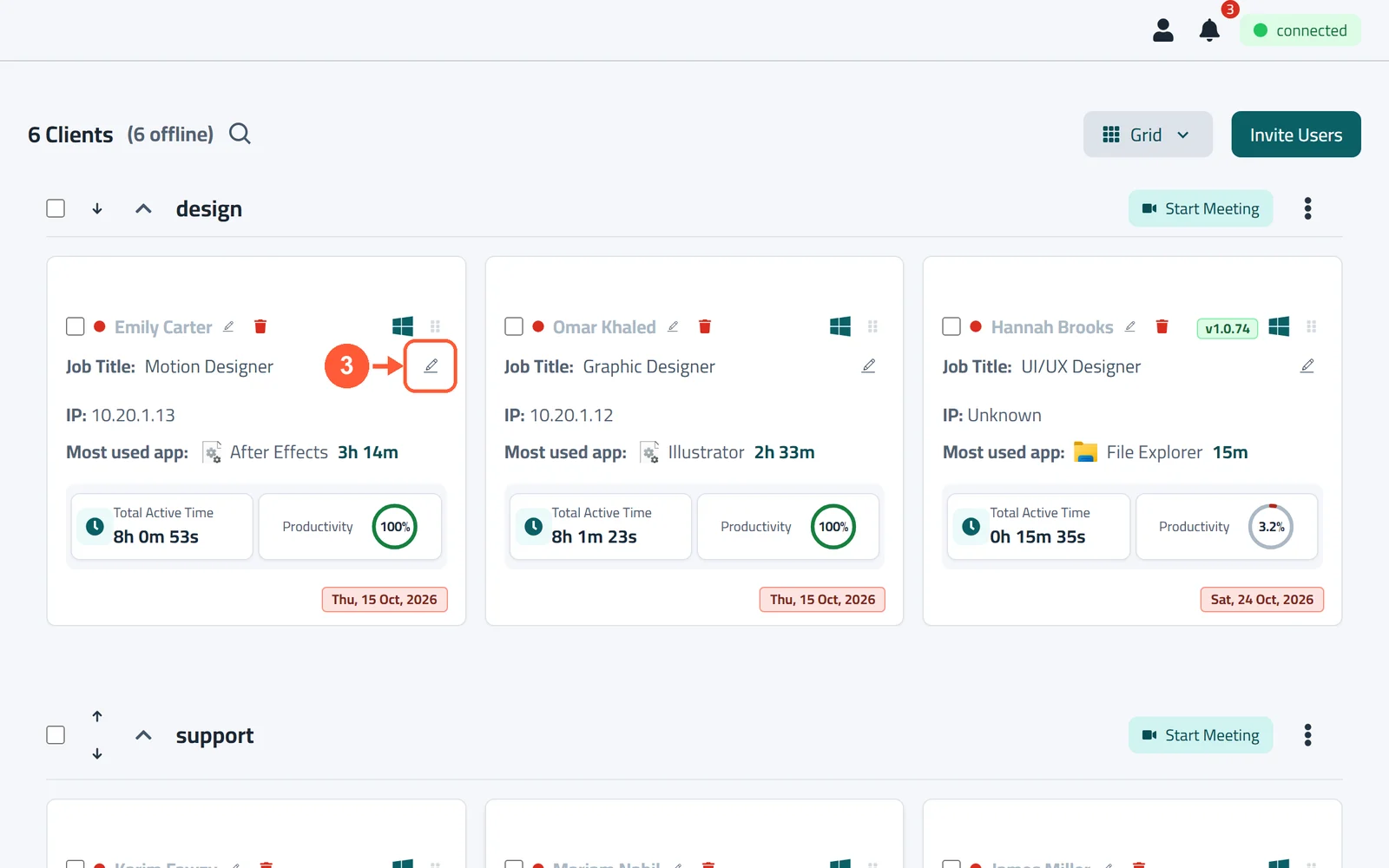
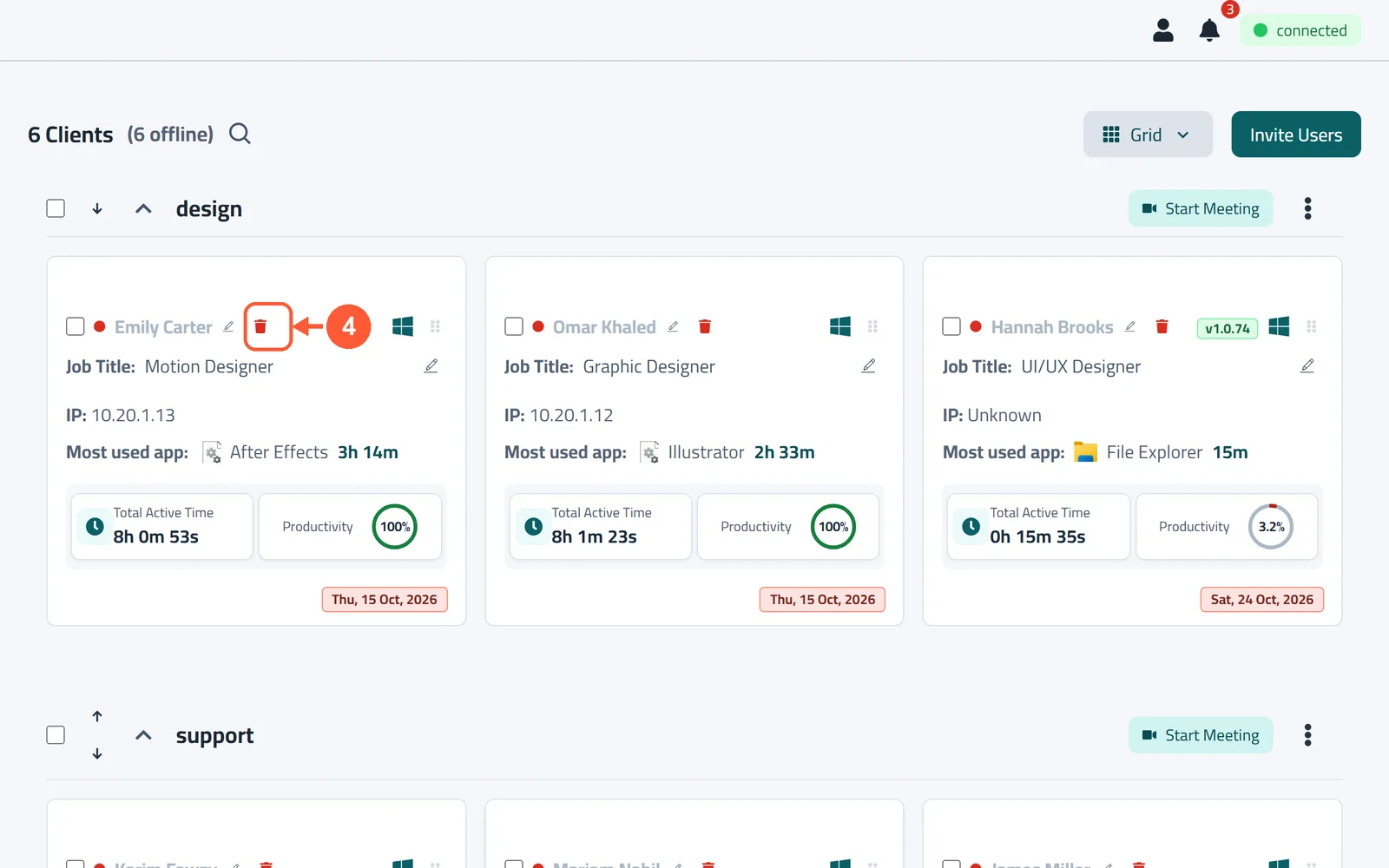
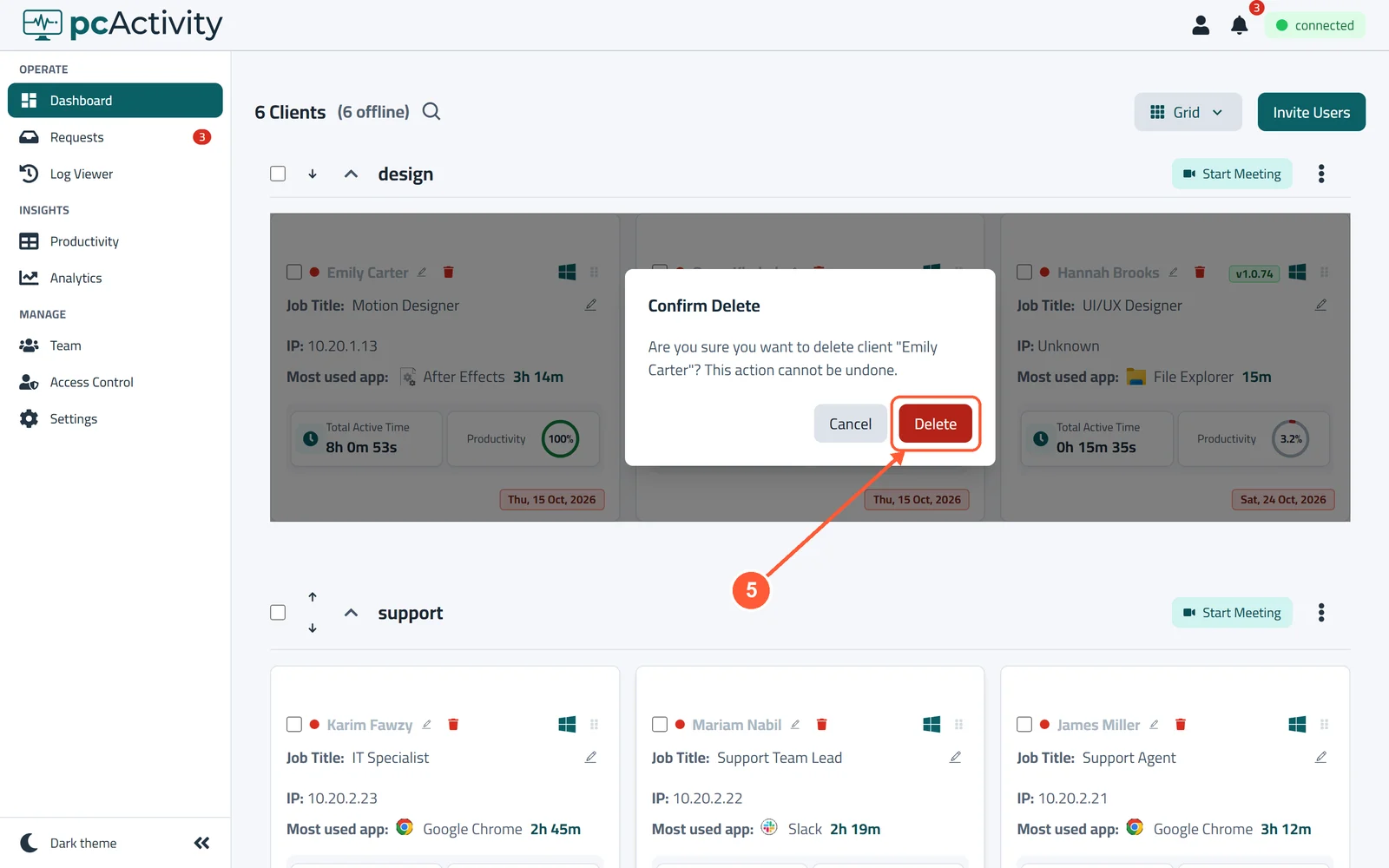
1Click the pencil next to the employee's name.1 / 5
💡 Good to Know
- To stop tracking a PC for good, also uninstall pcActivity on it (Start menu → Uninstall pcActivity).
Use the Productivity Sheet
The Productivity Sheet has one row per day and one column per employee, with each day's score. Fix scores, mark holidays and export it.
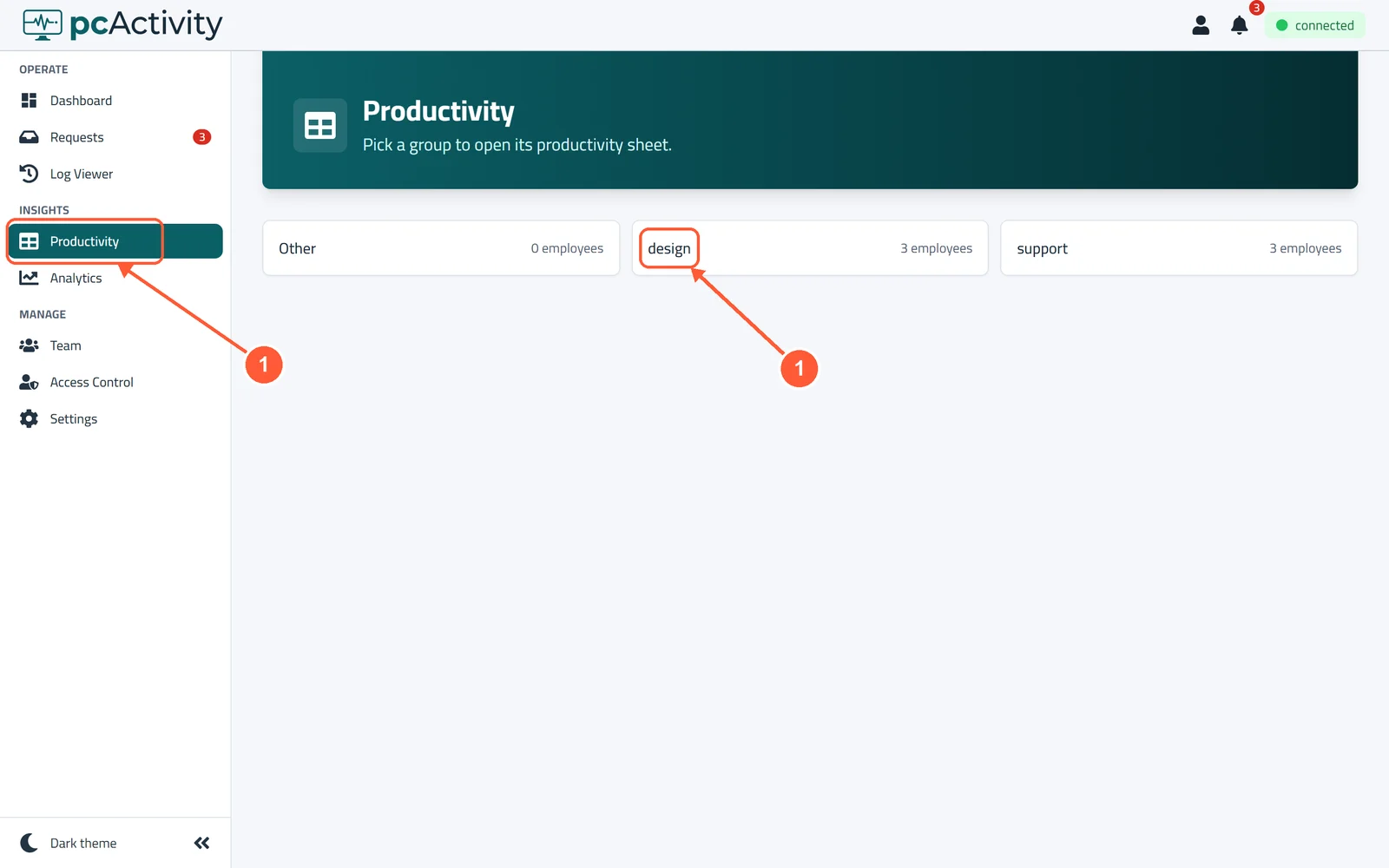
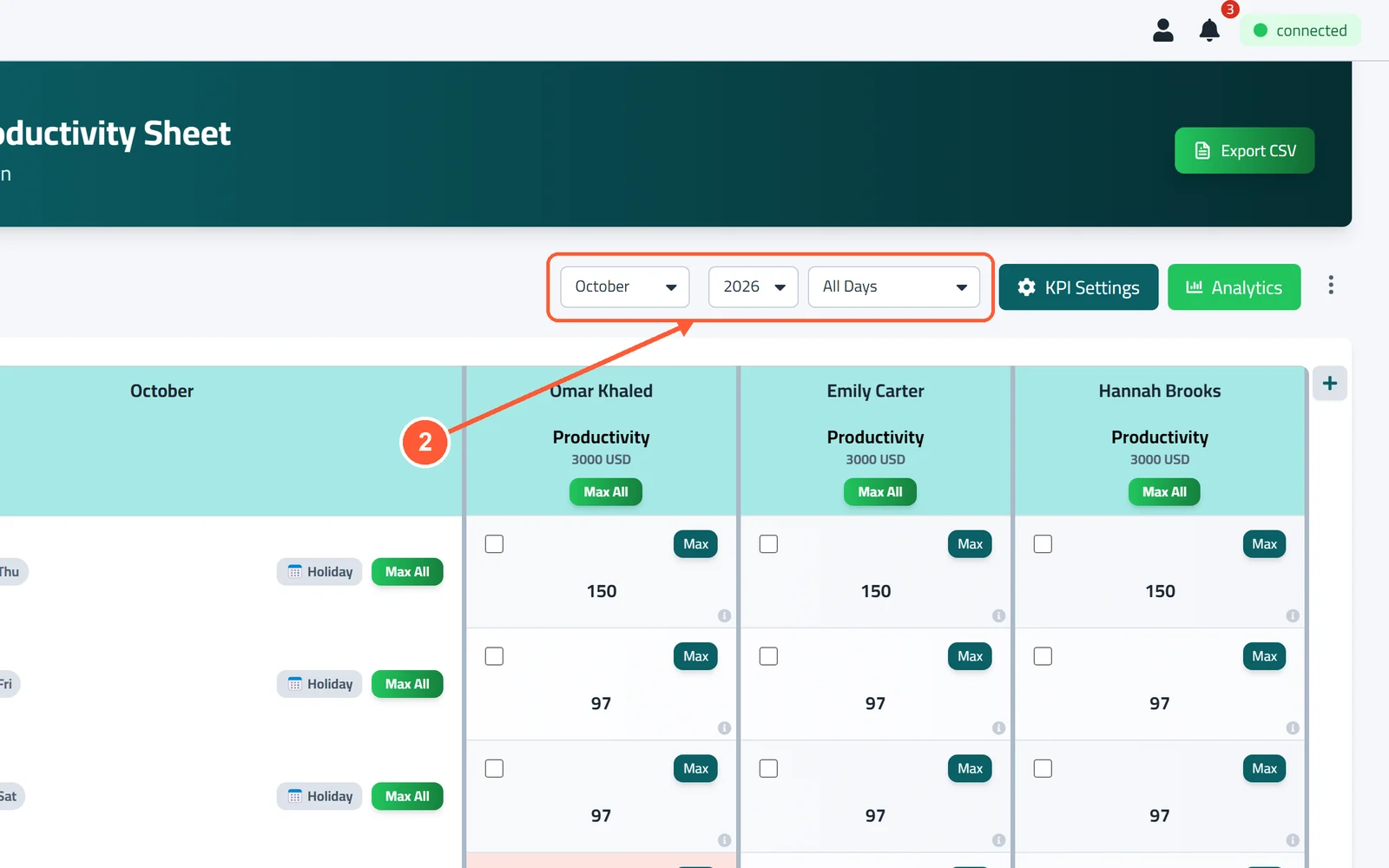
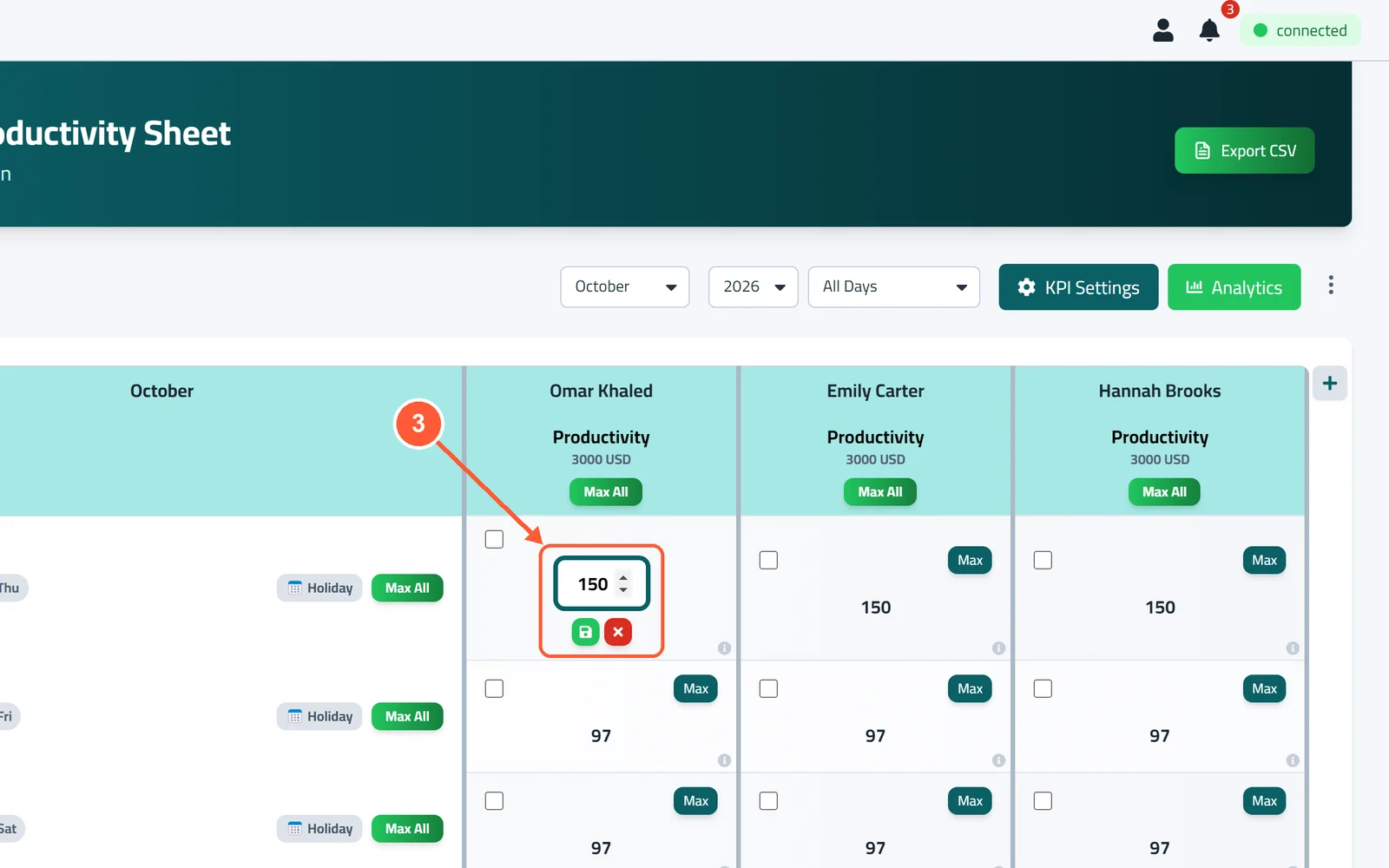
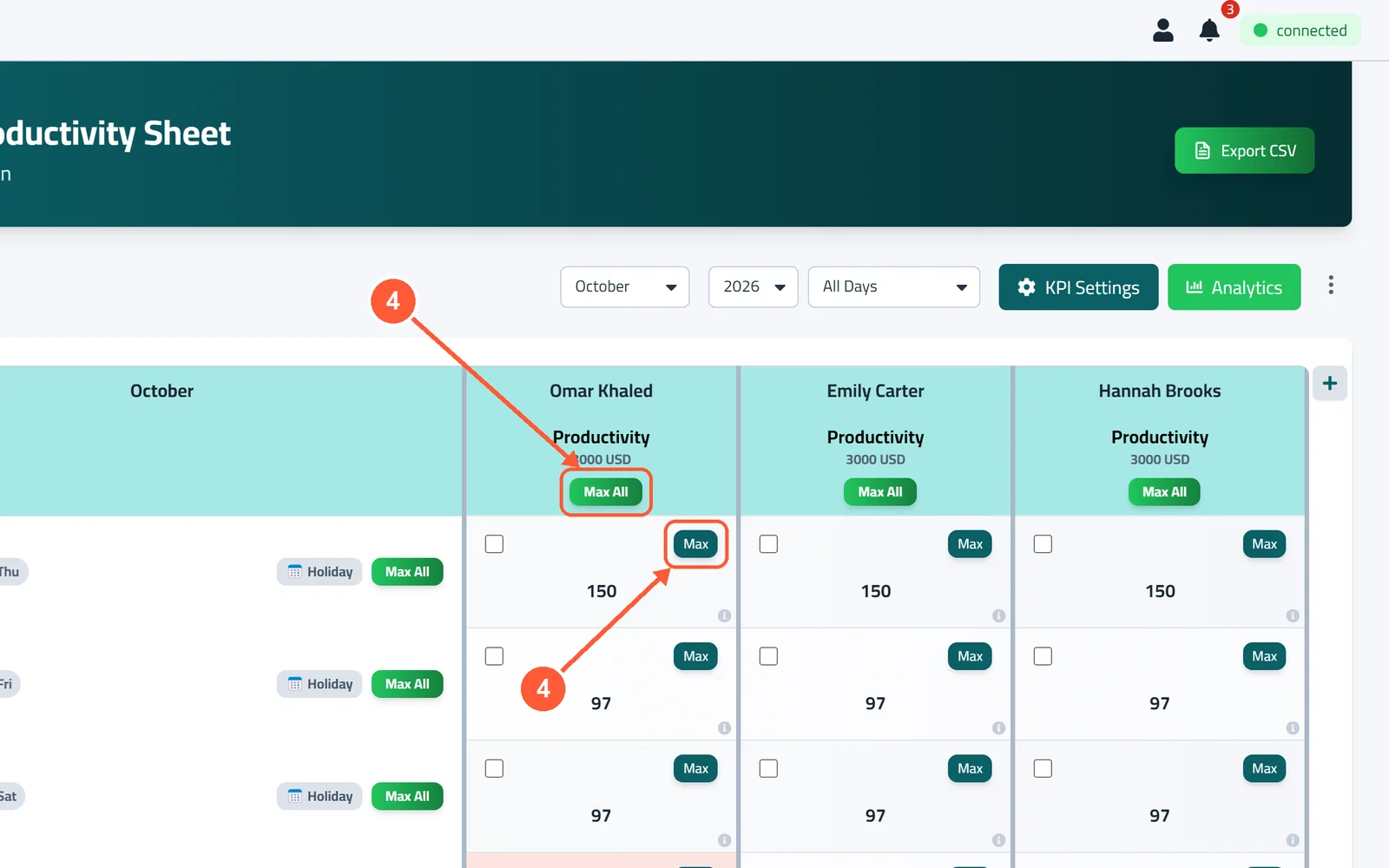
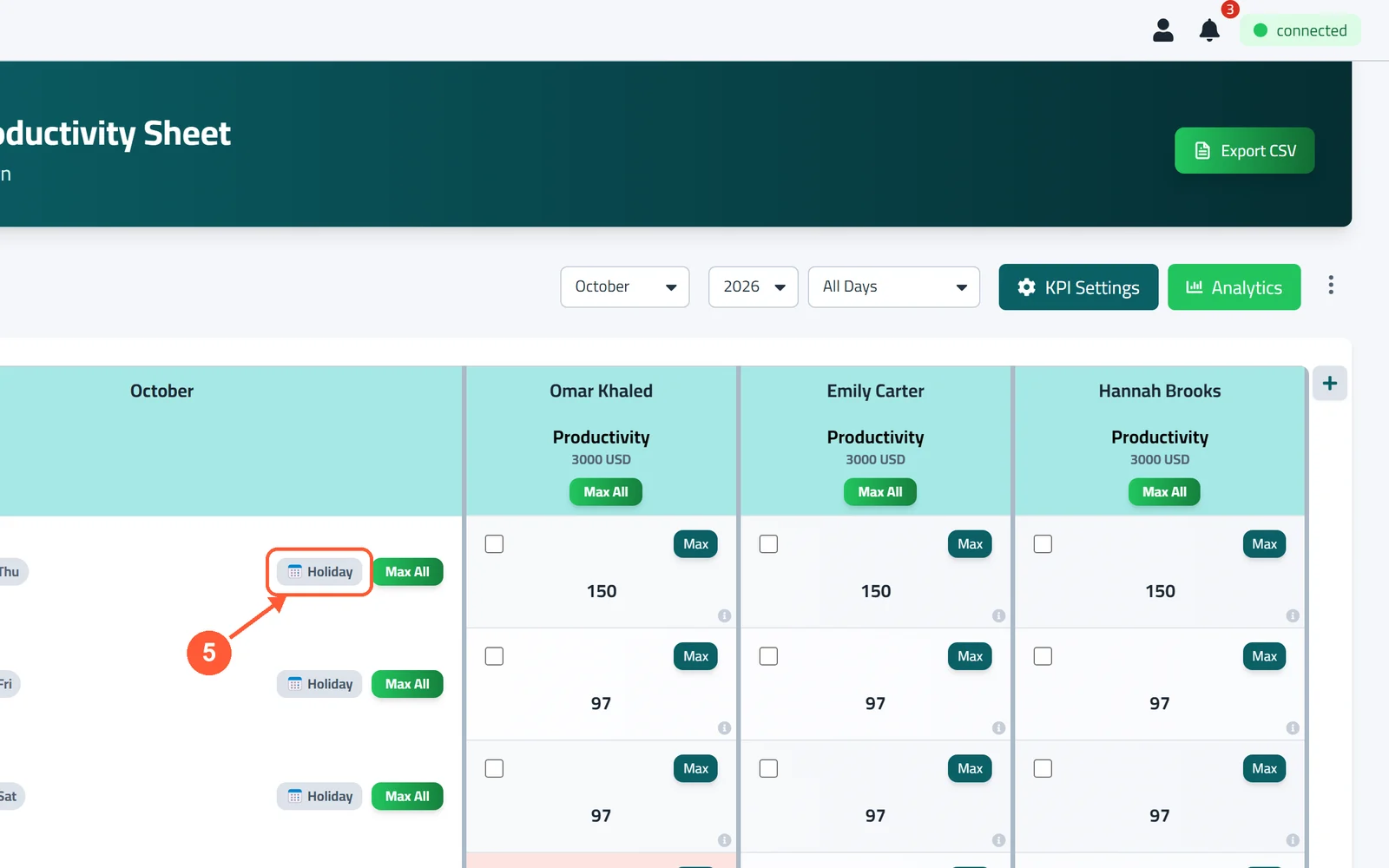
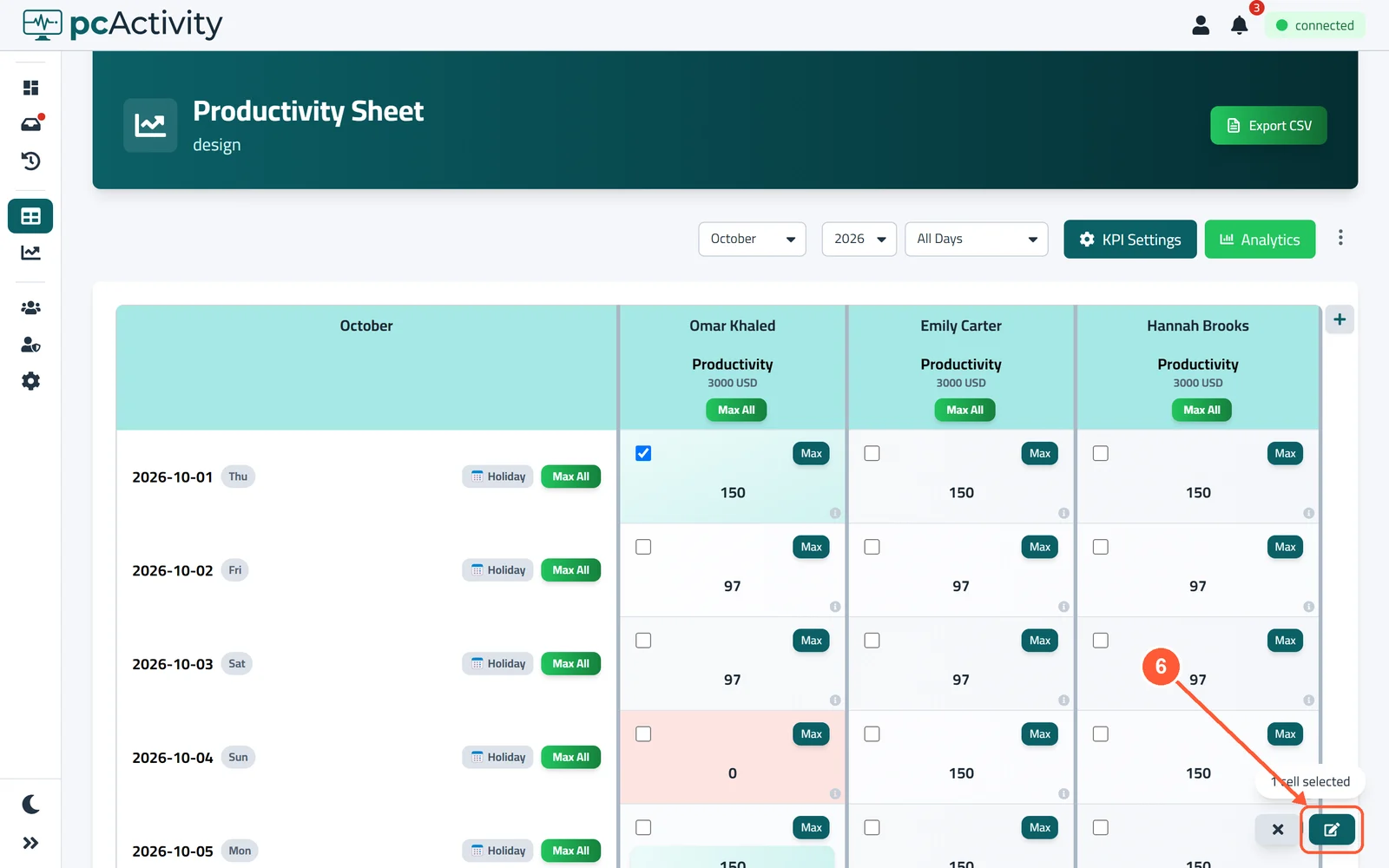
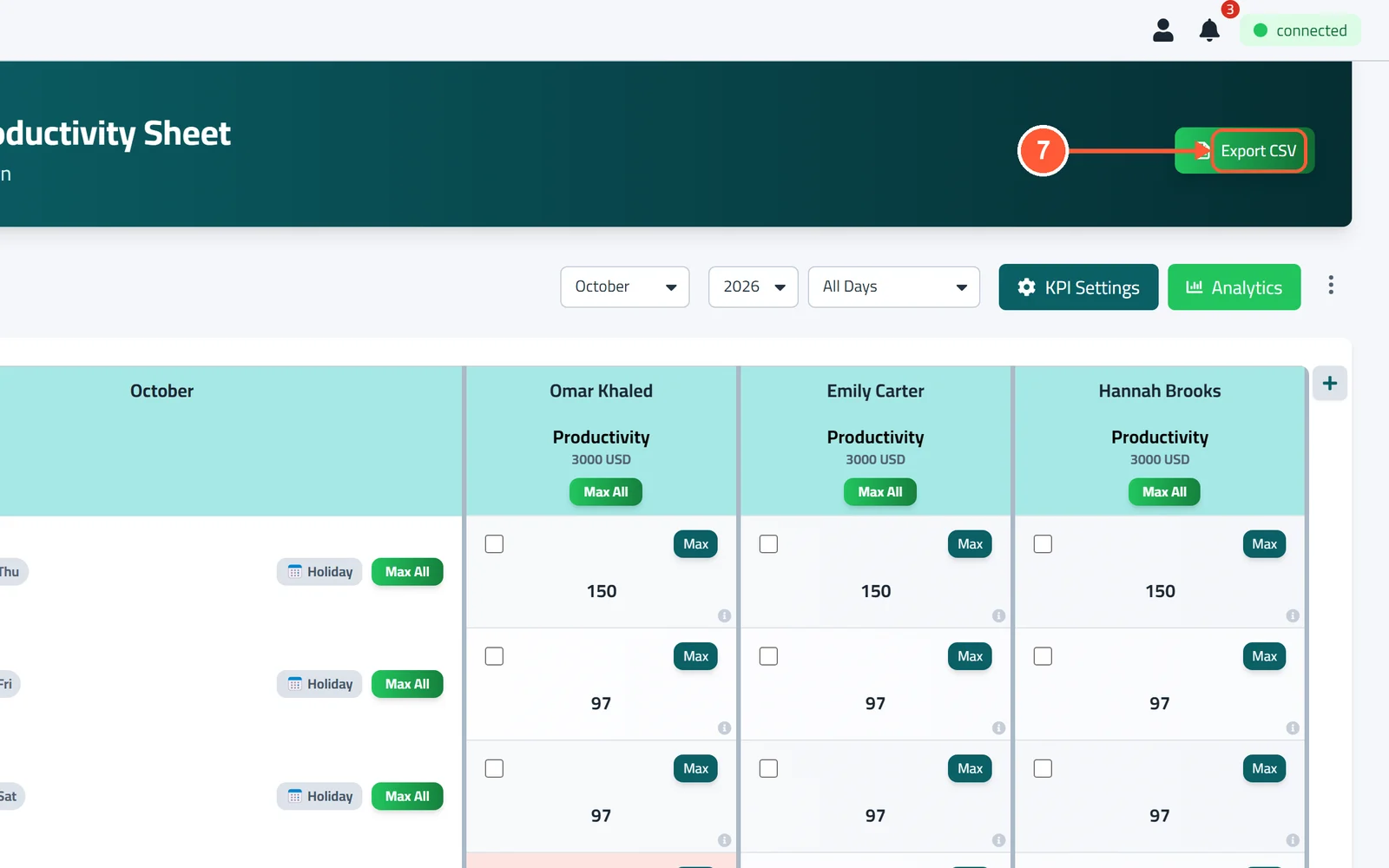
1Click Productivity in the menu on the left, then pick a group.1 / 7
💡 Good to Know
- A hand-changed score is marked Manual. You can undo it.
- Red cells are days with a 0 score.
- Click the small ⓘ in a cell to see why it got its score (see Understand a Score).
Understand a Score
Every daily score comes with its reasons: which apps counted, how long the PC was used, and what the AI decided.
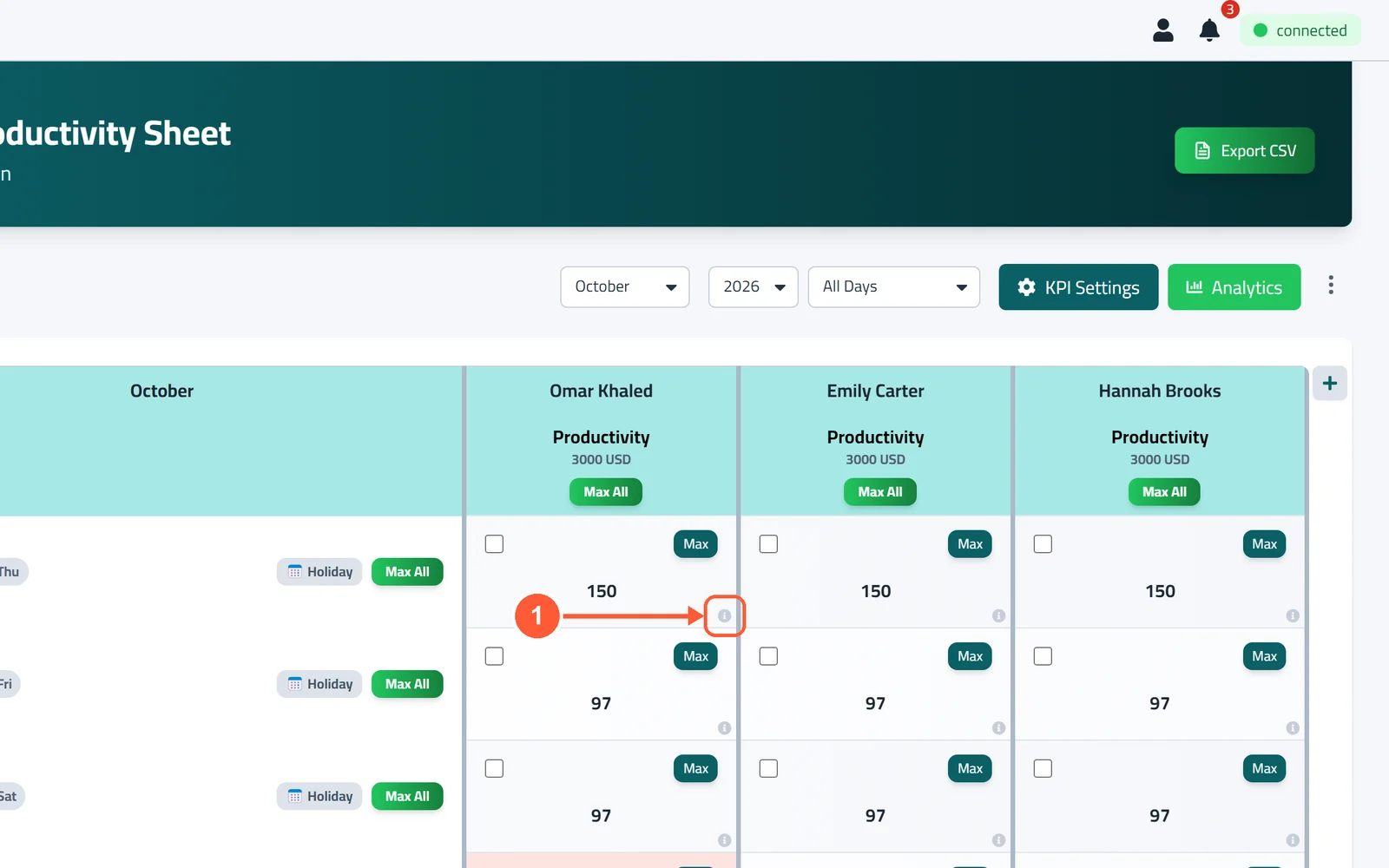
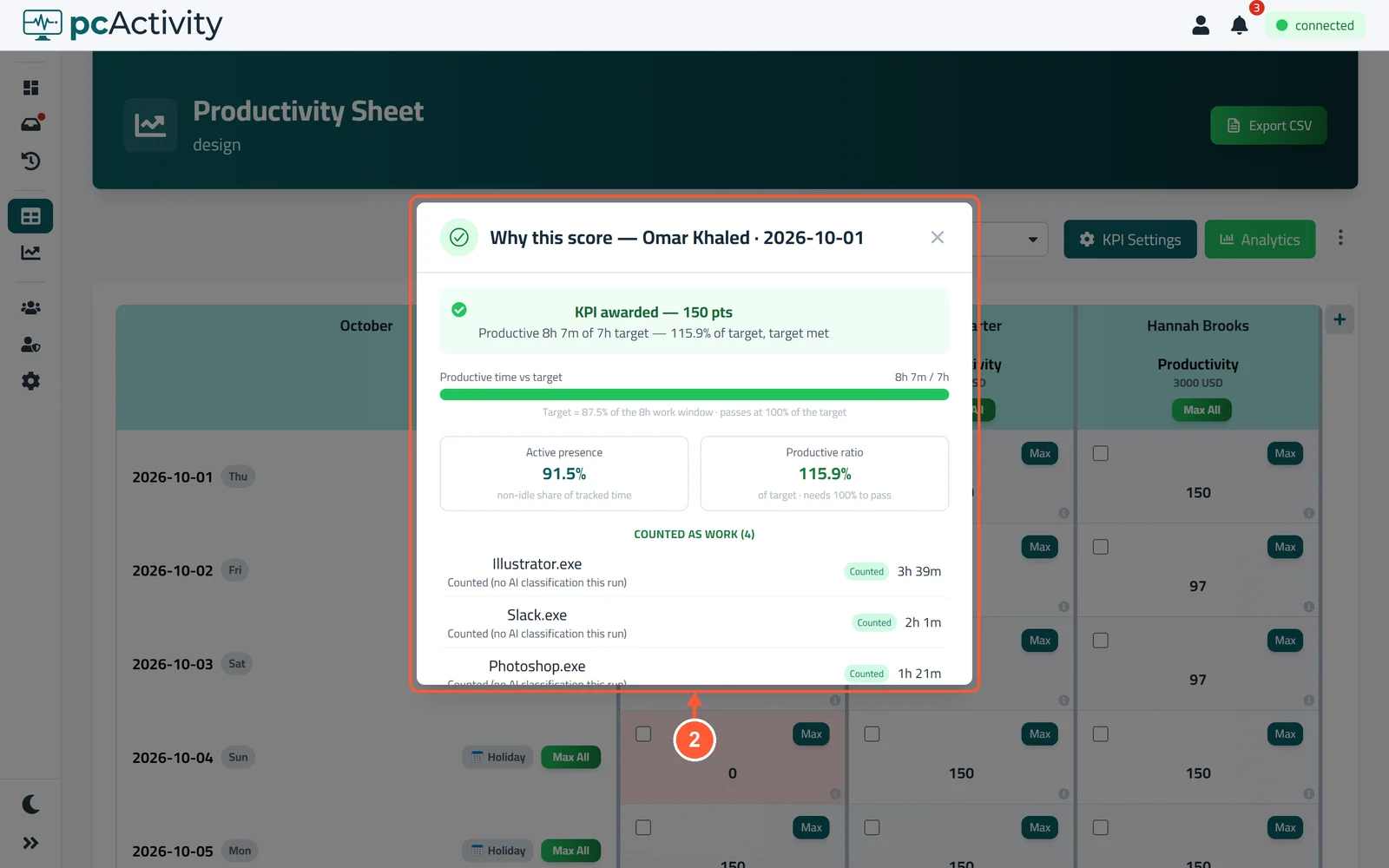
1In the Productivity Sheet, click the small ⓘ in the corner of a cell.1 / 2
View Group Analytics
See how a whole group works over a month.
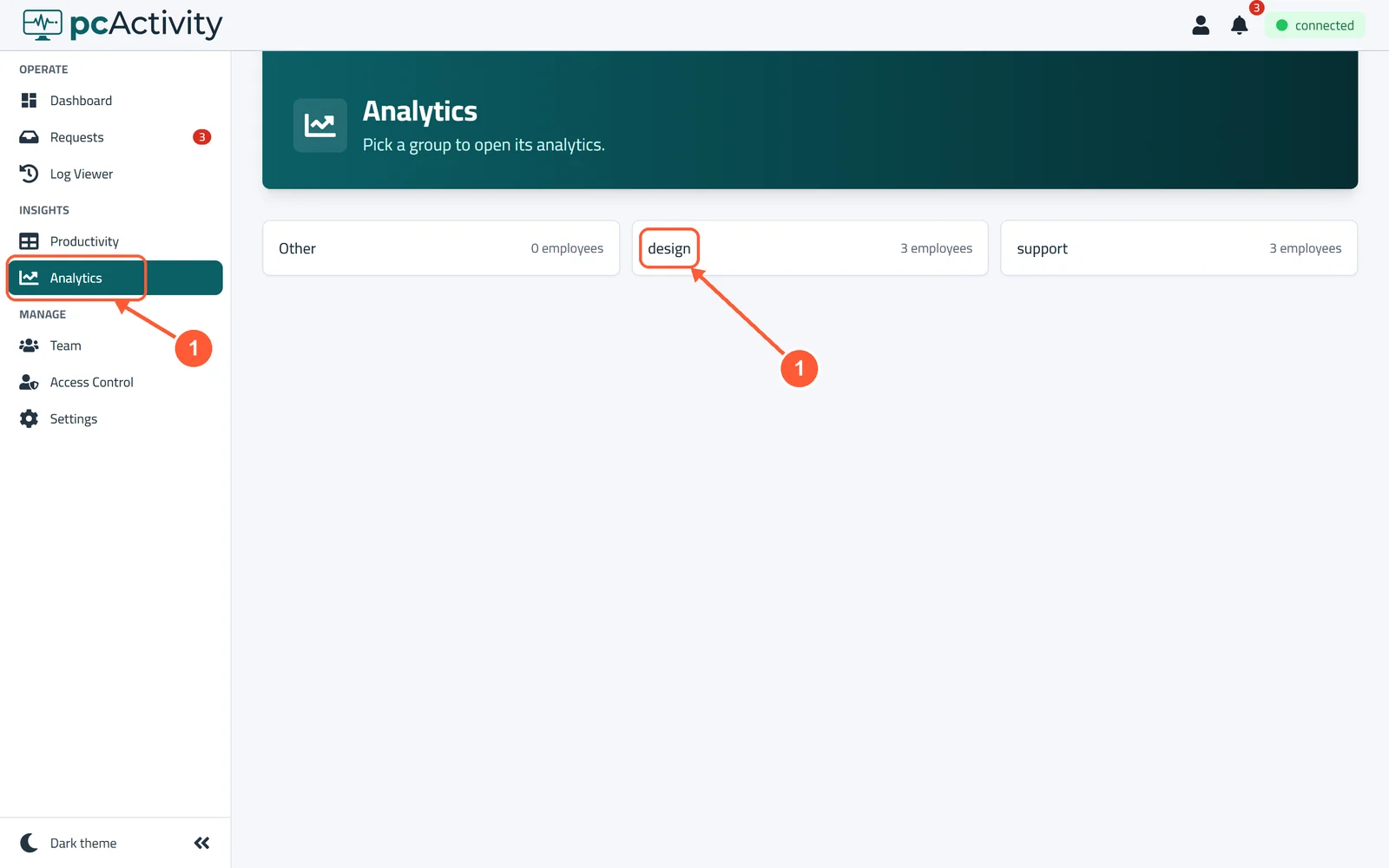
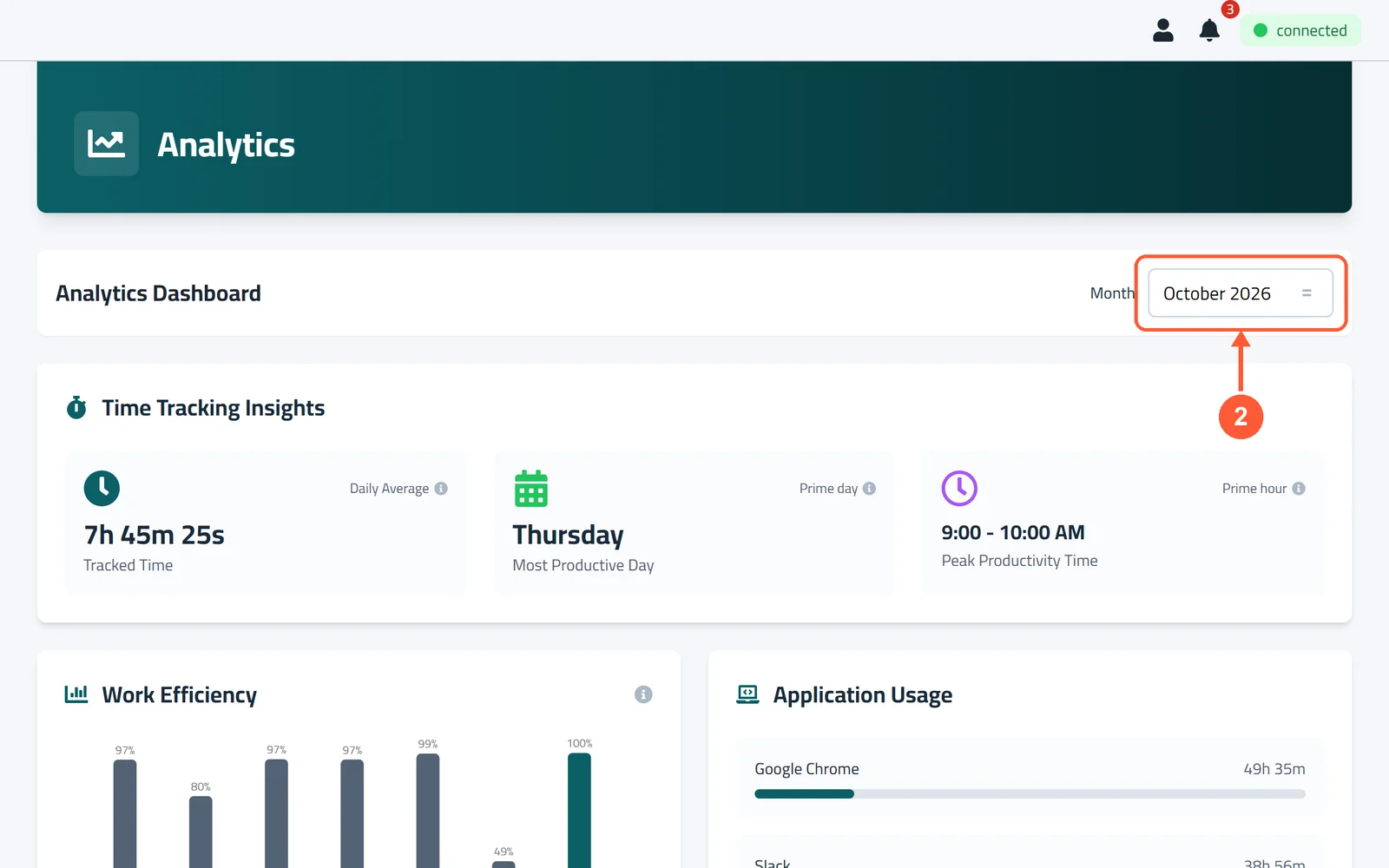
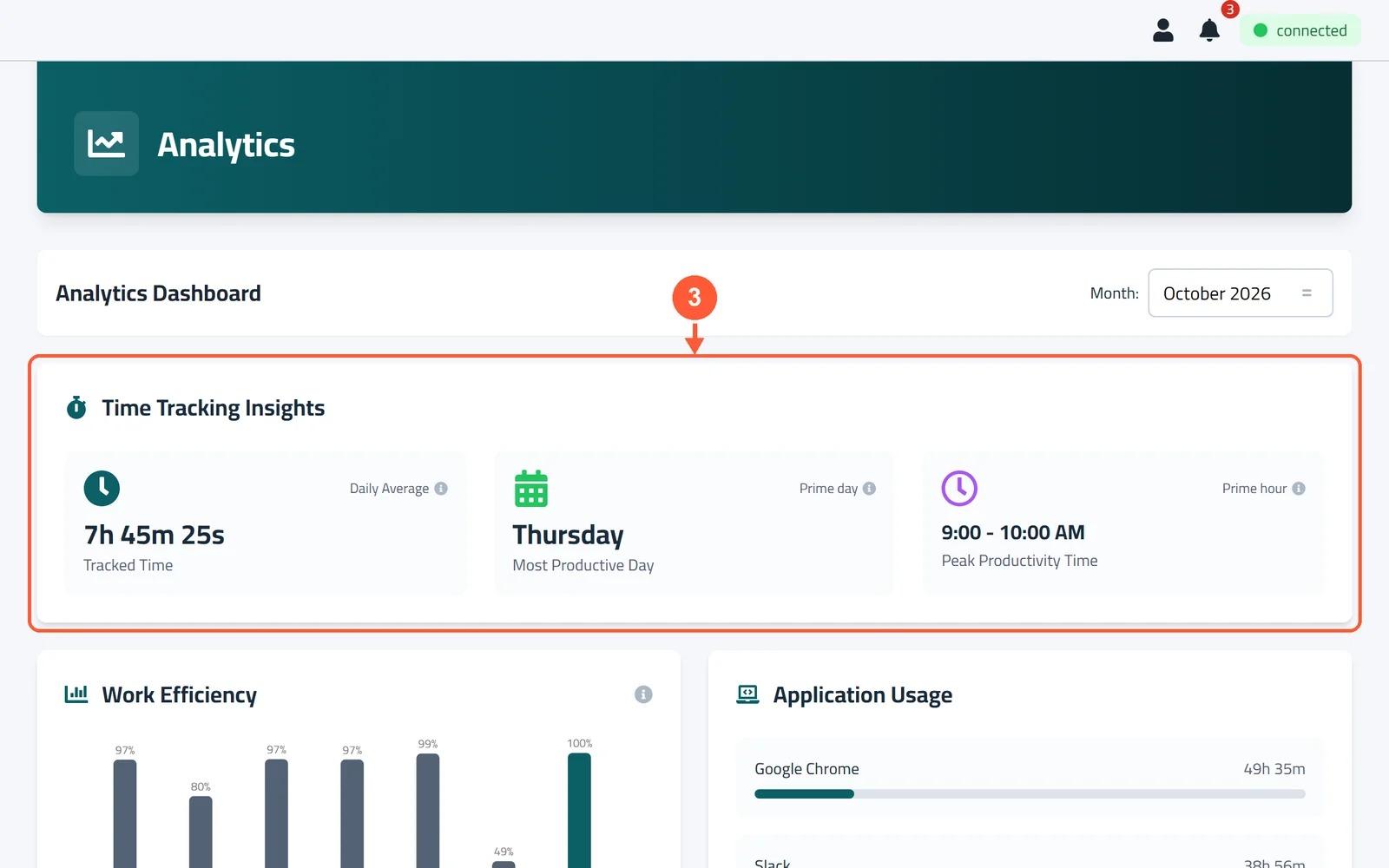
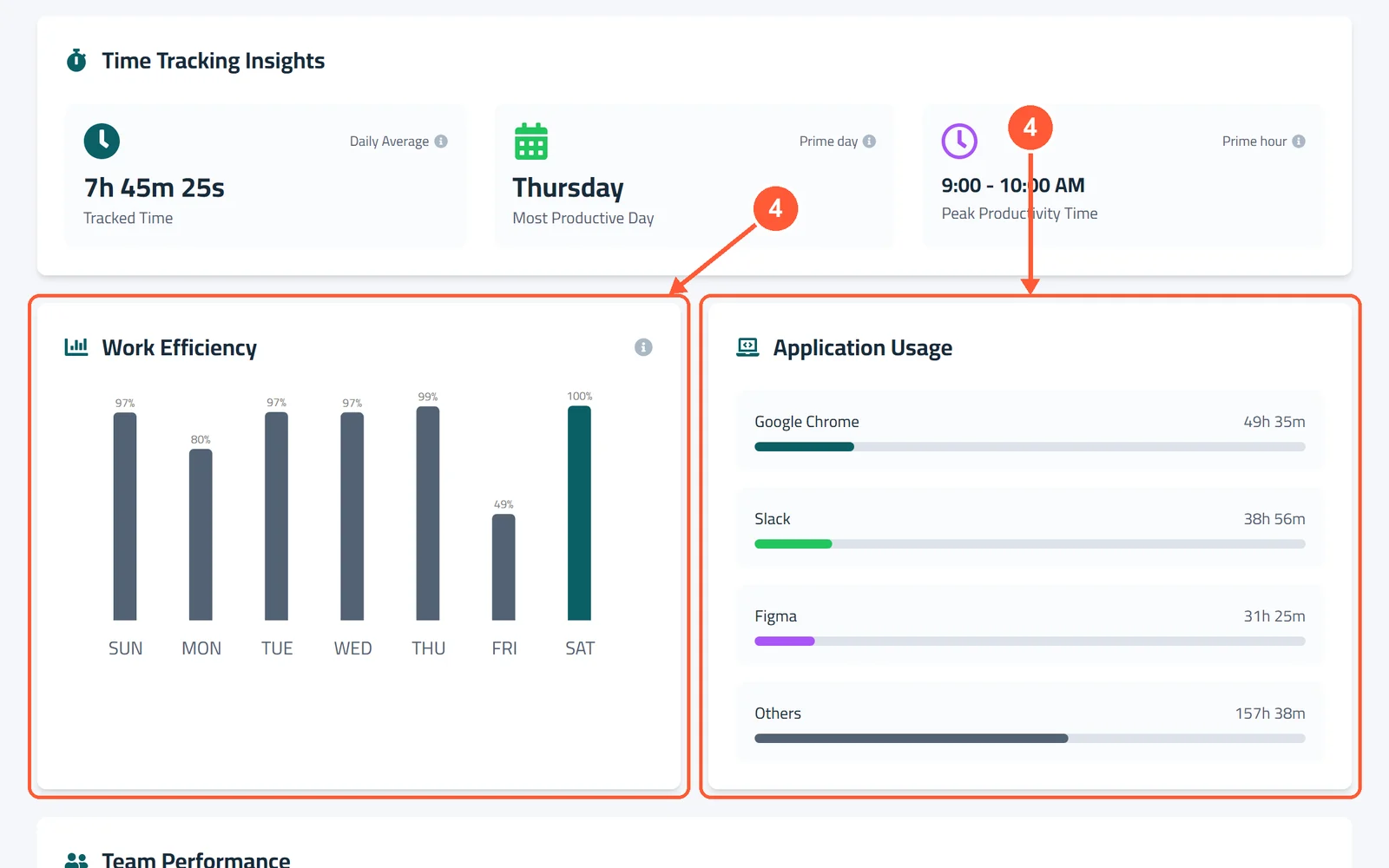
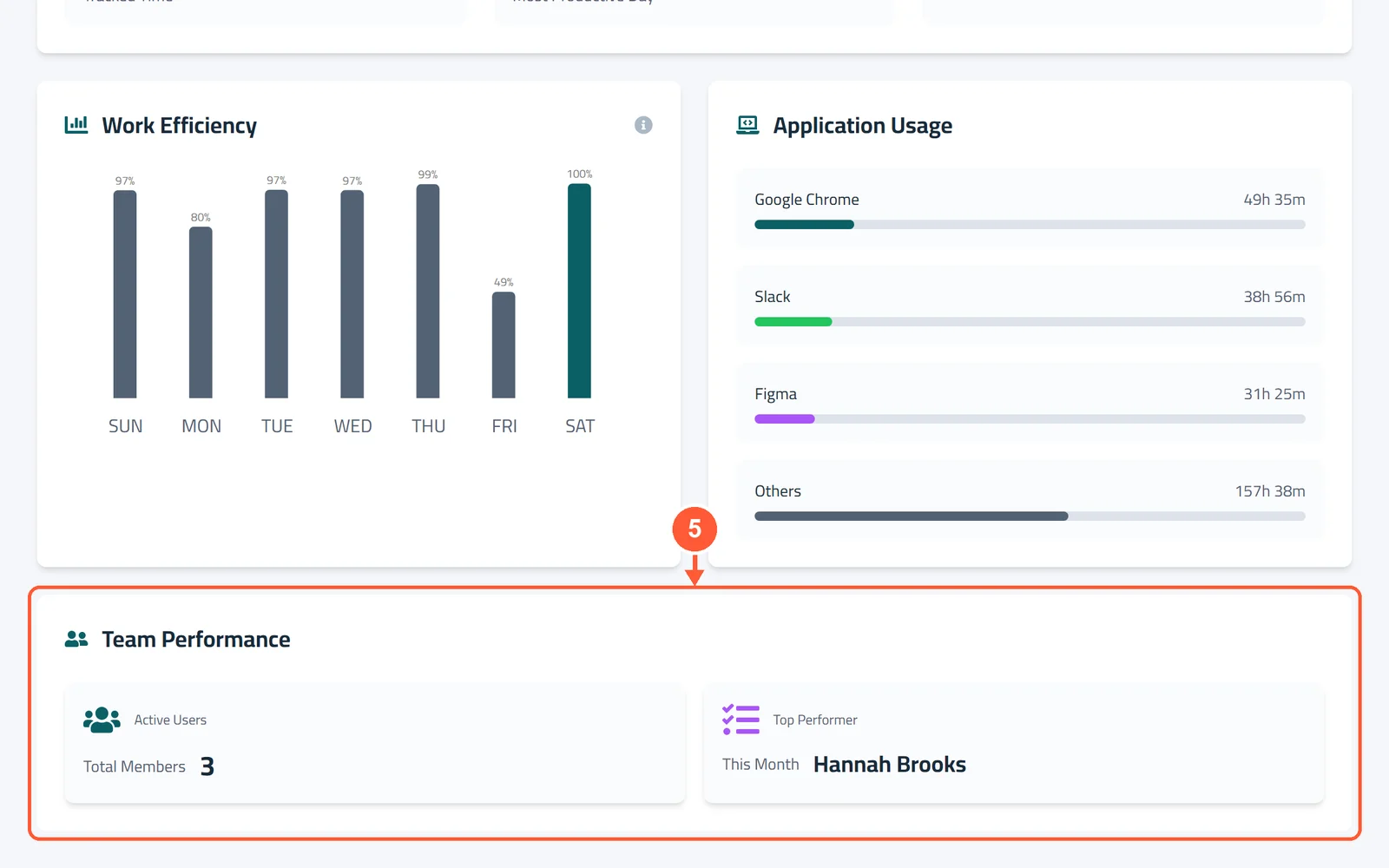
1Click Analytics in the menu on the left, then pick a group.1 / 5
Turn On Remote Support
Let your IT team see and control employee PCs, and use AI Support, when someone needs help. An Admin switches this on once for the whole company.
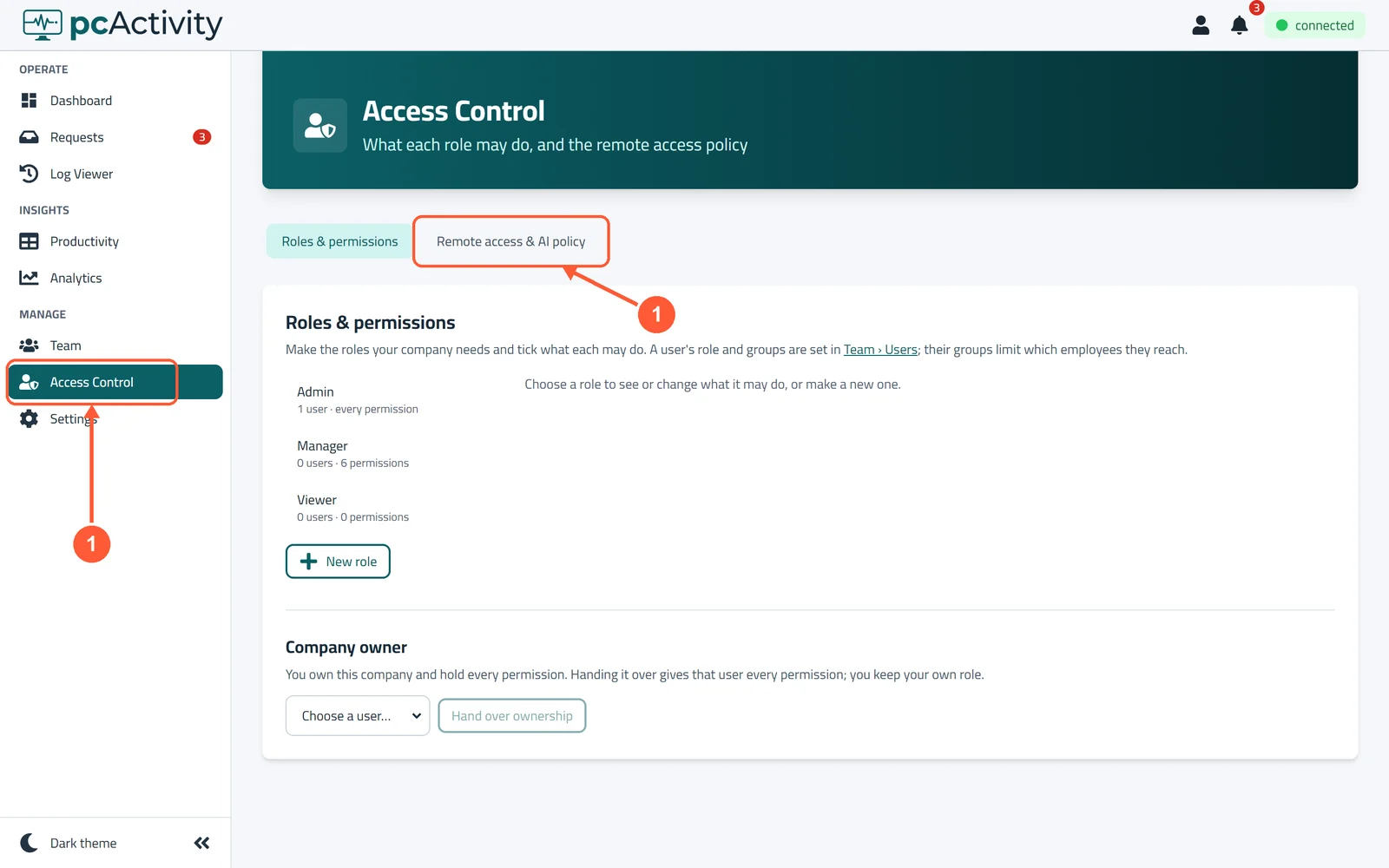
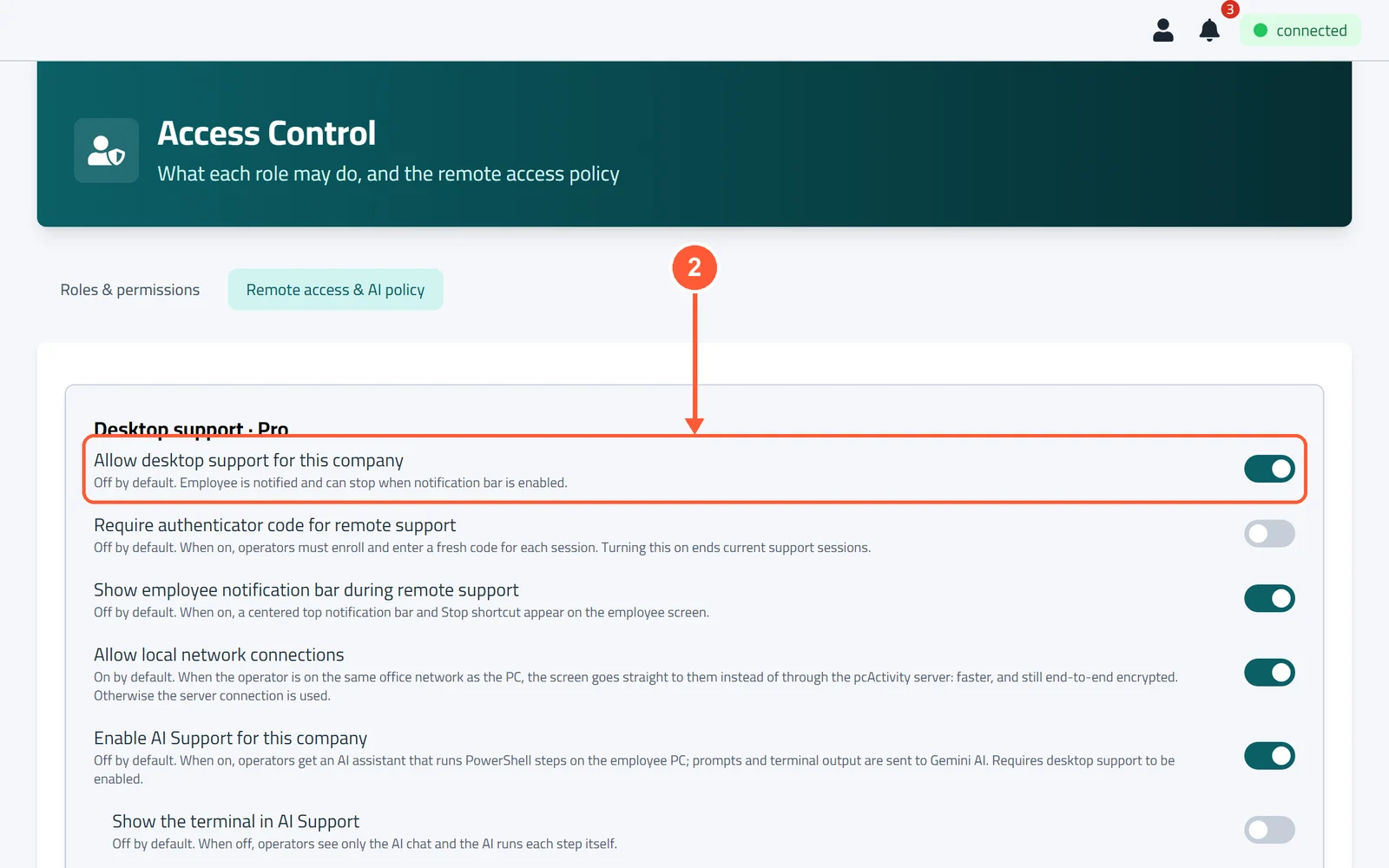
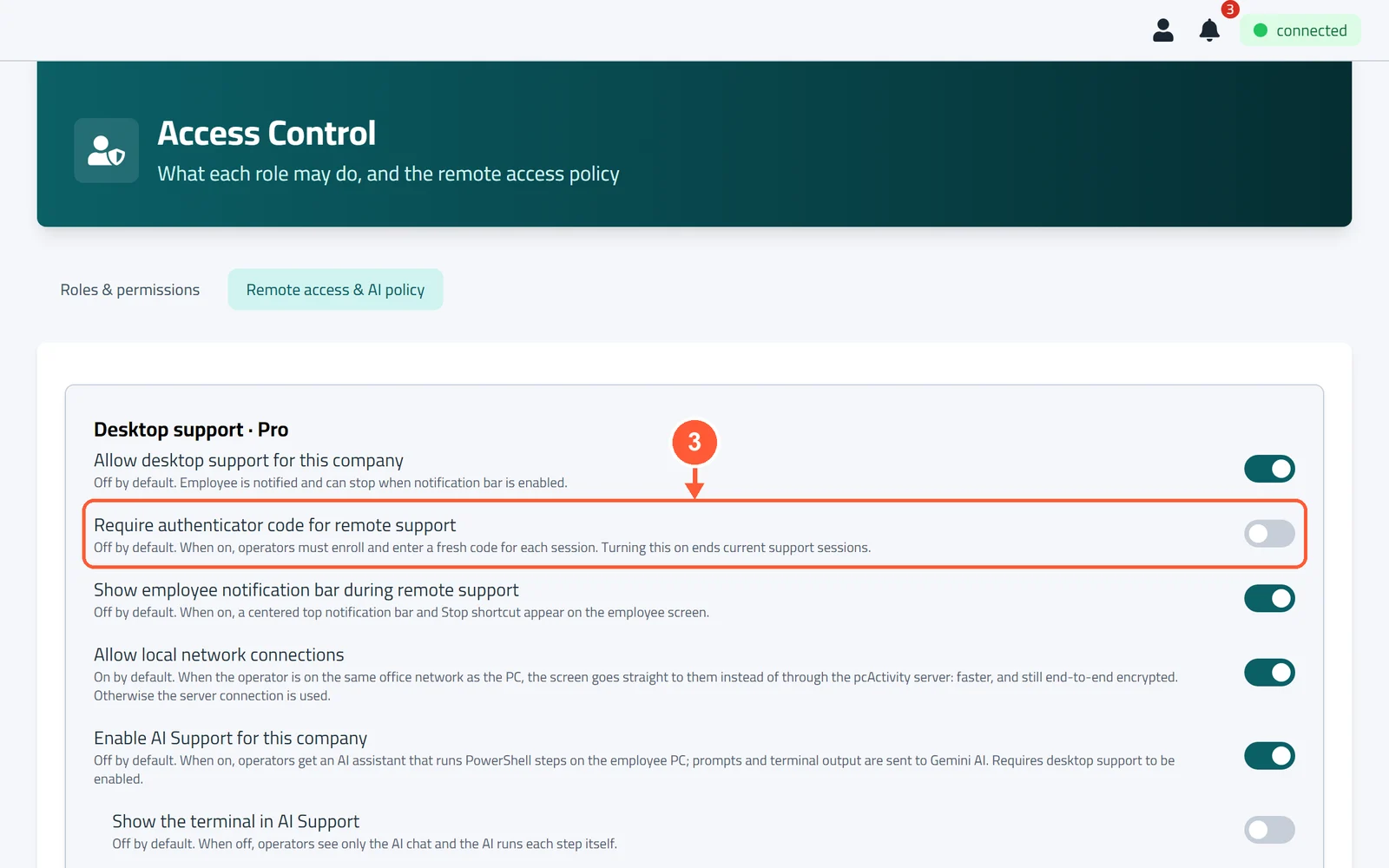
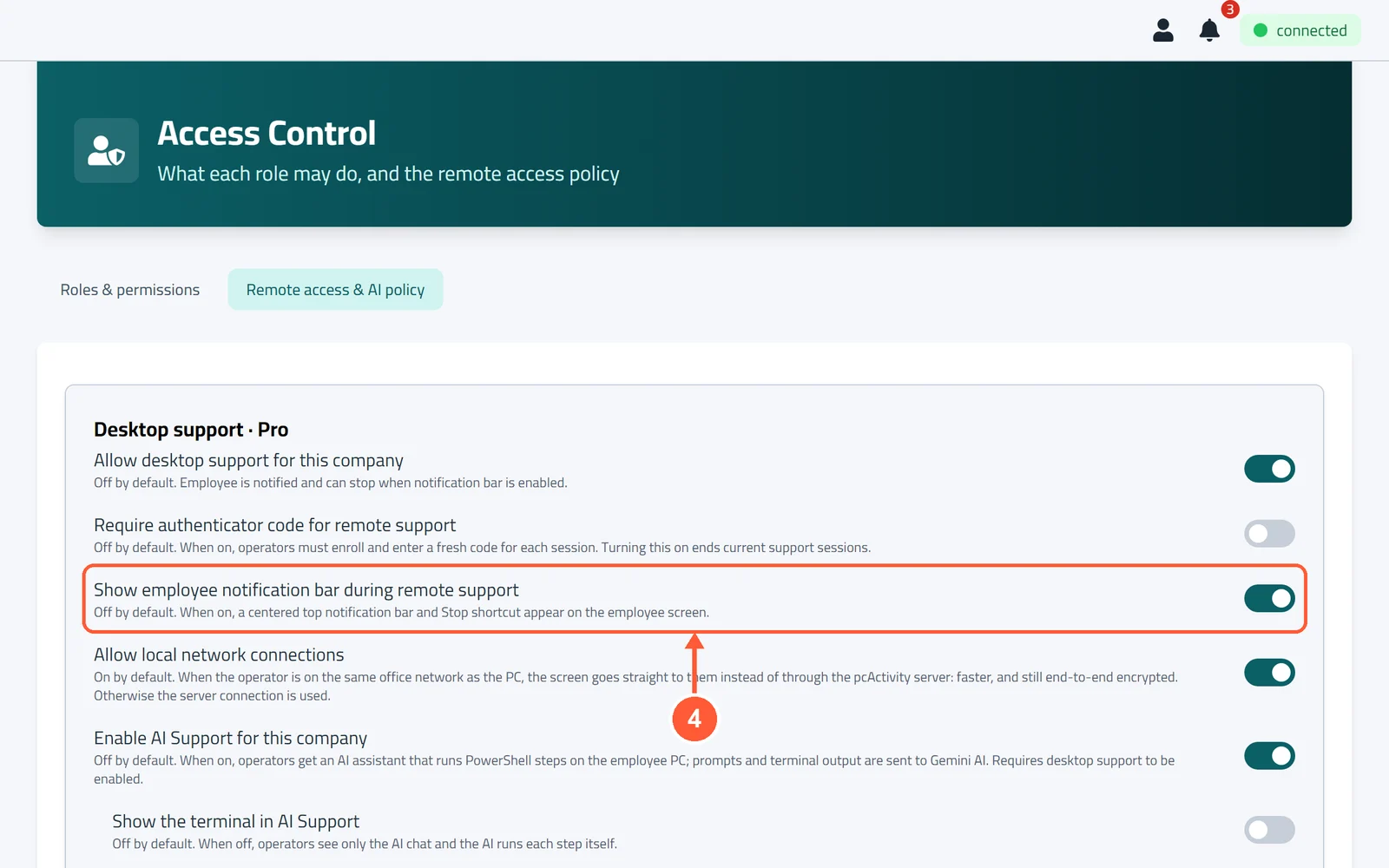
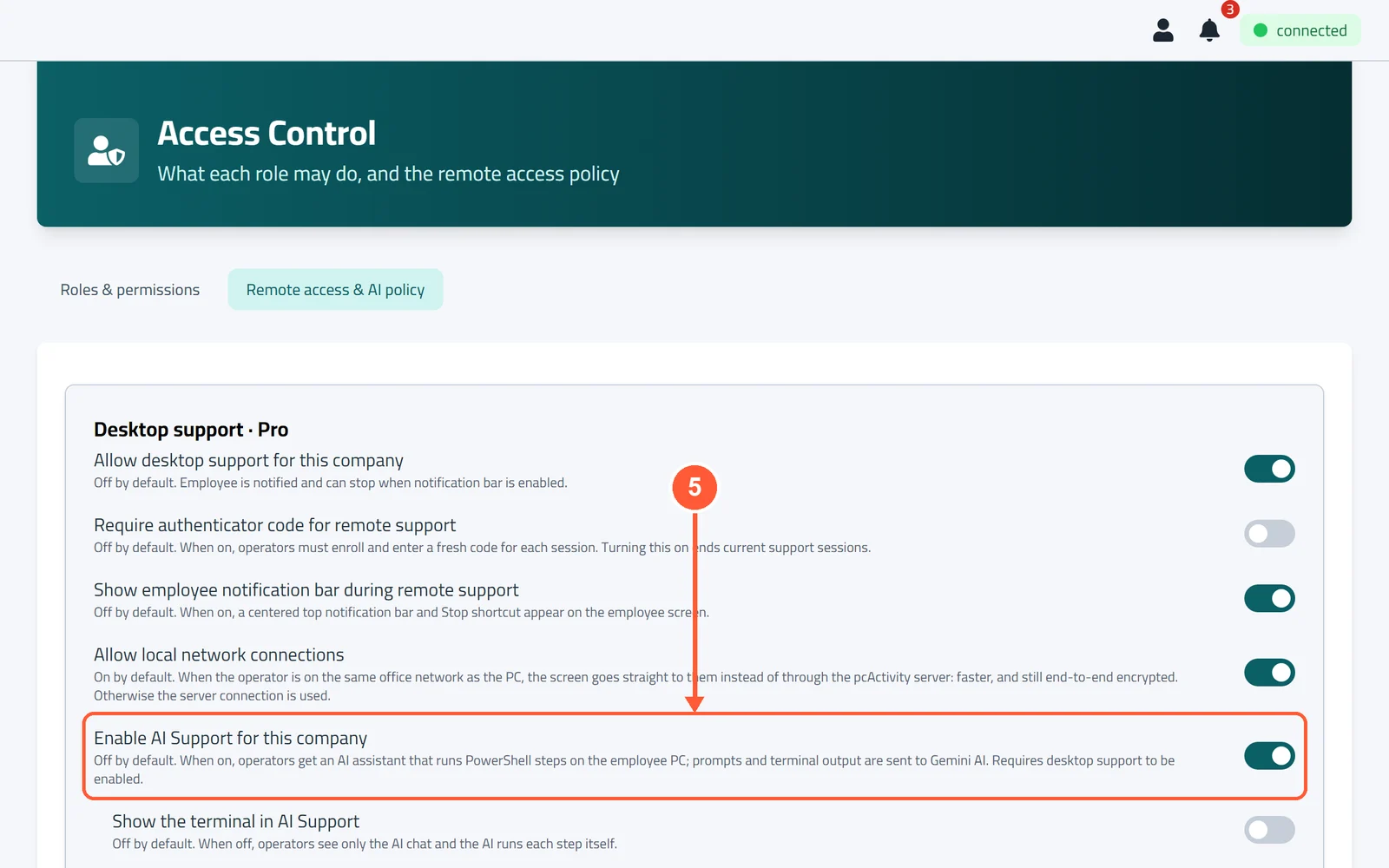
1Click Access Control, then open Remote access & AI policy.1 / 5
💡 Good to Know
- Remote desktop is included in Pro and Business. The AI in AI Support needs Business (or the trial).
- Who may connect is set per role (see Roles & Permissions).
Set Up Your Authenticator
An authenticator app on your phone (like Google Authenticator or Microsoft Authenticator) makes a new 6-digit code every 30 seconds. pcActivity can ask for one before each remote session.
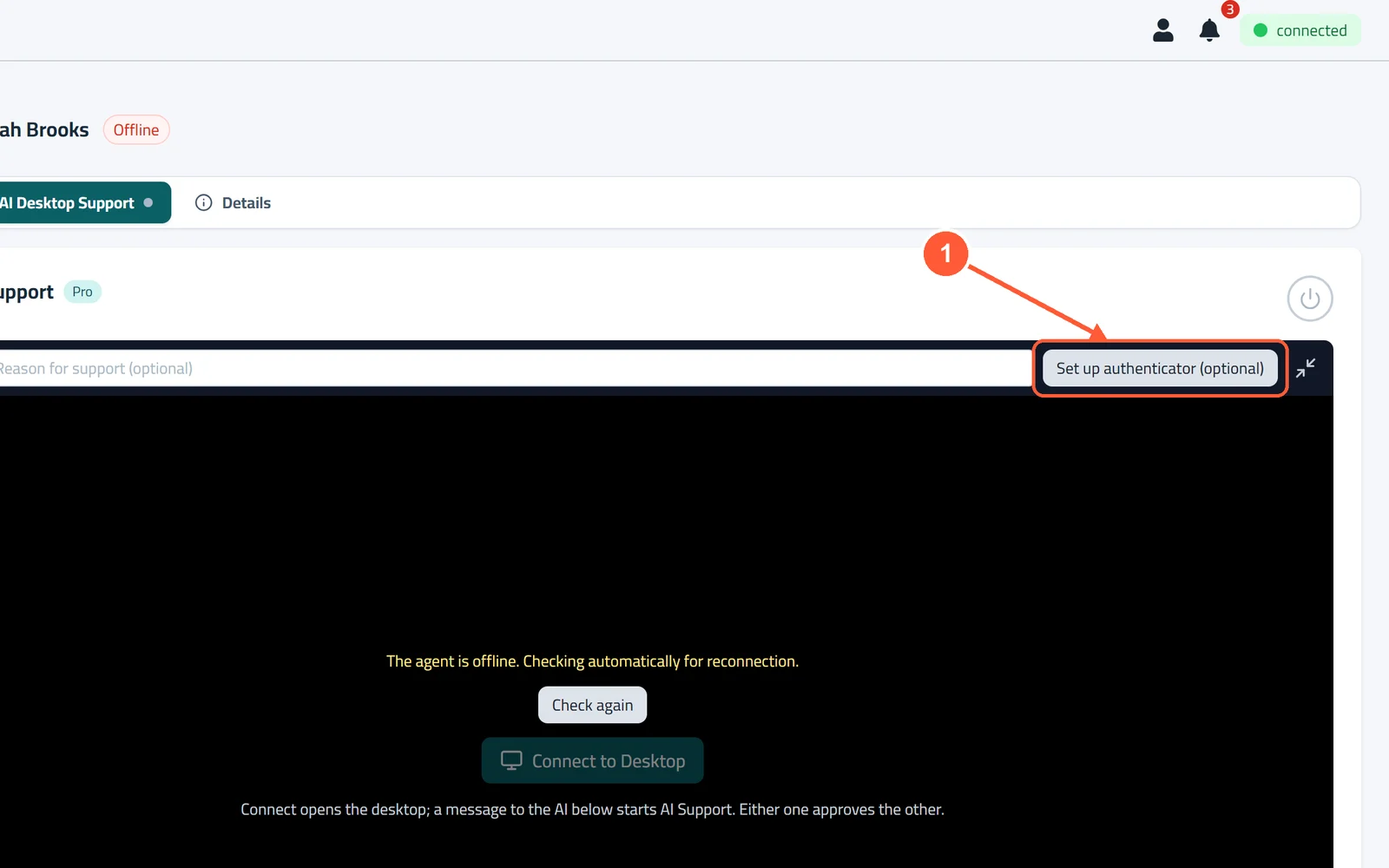
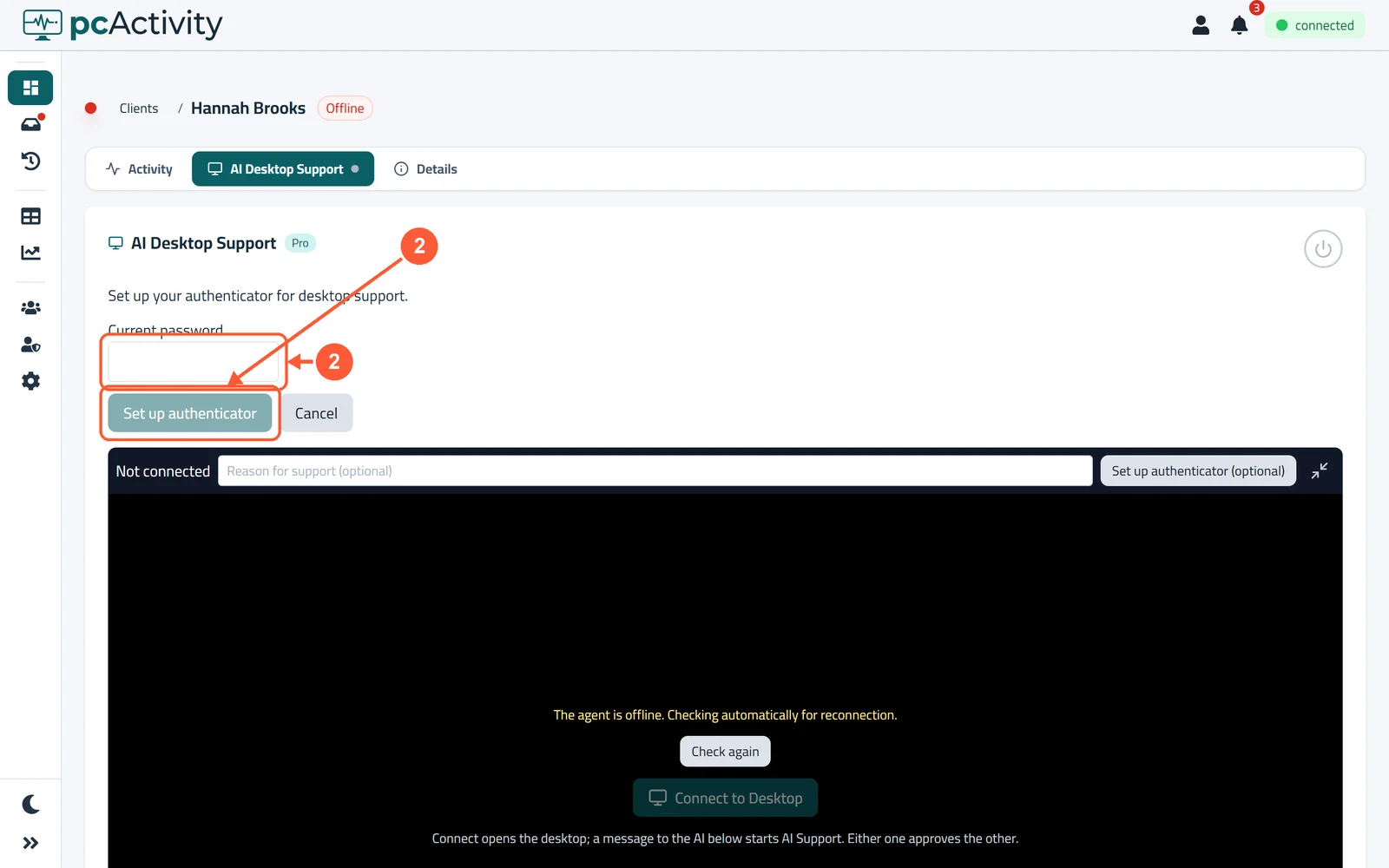
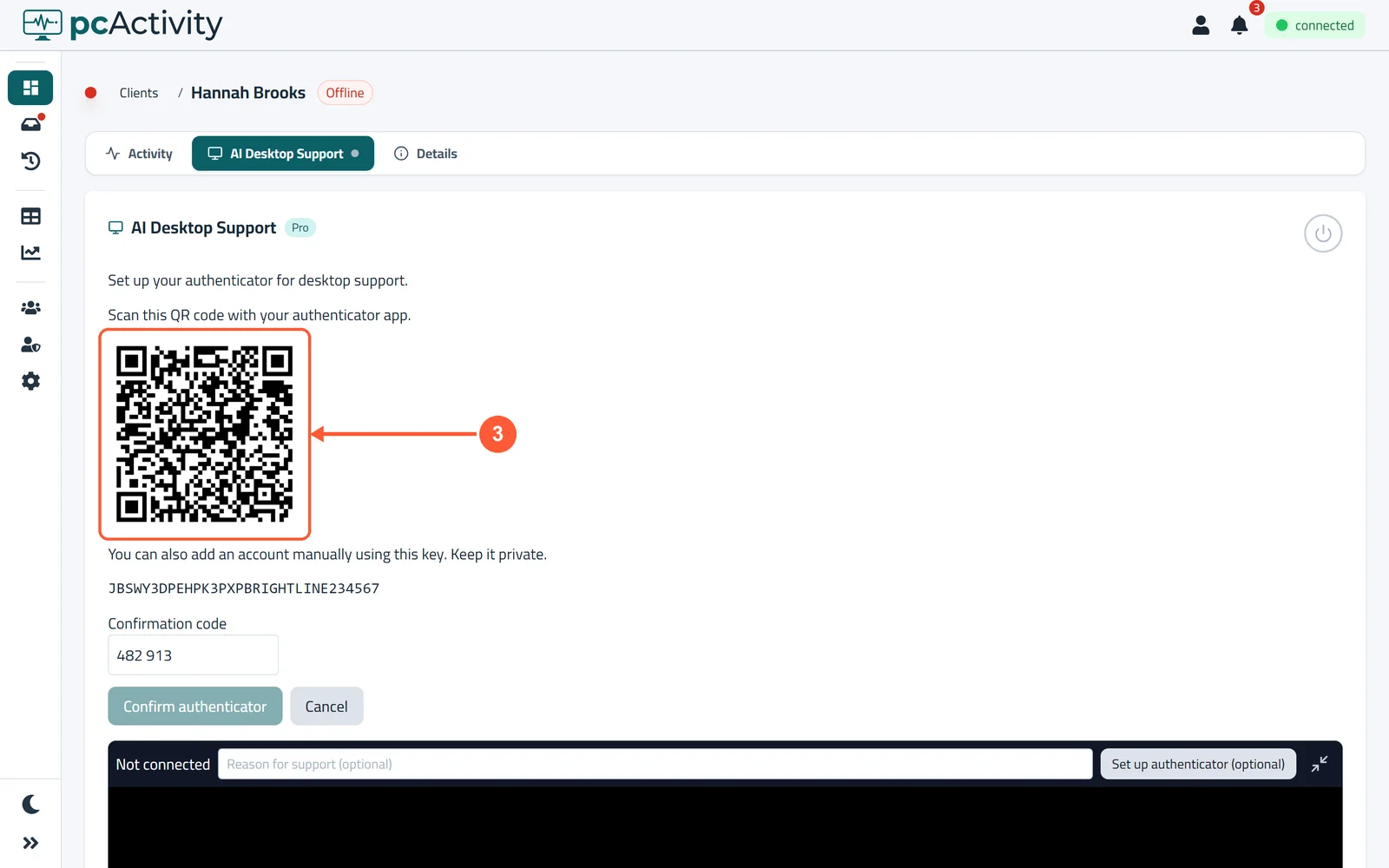
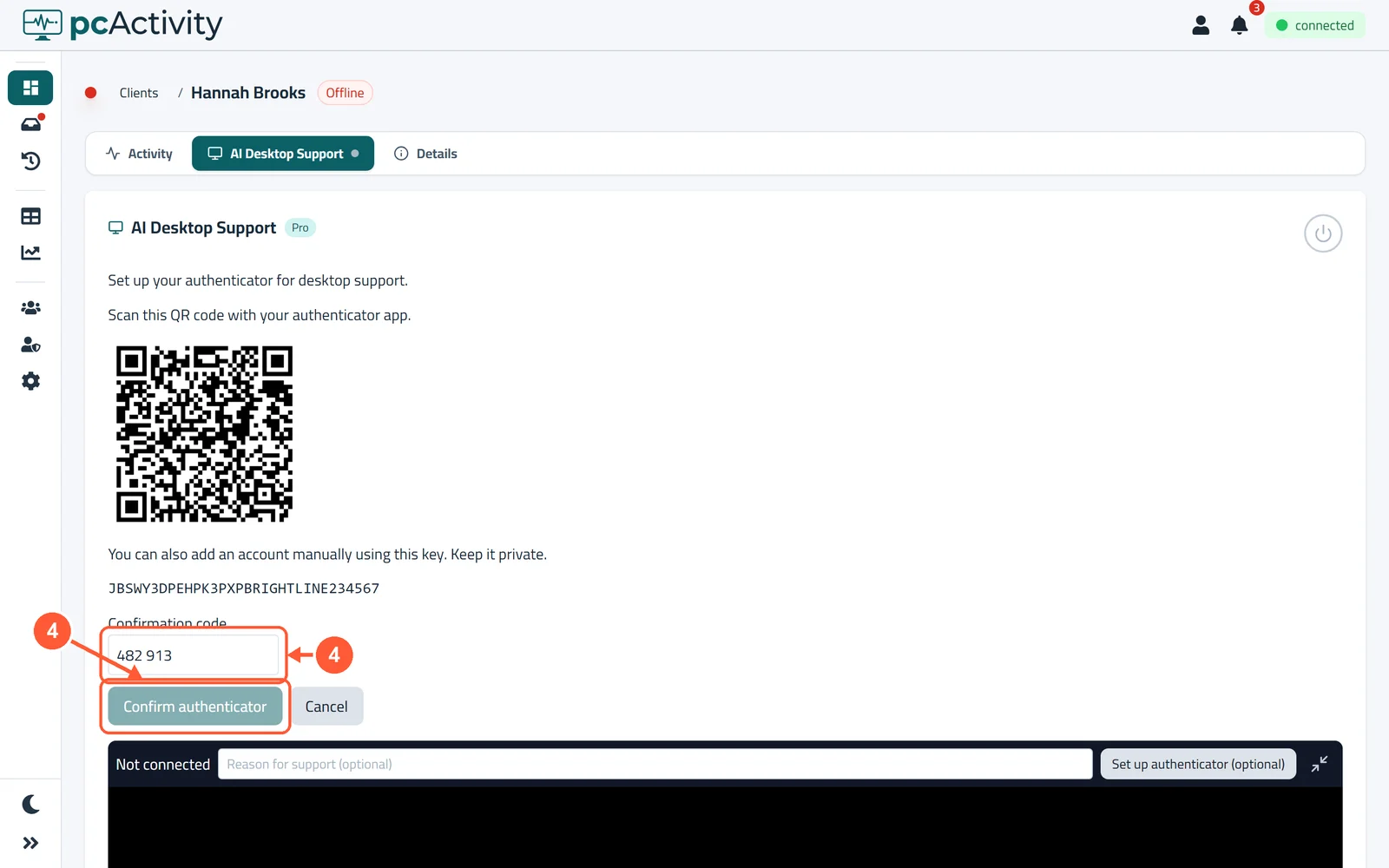
1Open any employee's page, go to AI Desktop Support and click Set up authenticator (optional).1 / 4
💡 Good to Know
- Keep the key private: anyone with it can make your codes.
- Each person sets up their own authenticator once.
Help an Employee with Remote Desktop
See an employee's screen and take control to fix a problem, from anywhere.
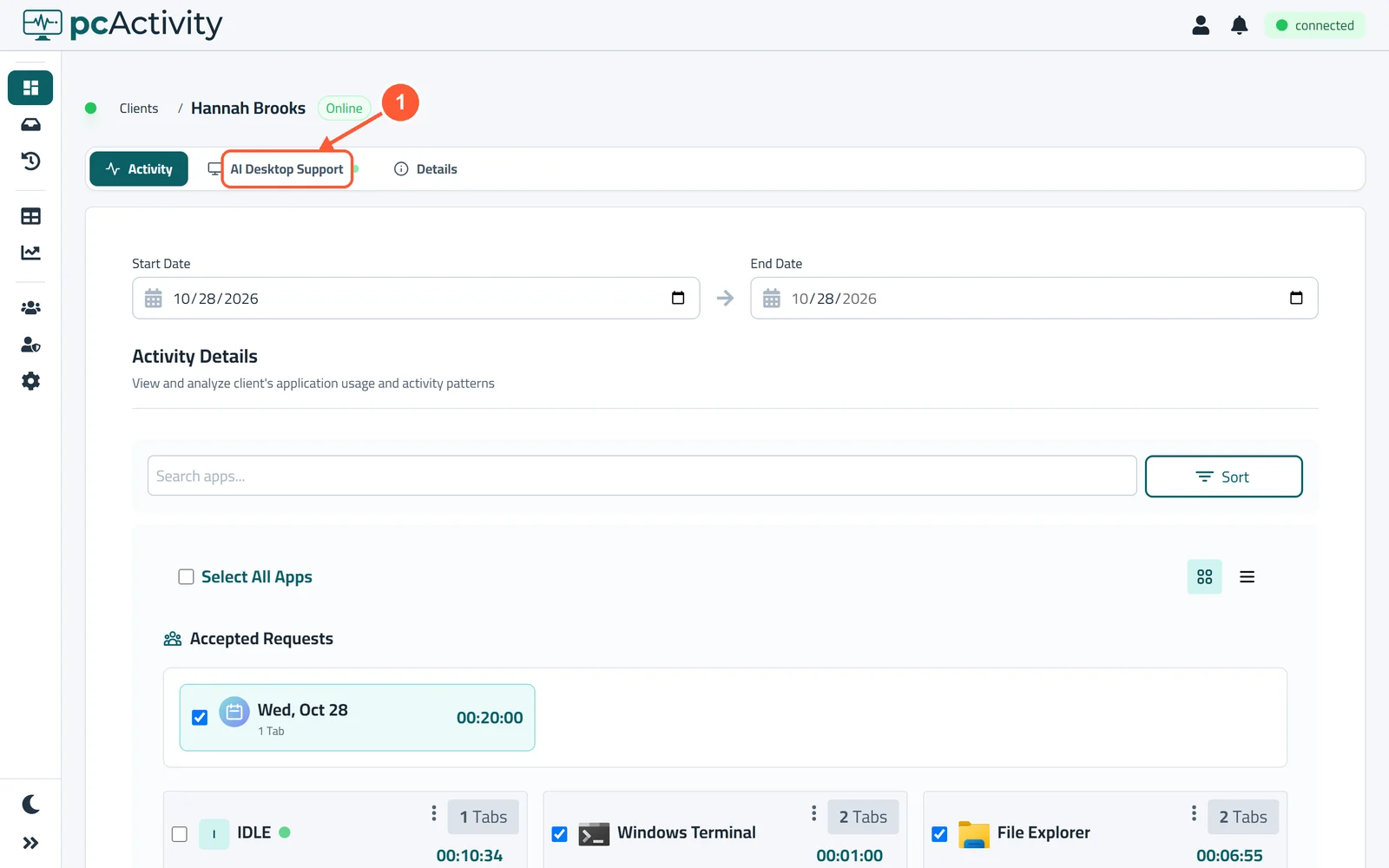
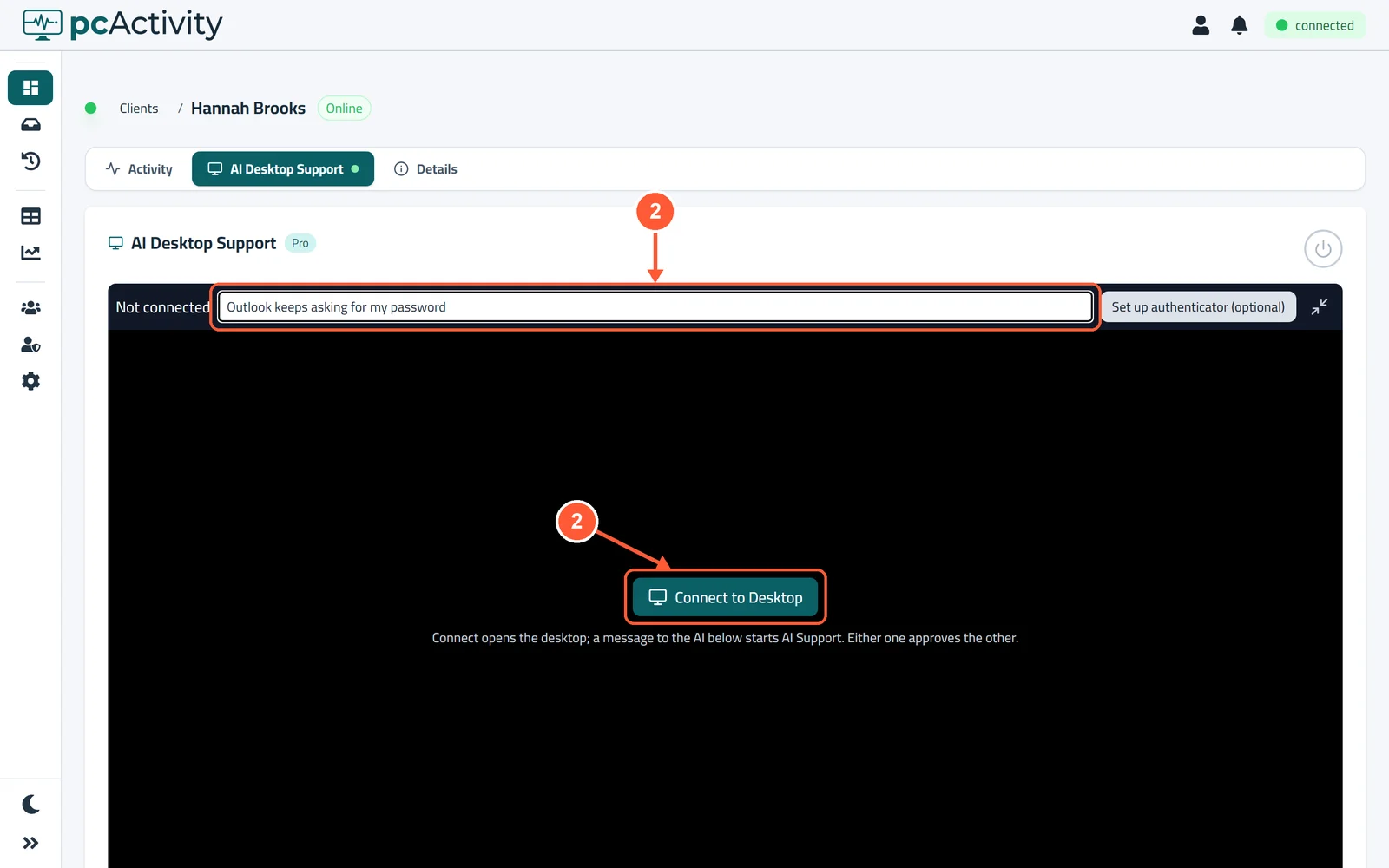
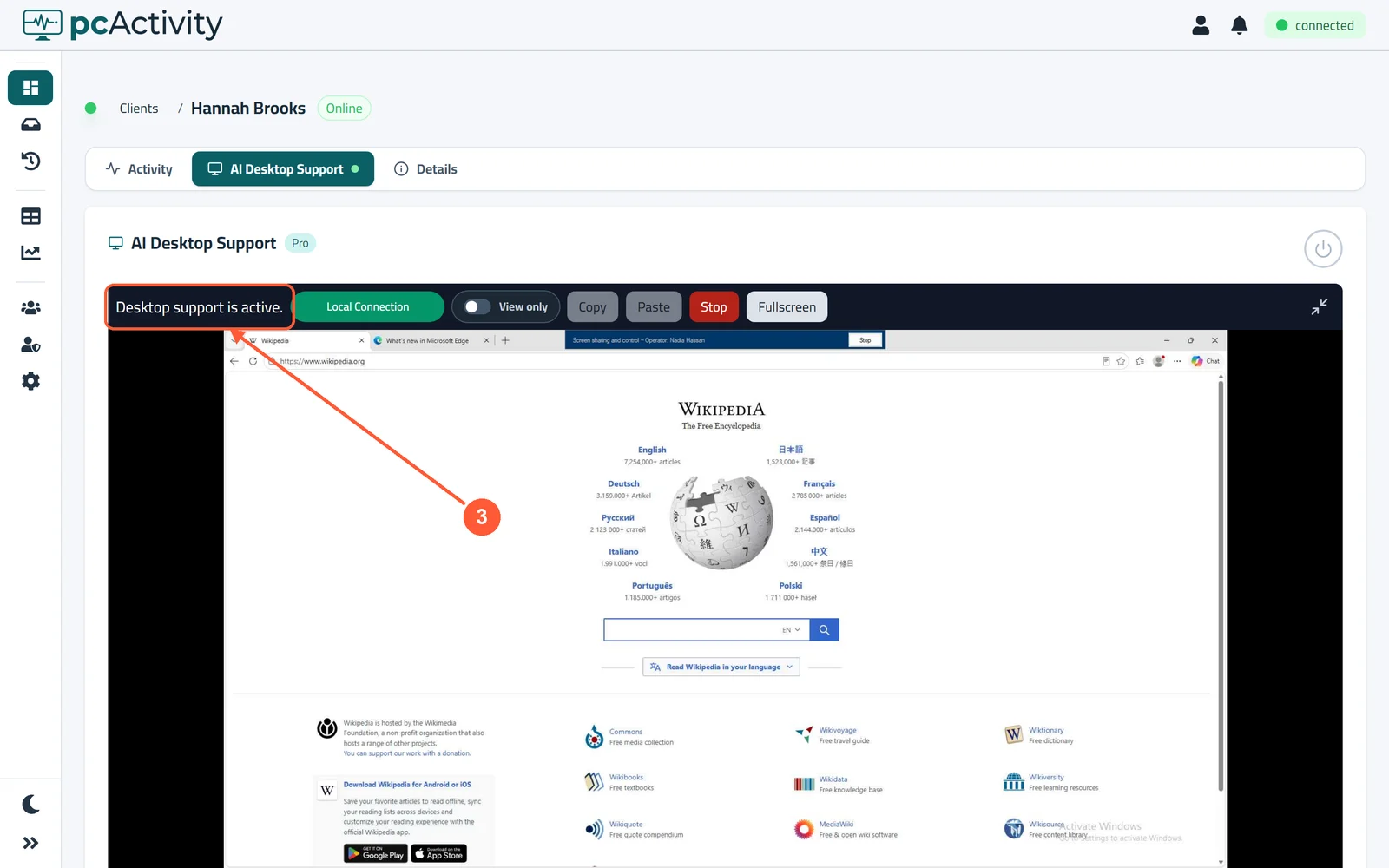
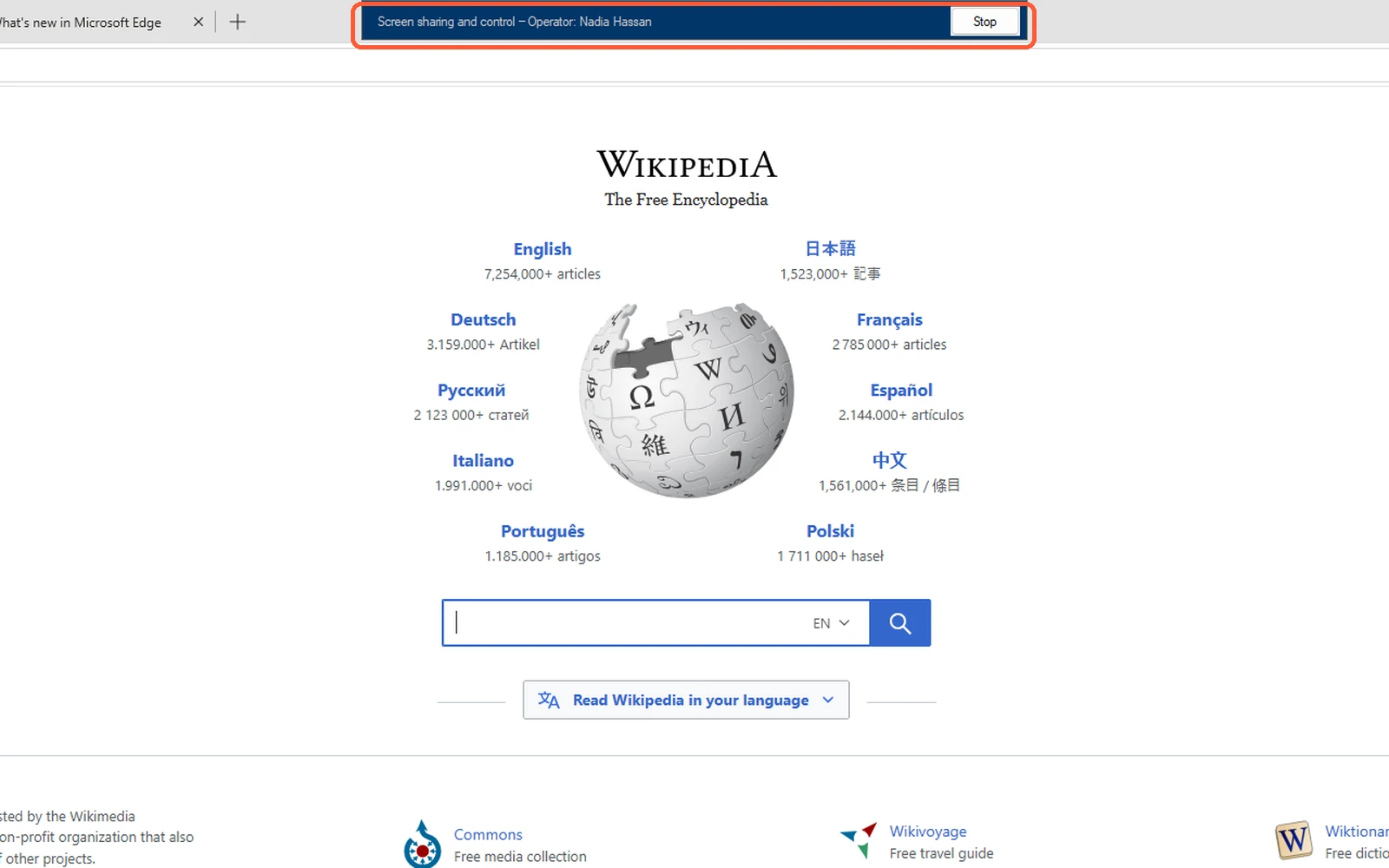
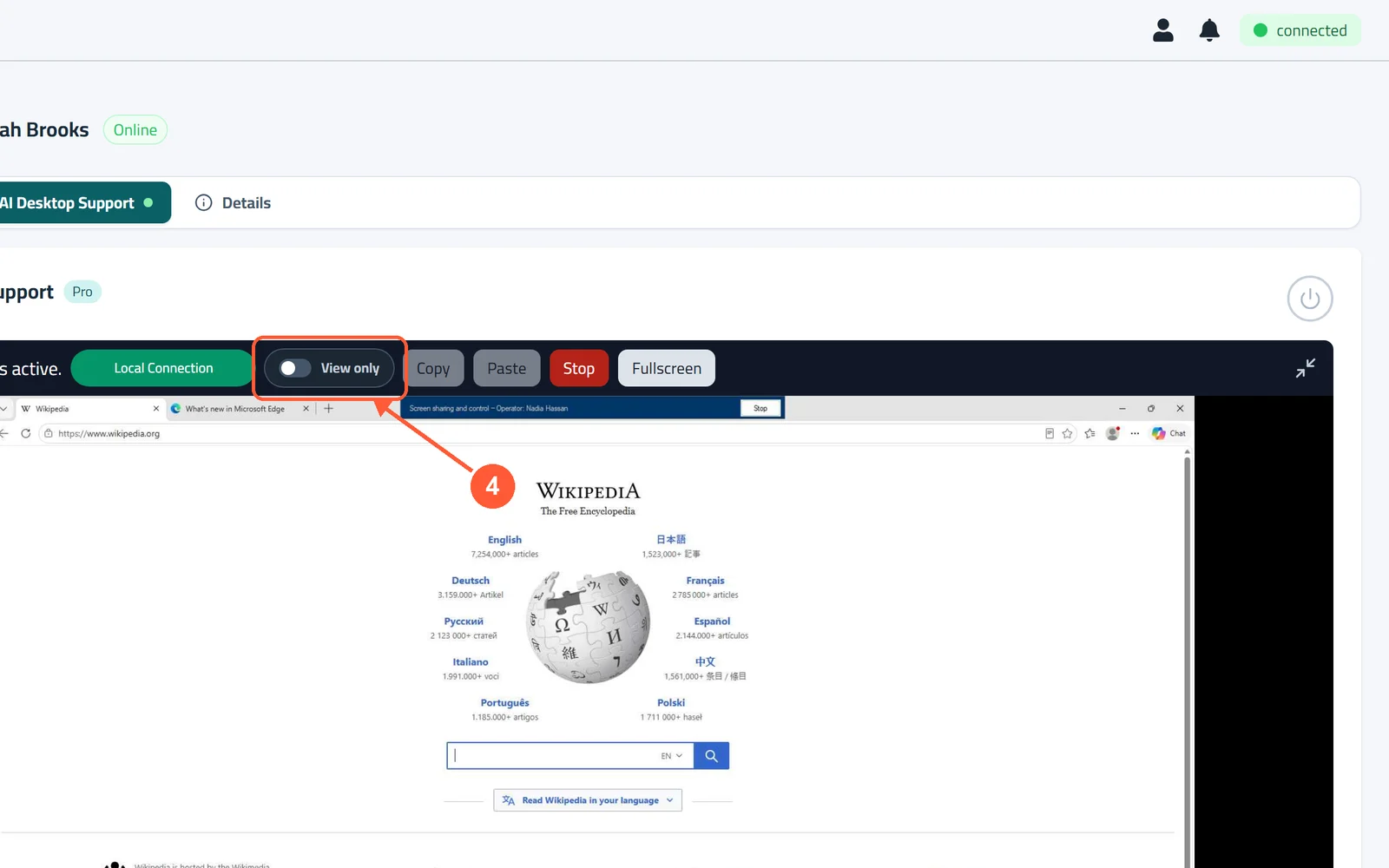
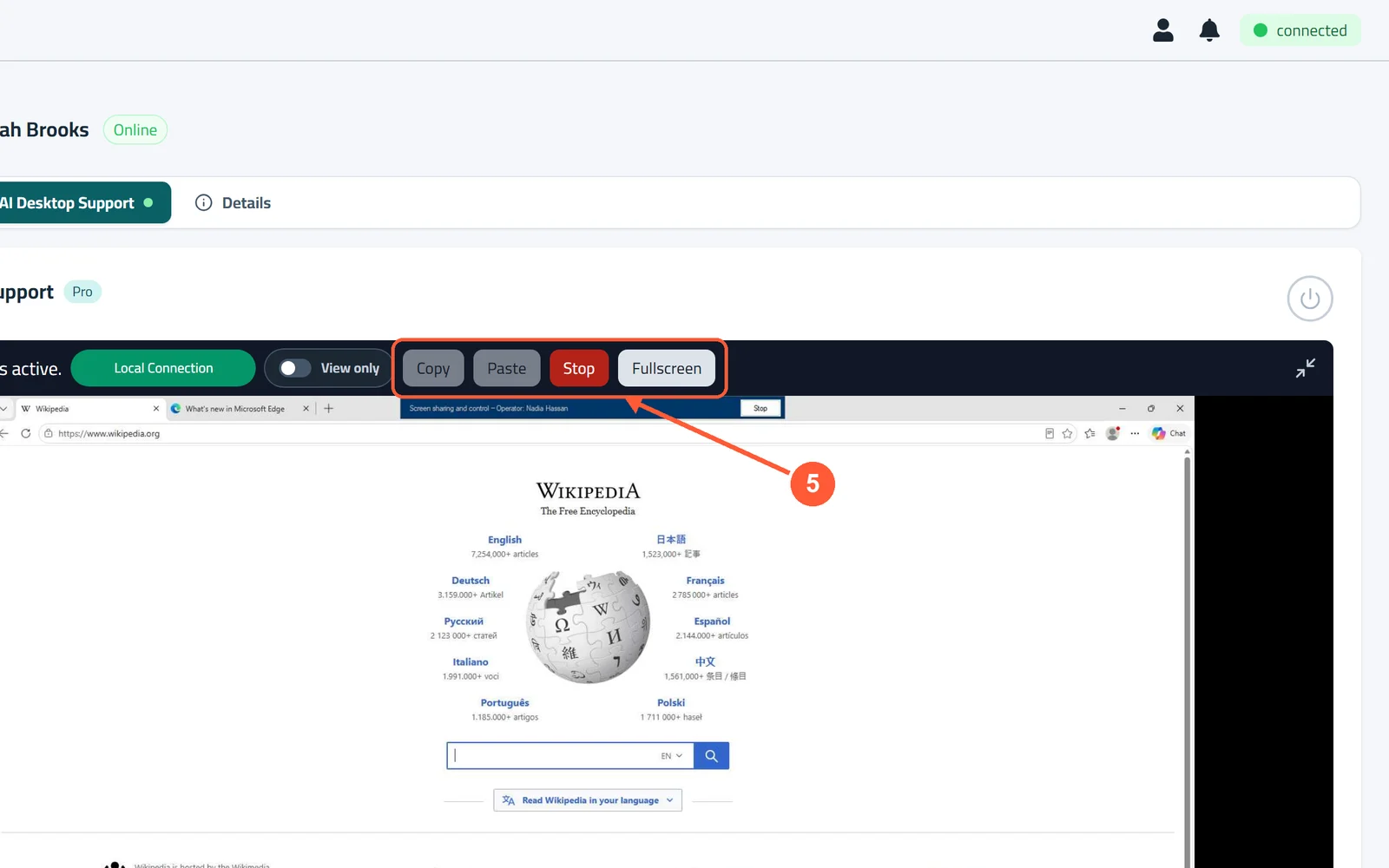
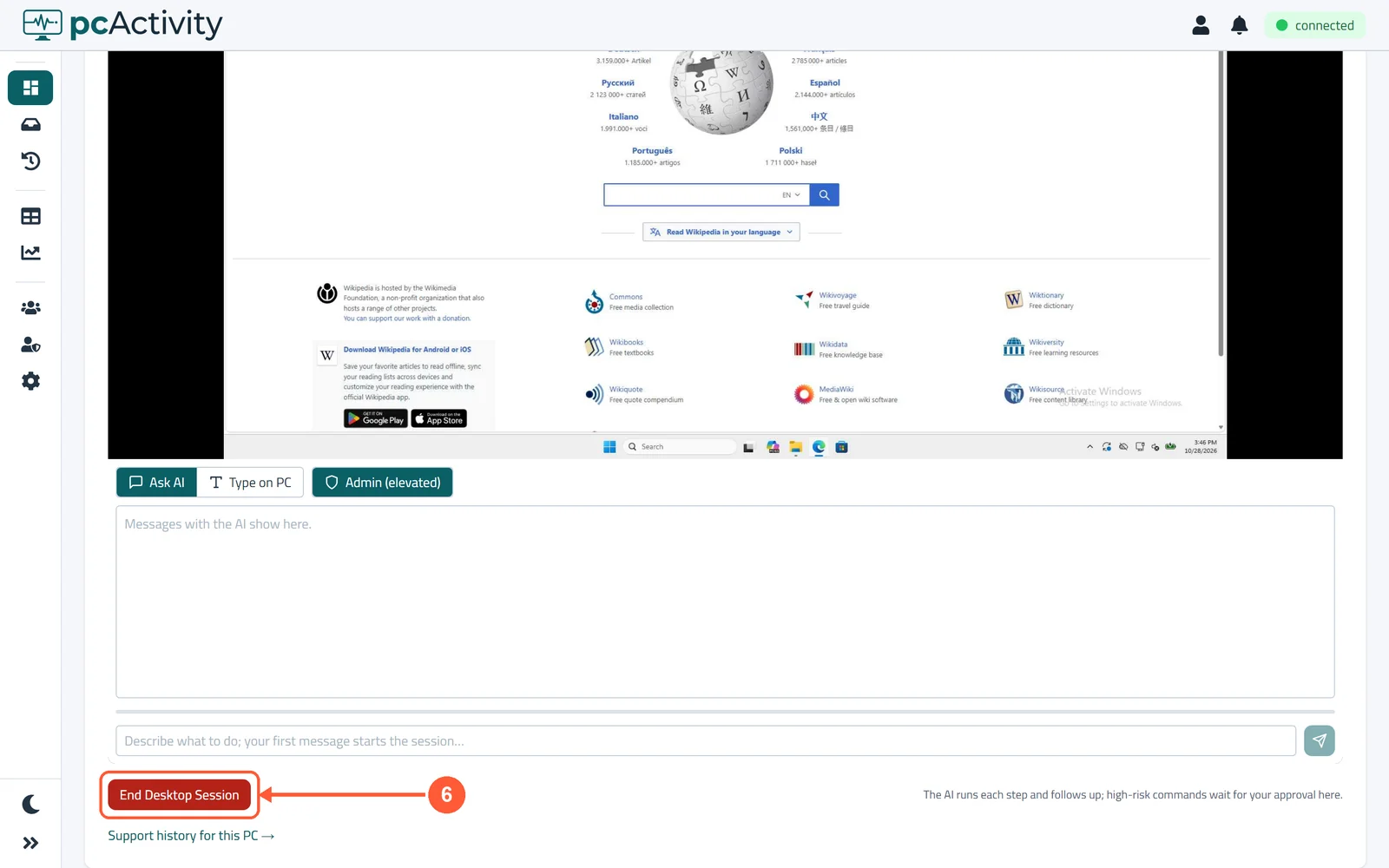
1Open the employee's page and click AI Desktop Support.1 / 7
💡 Good to Know
- Needs remote support switched on (see Turn On Remote Support) and the Remote desktop permission.
- On the same office network the picture comes straight to you (Local Connection), which is faster.
- Every session is logged (see Review Support Sessions).
Fix a PC with AI Support
Describe the problem in plain words. The AI runs the checks and fixes on the PC for you and explains what it found. (Business plan.)
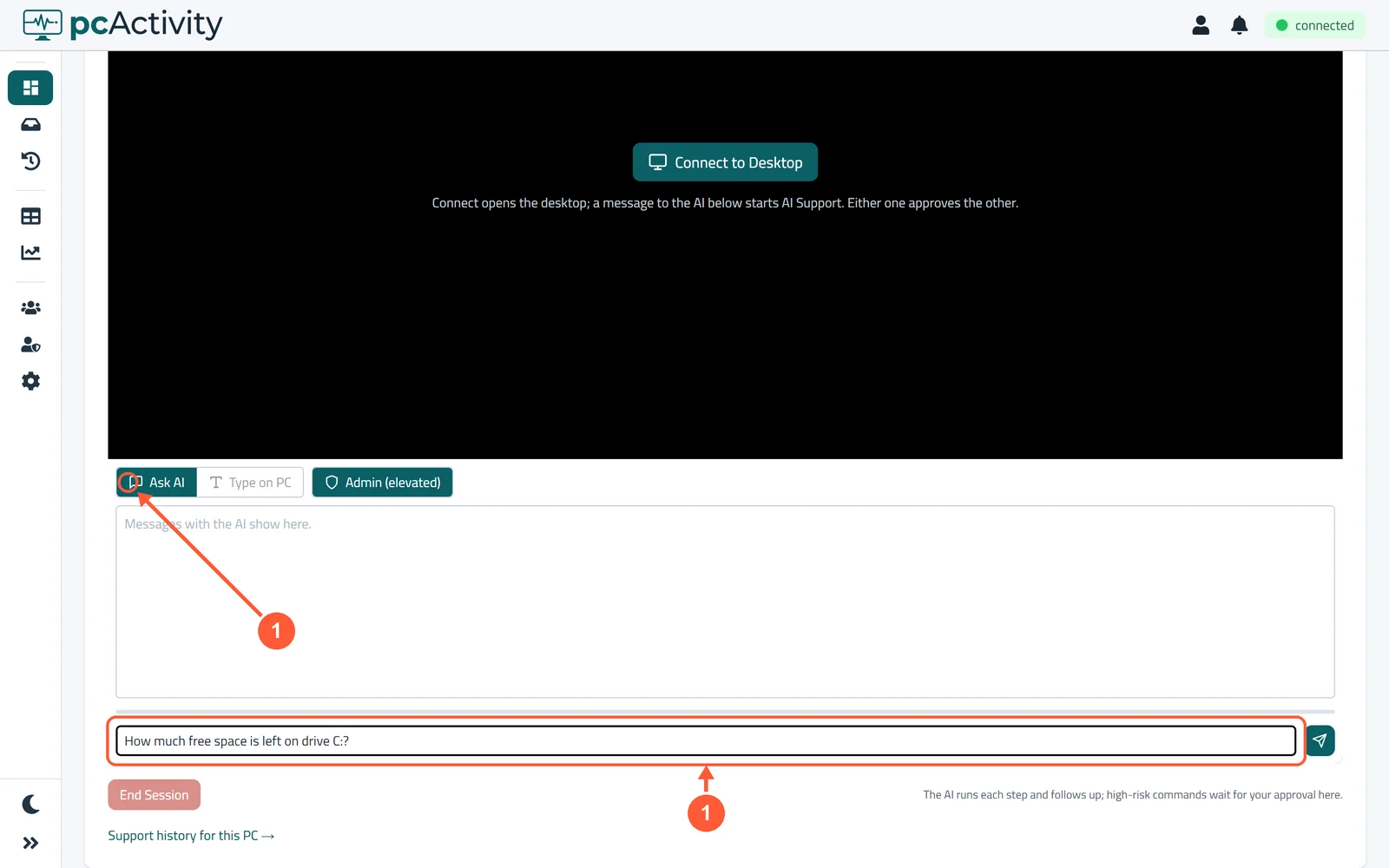
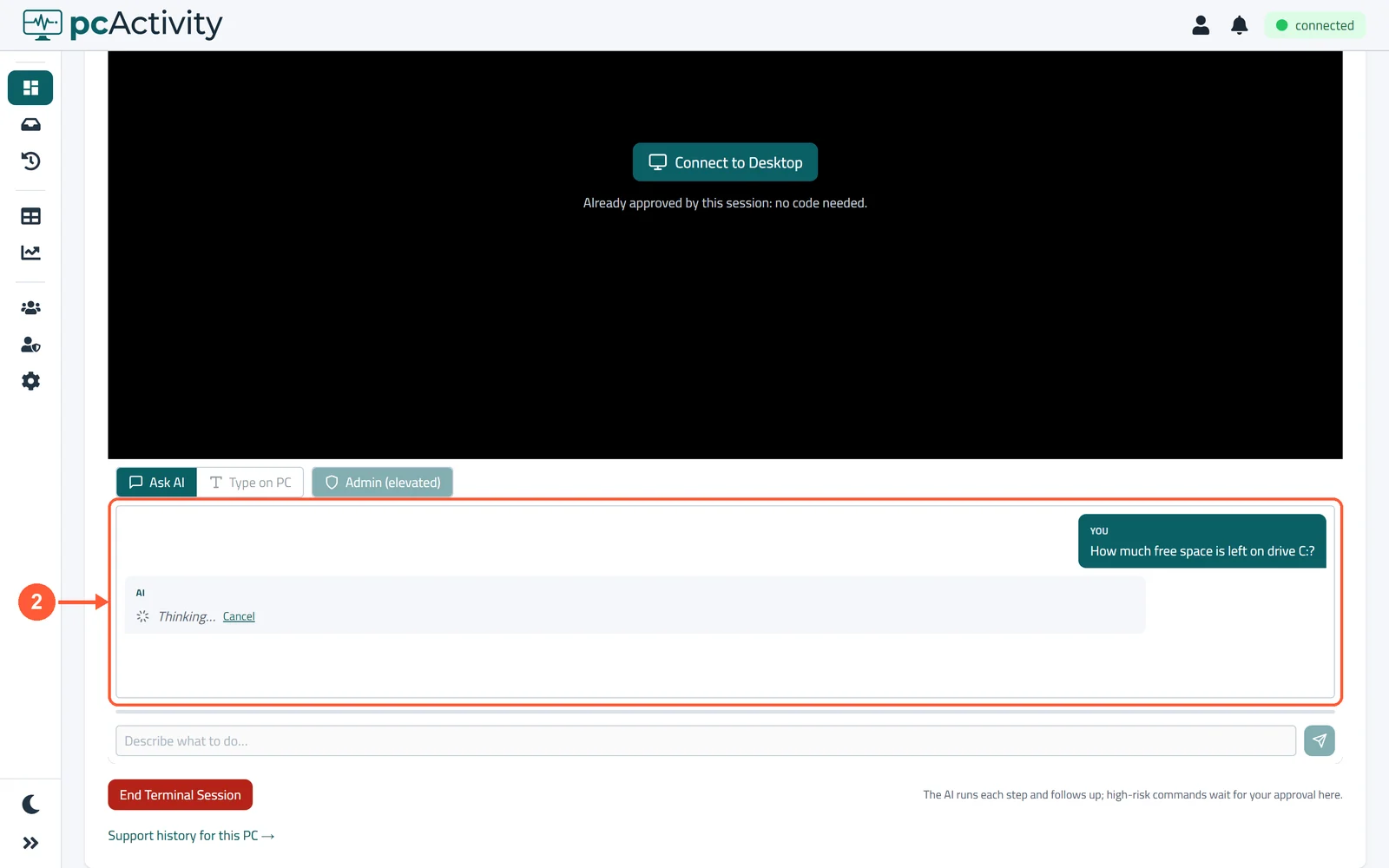
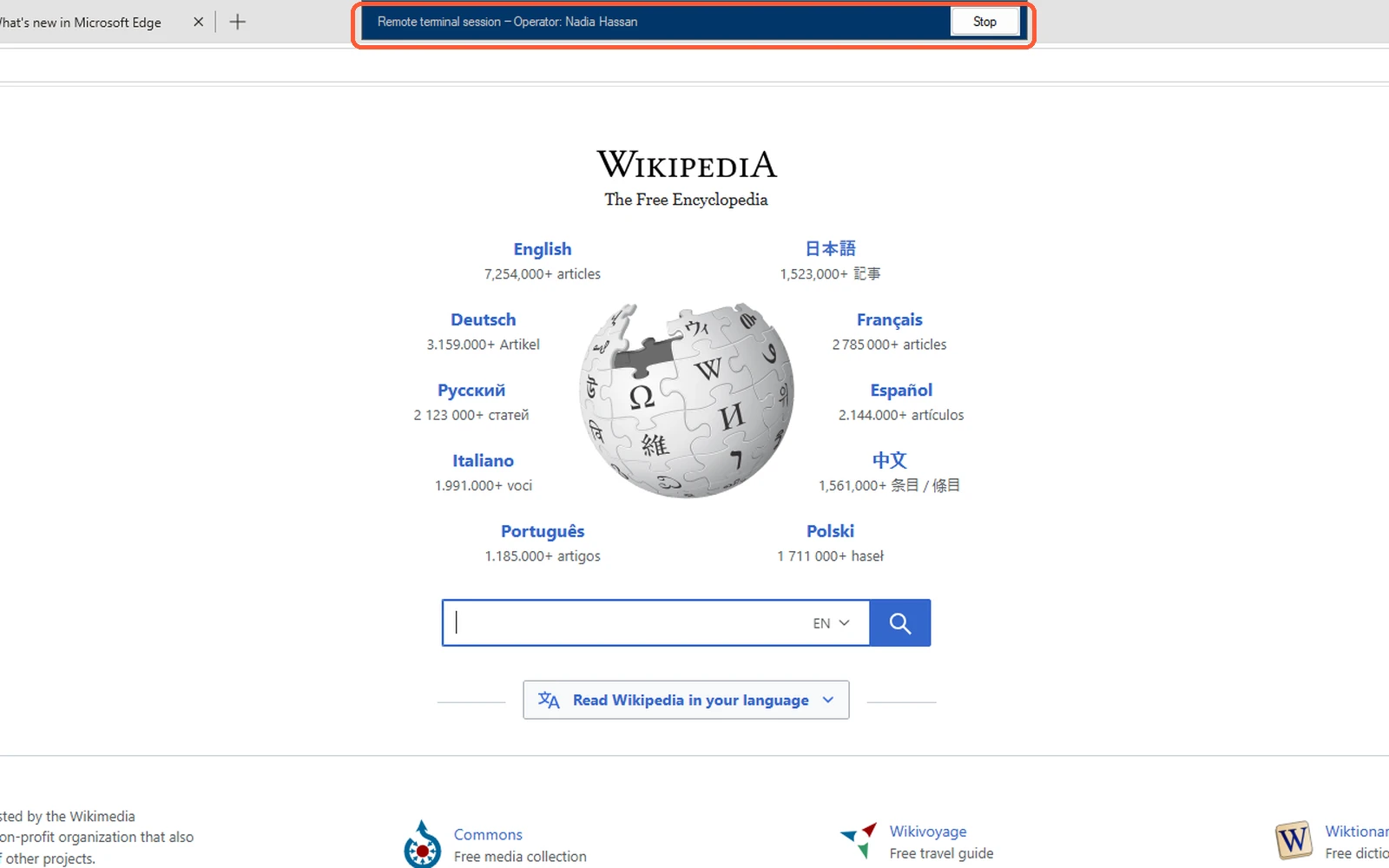
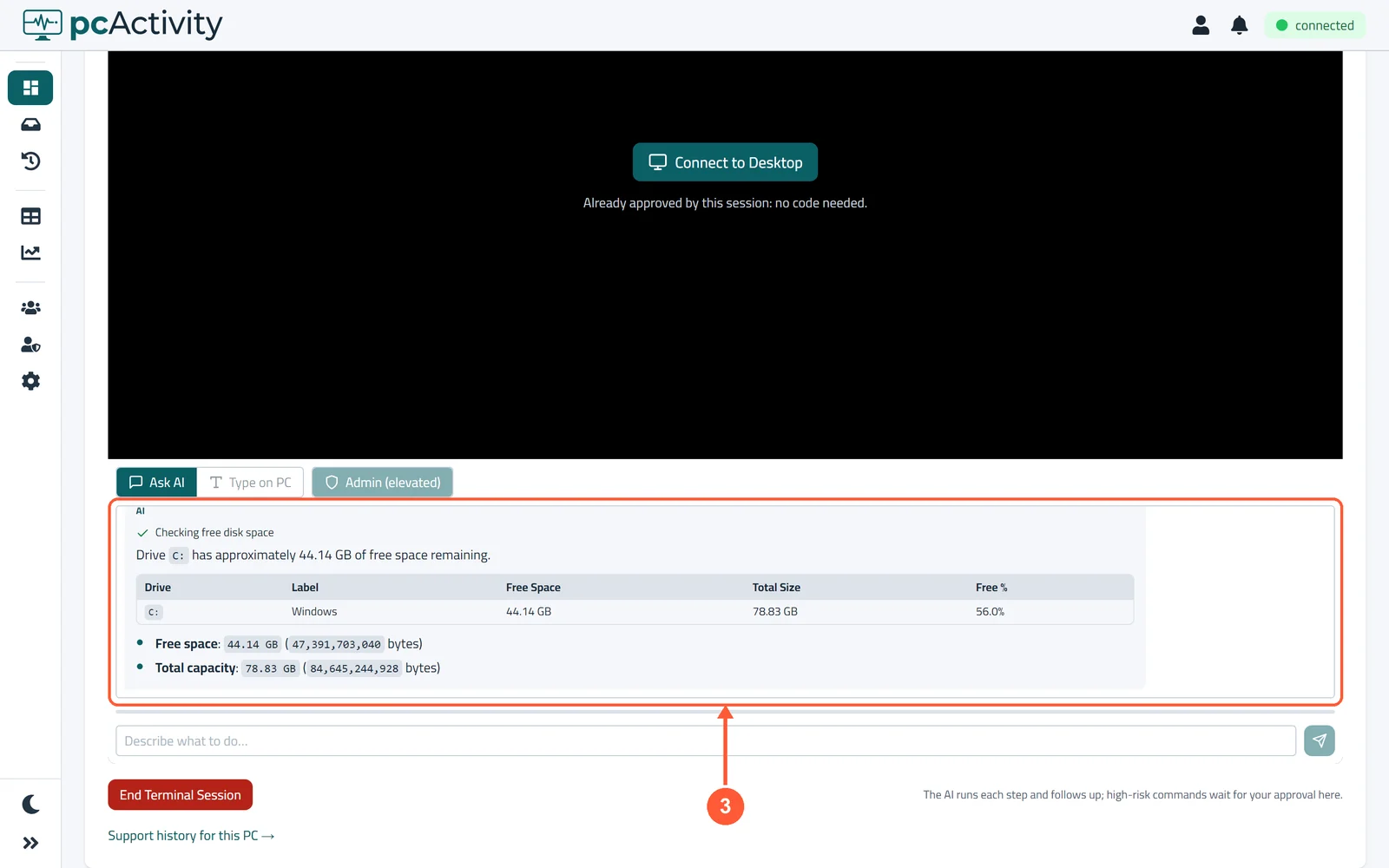
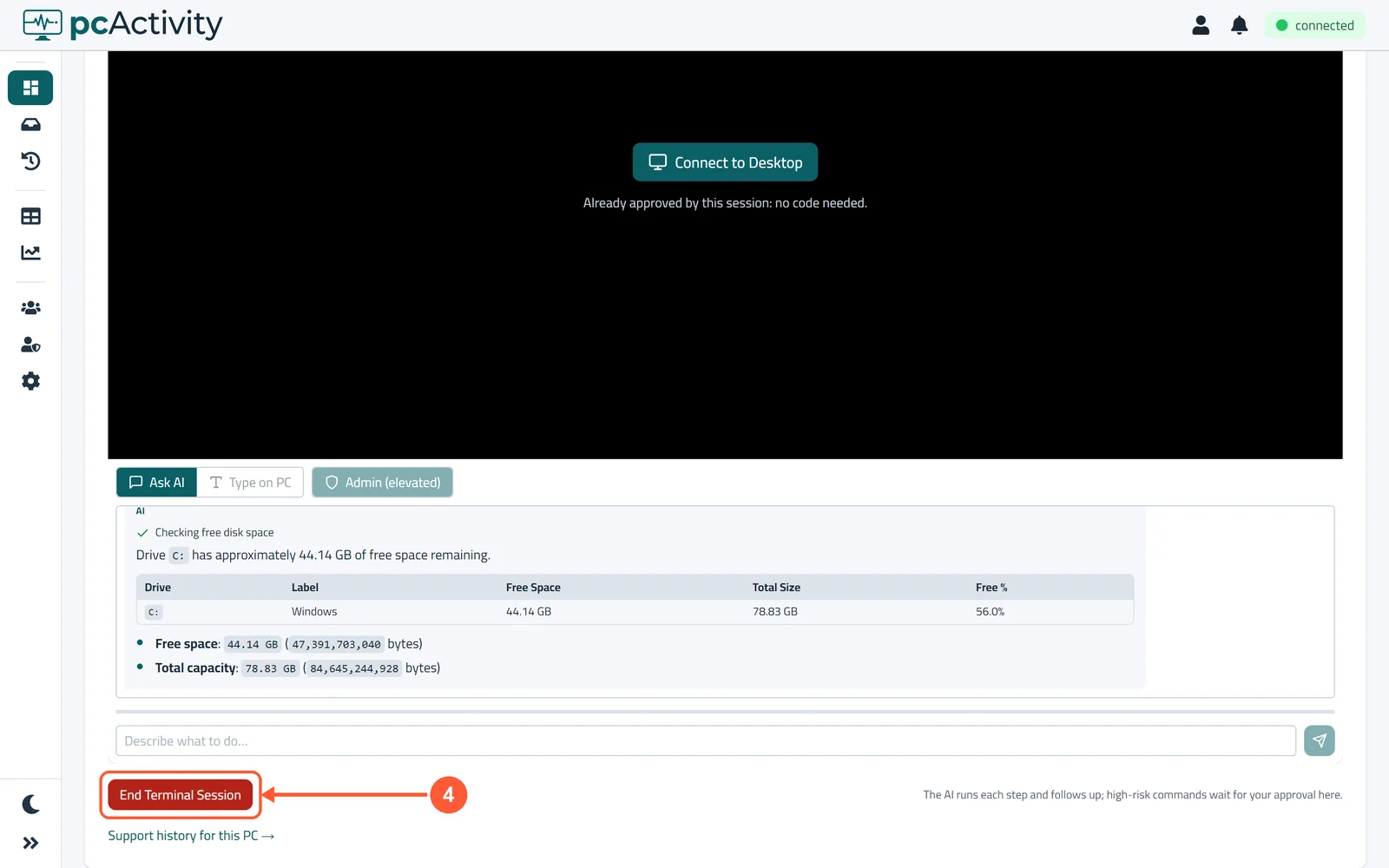
1On the employee's AI Desktop Support tab, make sure Ask AI is selected and type what you need, like "How much free space is left on drive C:?". Press Enter.1 / 5
💡 Good to Know
- You can keep asking follow-up questions in the same session.
- Admins can choose Admin (elevated) for tasks that need administrator rights.
- The whole conversation is saved in the Log Viewer.
Turn On a PC Remotely
Wake up a PC that's asleep or switched off, so you can help or it can start tracking.
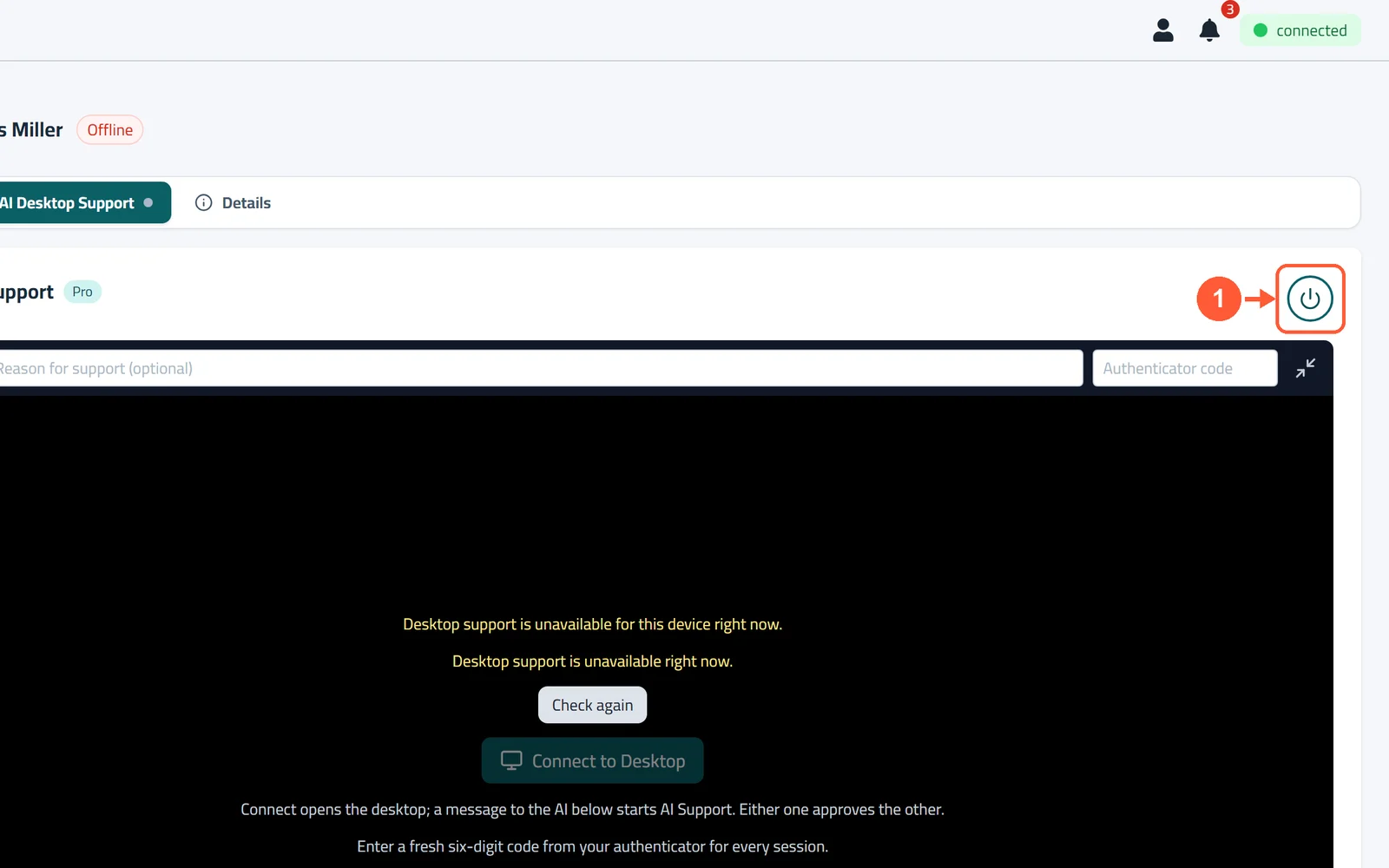
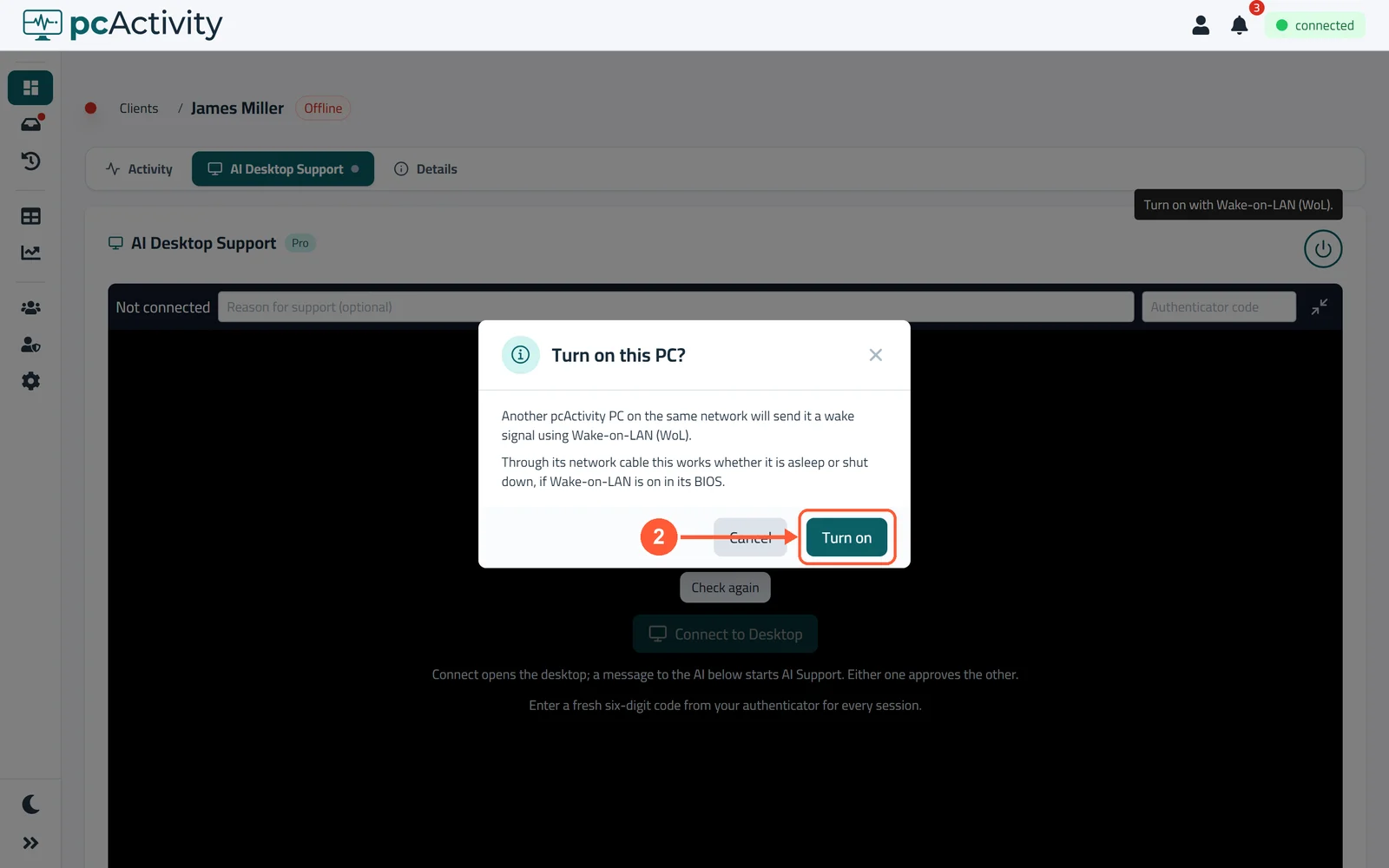
1Open the employee's page, go to AI Desktop Support and click the round power button at the top right.1 / 2
💡 Good to Know
- A PC on a network cable can be turned on even when shut down, if Wake-on-LAN is on in its BIOS. Over Wi-Fi it only wakes from sleep.
- The button is grey until the PC has reported how it can be woken.
Review Support Sessions
Every remote and AI Support session is logged: who connected, to which PC, why, and how it ended.
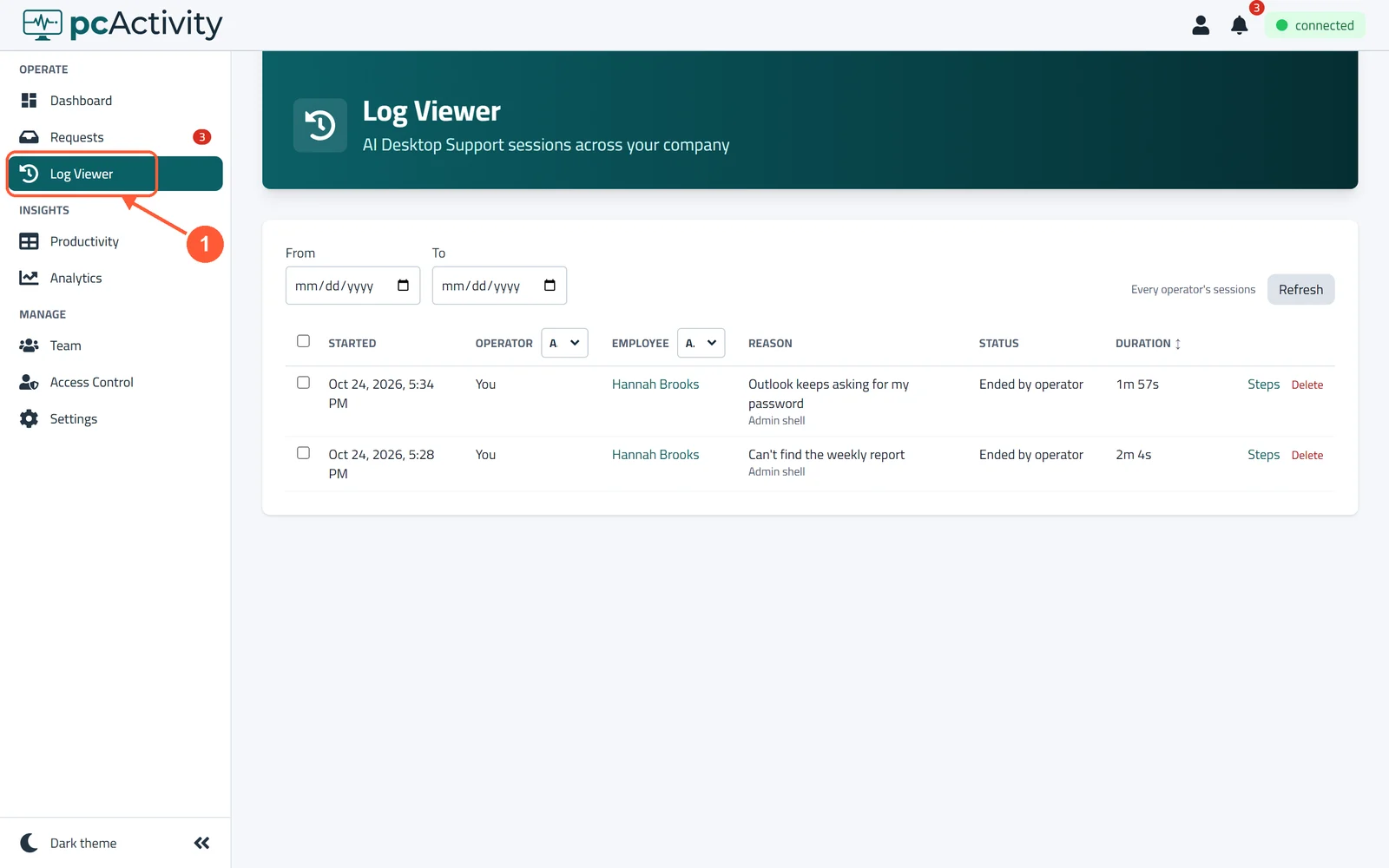
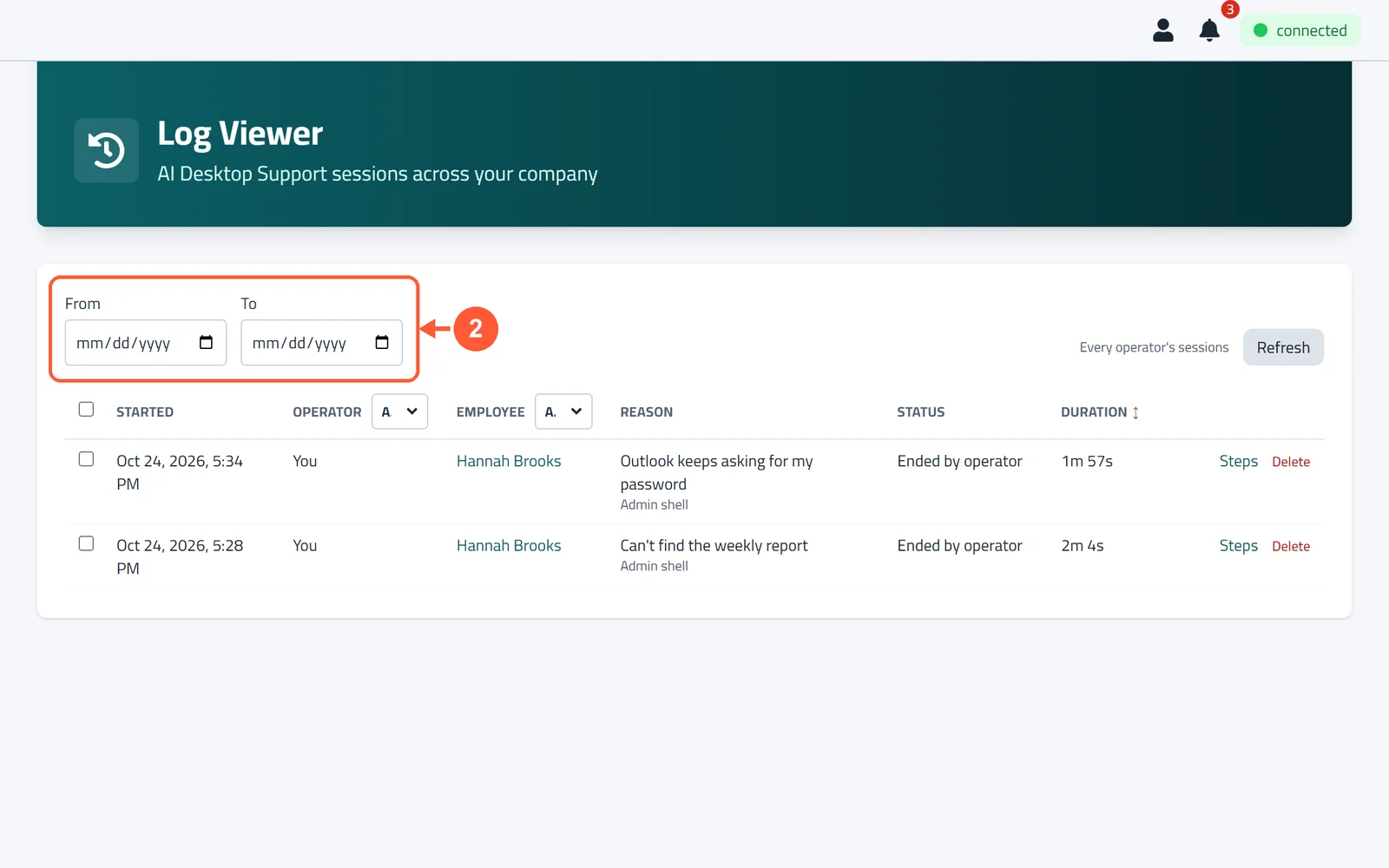
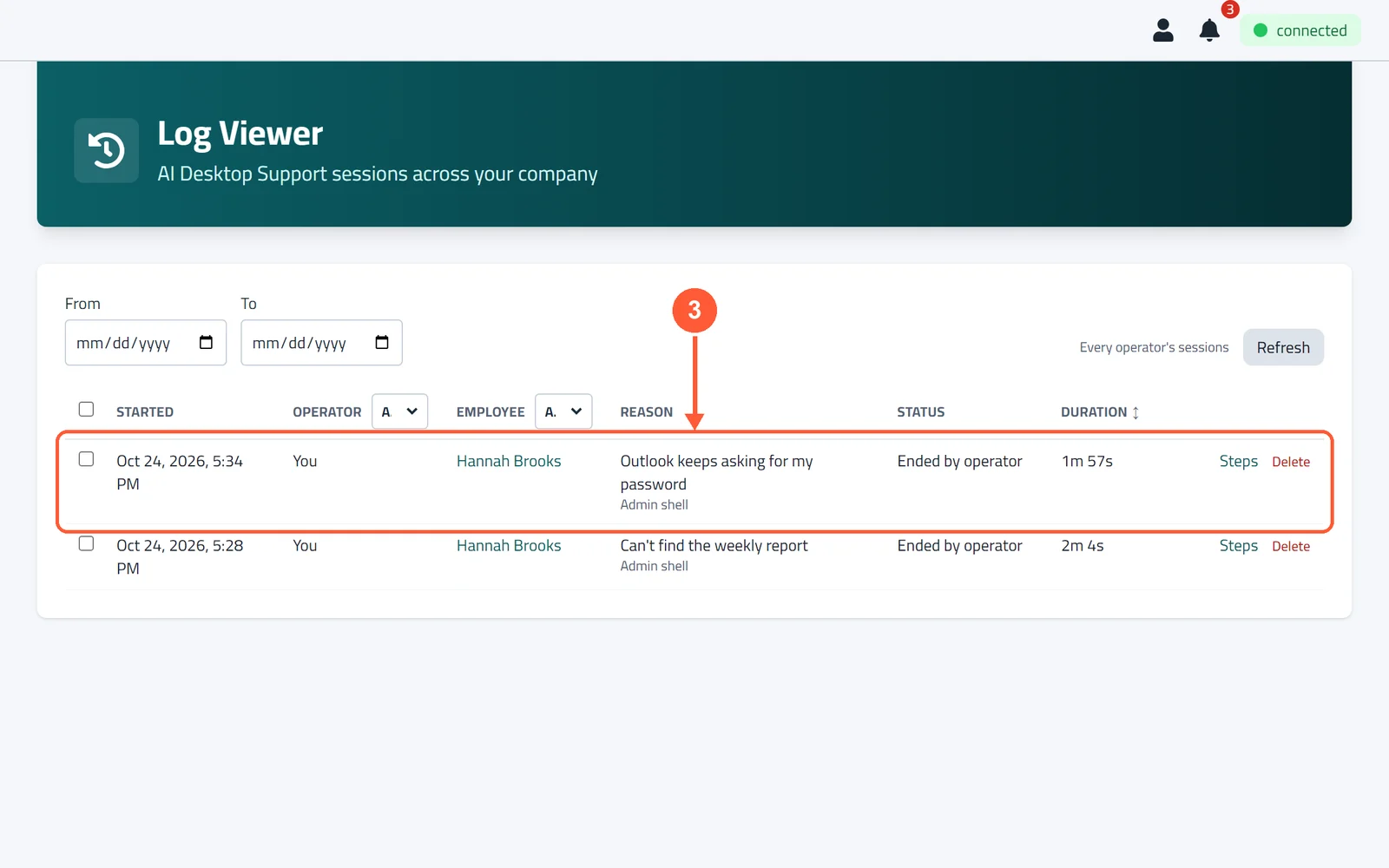
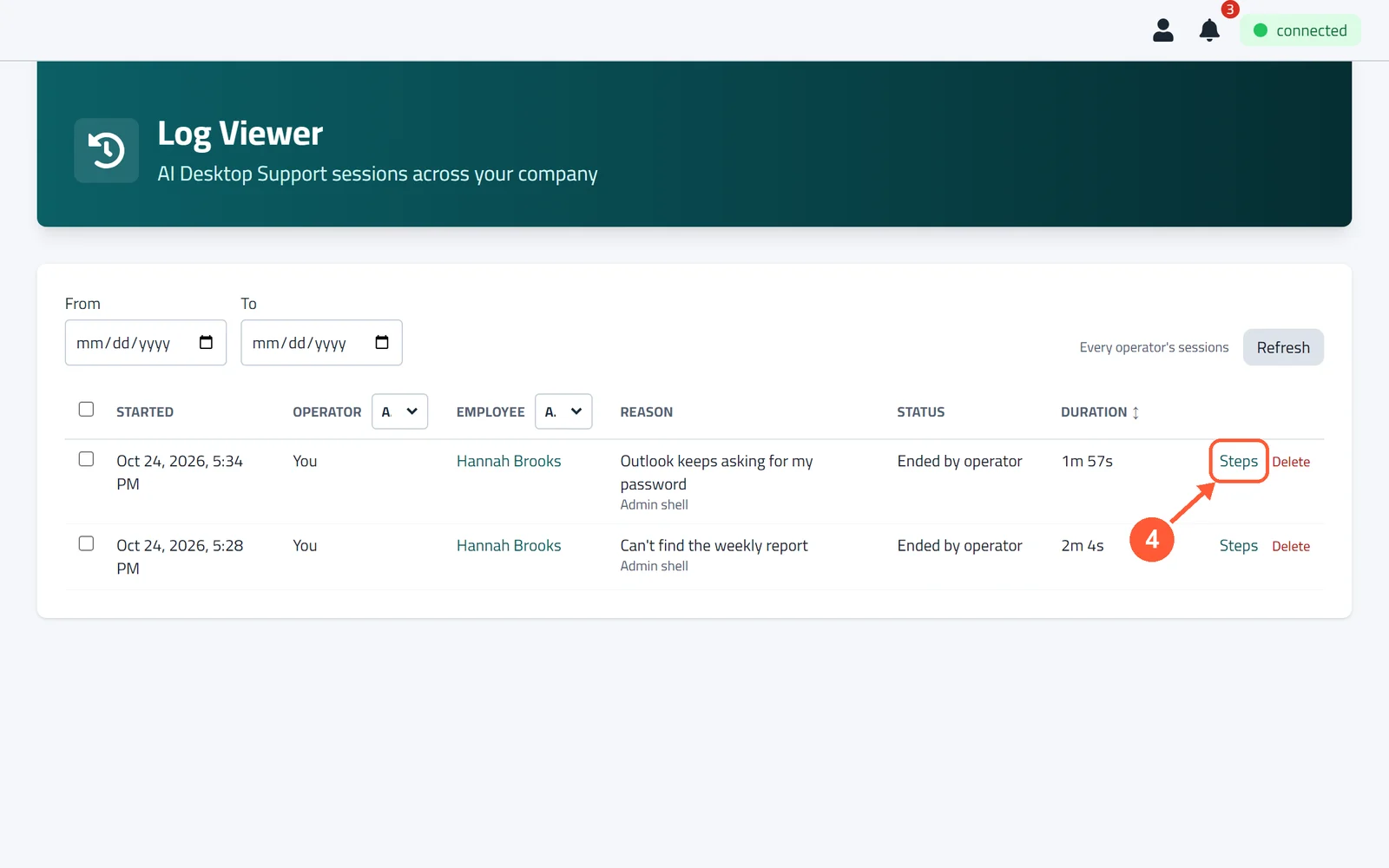
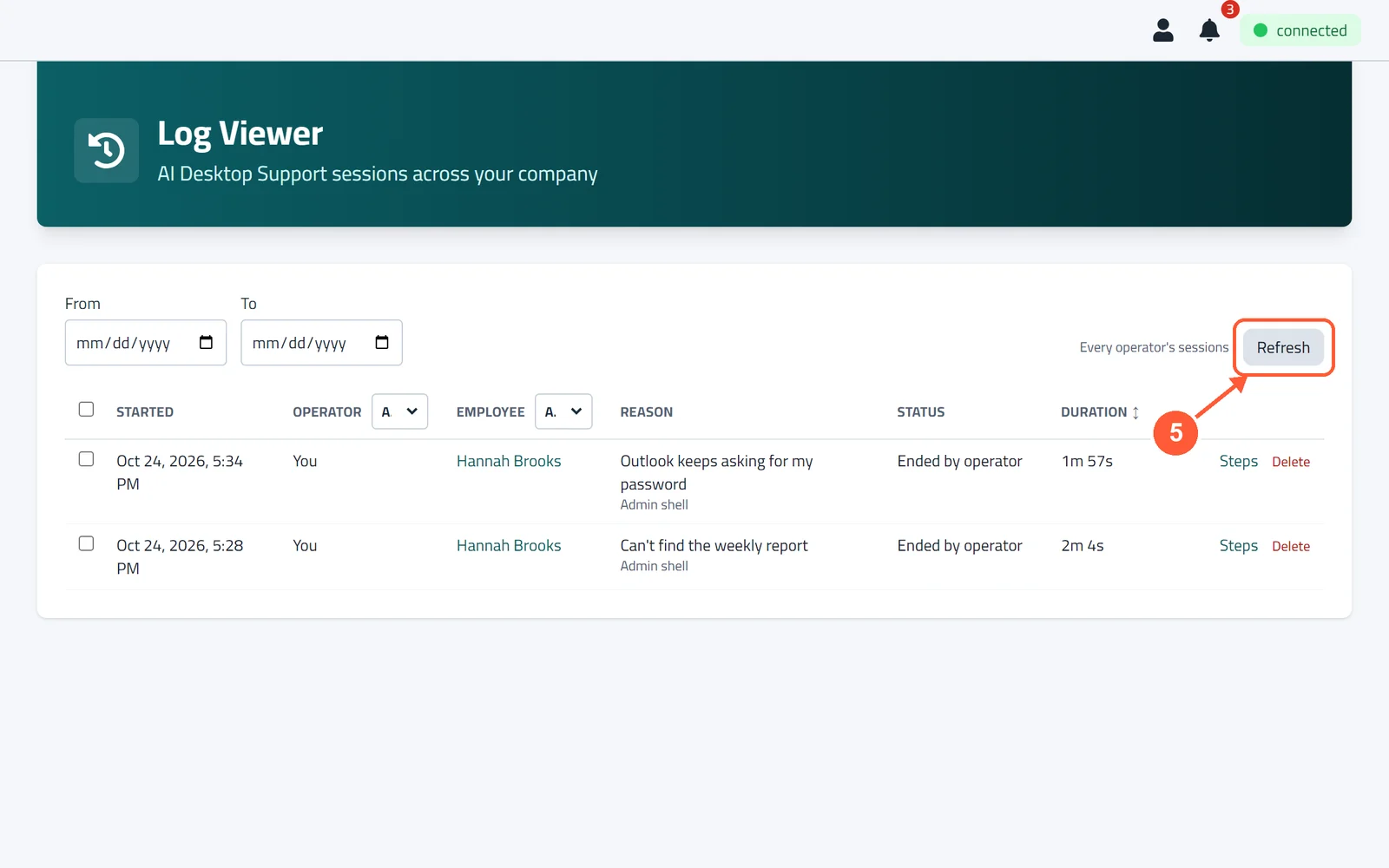
1Click Log Viewer in the menu on the left.1 / 5
💡 Good to Know
- Without the Log Viewer permission you only see your own sessions.
Keep pcActivity Up to Date
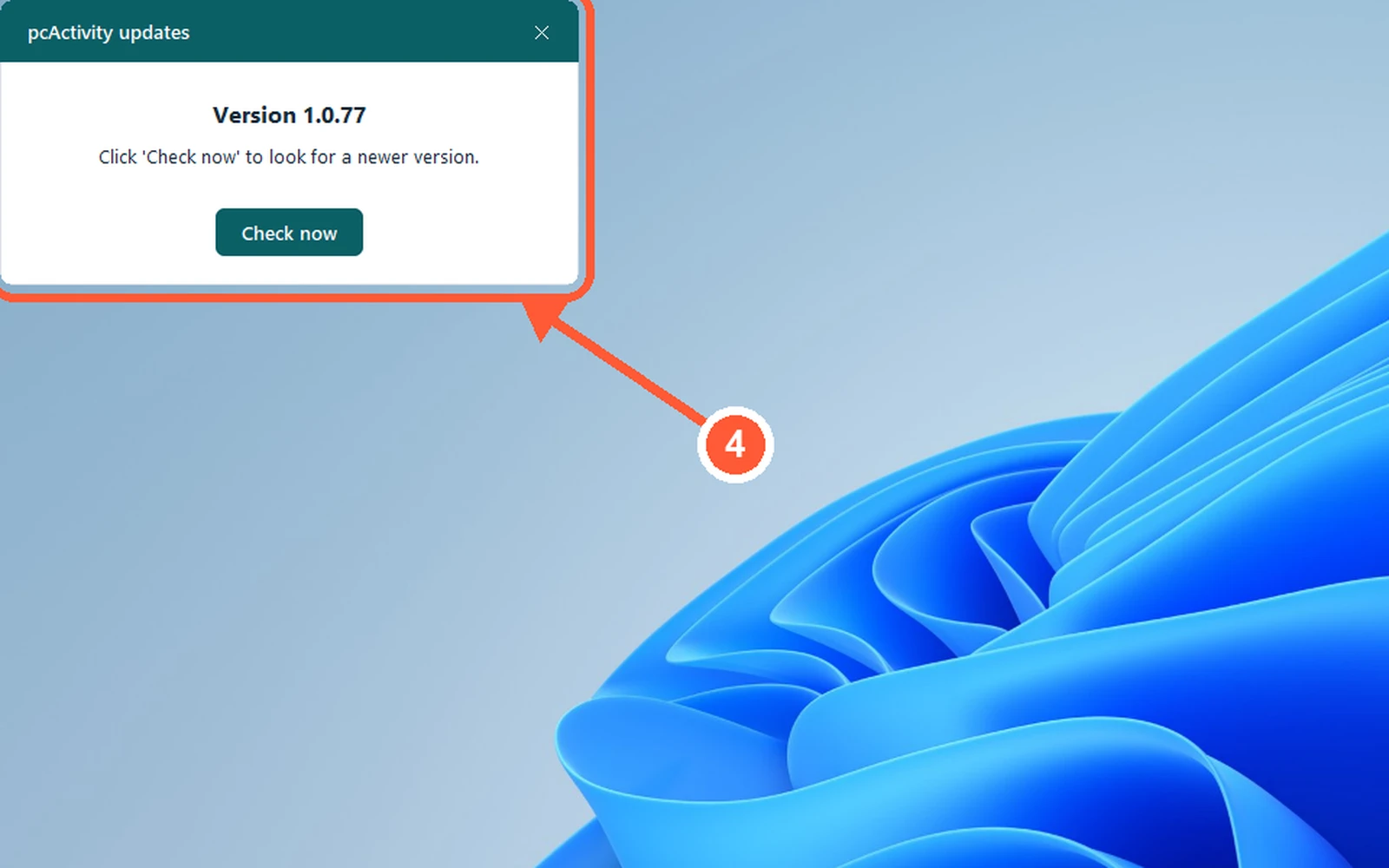
pcActivity updates itself on employee PCs. The tag on each card shows if a PC is behind.
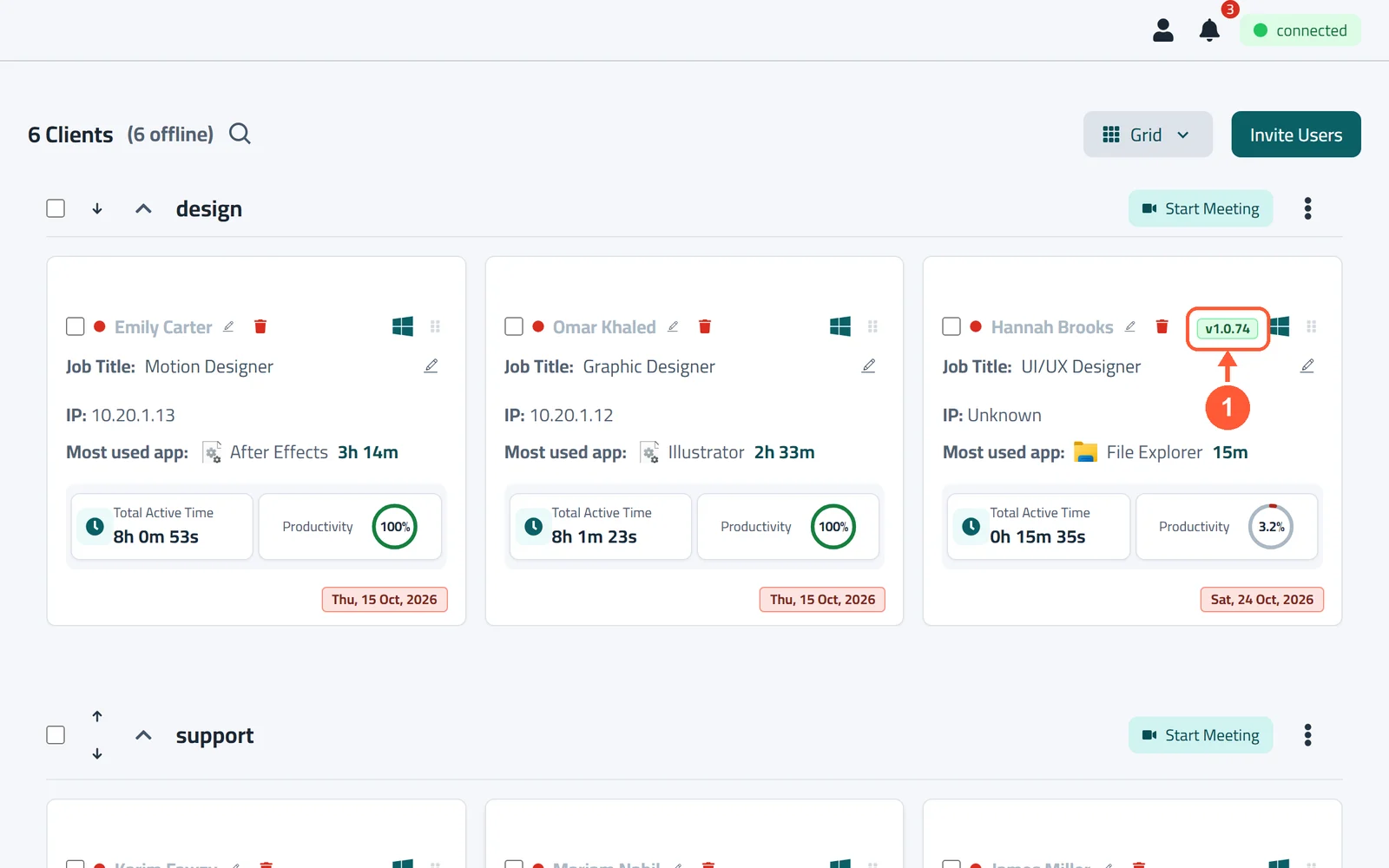
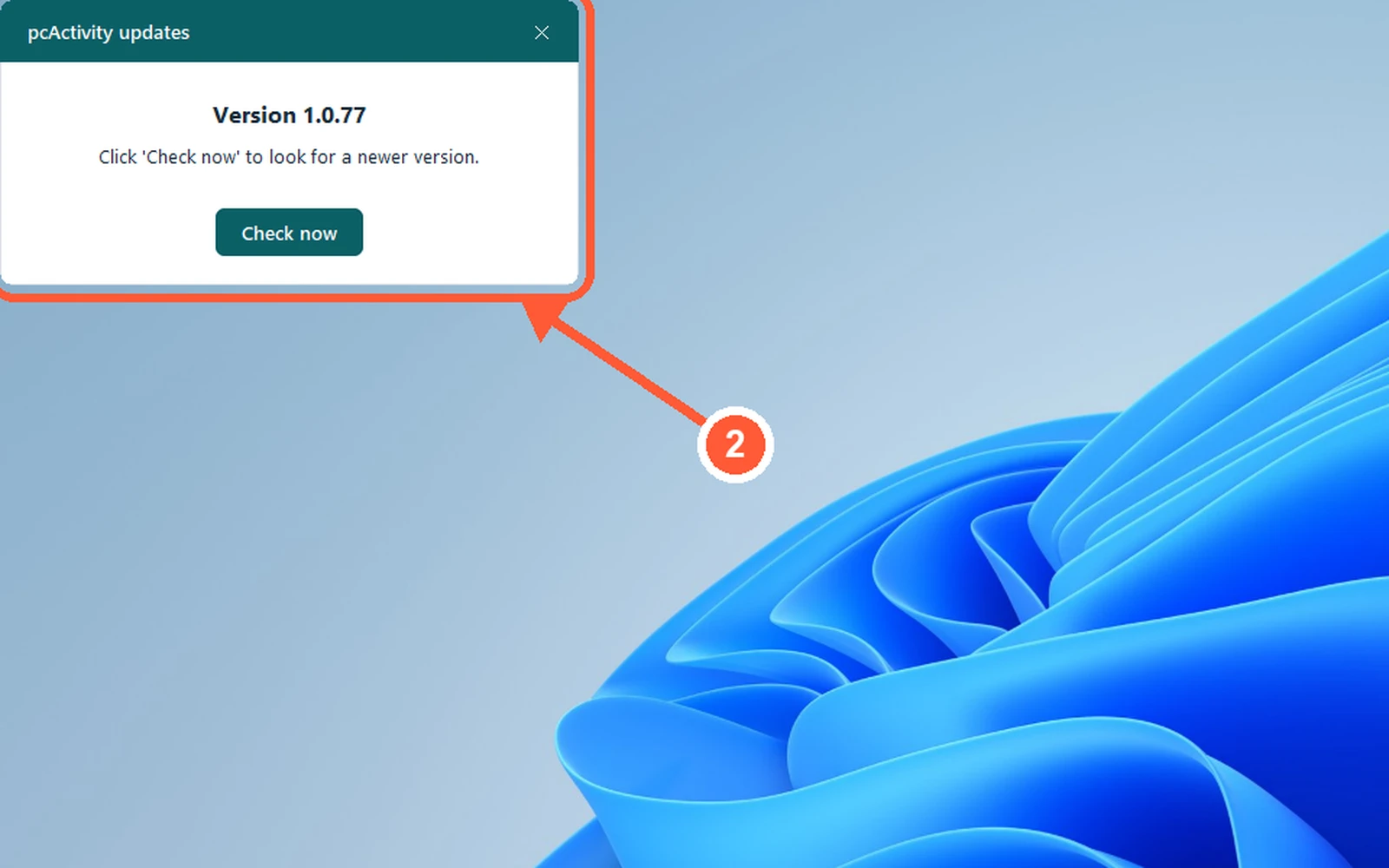
1Look at the version tag on each card. It tells you whether the PC is Up to date, one release behind or out of date. Hover over it for details.1 / 2
💡 Good to Know
- Admins can click the tag on an online PC and choose Update now. The PC installs the new version within a few minutes.
- An offline PC updates by itself when it reconnects.
The pcActivity Tray App
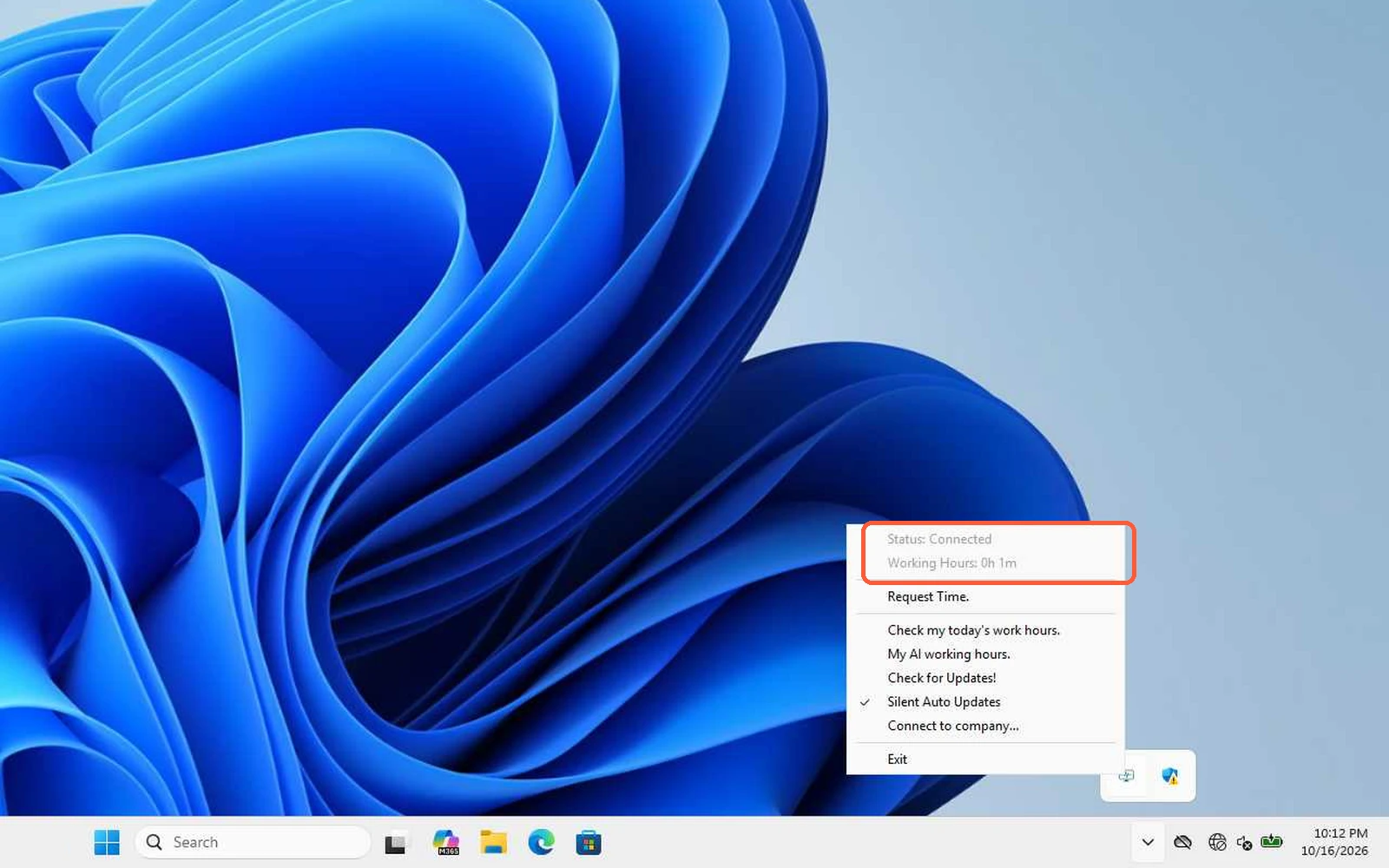
pcActivity runs quietly near the clock on each employee's PC. Its menu shows the connection and today's hours.
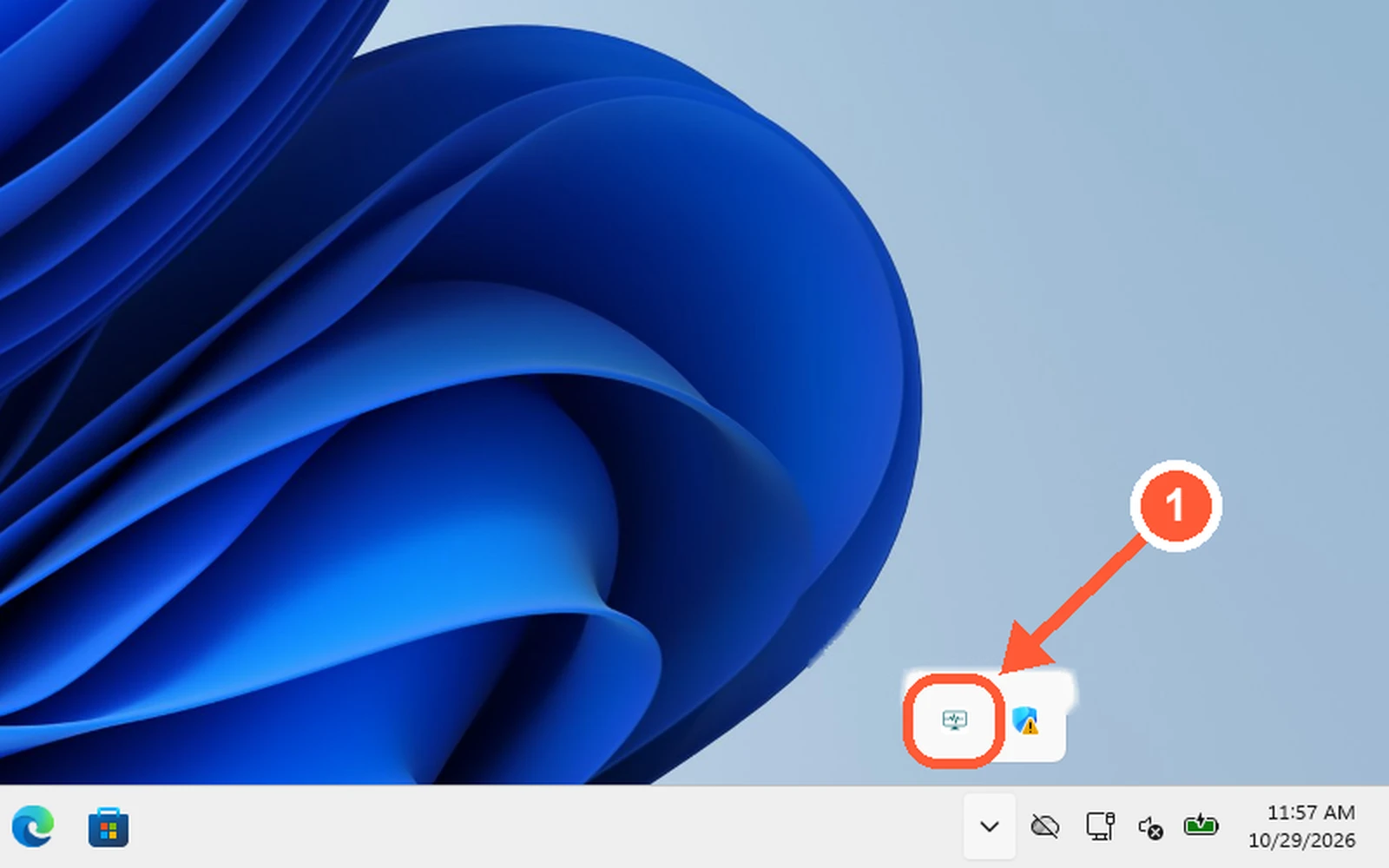
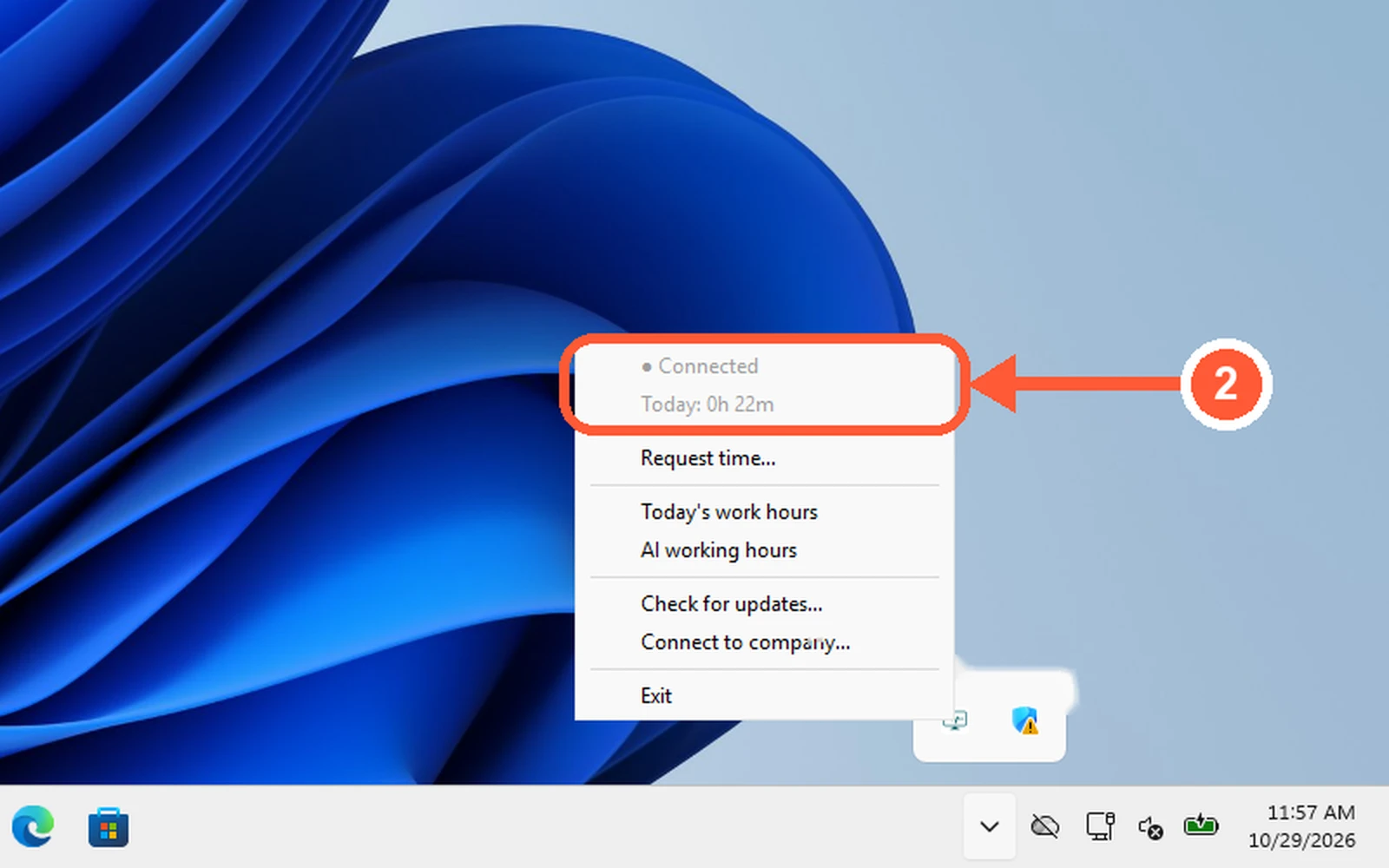
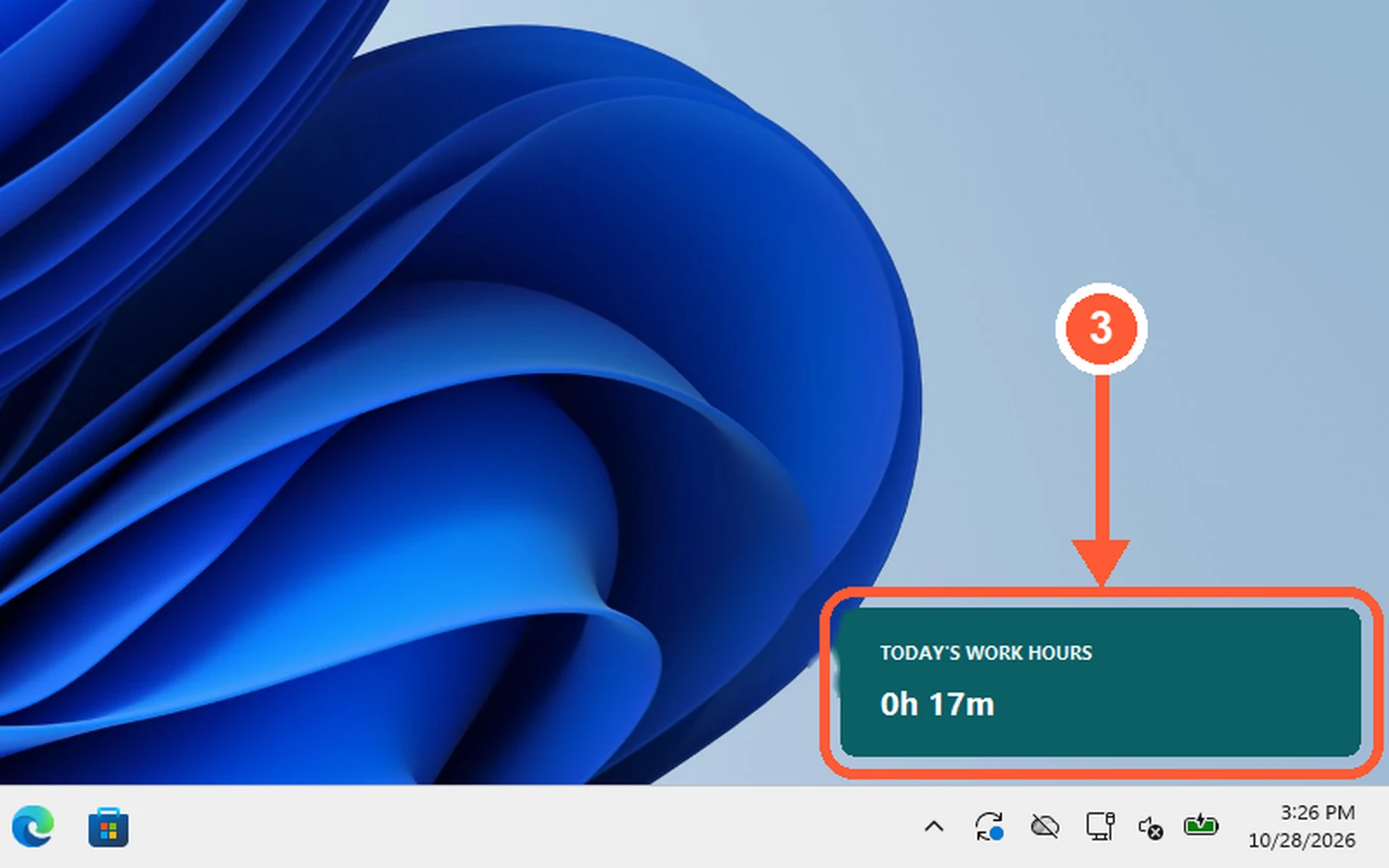
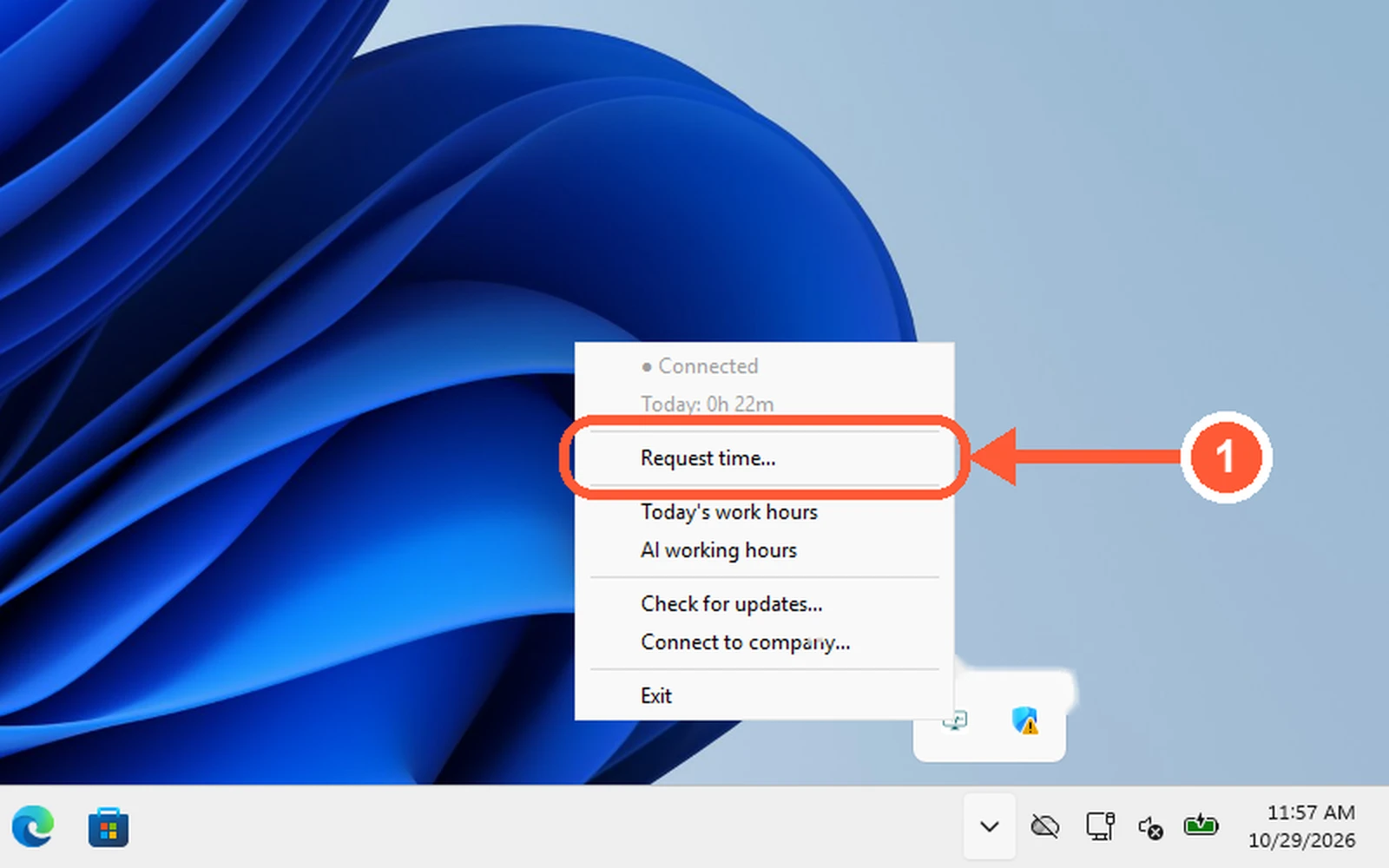
1Click the small ^ arrow near the clock and find the pcActivity icon. Right-click it.1 / 4
💡 Good to Know
- Connect to company... joins the PC to a company with a code.
- pcActivity updates itself; there's nothing to switch on.
- If the employee stays idle, an idle reminder appears near the clock (see When You Go Idle).
Request Meeting or External Time
Were you in a meeting or working away from your PC? Ask your manager to count that time.
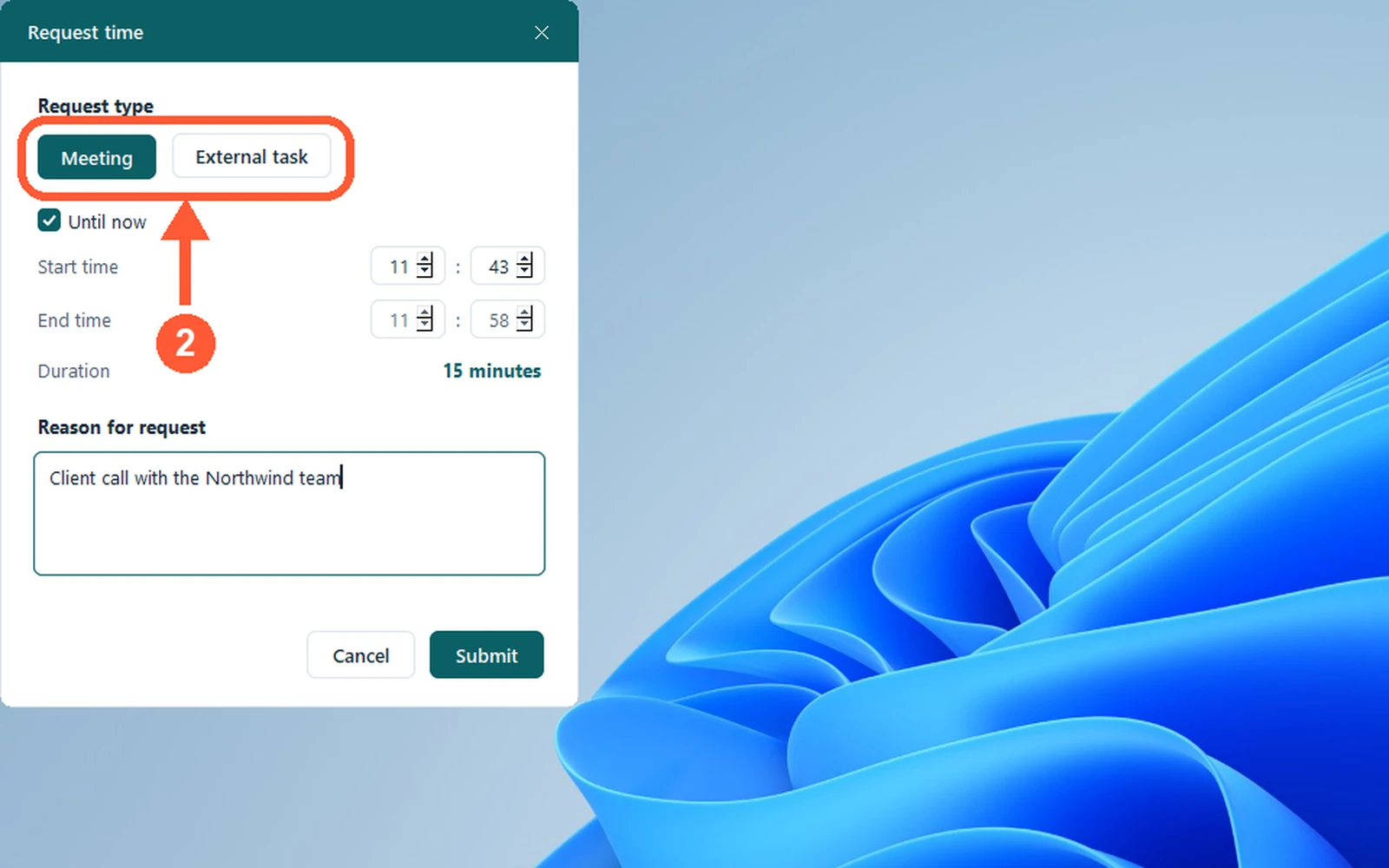
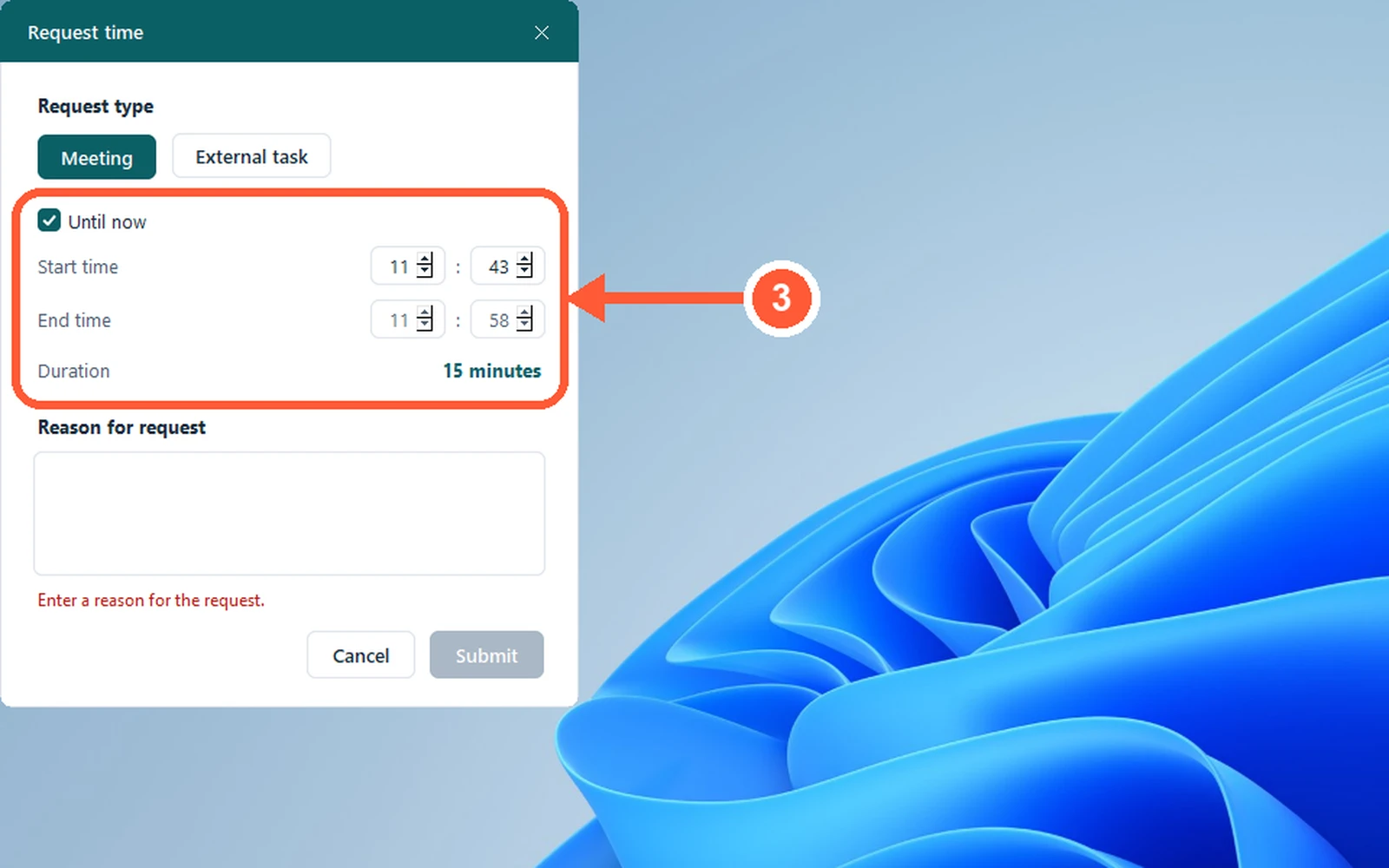
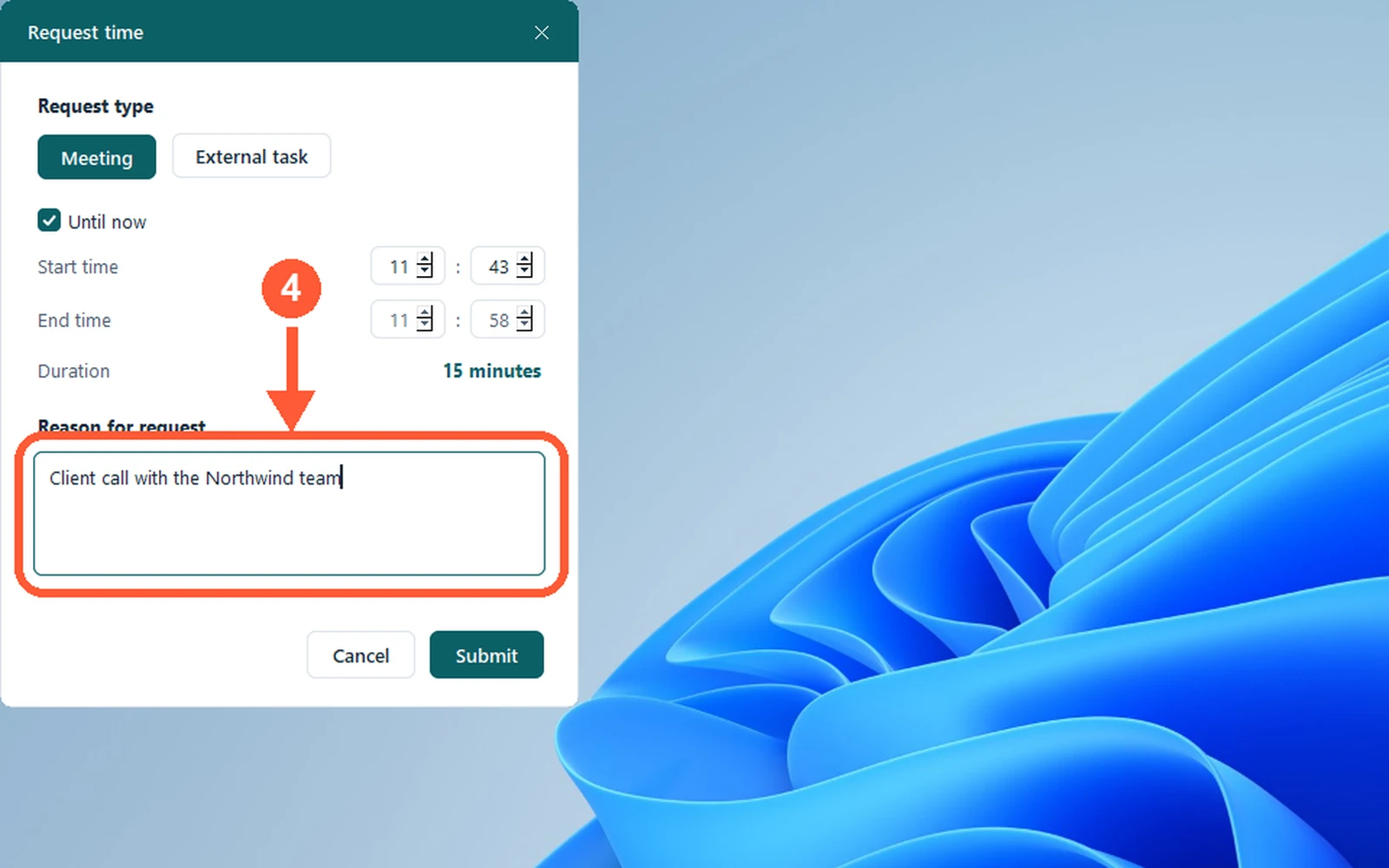
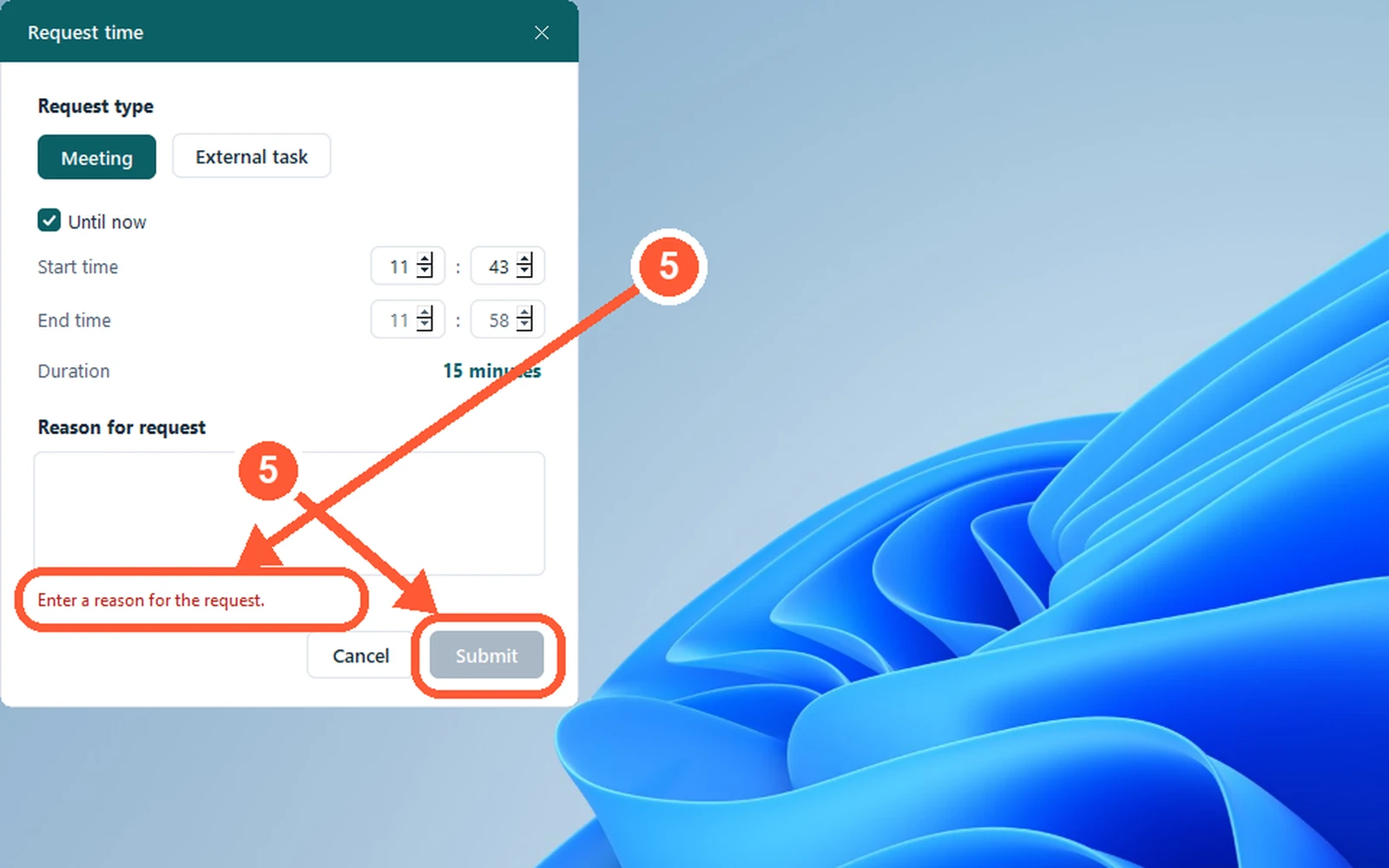
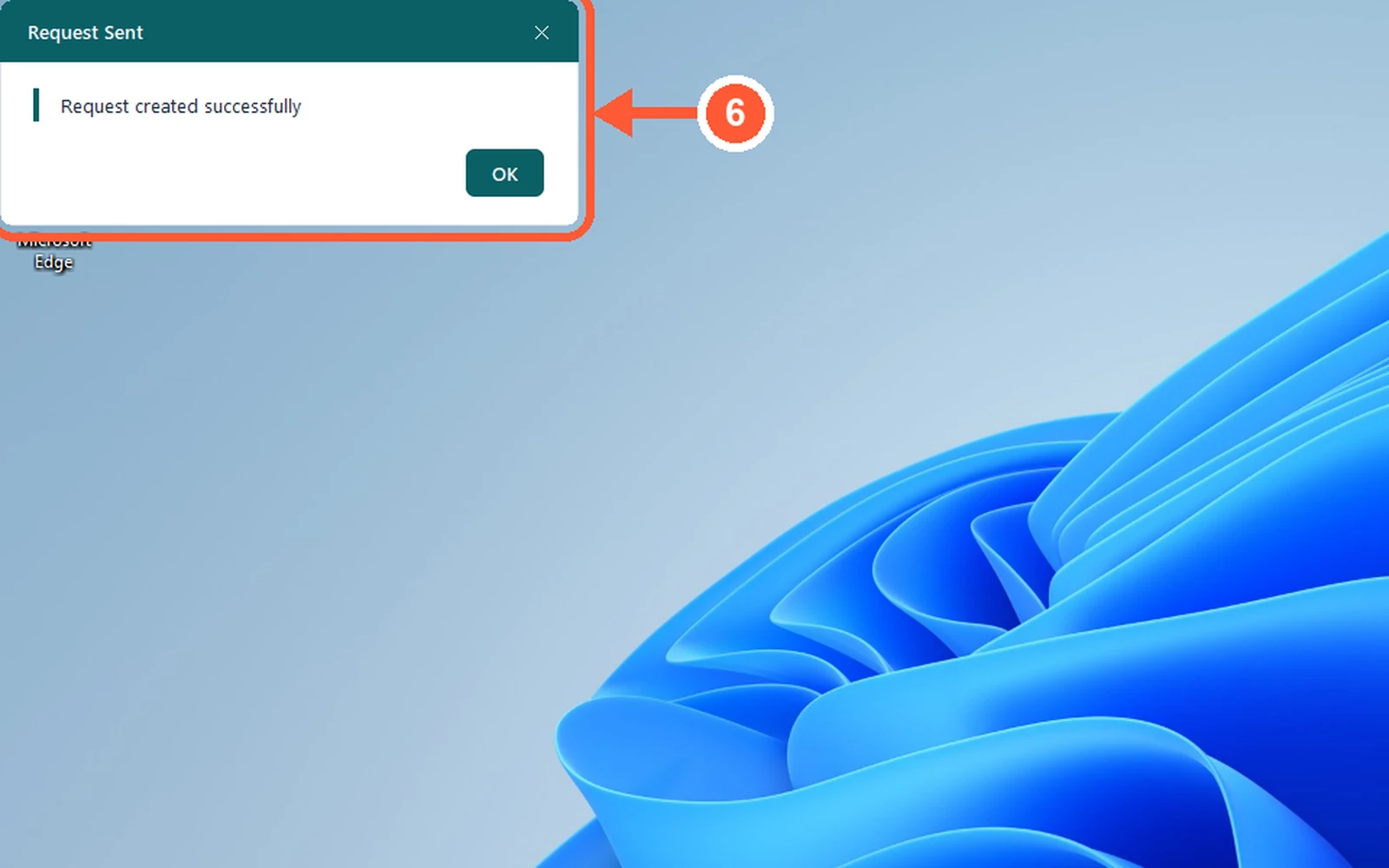
1Right-click the pcActivity icon near the clock and choose Request time....1 / 6
💡 Good to Know
- You can only request time that has already ended, today.
Check Your AI Working Hours
See how much of today the AI counted as productive work. (Business plan, when your company turns it on.)
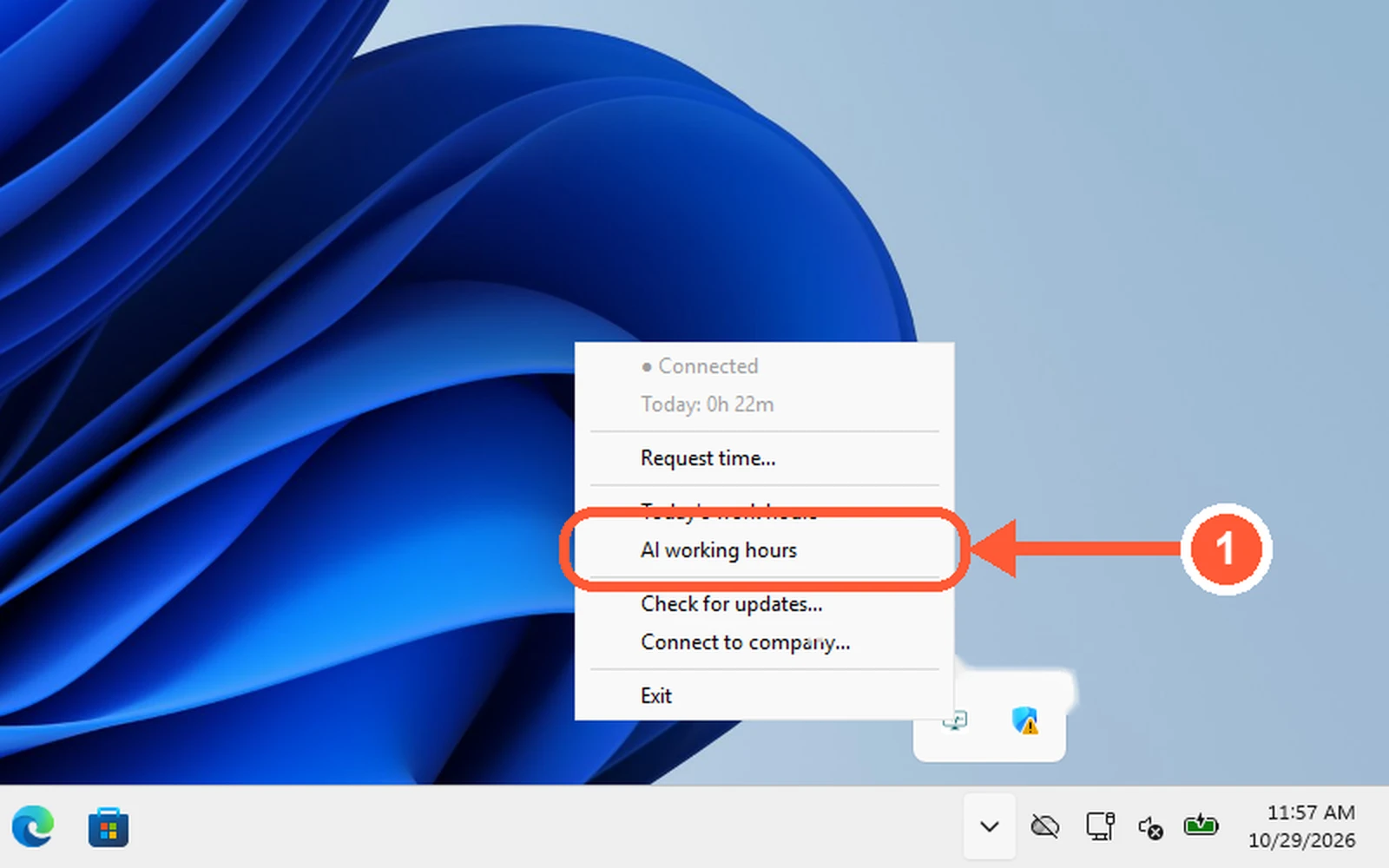
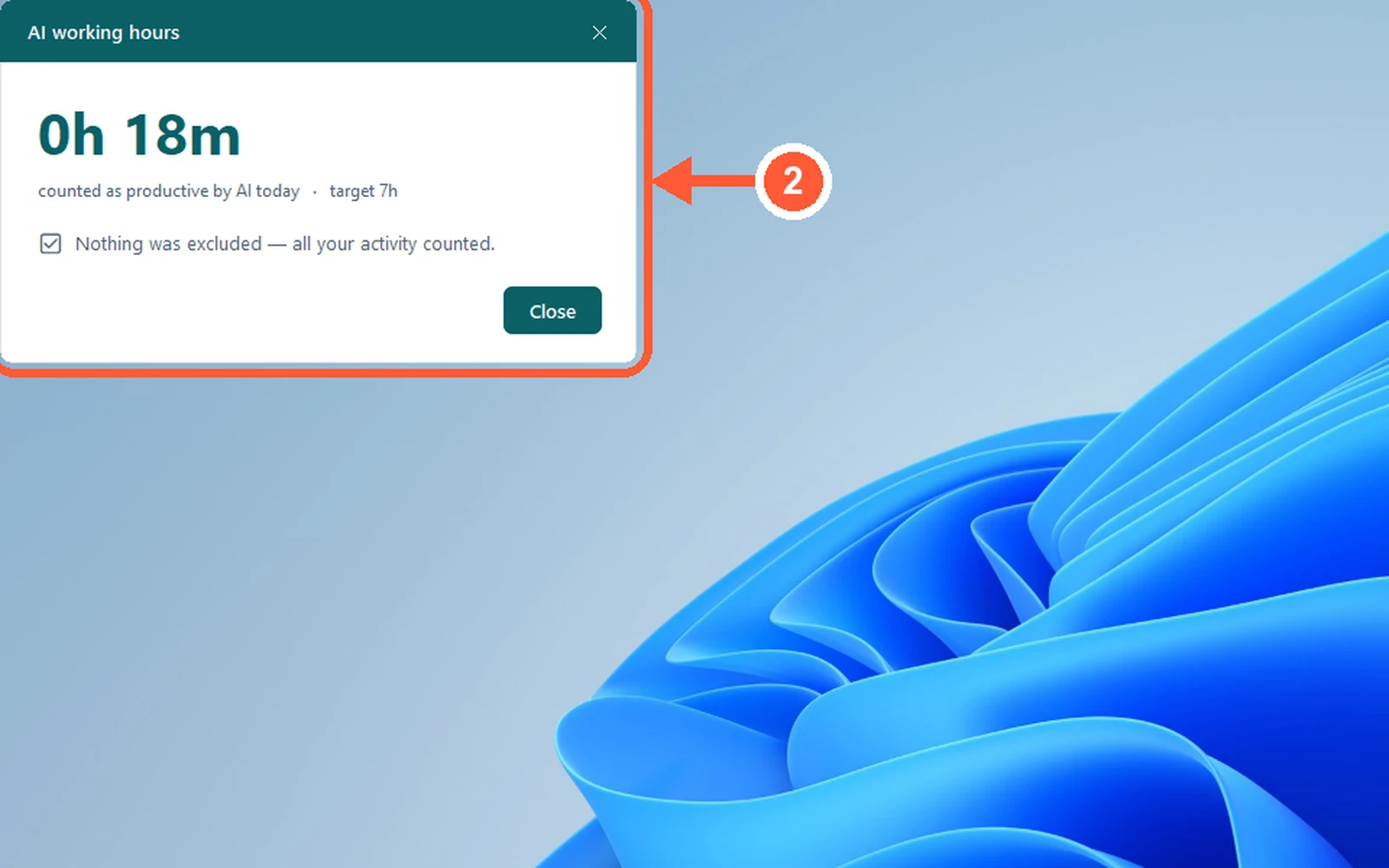
1Right-click the pcActivity icon near the clock and choose AI working hours.1 / 2
💡 Good to Know
- If it says the feature is turned off, ask your administrator: it's under Settings → Company → AI Working Time.
When You Go Idle
If nobody uses the mouse or keyboard for a while, pcActivity reminds the employee, and idle time doesn't count as work.
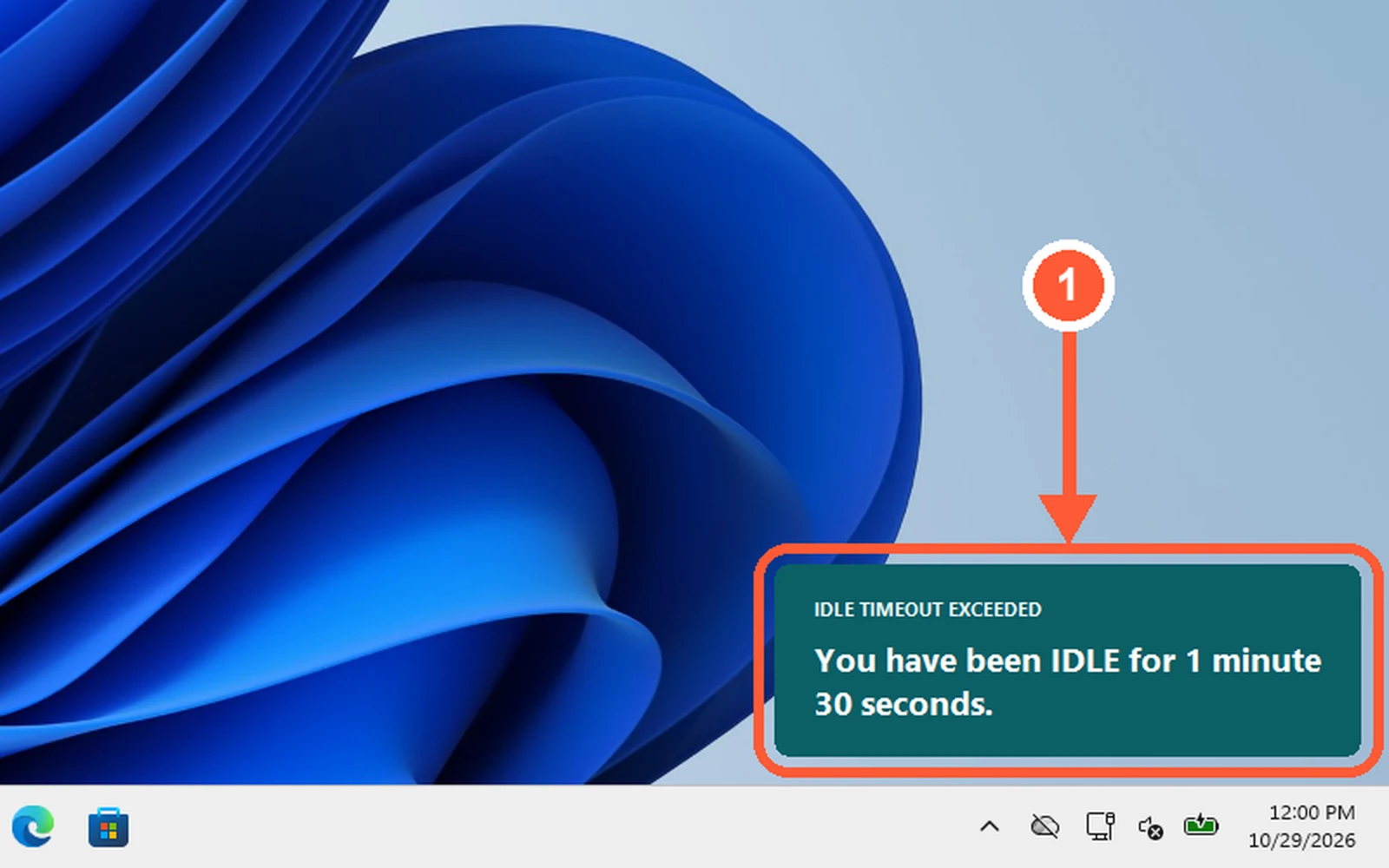
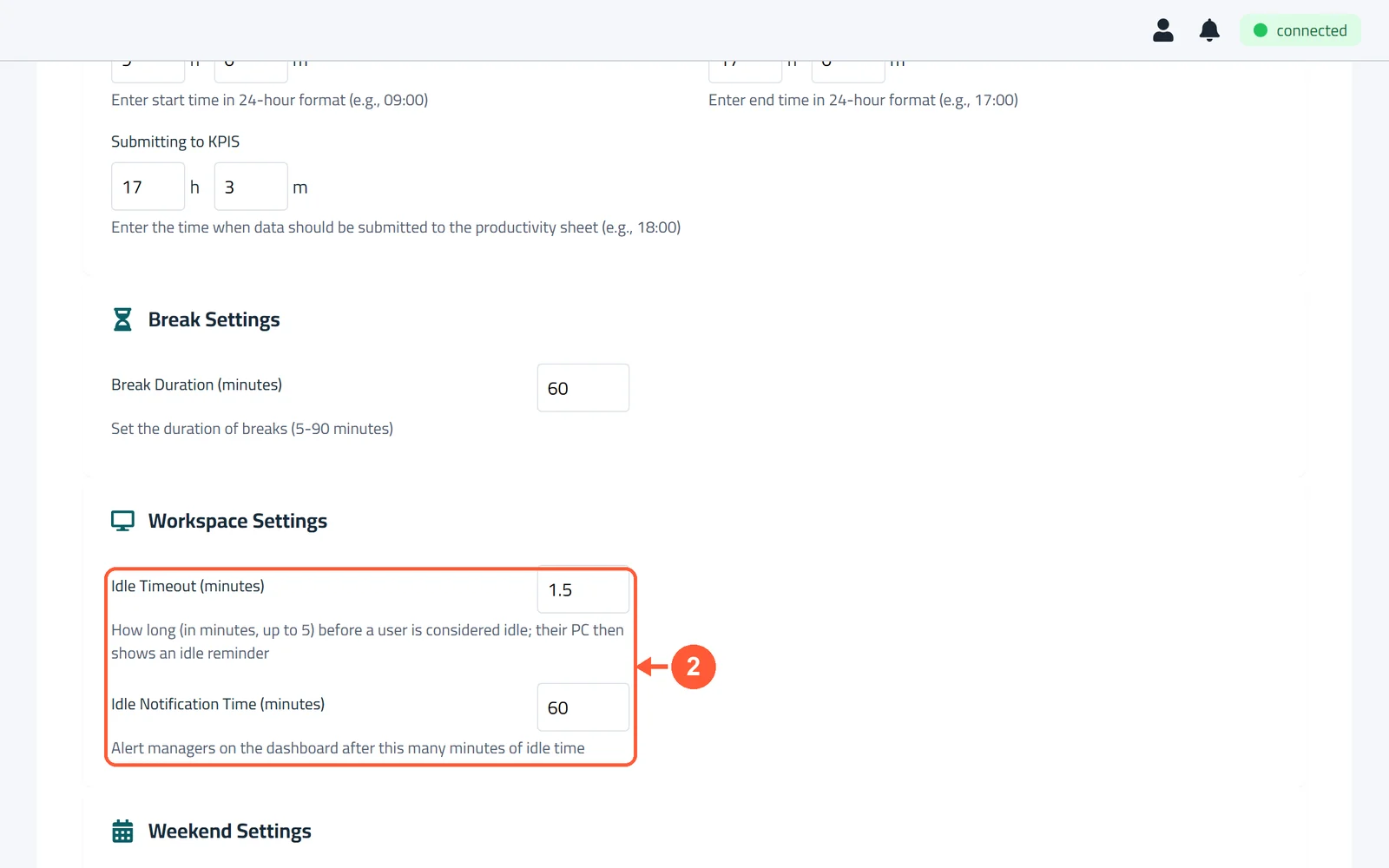
1After the group's Idle Timeout, a reminder appears near the clock: IDLE TIMEOUT EXCEEDED. Move the mouse or press a key to carry on working.1 / 2
💡 Good to Know
- Away for a meeting? Ask your manager to count that time (see Request Meeting or External Time).
Plans & Billing
Choose your plan and number of PCs, add a card, see invoices, or cancel.
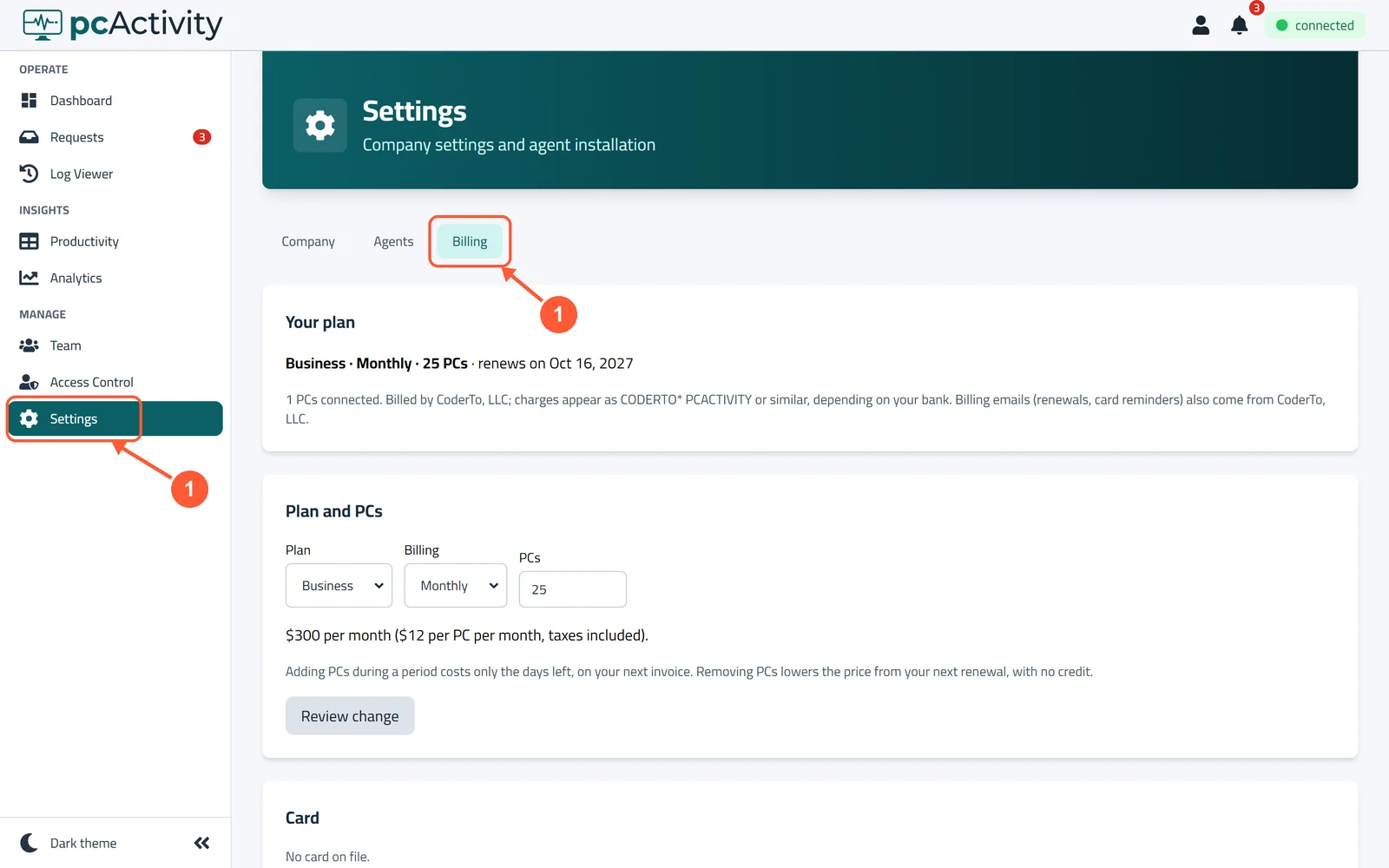
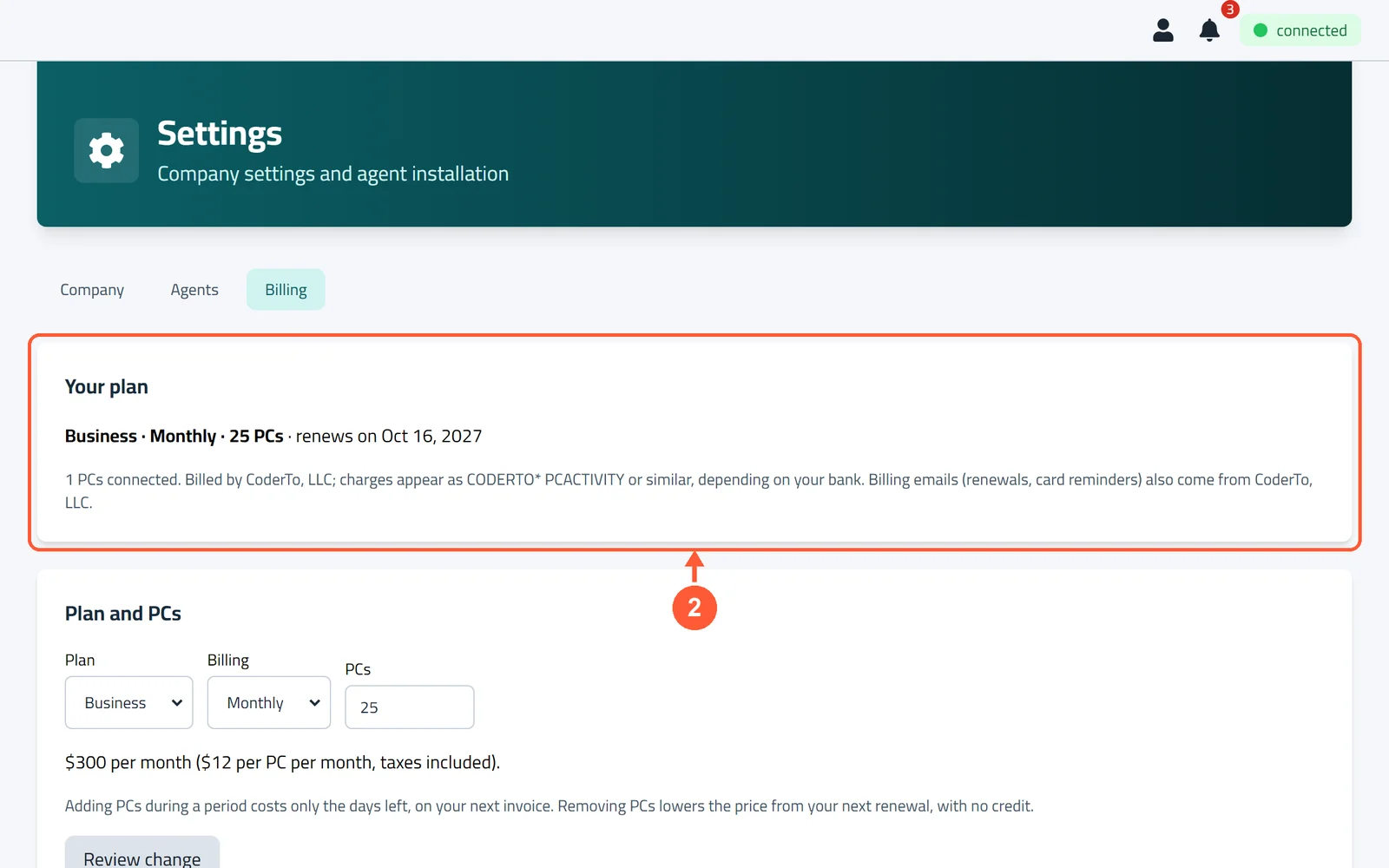
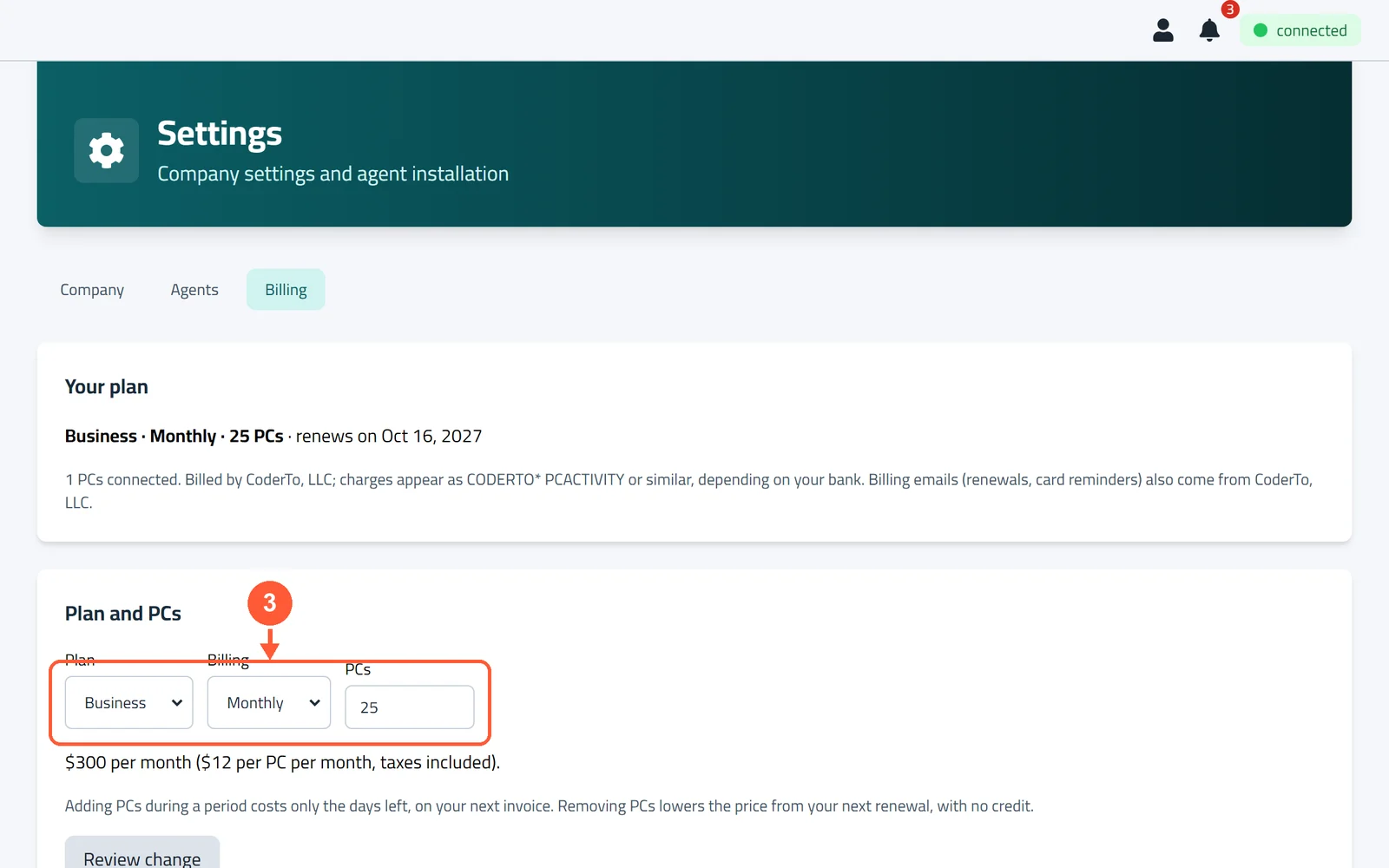
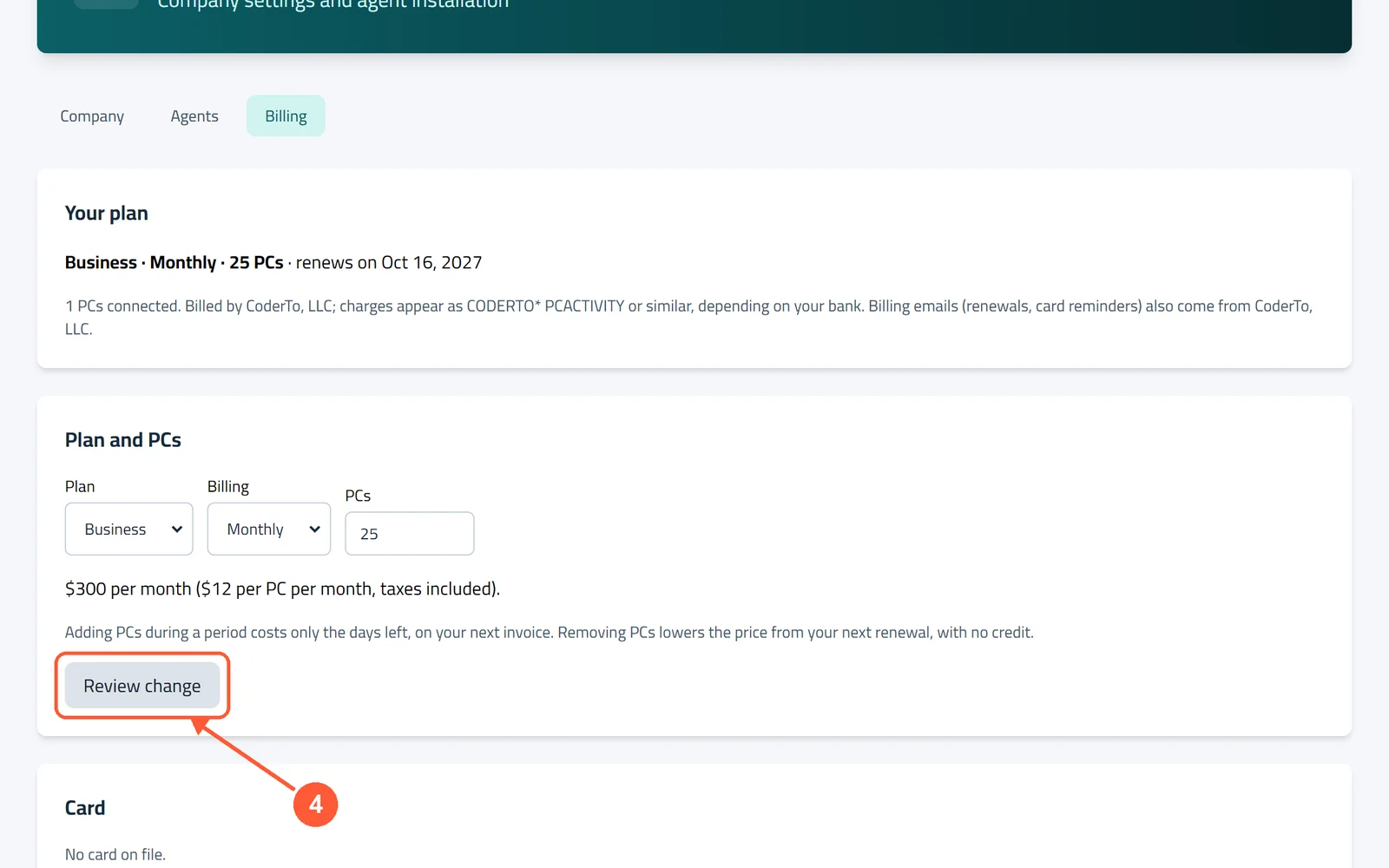
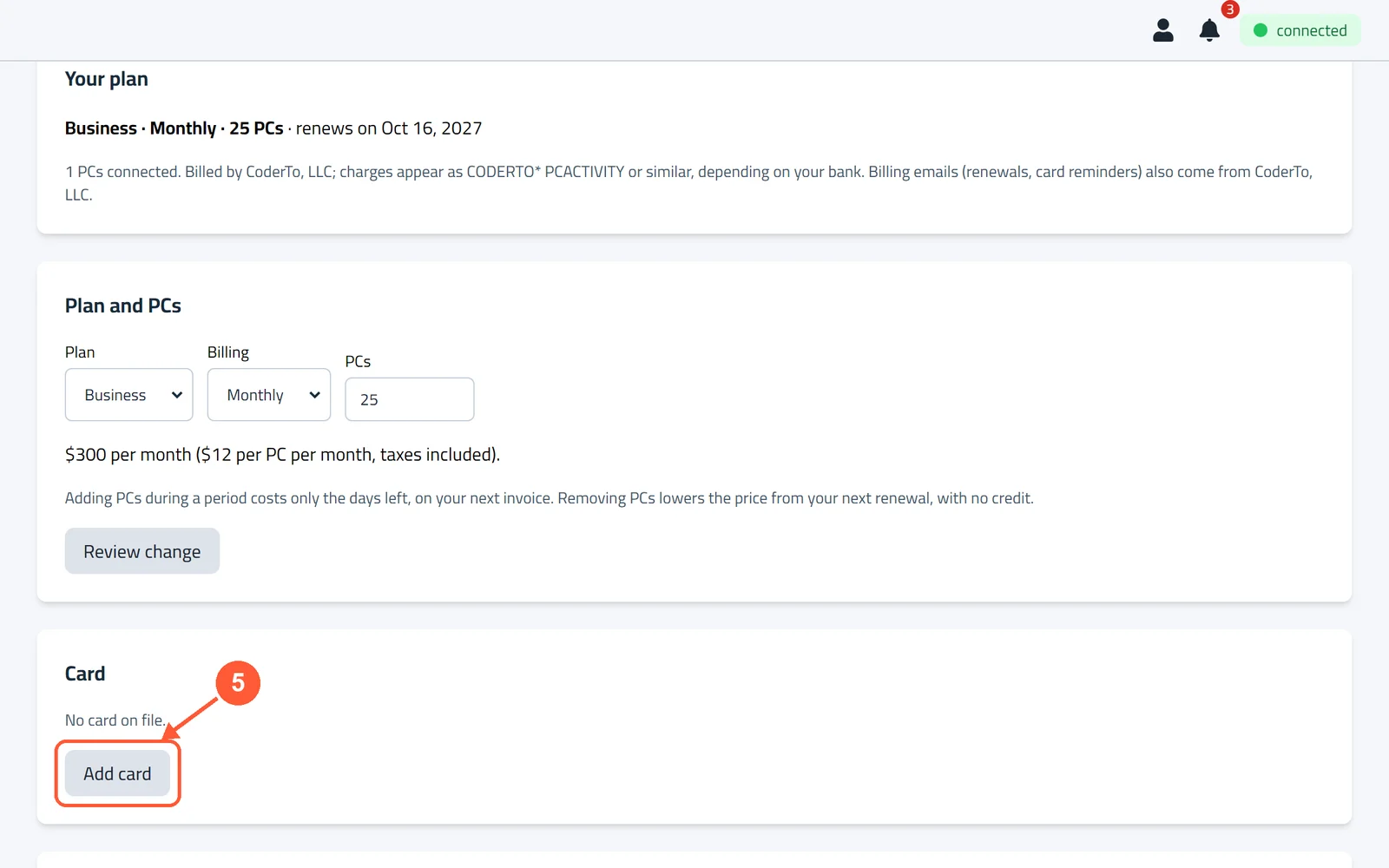
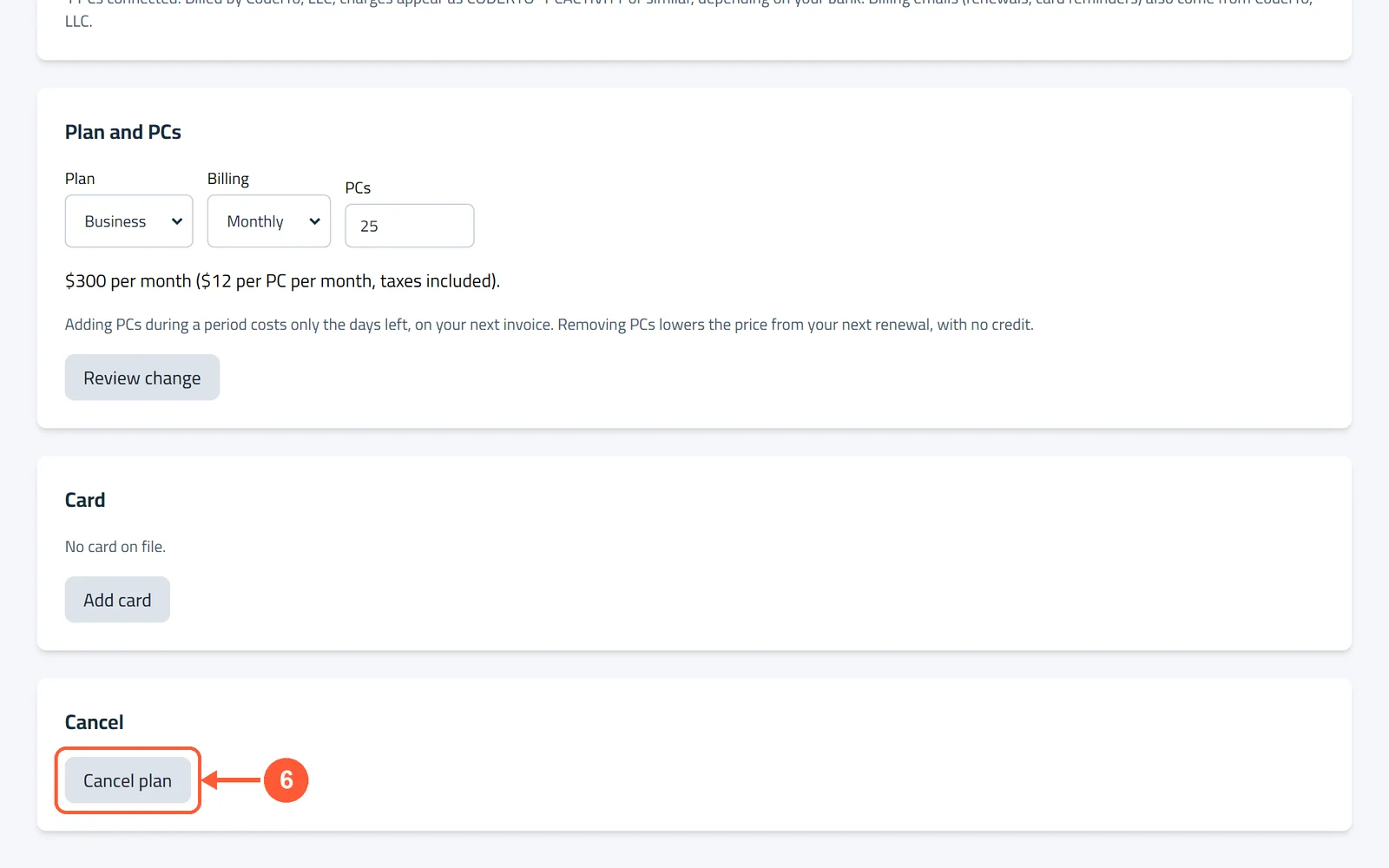
1Click Settings in the menu on the left, then open Billing.1 / 6
💡 Good to Know
- Pro: $7 per PC per month ($6 billed yearly). Business: $12 per PC per month ($10 billed yearly). Taxes included.
- Adding PCs mid-period costs only the days left. Removing PCs lowers your next invoice.
- Charges show as CODERTO* PCACTIVITY on your statement.
Your Profile & Notifications
Change your name, email or password, turn on notifications, and switch between light and dark.
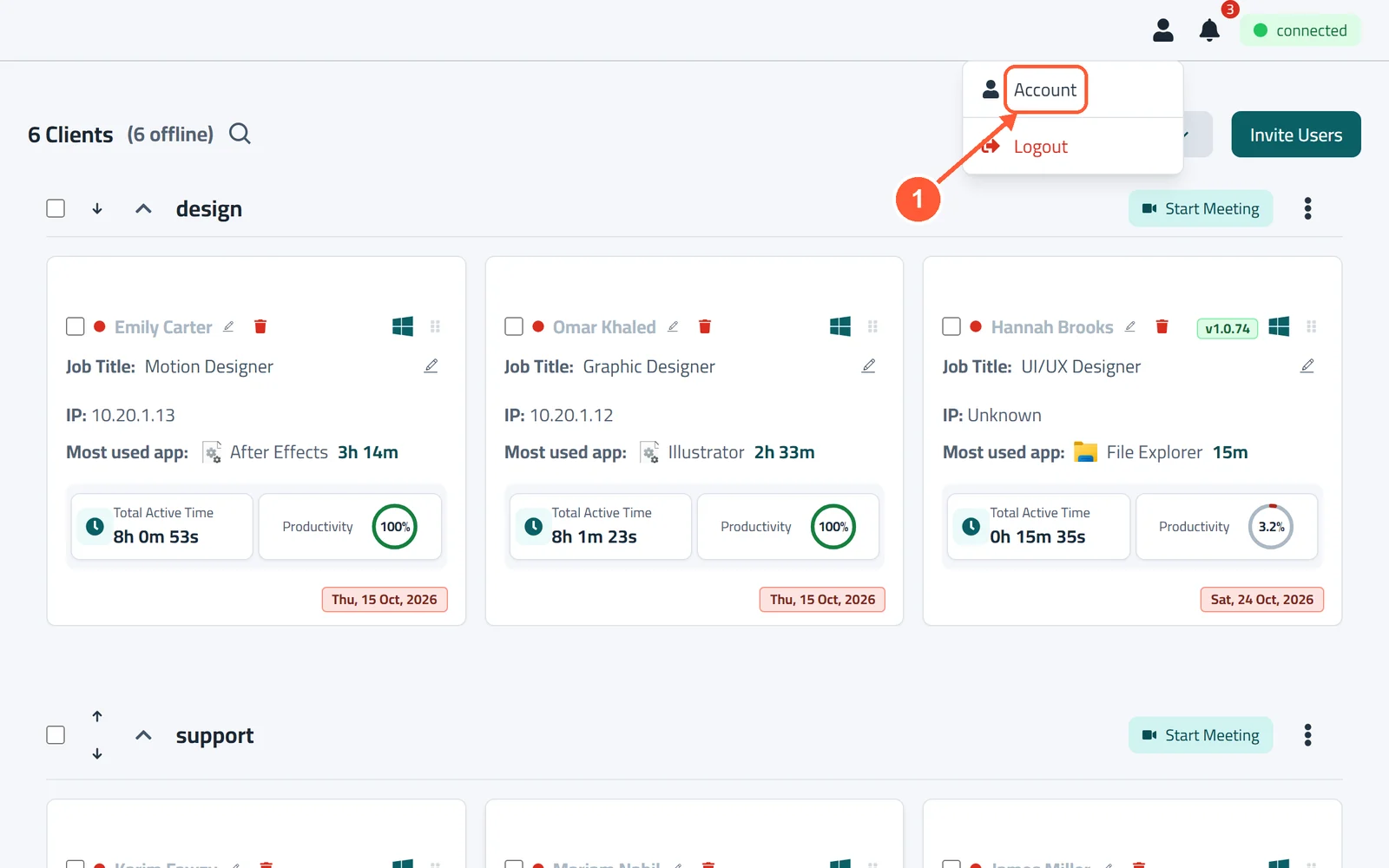
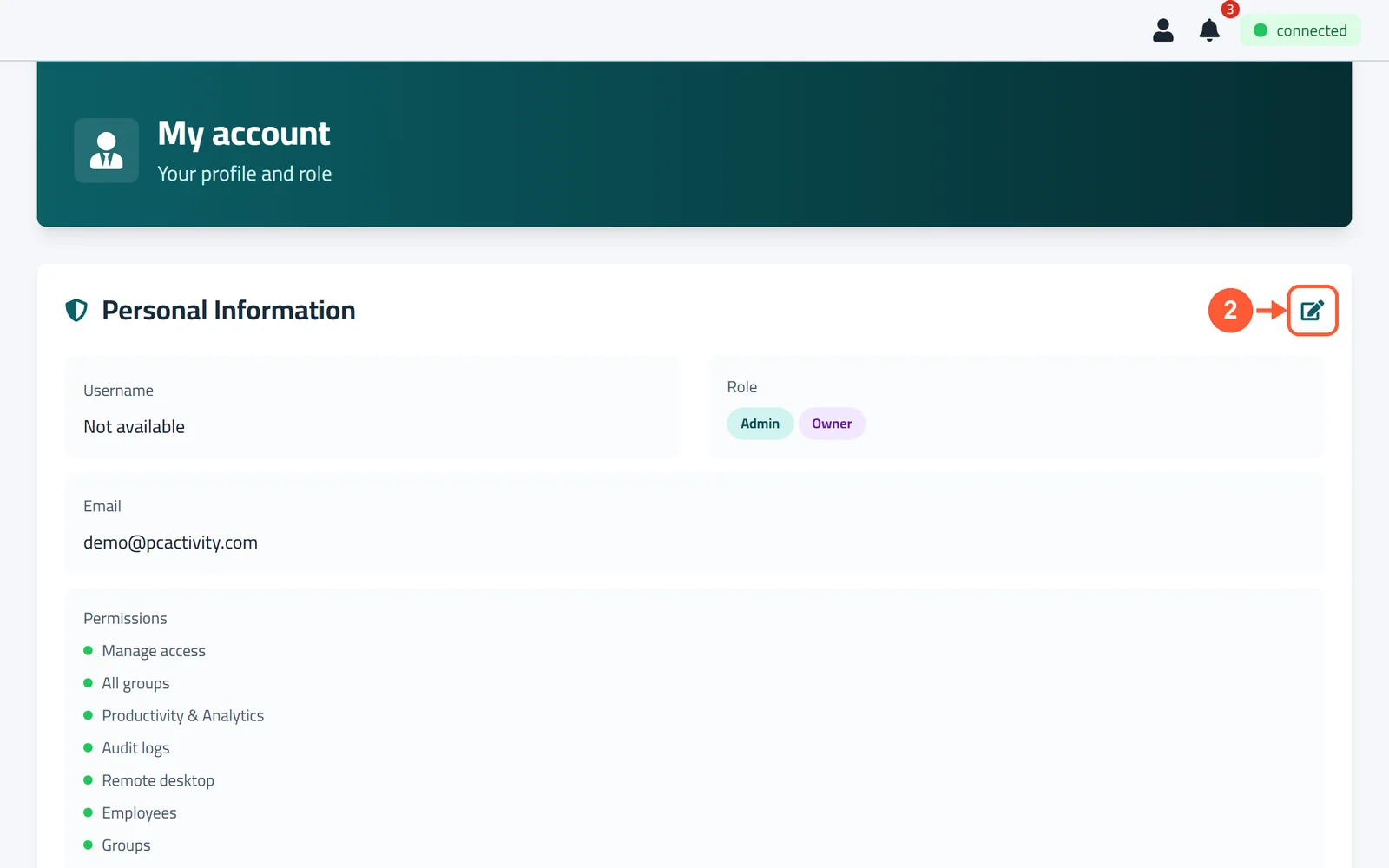
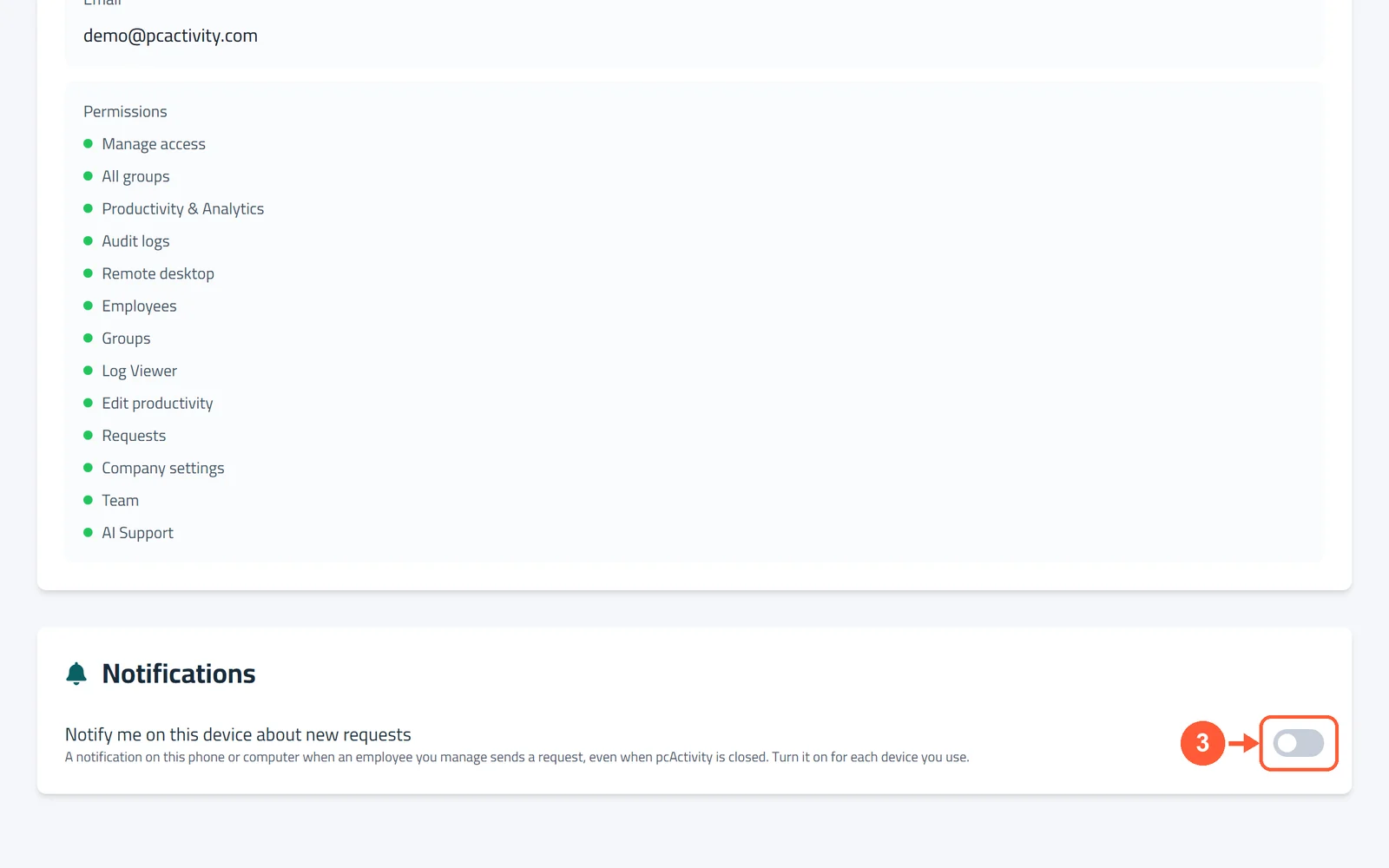
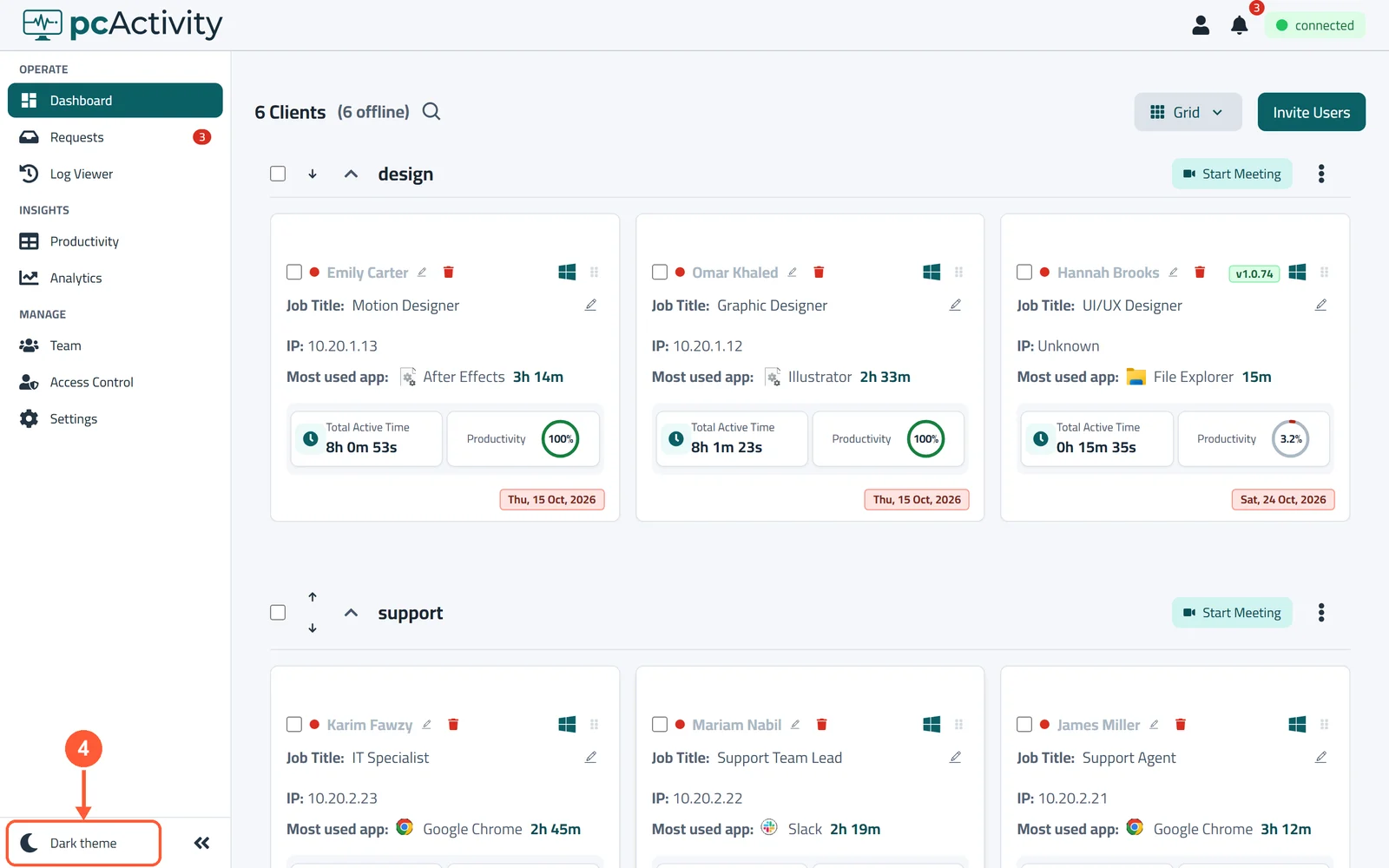
1Click the person icon at the top right and choose Account.1 / 4
Sign In & Reset Your Password
Sign in to your dashboard, or choose a new password if you forgot it.
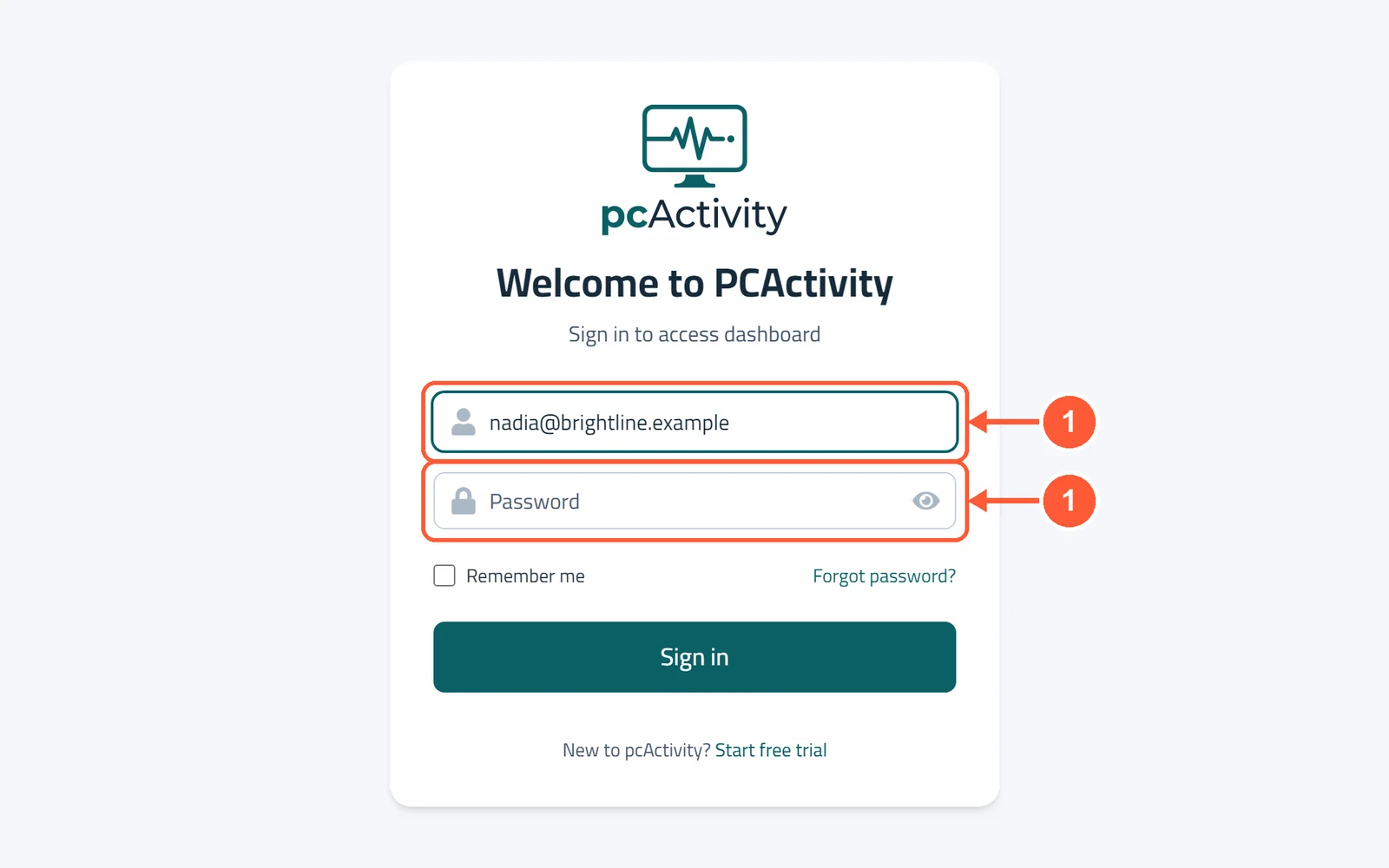
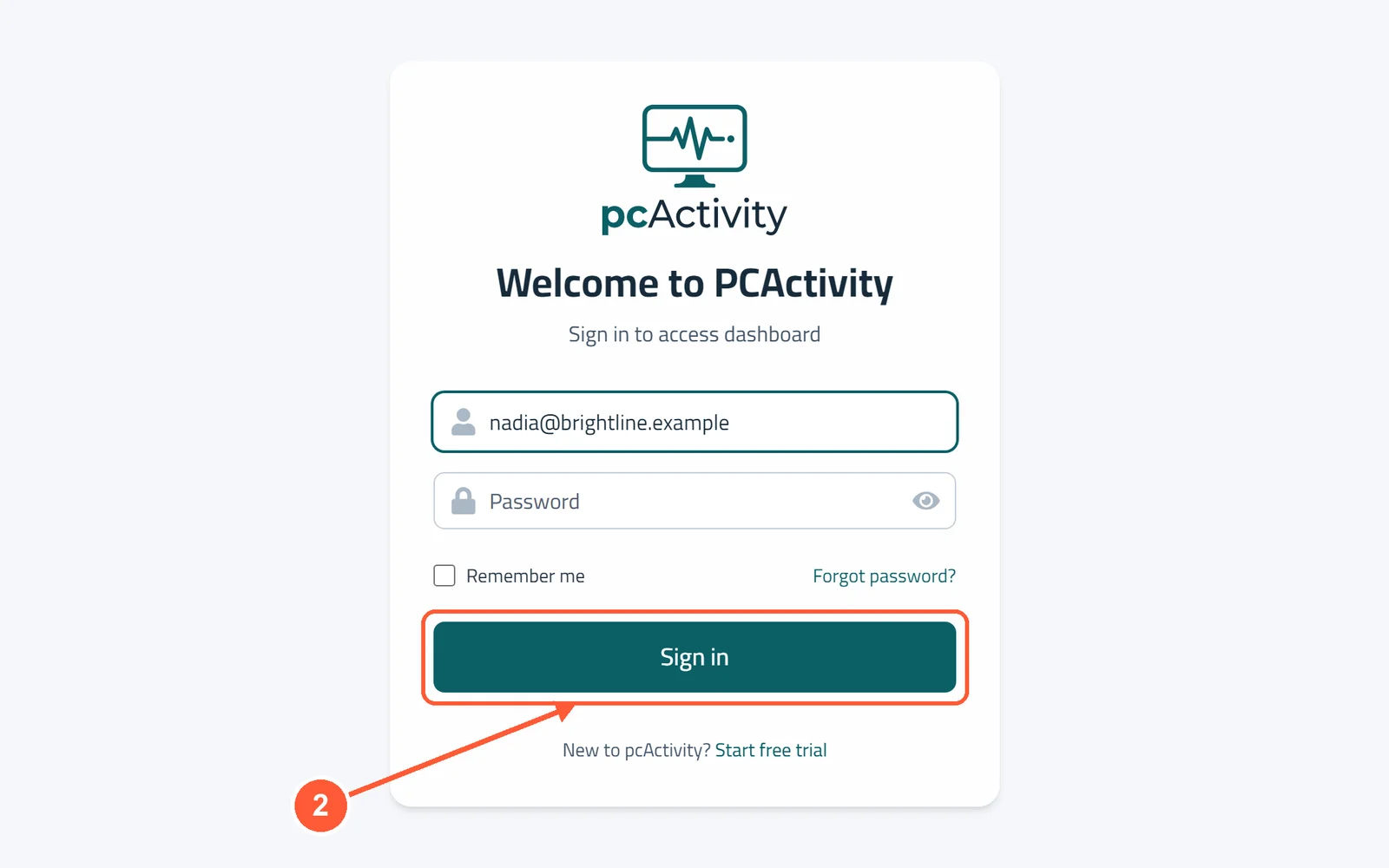
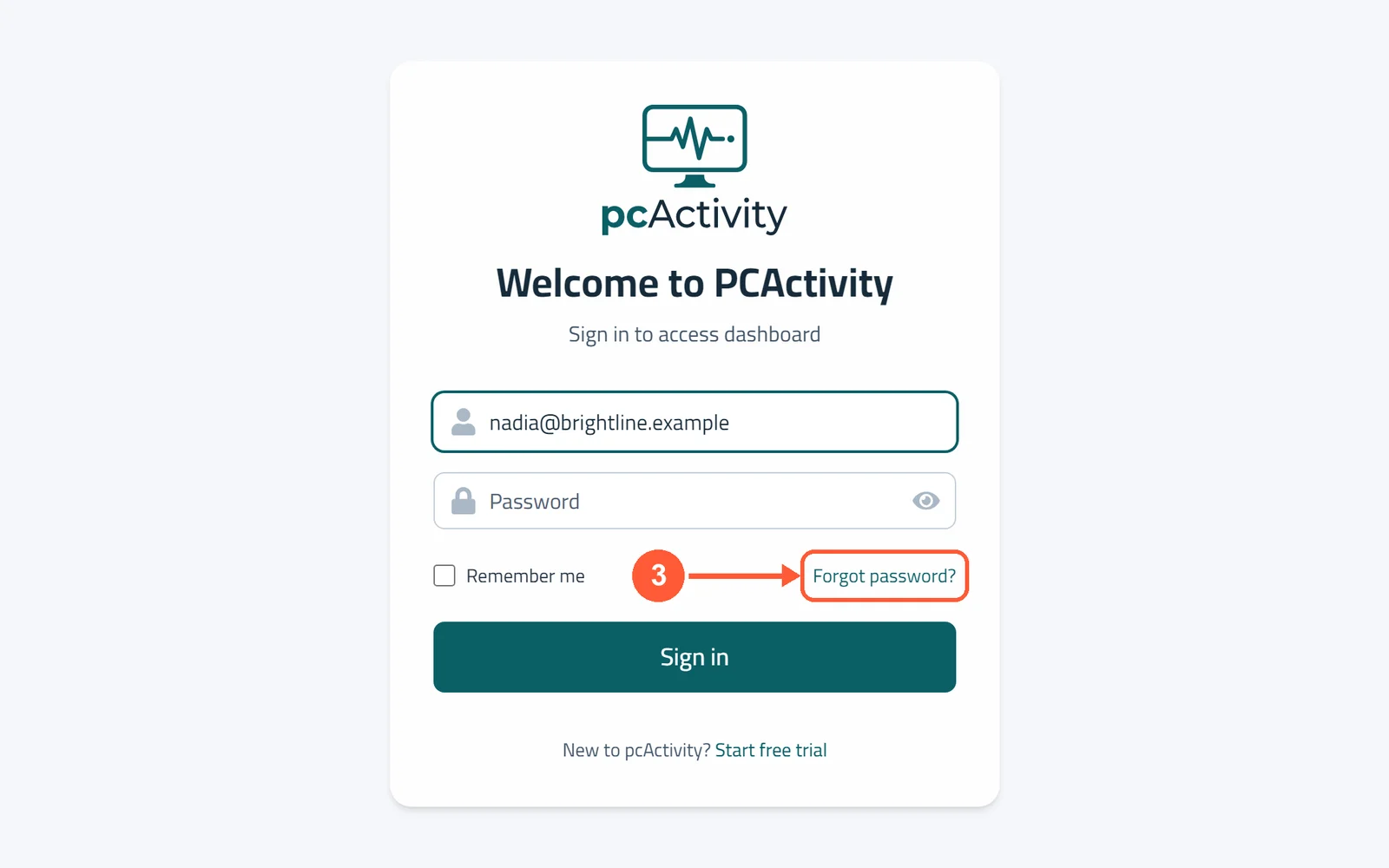
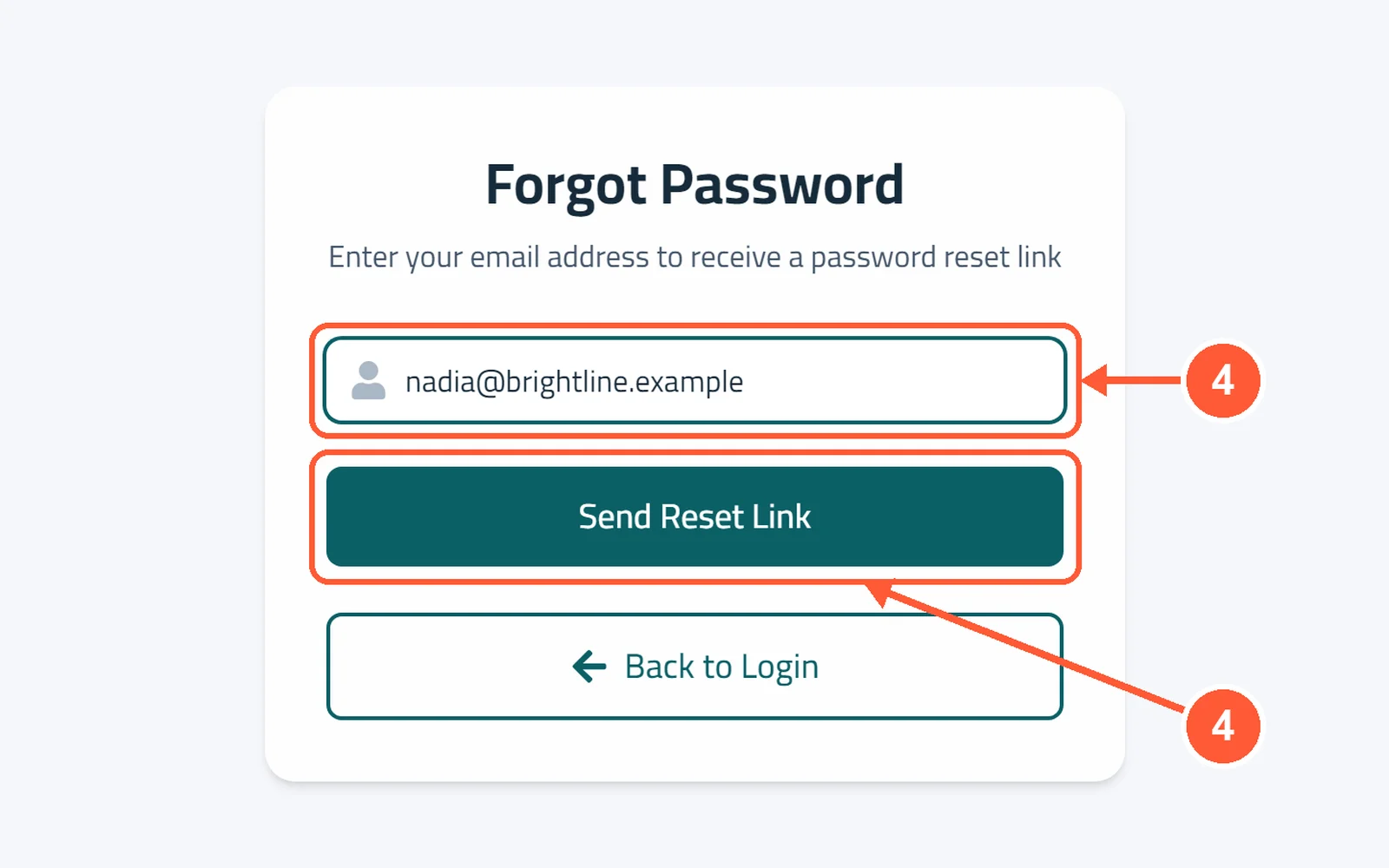
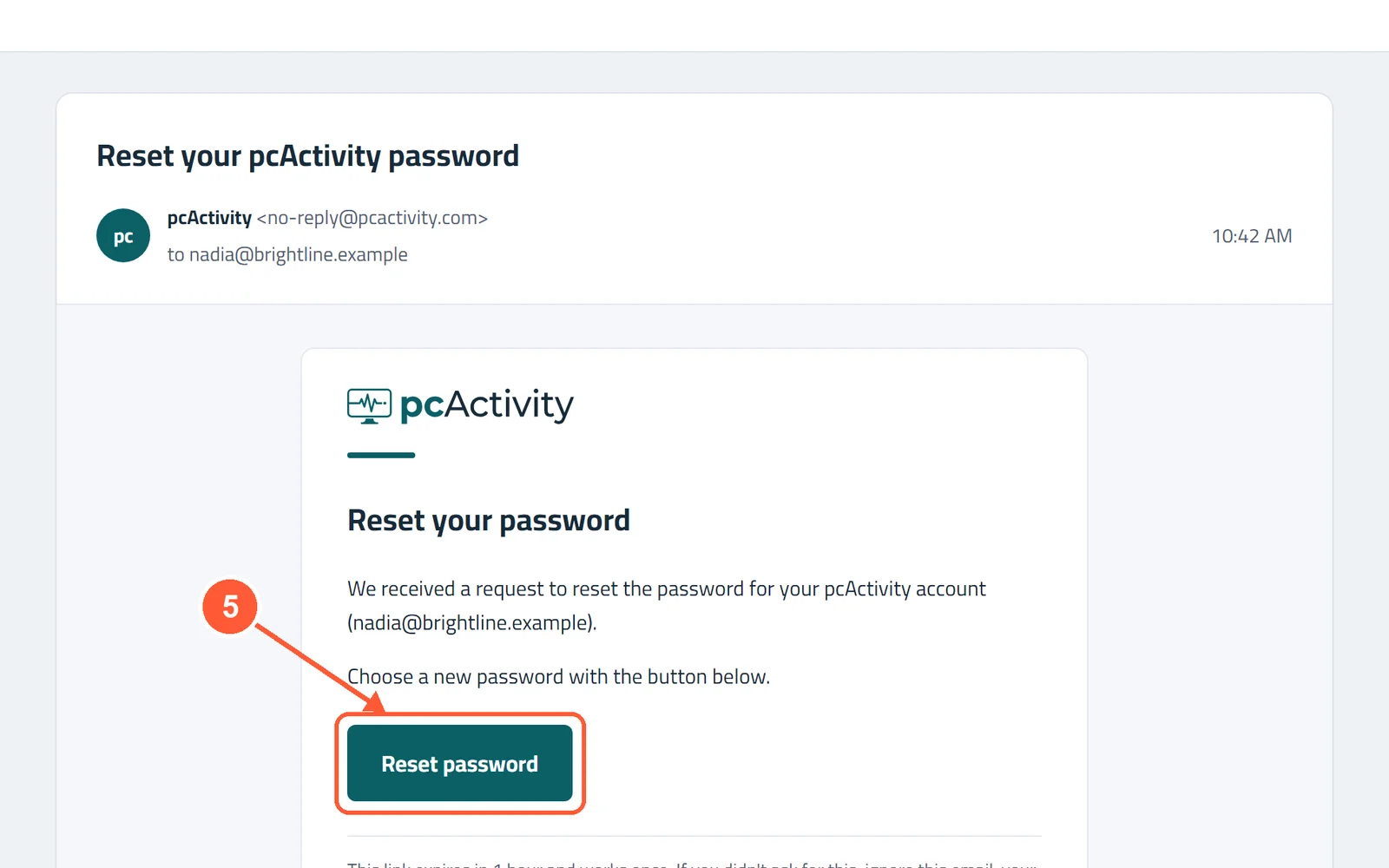
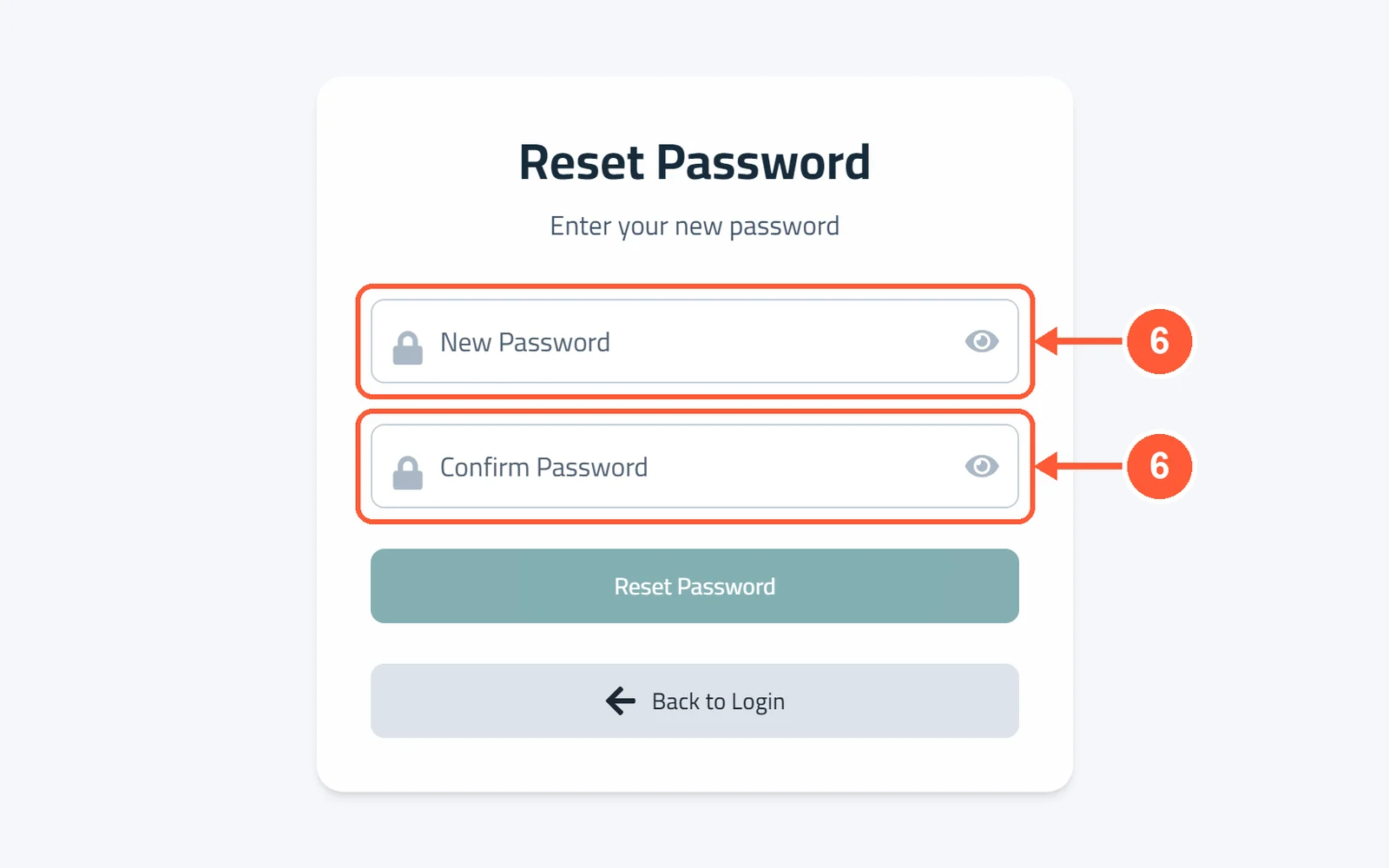
1Go to app.pcactivity.com and type your Email and Password.1 / 6